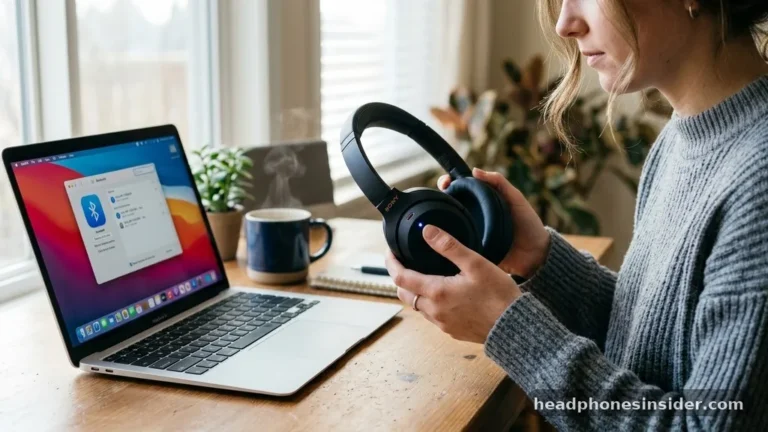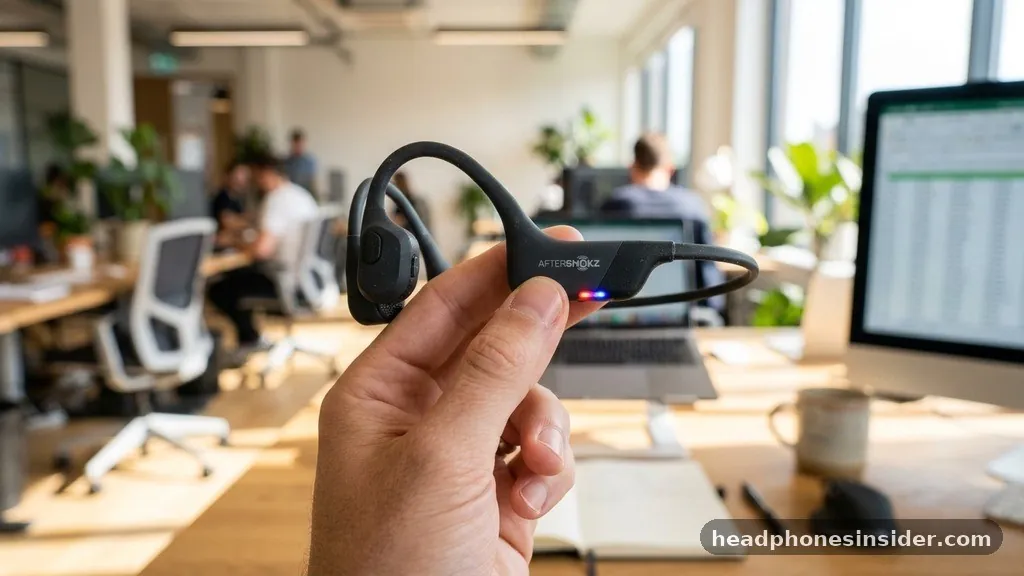
Mastering the process of how to pair Shokz headphones is the gateway to experiencing bone conduction audio technology without the frustration of connectivity issues. Whether you are using the latest OpenRun Pro series or the sleek OpenFit line, the wireless synchronization process is designed to be intuitive, yet it often requires a specific sequence of button presses to initiate the discovery phase. By understanding how to properly trigger the internal transmitter, you can ensure your headset connects seamlessly to your smartphone, laptop, or tablet every single time.
Entering Pairing Mode on Your Shokz Headset
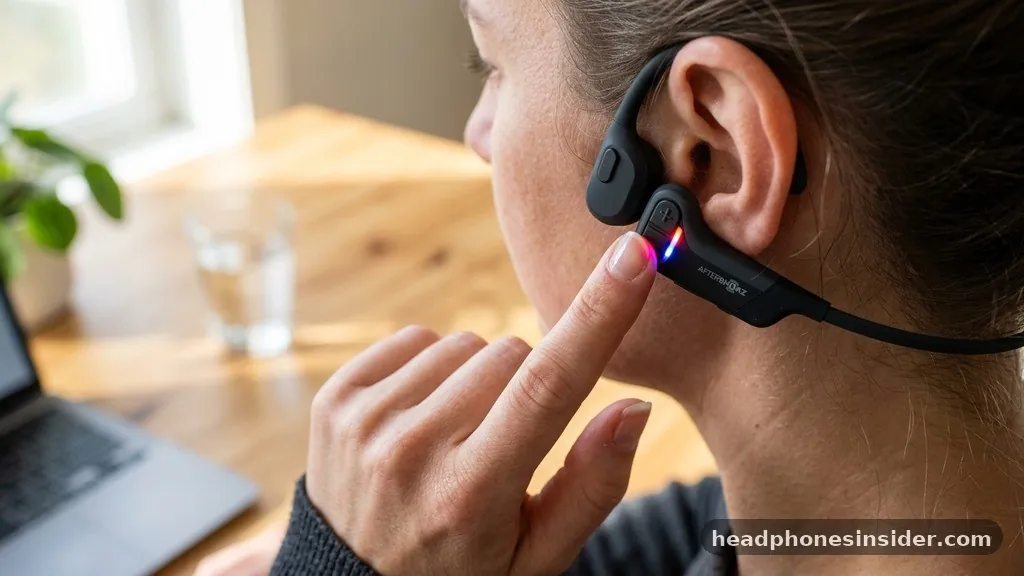
To successfully enter pairing mode, you must first ensure that the headset is powered off, then press and hold the volume+ button until the LED indicator flashes red and blue, signaling that the device is ready to be discovered by your phone or computer. This sequence is the most critical step in the entire synchronization process, as it forces the hardware to broadcast a signal that external devices can “see.”
Many users encounter difficulties because they attempt to pair the headset while it is still turned on or in standby mode. If your device is currently powered on, you must turn it off first by holding the volume+ button until the voice prompt, “Audrey Says, Power Off,” plays. Once the device is completely silent, you begin the process by pressing and holding the volume+ button for several seconds.
Do not release the button when you hear “Power On”; keep holding it until the LED light begins its characteristic alternating pattern. This visual confirmation is your cue that the hardware has successfully entered the discovery state and is waiting for a handshake from your host device.
Connecting to Smartphones and Tablets
Once your Shokz headphones are actively flashing red and blue, you need to navigate to the Bluetooth settings on your mobile device to establish the link. Open the settings menu on your iPhone or Android phone, ensure Bluetooth is toggled to the “On” position, and look at the available devices list. You should see your specific model name appear in the list under the “Other Devices” or “Available Devices” section.
Select the model name from the list to finalize the connection. Once the handshake is complete, the LED light on the headset will stop its alternating flash, and you will likely hear a confirmation prompt such as “Connected” through the earpieces.
It is worth noting that some newer models support multipoint pairing, which allows you to maintain an active link with two devices simultaneously. If you are struggling with a specific connection, navigate to the official Bluetooth troubleshooting guide provided by Apple to ensure your phone’s wireless radio is functioning correctly and not blocked by interference from other active peripherals.
Resolving Common Connectivity Failures
If your Shokz headphones are not connecting to your Bluetooth device, the issue is almost always related to an old pairing cache or an incomplete entry into the discovery mode. When a device refuses to connect, the most effective solution is to perform a hard reset. Start by turning off the headset entirely.
Once it is powered down, enter the pairing mode as usual, but keep holding the volume+ button even after the LED starts flashing red and blue. Continue to hold it for an additional five to ten seconds until you hear a chime or see the indicator light blink in a different pattern, which indicates that the internal memory has been cleared of previous device profiles.
After resetting, it is essential to “forget” or “remove” the old device entry from your smartphone’s Bluetooth settings list. If your phone still sees an old profile, it may try to initiate a connection using outdated handshake protocols, which will inevitably fail.
By clearing both the headset’s memory and the phone’s cache, you create a blank slate that allows for a clean, stable connection. This dual-sided approach is the standard procedure for fixing persistent wireless errors in modern audio hardware.
Pairing with Laptops and Desktop Computers
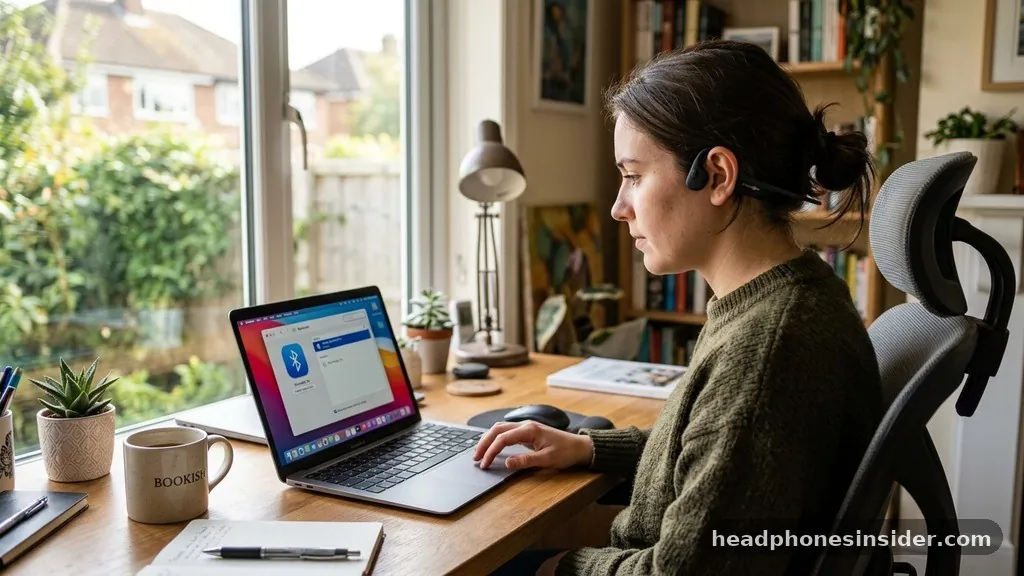
Connecting your Shokz headset to a computer requires a slightly different approach than mobile pairing, primarily due to the way Windows and macOS handle audio drivers. When you initiate pairing mode on your headset, open the Bluetooth or “Devices and Printers” menu on your computer.
If you are on a Windows machine, select “Add Bluetooth or other device,” then choose “Bluetooth” as the device type. Your computer will scan the immediate area for any active signals.
One common obstacle on desktop computers is the presence of outdated drivers or interference from other USB peripherals. If your computer fails to find the headset, ensure that you are not using a cheap, generic Bluetooth dongle that might lack support for the A2DP profile required for high-quality audio streaming.
If your computer detects the device but fails to play sound, go into your Sound Settings and ensure that the “Output Device” is set to your Shokz headset rather than the default monitor speakers or internal audio card. This is a frequent point of confusion for users who successfully pair the device but forget to route the audio signal to the correct hardware path.
Managing Multi-Device Connections
For power users who need to switch between a laptop for work calls and a phone for music, understanding how to manage multiple active connections is vital. Most modern Shokz models support multipoint, which is a feature that allows the headset to remain “connected” to two sources at once.
To activate this, you must first pair the headset with the first device, then disconnect it via that device’s menu, put the headset back into pairing mode, and connect to the second device. Once both are paired, you can reconnect the first device, and the headset will intelligently switch between them based on which device is currently outputting audio.
| Feature | Single Connection | Multipoint Connection |
|---|---|---|
| Primary Use | Dedicated audio stream | Switching between work/personal |
| Complexity | Low: Plug and play | Moderate: Manual setup required |
| Stability | High | Variable based on device priority |
The advantage of this setup is that you never have to manually re-pair when moving from your desk to your commute. However, keep in mind that the headset will always prioritize the device that initiated the audio stream first. If you are listening to music on your phone and a call comes in on your laptop, the headset should automatically pause the music and route the call audio, provided the multipoint integration is handled correctly by the operating systems involved.
Best Practices for Maintaining Signal Stability
Maintaining a stable connection between your Shokz headset and your source device is largely about managing physical and digital interference. Bluetooth operates on the 2.4GHz spectrum, which is the same frequency used by many Wi-Fi routers, microwaves, and even cordless phones. If you find your audio skipping or the connection dropping, try to move away from these sources of electromagnetic noise.
Furthermore, ensure that your headset’s firmware is updated via the official mobile application. The manufacturer frequently releases updates that optimize the Bluetooth stack, improving the reliability of the “handshake” process.
- Keep your source device within 30 feet of your headset for optimal signal strength.
- Avoid placing your phone in a thick metal case, which can act as a shield and block the Bluetooth signal.
- Regularly clear your Bluetooth cache on your phone to prevent data bloat.
- Turn off Bluetooth on devices you are not currently using to prevent them from “stealing” the connection.
- Charge your headset fully before attempting a firmware update, as a low battery can cause the update to hang.
By following these maintenance steps, you not only improve the longevity of your hardware but also ensure that you spend less time troubleshooting and more time enjoying the open-ear design that makes Shokz unique. Consistency in your pairing habits will make the process feel second nature over time, allowing you to focus entirely on your workout or professional tasks.
Frequently Asked Questions
Why do my Shokz headphones keep blinking red and blue?
The alternating red and blue LED light indicates that your headset is currently in pairing mode and is actively searching for a Bluetooth device. This happens when you hold the volume+ button for several seconds while the device is powered off, signaling it is ready to connect.
How do I reset my Shokz if they won’t pair?
To reset, turn off the headset, then hold the volume+ button for 10-15 seconds while entering pairing mode. Continue holding until the LED stops flashing or you hear a reset chime. This clears the memory of previously connected devices, allowing for a fresh, clean pairing attempt.
Can I pair my Shokz to two devices at the same time?
Yes, most recent Shokz models support multipoint pairing. You must pair the first device, disconnect it, put the headset back into pairing mode to connect the second device, and then reconnect the first. This allows the headset to switch audio streams between your phone and computer automatically.
Why won’t my computer find my Shokz in the list?
This is usually due to the headset not being in true pairing mode or a driver conflict. Ensure the LED is flashing red and blue, and check your computer’s Bluetooth settings to ensure it is set to “discoverable.” If it still fails, restart your computer’s Bluetooth adapter.
Understanding how to pair Shokz headphones effectively removes the technical barriers between you and your audio. By mastering the sequence of holding the volume button until the LED flashes red and blue, you take full control over your device’s connectivity.
Remember that a clean slate—achieved by clearing old profiles from both your headset and your phone—is the most reliable way to resolve any lingering issues. Whether you are connecting to a single smartphone or managing a complex multipoint setup with your laptop, these steps ensure a stable, high-quality audio experience.
As you continue to use your headset, keep an eye on firmware updates through the official app, as these small software refinements can significantly enhance your long-term connection stability. If you ever run into trouble, simply return to the reset process to clear any conflicting data. With these practices in place, your wireless audio setup will remain consistent and frustration-free, letting you enjoy the unique benefits of open-ear bone conduction technology whenever and wherever you need it.