

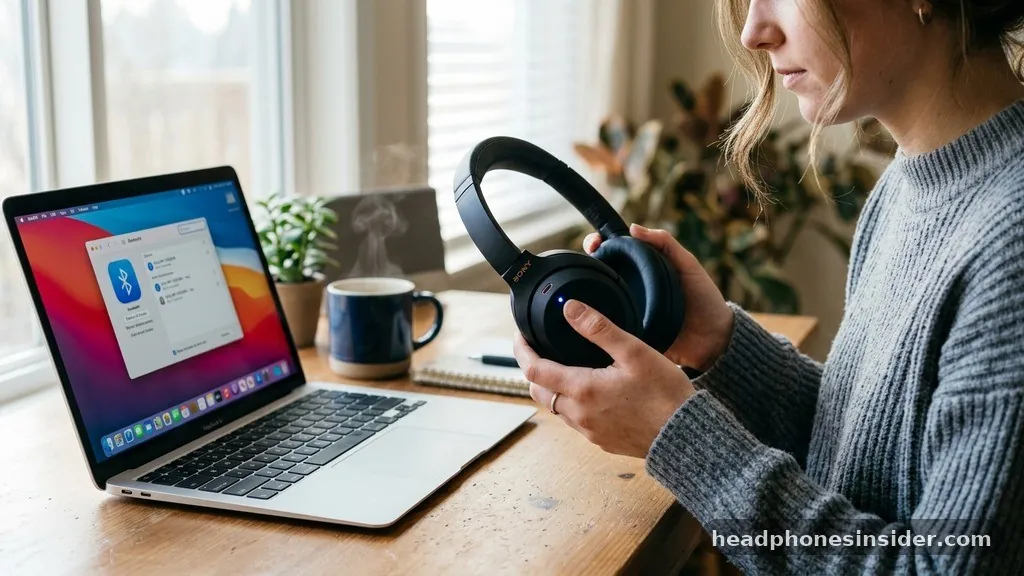
Connecting your high-fidelity audio gear to your computer shouldn’t be a source of frustration. Learning how to connect Sony headphones to Mac systems allows you to unlock the full potential of your wireless audio, whether you are using the industry-leading WH-1000XM series or the compact WF-1000XM earbuds.
While the process is generally straightforward, minor discrepancies in Bluetooth protocols or outdated firmware can occasionally create hurdles. By following a structured approach, you can ensure a stable, high-quality audio experience that integrates seamlessly with your macOS environment, providing you with the crisp sound quality Sony is famous for during conference calls, media consumption, or focused work sessions.
Understanding the Bluetooth Pairing Process for Sony Headphones
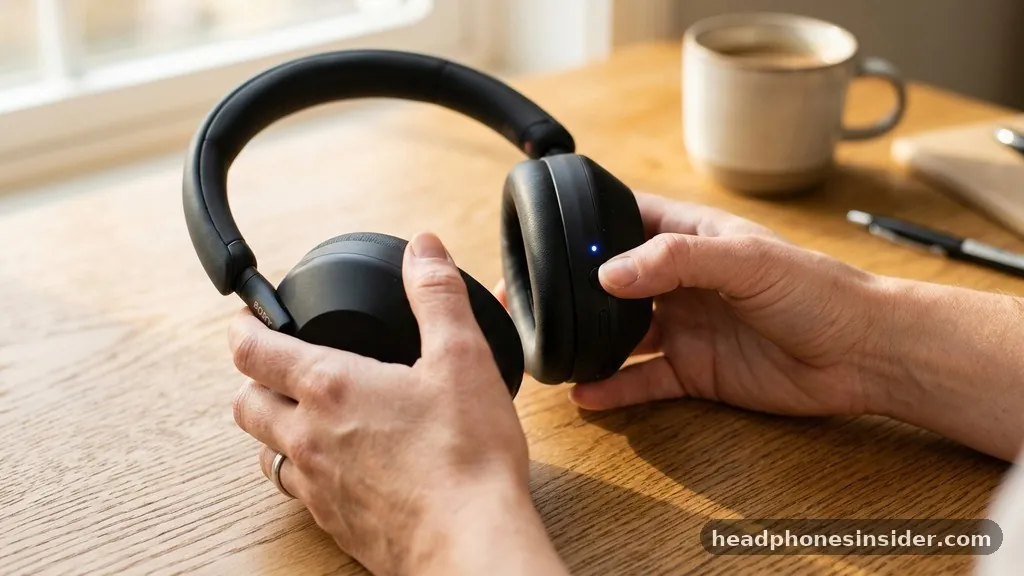
The foundational step in establishing a wireless link between your hardware involves triggering the specific pairing mode on your Sony device. Most modern Sony headphones are designed to be discoverable by a computer mac through a specific sequence of button presses.
When you put your headset into this state, it broadcasts a signal that the macOS Bluetooth controller can identify. If you have never linked these devices before, or if you are switching between a phone and a computer, understanding this initiation sequence is critical.
For most over-ear models, such as the WH-1000XM4 or XM5, this involves turning the unit off and then holding the power button for several seconds until the indicator light flashes blue. This visual cue confirms that the headset device is actively searching for a host. It is important to note that if the headset headset is already connected to your smartphone, it may prioritize that connection.
In such cases, you might need to temporarily disable Bluetooth on your phone to allow the Mac to claim the connection. Once the light blinks, the device is ready to be recognized as a new device by your operating system, effectively bridging the gap between your hardware and your software ecosystem.
Navigating macOS Bluetooth Settings to Pair Your Device
Once your headphones are broadcasting their signal, you must navigate the macOS interface to finalize the connection. Open the Apple menu, select System Settings, and click on the Bluetooth tab. In this screen, you will see a list of available devices that are currently in range and broadcasting.
If your headphones are in the correct mode, they will appear under the “Nearby Devices” or “Other Devices” list. Clicking “Connect” initiates the handshake between the computer mac and your audio gear.
During this stage, the Mac may request confirmation of a passkey or a connection prompt. This is a standard security measure to prevent unauthorized devices from hijacking your audio stream. Once the status changes to “Connected,” your Mac will treat the headphones as an external computer speaker output.
You can verify this by clicking the Sound icon in your menu bar and ensuring your Sony headphones are selected as the primary output device. If you encounter any issues, ensure that your macOS is updated to the latest version, as Apple frequently releases patches that improve compatibility with third-party Bluetooth peripherals and wireless audio standards.
Troubleshooting Common Connection Issues
Even with the best hardware, you might occasionally face a situation where the headset paired status refuses to stick, or the Mac fails to see the headphones entirely. A common culprit is a corrupted cache of pairing information.
If you have previously connected the headphones to other devices, the headset computer interaction might be confused by conflicting saved profiles. In these instances, it is often best to clear the information deleted from your Mac’s Bluetooth list by selecting “Forget This Device” and starting the process from scratch.
Another frequent problem involves the headphones remaining tethered to a previous paired device, such as a tablet or a smartphone. Sony’s multi-point connection technology is powerful, but it can sometimes struggle if it is trying to maintain a secondary link in the background. To resolve this, ensure you are not currently streaming audio from another source.
Additionally, check the operating instructions provided by the manufacturer. Some models have specific reset procedures that involve holding the power and custom buttons simultaneously for an extended period. This effectively initializes the hardware, clearing all previous pairing information and returning the device to its factory-fresh state, which usually clears up persistent synchronization errors.
Optimizing Audio Performance and Settings

After you have successfully established the connection, you may want to refine how your Mac handles the audio stream to ensure the highest fidelity possible. By default, macOS might use standard audio codecs that do not fully utilize the capabilities of your Sony hardware.
While macOS has limited support for advanced codecs like LDAC, you can still optimize the user experience through the Sony Headphones Connect app on your mobile device, which updates the headset device firmware. Firmware updates often contain critical fixes for latency and stability that improve how the unit performs when it is connected to a computer.
Furthermore, you can manage your input and output settings within the macOS Sound preference pane. If you are using your headphones for professional meetings, ensure that the input is set to the internal microphone of the headset rather than the Mac’s built-in microphone.
This ensures that you are utilizing the noise-canceling features of your Sony hardware for your voice output as well. If you notice a delay in audio synchronization while watching videos, try disconnecting and reconnecting the headphones, as this can force the Bluetooth protocol to renegotiate the connection with a lower latency profile.
Managing Multi-Point Connections and Switching
One of the most significant advantages of high-end Sony headphones is the ability to maintain a connection with two devices simultaneously. Learning how to manage this feature is essential for a seamless workflow. When your headset headset is configured for multi-point, it can switch between your phone for incoming calls and your Mac for music or video playback.
To enable this, you must first configure the feature via the mobile app. Once set up, the headset pairing process becomes much more fluid.
If you find that the device paired is not switching automatically, you may need to manually select the headphones in the Mac’s Bluetooth menu. This does not require putting the device back into pairing mode; it simply tells the Mac to request the active audio stream.
This capability effectively turns your headphones into a central hub for all your digital audio, reducing the need for constant re-pairing. Keeping your firmware updated is vital here, as Sony frequently refines the logic that governs how the headset device determines which device takes priority during multi-point operations.
Comparing Sony Headphone Models and Connectivity
Different Sony models have slightly different hardware interfaces, which can affect the step-by-step process of connecting. While the general Bluetooth standard remains the same, the physical buttons and light indicators vary.
For instance, the WF series earbuds require you to place them in the case and hold the touch sensors, whereas the WH series relies on physical buttons on the earcups. Refer to the table below for a quick breakdown of how these differences impact your setup.
| Series Type | Pairing Trigger | Visual Indicator |
|---|---|---|
| WH (Over-Ear) | Hold Power Button | Blue Flashing LED |
| WF (Earbuds) | Hold Touch Sensors in Case | Blinking LED on Case/Buds |
| CH (Entry-Level) | Hold Power/Pairing Button | Alternating Light Pattern |
Understanding these distinctions ensures that you are following the correct operating instructions for your specific model. Whether you are using a premium model or a more affordable variant, the core principle remains consistent: the headset computer link is a handshake between two Bluetooth-capable devices. If you are ever unsure about your specific model, you can consult the official Sony Support Portal to find the exact manual for your device.
Addressing Topical Gaps and Advanced Configuration
Beyond the basics, users often ask about why they might occasionally hear voice guidance prompts that sound distorted or why the connection drops in high-interference environments. Bluetooth operates on the 2.4GHz spectrum, which is the same frequency used by many Wi-Fi routers and other wireless peripherals.
If you are in an office with many other wireless devices, this can lead to signal degradation. To minimize this, keep your Mac and your headphones within a reasonable range and avoid placing obstacles between them.
Another advanced consideration is the “initialized” state. If you ever find that the headphones are completely unresponsive to your Mac, performing a factory reset is the final resort. This process, often referred to as initializing, wipes all current settings and restores the unit to its original out-of-the-box configuration.
After this is done, you will need to re-pair the device as if it were the first time. While this might seem like an inconvenience, it is often the most effective way to resolve deep-seated software glitches that prevent a stable connection. By understanding the underlying mechanics of how your hardware communicates, you can troubleshoot effectively and enjoy an uninterrupted audio experience.
Conclusion
Mastering the connection between your Sony headphones and a Mac is a skill that significantly enhances your daily digital experience. By following the correct steps to enter pairing mode, ensuring your Bluetooth settings are optimized, and knowing how to troubleshoot common issues like multi-point conflicts or firmware hurdles, you can maintain a robust and high-quality link. Remember that keeping your devices updated and understanding the specific requirements of your model are the best ways to prevent future connectivity headaches.
Should you encounter persistent issues, always start by clearing existing pairing information and ensuring your environment is free from heavy wireless interference. With these practices in place, you can focus on what truly matters: the exceptional sound quality and noise-canceling performance that your Sony gear provides. We encourage you to explore your headphone’s advanced settings in the dedicated app to further customize your audio profile, ensuring your setup is perfectly tailored to your personal preferences and professional needs.


