

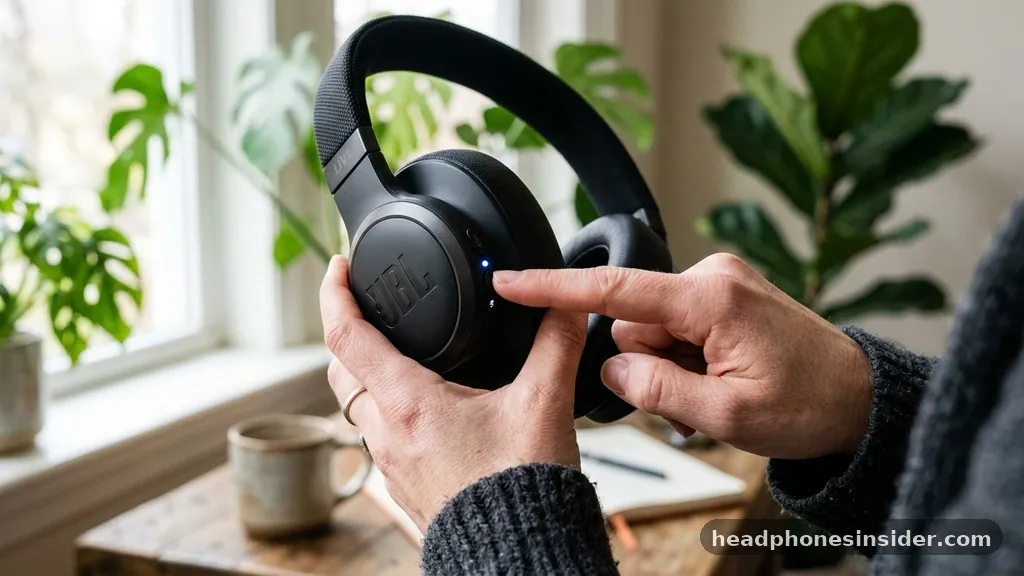
Establishing a wireless connection between your audio gear and your smartphone is a foundational step in enjoying a high-quality listening experience. Learning how to connect JBL headphones to iPhone is a straightforward process that relies on the standard Bluetooth protocol used by both Apple and the audio manufacturer.
Whether you are setting up a brand-new pair of noise-canceling headphones or reconnecting an older set for your daily commute, the steps remain largely consistent across the iOS ecosystem. By understanding the handshake between these two Bluetooth devices, you can ensure stable audio playback, clear calls, and seamless switching between your media sources.
Understanding the Bluetooth Pairing Process
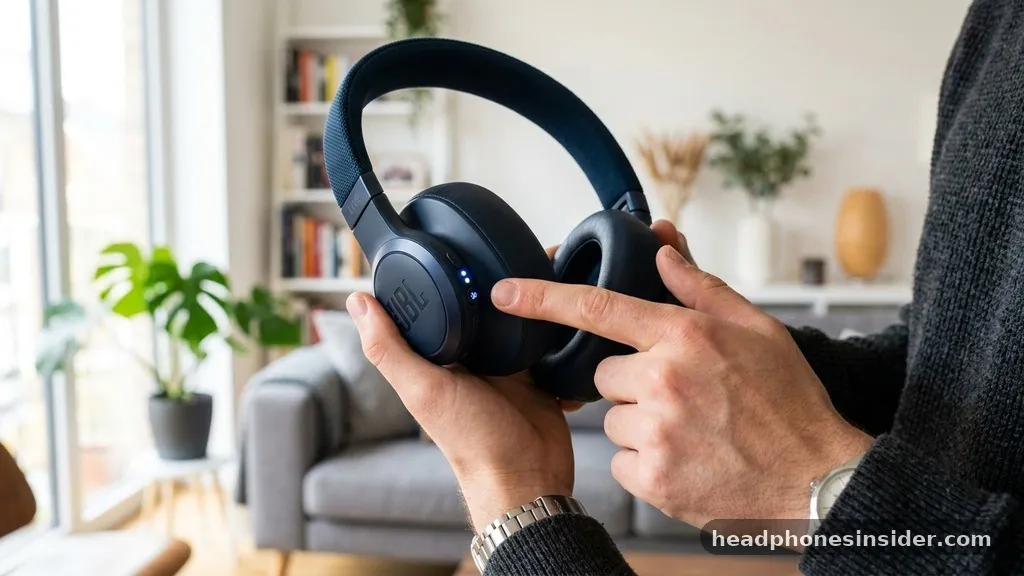
To put your JBL headphones in pairing mode, you must initiate a state where the headset broadcasts its signal to nearby devices. Most JBL models feature a dedicated button marked with the Bluetooth symbol.
When you hold this button down for several seconds, the headphones enter a discoverable state, often signaled by a flashing LED light—usually alternating between blue and white or blue and red. This physical interaction is the most critical part of the process because it tells the hardware to stop looking for previously connected devices and start searching for a new source.
Once the headphones are broadcasting, you must navigate to the Bluetooth settings on your iPhone. Accessing this menu is done by opening the Settings app, selecting the Bluetooth tab, and ensuring the toggle is turned on. Your phone will then begin scanning for any available hardware in its immediate vicinity.
It is important to wait a few moments during this scan, as the signal discovery process can sometimes take a few seconds to populate the list of devices. If your headphones are properly in pairing mode, their specific model name will appear under the “Other Devices” section of your screen. A simple tap on that name triggers the cryptographic handshake that pairs the two devices permanently until you choose to remove the association.
Step-by-Step Configuration for iOS Users
Following specific instructions ensures that you do not encounter common pitfalls during the setup phase. If you have misplaced your printed manual, the following sequence serves as a reliable digital reference. First, ensure your headphones are powered off.
Second, press and hold the power or Bluetooth button until the indicator light begins to pulse, indicating the device is ready to pair. Third, unlock your iPhone and navigate to your settings menu.
Once you see the model name appear in the list, select it. If the device asks for a PIN, it is almost always “0000,” though modern hardware rarely requires this manual entry.
It is helpful to consider the state of your environment during this process. Interference from other active signals or having too many bluetooth devices active in the same room can occasionally cause delays. If you find that the connection is not establishing on the first attempt, disable the Bluetooth toggle on your phone, wait five seconds, and turn it back on.
This refreshes the local cache and forces the phone to perform a clean sweep of the immediate radio frequency environment. By methodically following these steps pair logic, you minimize the chance of errors and maximize the stability of your connection.
Troubleshooting Common Connectivity Failures
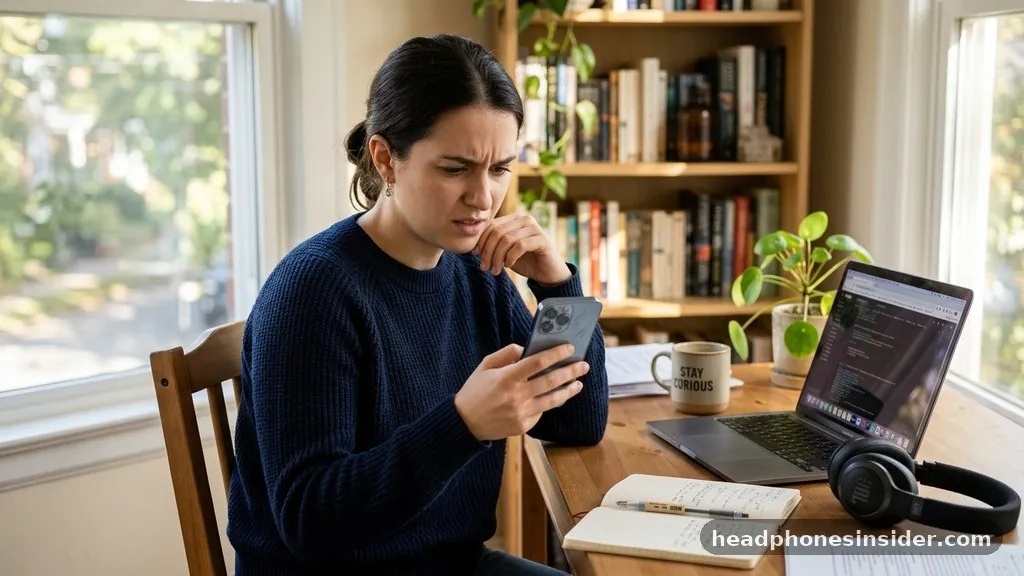
Even when you know how to connect JBL headphones to iPhone, you might occasionally encounter a situation where the devices refuse to communicate. When your headphones are not showing up in the discovered devices list, the first step is to verify that they are not already connected to another device, such as a laptop or an iPad. Bluetooth technology has a limitation where many consumer headsets can only maintain an active connection to one host at a time.
If your headphones are currently linked to your computer, they will not advertise their presence to your phone. Turn off Bluetooth on your other devices to isolate the connection request to your phone.
Another frequent issue involves outdated software or residual connection data. If you have previously connected the headphones but they are now failing to transmit music or audio, you should forget device from your iPhone‘s Bluetooth menu. This action clears the old handshake protocol, essentially giving the devices a fresh start.
You can find this option by tapping the small “i” icon next to the device name in your settings list. After removing the device, restart both your phone and your headphones, then begin the pairing process from scratch. This “soft reset” approach resolves the vast majority of connectivity hurdles, from stuttering audio to complete failure to sync.
Managing Multiple Audio Sources
Many users find themselves needing to toggle their headphones between different hardware, such as switching from a tablet to a phone. While some high-end JBL models support multipoint connectivity, which allows for simultaneous connections to two devices, most standard models require a manual switch.
Understanding the hierarchy of your devices is essential for a smooth user experience. When you want to move your audio from an iPad to your iPhone, you must first disconnect the current session.
The most efficient way to manage multiple sources is to keep the Bluetooth menu accessible on your control center. By swiping down from the top right corner of your screen, you can quickly access the connectivity module. If you have already paired your headphones to both devices previously, you can often simply tap the device name in the Bluetooth list on your phone to “pull” the connection away from the other device.
This is significantly faster than putting the headphones back into pairing mode every time. For more technical details on how these wireless protocols function, you can consult the official Bluetooth technology overview to see how modern standards are improving device switching.
Optimizing the Audio Experience
Once you have successfully linked your hardware, you may want to refine the audio profile to match your preferences. Most JBL headphones are compatible with the official JBL app, which provides an equalizer, firmware updates, and custom controls.
While the base connection is handled by the iOS system, the app provides a deeper level of customization that can significantly improve the quality of your music playback. Firmware updates are particularly important, as they often contain patches that address known bugs, improve battery life, and optimize the stability of the wireless link between the headphones and your iPhone.
It is also worth noting how environmental factors affect your sound. Because Bluetooth is a radio-based technology, physical obstructions like walls or heavy furniture can cause signal degradation. If you notice that your audio is dropping out while you are walking around your home, consider the distance between the source and the receiver.
Keeping your phone in a pocket or on a desk within a reasonable range—usually under 30 feet—will ensure the highest bitrate and the fewest interruptions. If you are experiencing constant interference, check if other high-frequency devices, such as microwave ovens or cordless phones, are operating nearby, as these can sometimes disrupt the 2.4GHz band used by Bluetooth.
Key Comparison of Pairing Methods
To understand the difference between various connection scenarios, it is helpful to look at how these actions differ based on the state of your hardware. The following table illustrates the common states you might encounter when managing your device connectivity.
| Scenario | Status | Action Required |
|---|---|---|
| First Time Setup | Not Paired | Enter pairing mode via button |
| Reconnecting | Previously Paired | Select device from Bluetooth list |
| Troubleshooting | Connection Error | Forget device and restart |
| Multi-Source | Active elsewhere | Disconnect primary and connect secondary |
Each of these scenarios requires a slightly different approach to achieve a successful connection. By identifying whether you are dealing with a new device or a recurring connection issue, you can save time and frustration. Always keep your iPhone updated to the latest iOS version, as Apple frequently updates its Bluetooth stack to ensure broader compatibility with third-party peripherals like JBL.
Conclusion and Practical Next Steps
Mastering the connection between your JBL headphones and your mobile device is a simple task that greatly enhances your daily digital experience. By following the steps outlined above—initiating pairing mode, navigating your Bluetooth settings, and troubleshooting potential signal interference—you can ensure that your audio is always ready when you need it. Remember that maintaining a clean connection involves periodic updates and, when necessary, clearing out old pairing data to prevent conflicts.
If you continue to face challenges, ensure that your headphones are fully charged, as low battery levels can sometimes cause the Bluetooth radio to behave erratically. For those who frequently switch between devices, consider upgrading to a model that supports multipoint technology to simplify your workflow.
We encourage you to test your connection in various environments to understand the range and stability of your specific hardware. Enjoy your high-quality audio experience and the freedom that wireless connectivity provides for your daily listening habits.


