

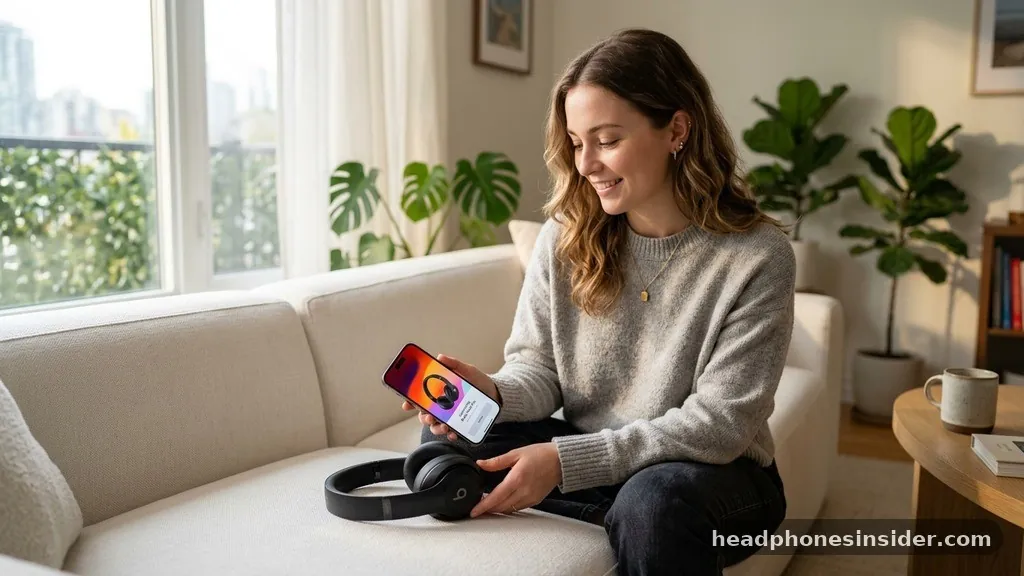
Connecting your audio gear shouldn’t feel like a technical chore. When you want to know how to connect Beats headphones to iPhone devices, you will find that Apple has streamlined the process significantly, thanks to the integration of the W1, H1, and H2 chips.
Whether you are using the latest Beats Studio Pro or a classic pair of Beats Solo, the synergy between these products is designed to be nearly instantaneous. By following a few simple steps, you can bridge the gap between your hardware and your mobile ecosystem, ensuring high-fidelity sound is always just a tap away.
The Fast Pair Method for Beats Headphones
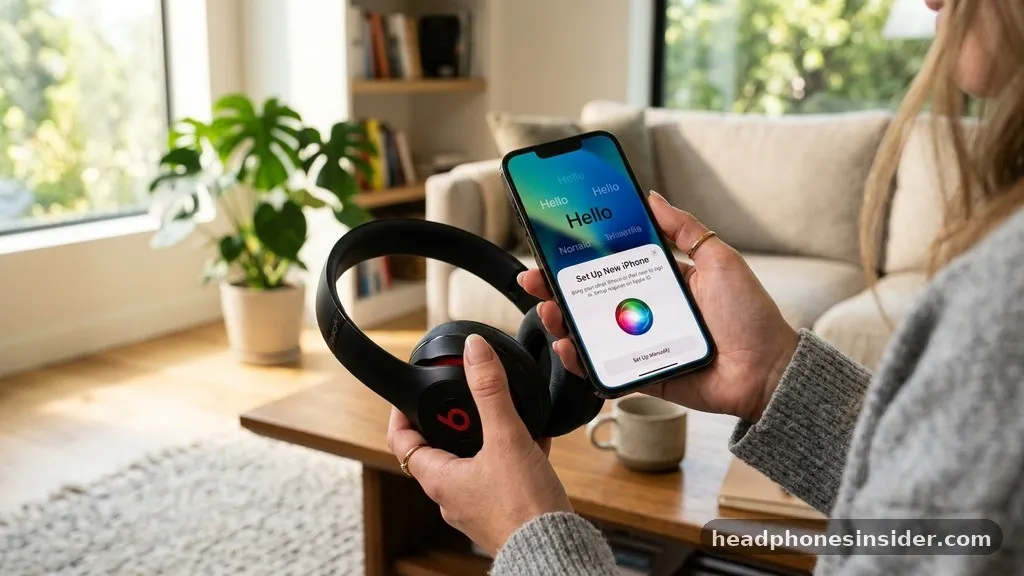
The fastest way to link your gear is by utilizing the automatic pairing feature built into the Apple ecosystem. To initiate this, hold your unlocked iPhone close to your Beats headphones while they are in pairing mode.
A setup animation will automatically appear on your screen, prompting you to tap “Connect.” This method is the gold standard for convenience because it automatically syncs your headphones with every device signed into your iCloud account.
If you have never paired your headphones before, this process is almost entirely hands-free. First, ensure your iPhone is running the latest version of iOS to avoid potential compatibility glitches. When you take your headphones out of the case or turn them on for the first time, they should enter pairing mode automatically.
If the animation does not appear, simply lock and unlock your phone while holding the device within a few inches of the headphones. This triggers the Bluetooth discovery protocol, allowing the iPhone to handshake with the Beats hardware. Once the connection is successful, you will see a battery status indicator, confirming that your device is ready to stream audio.
Manually Connecting via Bluetooth Settings
If the automatic animation fails to appear, you can manually bridge the connection through the standard iOS interface. Navigate to the Settings app on your iPhone and tap on Bluetooth. Ensure the Bluetooth toggle is switched to the “on” position.
While on this screen, look for your Beats headphones in the “Other Devices” list. If they are not visible, you must put the headphones into pairing mode manually. This is usually achieved by finding the power button or the specific system button on the device and holding it down until the LED light begins to flash, which indicates that the device is broadcasting a signal.
Once the light is pulsing, look back at your iPhone screen. Your Beats should appear under the list of available hardware. Simply tap the name of your headphones, and the status will change from “Not Connected” to “Connected.”
This manual approach is reliable and serves as a foolproof backup if your environment is congested with other Bluetooth signals. It is important to note that once you have manually established this link, the iPhone will remember the device for future use, meaning you won’t need to repeat this process every time you want to listen to music.
Troubleshooting Common Pairing Issues
Sometimes, technology does not cooperate as expected, and you might find that your headphones are not showing up on your iPhone. When this happens, the first thing to do is make sure your Beats are charged. A low battery can prevent the Bluetooth radio from broadcasting a strong enough signal to be discovered.
If the battery is sufficient, try toggling the Bluetooth on your iPhone off and back on again. This refreshes the local device list and often clears out temporary software hangups that prevent a clean connection.
Another effective tactic is to perform a reset on your headphones. For most models, this involves holding the power button and the volume down button simultaneously for about 10 seconds. You will see the indicator light flash, signaling that the device has cleared its previous pairing history.
After resetting, try the connection process from the beginning. Additionally, check for software updates.
Apple frequently releases firmware updates for Beats products to improve stability and connectivity. You can check for updates by visiting the official Apple Support portal to see if your specific model requires a manual firmware refresh or if it updates automatically through your iPhone.
Managing Multiple Apple Devices
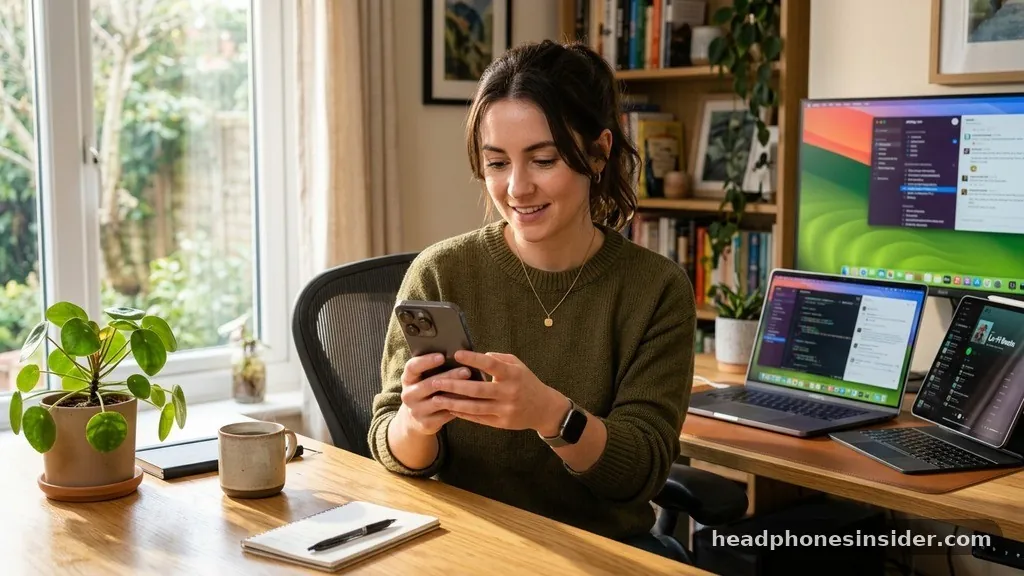
One of the greatest advantages of using Beats with an iPhone is the seamless transition across your other Apple hardware. Because your headphones are linked to your iCloud account, they automatically become available on your iPad, Mac, and Apple Watch.
You do not need to repeat the pairing process for every single device. When you switch from listening to music on your iPhone to watching a video on your Mac, the audio output should shift automatically if you have configured the settings correctly in your Control Center.
To manage these connections, you can use the AirPlay icon found in the Control Center or the music player interface. By tapping this icon, you can select your Beats headphones from a list of available outputs.
If you find that the audio is jumping between devices unexpectedly, you can manually lock the connection to your iPhone by going into the Bluetooth settings, tapping the “i” icon next to your Beats, and adjusting the “Connect to This iPhone” setting to “When Last Connected to This iPhone.” This prevents the headphones from automatically hijacking the audio stream whenever you unlock a different device in your vicinity.
Differences Between Beats Models
Not all Beats hardware functions exactly the same way, as the technology has evolved over the years. Understanding the specific controls for your model is essential for a smooth experience.
For example, the Beats Flex uses a physical power button on the side of the control module, while the newer Beats Studio Buds use a button located inside the charging case. Knowing where the buttons are located is half the battle when trying to trigger pairing mode.
| Headphone Model | Pairing Trigger | LED Indicator Behavior |
|---|---|---|
| Beats Solo 3 | Hold power button for 5s | Flashing white light |
| Beats Studio Buds | Hold button on case | Flashing white light |
| Powerbeats Pro | Hold button in case | Flashing white light |
| Beats Flex | Hold power button | Flashing blue light |
As shown in the table above, the method for initiating a search varies by hardware design. While the software experience on the iPhone remains consistent, the physical interaction required to “make sure” the headphones are discoverable is model-specific.
Always consult the quick-start guide that came with your specific pair if you are struggling to find the pairing button. Newer, high-end models like the Beats Studio Pro often feature a multi-function button that handles power, noise cancellation modes, and Bluetooth discovery, whereas older models rely on simpler, dedicated buttons.
Optimizing Audio Settings on iPhone
Once you have successfully connected your headphones, you can further enhance your listening experience by tweaking the settings within iOS. Navigate to the Bluetooth menu and tap the “i” icon next to your connected Beats.
Here, you can customize the name of your device, toggle noise cancellation settings (if your model supports it), and adjust the button controls. For instance, you can configure what a long press on the side button does, such as toggling between Active Noise Cancellation and Transparency mode.
Furthermore, you can utilize the Accessibility settings to fine-tune the sound profile. Within the “Audio/Visual” section of Accessibility, you can enable “Headphone Accommodations.” This feature allows you to boost quiet sounds or tune the audio for vocal range, effectively creating a custom EQ profile that stays active whenever your Beats are connected.
This level of customization ensures that your audio experience is tailored to your specific hearing preferences. Leveraging these deep-system settings is what truly differentiates the experience of using Beats with an iPhone versus using them with a generic Bluetooth transmitter or an Android device.
Addressing Topical Gaps and Common Questions
Many users often wonder why their Beats headphones might show up in the Bluetooth list but refuse to connect. This is frequently due to a “stuck” connection where the headphones are still trying to communicate with a previous device, such as a laptop or an old tablet.
To fix this, turn off the Bluetooth on your other nearby devices to ensure the headphones are not being pulled away by a stronger signal. Additionally, ensure that your iPhone is not currently connected to another audio output, such as a smart speaker or a car’s Bluetooth system, which could be creating a conflict in the audio routing.
Another common point of confusion is the “Find My” integration. If you are having trouble locating your headphones, ensure that you have enabled the “Find My” network in your iCloud settings. While not all older Beats models support precision finding, the newer H1 and H2-equipped models integrate deeply with the Apple Find My network, allowing you to see their last known location on a map.
If you are unable to see your Beats in the Find My app, it is likely that the firmware is outdated or the device has been disconnected from your Apple ID entirely. In such cases, removing the device from your Bluetooth list and re-pairing it from scratch is the most effective way to re-register it with your account.
Conclusion
Mastering the connection between your Beats headphones and your iPhone is a straightforward process once you understand the underlying mechanisms of Apple’s ecosystem. By leveraging the automatic pairing animation, utilizing the manual Bluetooth settings when necessary, and keeping your firmware updated, you ensure a high-quality, reliable audio experience. Whether you are adjusting your noise cancellation preferences or managing multiple devices through your iCloud account, the synergy between these products is designed to work in your favor.
Should you encounter any persistent issues, remember that a simple reset and a check of your Bluetooth settings are usually enough to resolve most connectivity hurdles. As you continue to use your headphones, exploring the deeper audio customization options within the iOS Accessibility menu will allow you to get the absolute most out of your hardware.
We hope this guide has provided the clarity needed to keep your music playing without interruption. Feel free to experiment with these settings to find the perfect audio balance for your daily routine.


