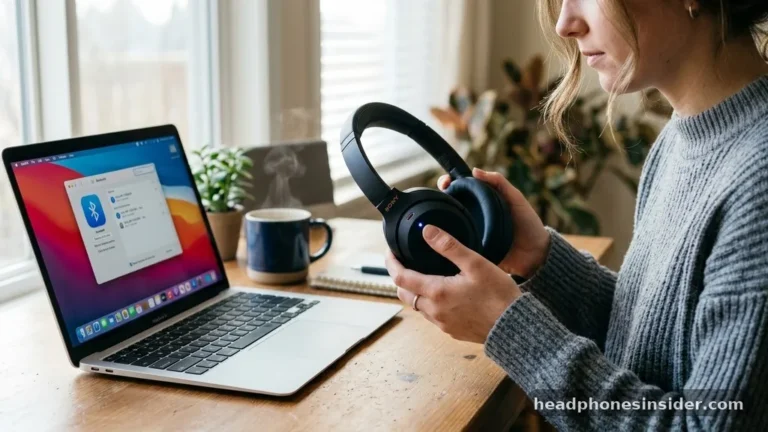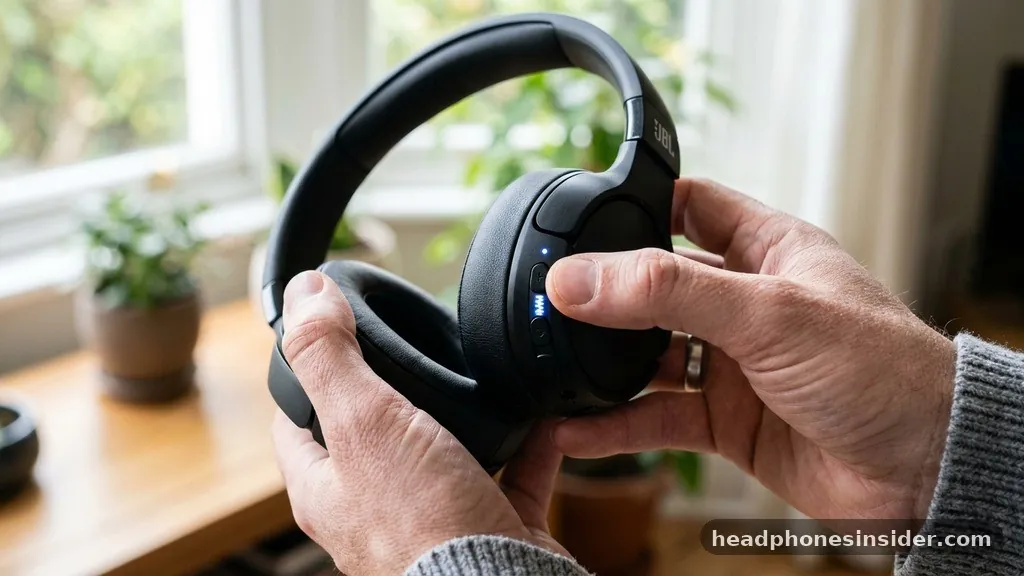
Getting your wireless audio setup running shouldn’t feel like a chore, but learning how to connect JBL headphones correctly is essential for achieving the best sound quality and connection stability. Whether you are using a new pair of JBL Tune earbuds or a premium set of JBL Live over-ear cans, the fundamental process relies on the handshake between your source device and the headphones. By understanding the nuances of the pairing process, you can avoid common pitfalls like signal interference or pairing timeouts that often frustrate new users.
Initiating Bluetooth Pairing Mode on JBL Headphones
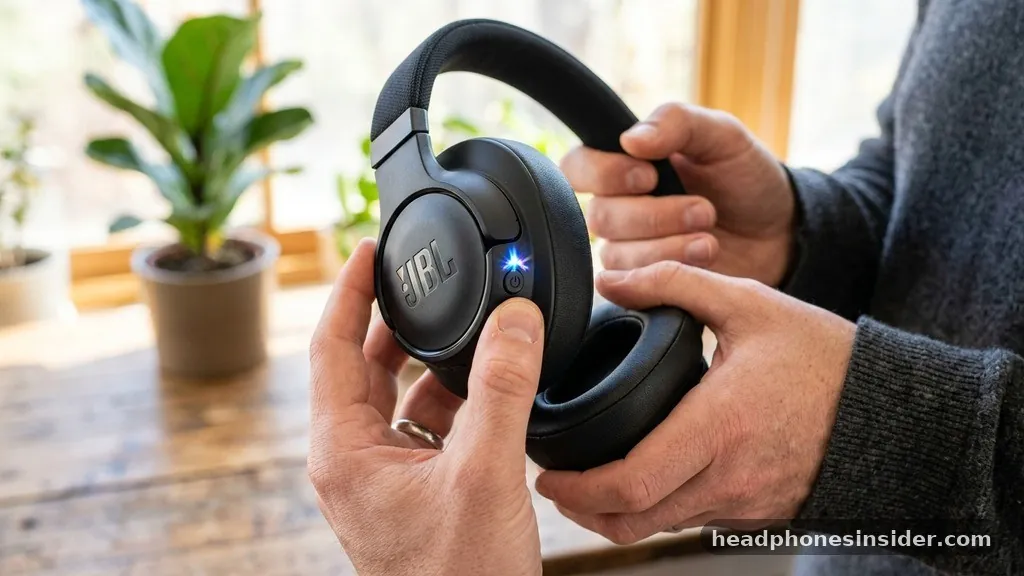
To initiate Bluetooth pairing mode on your JBL headphones, you must first ensure they are powered off and then press and hold the power or Bluetooth button until the LED indicator begins flashing, signaling that the device is in discovery mode. This simple action tells the headphones to broadcast a signal that your phone, tablet, or computer can detect. For most models, the LED indicator will blink in a distinct pattern—often alternating between blue and white or flashing rapidly—which confirms the device is actively seeking a new connection.
If your headphones are already on, they might automatically attempt to reconnect to the last paired device. If you want to connect to a new source device, you need to force them into discovery mode. On many JBL models, this is achieved by holding the dedicated Bluetooth button for three to five seconds.
If your specific model lacks a dedicated button, the power button usually serves this function. Once the light starts flashing, the headphones are ready for the next phase: smartphone pairing or laptop Bluetooth configuration. It is important to note that if you wait too long without selecting the device on your phone, the headphones may exit pairing mode to conserve battery, which is a common cause of initial connection failures.
Connecting to Smartphones and Tablets
Connecting your headphones to a smartphone or tablet involves navigating to your device settings and selecting the JBL model from the available list of Bluetooth devices. Once your headphones are in discovery mode, open the Bluetooth menu on your mobile device.
Your phone will scan for nearby signals; look for the specific model name of your headphones to appear in the list of “Available Devices.” Tapping this name will trigger the pairing request.
Modern JBL hardware often supports quick-pair features, which may prompt a pop-up window on your screen as soon as the headphones enter discovery mode. This is a seamless way to handle the handshake without manually digging through menus. Once connected, your smartphone will manage the audio output settings automatically.
If you have multiple devices nearby, ensure that the Bluetooth on your other devices is turned off to prevent the headphones from accidentally grabbing the wrong connection. This ensures a stable link between the source device and your audio gear, minimizing the risk of dropouts during playback.
Utilizing the JBL Headphones App for Enhanced Control
The JBL Headphones app is a powerful tool that simplifies how to connect JBL headphones and provides deep customization for your audio experience. By installing the app, you gain access to features like custom EQ profiles, noise-canceling adjustments, and, most importantly, firmware update management. Firmware updates are critical because they often contain patches for connectivity troubleshooting, which can resolve bugs related to wireless protocols or signal stability.
When you open the app, it will automatically attempt to detect your headphones. If you have already paired the headphones via your phone’s system settings, the app should recognize them immediately. Within the interface, you can manage multipoint connection settings—allowing you to switch between two devices simultaneously—and check the battery status of each earbud.
Using the app also allows you to toggle voice assistants and customize touch controls, which transforms the headphones from a basic playback device into a highly personalized piece of technology. For a comprehensive overview of how these standards work, you can review the official Bluetooth technology documentation to understand how modern wireless protocols improve connection efficiency.
Troubleshooting Common Connection Issues
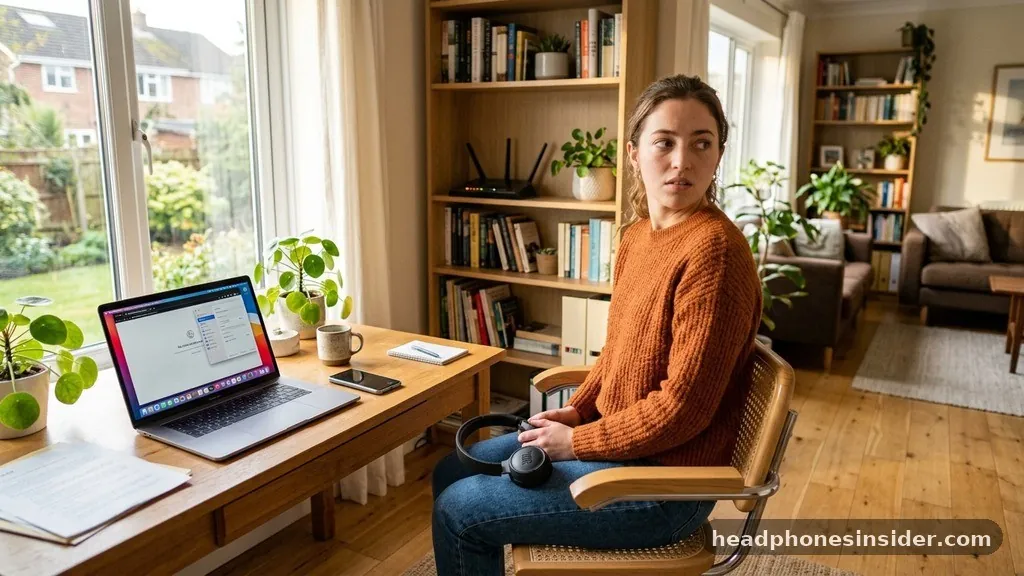
When you encounter problems, the first step in connectivity troubleshooting is to rule out basic signal interference or a pairing timeout. Often, the issue isn’t with the hardware itself but with the environment.
Bluetooth operates on the 2.4GHz frequency, which is shared by Wi-Fi routers, microwaves, and other smart home devices. If you are struggling to maintain a link, try moving away from heavy Wi-Fi traffic or other active wireless signals.
If the connection continues to drop or fails to initiate, a factory reset is often the most effective solution. To perform a factory reset, follow the specific instructions for your series—JBL Tune, JBL Live, or JBL Reflect—as these processes can vary. Typically, this involves holding the volume up and down buttons simultaneously while the device is powered on.
This clears the memory of previously paired devices and forces the hardware to return to its original factory state. After the reset, forget the device in your phone’s Bluetooth menu and restart the pairing process from scratch. This clears out corrupted cache files that might be preventing a successful handshake.
Managing Multipoint Connections
Multipoint connection is a standout feature for users who frequently switch between a laptop and a smartphone. This allows your JBL headphones to stay connected to two devices simultaneously, so you can watch a video on your computer and answer a call on your phone without manually disconnecting and reconnecting. To enable this, you must first pair the headphones to both devices individually.
Once paired, the headphones will intelligently handle the audio source. If a call comes in on your smartphone while you are listening to music on your laptop, the headphones will prioritize the phone call. After the call ends, the audio stream from the laptop typically resumes.
If your specific model is not switching as expected, check the JBL Headphones app to ensure that the multipoint feature is toggled to the “on” position. Some older models or entry-level versions may not support this feature, so it is worth checking the device compatibility list on the official JBL support pages if you are struggling to get this to work.
Comparing Connection Methods
Different environments and devices require different approaches to ensure the best performance. The following table highlights the differences between connecting to various devices and the expected results.
| Source Device | Primary Method | Common Latency | Stability Factors |
|---|---|---|---|
| Smartphone (iOS/Android) | Bluetooth Menu / App | Low (Optimized) | High (Constant proximity) |
| Laptop (Windows/Mac) | System Bluetooth Settings | Variable | Drivers and Interference |
| Smart TV | TV Bluetooth Menu | High (Potential lag) | Distance from Source |
When working with a laptop, always ensure your audio drivers are up to date. Windows and macOS occasionally struggle with outdated Bluetooth stacks, which can lead to poor audio quality or intermittent disconnects. If you are using your headphones with a desktop PC, ensure that your Bluetooth antenna is properly positioned, as internal case shielding can significantly reduce the wireless range.
Best Practices for Wireless Audio Maintenance
To maintain the longevity and performance of your gear, treat the connection process with care. Avoid leaving your headphones in pairing mode for extended periods, as this can drain the battery unnecessarily and cause the pairing timeout to trigger repeatedly. Always store your headphones in their case when not in use to protect the internal components from dust and debris, which can impact the signal strength of the antenna.
* Keep your firmware updated via the mobile application.
* Avoid pairing in areas with high electromagnetic interference.
* Regularly clean the charging contacts to ensure consistent power delivery.
* Forget old device profiles in your Bluetooth menu if you no longer use them.
* Disable Bluetooth on devices you aren’t currently using to prevent “connection hijacking.”
By following these habits, you ensure that your wireless audio experience remains crisp and reliable. If you ever notice a degradation in sound quality, it is usually a sign that the signal is being compressed or that there is too much traffic on the Bluetooth frequency. Simply toggling Bluetooth off and on again on your source device is often enough to reset the data stream and restore optimal fidelity.
Conclusion
Mastering the connection process for your JBL headphones is the first step toward enjoying a premium, wire-free audio experience. By focusing on the proper use of discovery mode, keeping your firmware updated through the dedicated mobile app, and proactively managing your multipoint settings, you can eliminate most of the frustrations associated with wireless devices. Connectivity troubleshooting is rarely complex once you understand the role of the LED indicator and the importance of clearing old pairing data.
As you continue to use your headphones, remember that environmental factors like signal interference play a significant role in overall performance. If you ever find that your audio is stuttering or the connection feels unstable, take a moment to check your surroundings and ensure your device drivers are current.
We hope this guide has provided the clarity needed to keep your devices synced perfectly. If you have specific questions about your model, feel free to reach out to the official support channels for model-specific documentation.
Frequently Asked Questions
How do I put my JBL headphones into pairing mode?
To enter pairing mode, ensure the headphones are powered off. Press and hold the power or dedicated Bluetooth button for 3 to 5 seconds. The LED indicator will begin flashing, usually in a blue or white pattern, indicating that the device is discoverable by your source device.
Why won’t my JBL headphones show up in my Bluetooth list?
If your headphones aren’t appearing, ensure they are in pairing mode and not already connected to another device. Turn off Bluetooth on nearby devices to prevent auto-reconnection. If they still don’t appear, perform a factory reset and ensure your phone’s Bluetooth menu is actively scanning for new hardware.
What should I do if my JBL headphones have a connection delay?
Connection delay or wireless latency can often be solved by updating the firmware through the JBL Headphones app. If the issue persists, move closer to your audio source to ensure a strong wireless signal and verify that no other high-traffic wireless devices are interfering with the connection stability.
Can I connect my JBL headphones to two devices at once?
Yes, many JBL models support multipoint connection. Once paired with two devices, the headphones can switch between them automatically. Ensure this feature is enabled in the JBL Headphones app settings. If your model does not support this, you will need to manually disconnect from one device to connect to another.