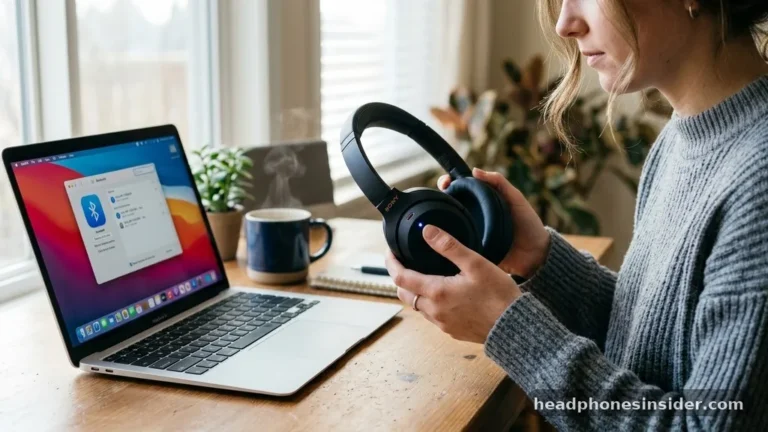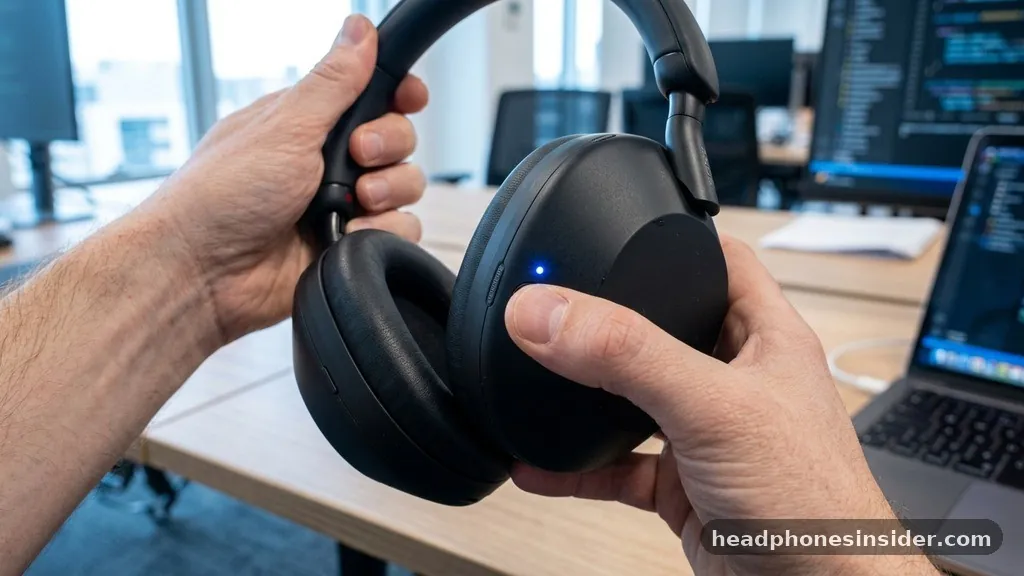
Learning how to connect Skullcandy headphones is a straightforward process, yet it often leaves users frustrated when the initial handshake between their audio gear and their hardware fails. Whether you are rocking a pair of high-fidelity Crusher headphones or the latest compact earbuds, the fundamental principles of Bluetooth communication remain consistent.
To ensure a seamless audio experience, you must navigate the pairing mode, manage your device settings, and occasionally troubleshoot common wireless interference issues. By mastering these steps, you can transition from unboxing your product to enjoying high-quality sound in just a few moments.
Entering Pairing Mode on Skullcandy Hardware
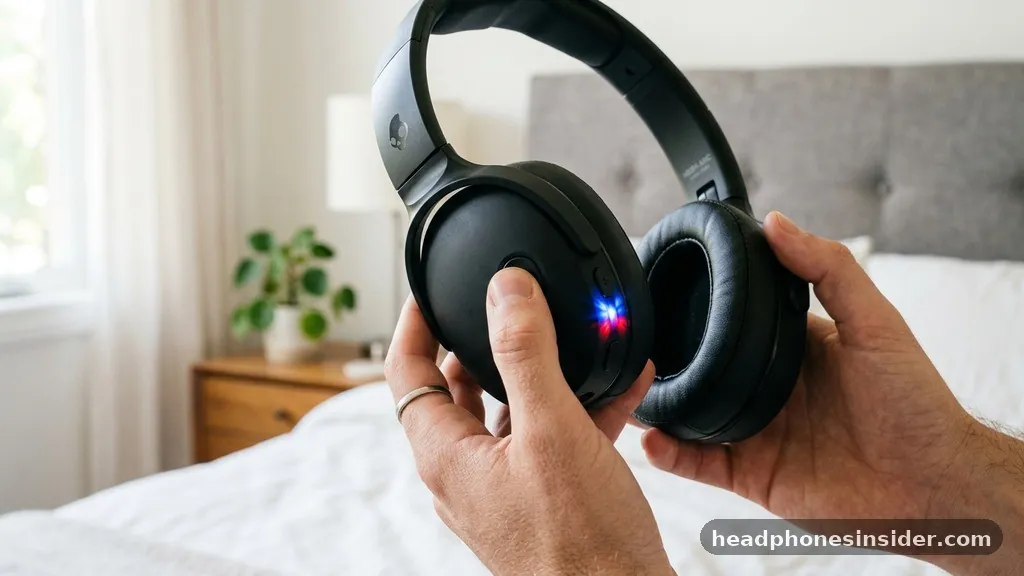
To enter pairing mode on most Skullcandy headphones, you must power the device off completely, then press and hold the main power or multi-function button for approximately five to ten seconds until the LED light begins to flash in a alternating pattern. This specific action triggers the internal Bluetooth controller to broadcast its identity to nearby receivers, allowing your phone, laptop, or tablet to discover the hardware. It is vital to note that if you simply turn the headphones on without holding the button through the initial power-up phase, the device will likely just reconnect to the last paired source rather than seeking a new connection.
When you are attempting this, keep an eye on the visual indicator. Most models utilize a red and blue flashing light to signify that they are actively searching for a connection. If the light remains a solid color or blinks slowly in a single color, the device is likely in standby mode or already connected to another piece of equipment.
You should ensure that your other nearby devices—such as a tablet or a second phone—have their Bluetooth radios turned off during this process. This prevents the headphones from “hijacking” a previous connection before you have the chance to pair them with your intended primary device.
Managing Connections via System Settings
Once your hardware is actively broadcasting, navigate to the Bluetooth settings on your mobile device or computer to initiate the connection. On an iPhone or Android phone, open the Settings menu and select the Bluetooth sub-menu. Here, you will see a list of available devices; your Skullcandy product should appear under a name that matches its model, such as “Skullcandy Crusher” or “Skullcandy Indy.”
Simply tap the name to initiate the handshake. Once the connection is successful, you will often hear a voice prompt through the drivers confirming that the device is “connected” or “paired.”
If the device does not appear in your list, toggle your device’s Bluetooth off and back on again to refresh the discovery cache. Sometimes, the operating system requires a moment to poll the surrounding environment for new signals. If you are using a laptop, ensure that your drivers are updated, especially if you are running an older version of Windows or macOS.
For more information on maintaining stable wireless standards, you can visit the official Bluetooth technology portal to understand how modern wireless protocols improve signal reliability. Maintaining a clear line of sight between your phone and your audio gear during this initial handshake can also prevent packet loss and synchronization errors.
Leveraging the Skullcandy App for Enhanced Control
The Skullcandy app serves as a vital bridge between your hardware and your mobile experience, offering advanced features that go beyond basic pairing. While you can connect your headphones using only the standard Bluetooth menu, installing the application allows you to customize EQ settings, adjust ANC (Active Noise Cancellation) levels, and receive critical firmware updates. Firmware updates are particularly important because they often include patches that resolve connectivity bugs or improve the stability of the wireless link between your phone and the headphones.
Upon opening the app, it will automatically scan for your registered product. If you have already performed the manual pairing steps through your phone’s settings, the app should recognize the device immediately. From there, you can rename your headphones, which is incredibly useful if you own multiple pairs of Skullcandy gear.
Furthermore, the app provides a guided walkthrough for specific features like “Personal Sound,” which calibrates the audio output based on your unique hearing profile. By integrating the app into your workflow, you ensure that your device is always running the most efficient code, which directly correlates to a more reliable connection and better battery management.
Troubleshooting Common Connection Failures
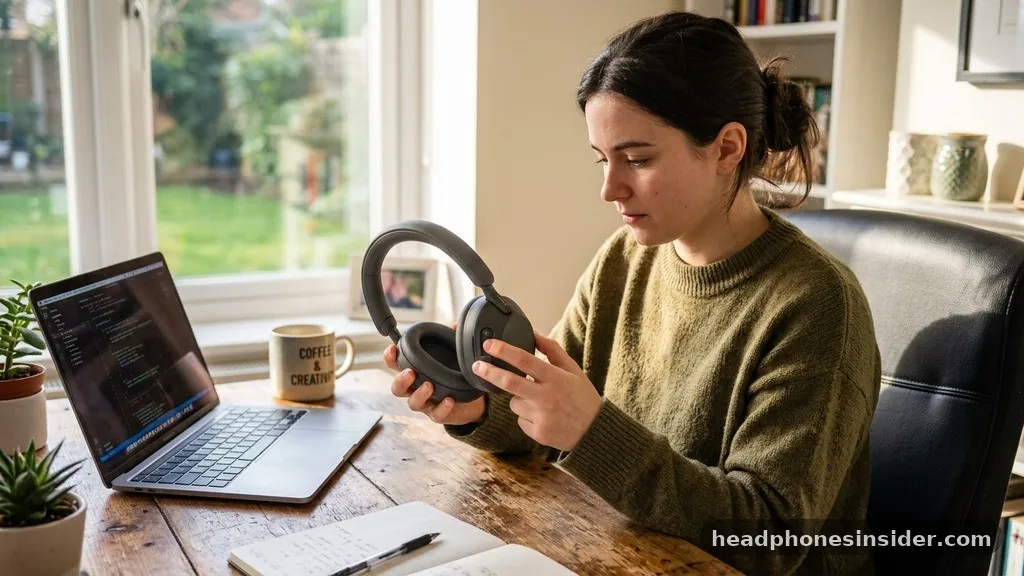
If you find that your headphones refuse to pair or frequently drop the connection, the most effective solution is to perform a factory reset. This clears the internal memory of the headphones, effectively wiping all previously paired devices and restoring the unit to its out-of-the-box state. To do this, ensure the headphones are on, then press and hold both the volume up and volume down buttons simultaneously for about five to ten seconds.
You will see the LED indicator flash, signaling that the reset is complete. After this, simply turn them off and repeat the standard pairing process as if the device were brand new.
Another common issue involves multipoint pairing, where the headphones attempt to balance connections between two devices simultaneously. While this is a highly convenient feature, it can sometimes cause the audio to stutter or the connection to drop if the two devices are fighting for control. If you encounter this, turn off Bluetooth on the secondary device to isolate the issue.
Additionally, ensure that your headphones are sufficiently charged. A low battery state can often lead to weakened Bluetooth signal strength, resulting in intermittent connections or an inability to complete the pairing handshake. Always make sure your charging cable is secure and the LED indicator shows a steady light, indicating the unit has enough power to sustain a stable wireless link.
Understanding Multipoint Pairing Dynamics
Multipoint pairing allows your Skullcandy headphones to stay connected to two devices at once, such as a laptop for video calls and a phone for incoming notifications. When a call comes in on your phone, the headphones should automatically switch audio streams.
However, if this functionality fails, you may need to manually disconnect one device through its own settings menu. This is a common point of confusion for users who expect seamless switching but haven’t properly configured the priority settings within the Skullcandy app or the host operating systems.
Handling Audio Latency and Signal Interference
Audio latency, or the delay between a visual action and the corresponding sound, is a common hurdle with wireless gear. This is often caused by physical obstructions or interference from other 2.4GHz devices like Wi-Fi routers or microwaves. To mitigate this, keep your phone close to your headphones.
If you are experiencing persistent lag, try “forgetting” the device in your phone’s Bluetooth settings and re-pairing it from scratch. This clears any corrupted temporary files that might be causing synchronization errors during the transmission of audio data.
Comparing Connection Methods Across Platforms
The way you connect your hardware can vary slightly depending on the operating system you are using. While the core “press and hold” mechanism for pairing mode remains consistent, the user interface for managing these connections differs between platforms. The following table provides a quick reference for managing your connections across different environments.
| Platform | Primary Connection Method | Key Consideration |
|---|---|---|
| iOS (iPhone/iPad) | Settings > Bluetooth > Select Device | Use Control Center for quick toggles |
| Android | Settings > Connected Devices > Pair New | Fast Pair support on newer models |
| Windows PC | Settings > Bluetooth & Devices > Add Device | Check for updated Bluetooth drivers |
| macOS | System Settings > Bluetooth > Connect | Ensure device isn’t paired elsewhere |
Each platform has its own quirks. For instance, Android devices often support “Fast Pair,” which creates a pop-up window on your screen as soon as your headphones enter pairing mode, significantly reducing the number of steps required.
Conversely, desktop operating systems like Windows 10 or 11 might require you to select “Audio” specifically when adding the device to ensure the microphone and speaker profiles are both correctly mapped. Always take the time to verify that your computer has recognized both the input and output profiles of your headset, especially if you plan to use them for professional calls or gaming.
Optimizing the Wireless Experience
Beyond just the initial connection, optimizing your wireless environment is key to long-term satisfaction. Bluetooth is a short-range technology, and while modern versions are robust, they are not immune to environmental factors. Avoid keeping your phone in a thick metal case or a bag that might block the signal.
If you are using your headphones in a crowded area with many other wireless signals, you might notice occasional drops. This is simply the nature of the 2.4GHz spectrum. By keeping your firmware updated through the app and ensuring your devices are “clean” of old, unused pairings, you create a more stable environment for your hardware to operate.
Remember that the voice prompt on your headphones is your best friend during the setup phase. It tells you exactly what the device is doing—whether it is in pairing mode, has successfully connected, or is running low on power. If you ever feel lost, listen closely to what the prompt says.
If it says “pairing,” you know you have successfully triggered the broadcast mode. If it says “powering off,” you know your timing was slightly off and you need to try the button sequence again. Consistency is the secret to mastering the connection process.
The process of connecting your Skullcandy headphones is a fundamental skill that significantly enhances your daily media consumption. By understanding how to properly initiate pairing mode, utilizing the dedicated mobile application for firmware and feature management, and knowing how to troubleshoot common interference or synchronization issues, you can ensure a high-quality audio experience every time you put your gear on. Always prioritize keeping your software updated and clearing out old, redundant Bluetooth pairings to keep your connection path clear.
If you continue to experience difficulty, do not hesitate to perform a full factory reset to clear out any lingering software bugs. With the right approach to device management, your wireless audio will remain stable, clear, and ready to use whenever you need it.
Should you find that your specific model requires unique button combinations, always refer back to the physical manual or the digital resources available on the official website. Happy listening as you enjoy the freedom of your wireless setup.
Frequently Asked Questions
Why won’t my Skullcandy headphones enter pairing mode?
If your headphones won’t enter pairing mode, they might still be connected to a previous device. Turn off Bluetooth on nearby phones or tablets. If that fails, ensure the headphones are powered off completely before holding the button for the required duration until the light flashes.
How do I reset my Skullcandy headphones?
To reset most models, turn the headphones on and hold both the volume up and volume down buttons simultaneously for five to ten seconds. The LED will flash, indicating the device has been wiped of previous pairings and is ready to be set up as a new device.
Can I connect my Skullcandy headphones to two devices at once?
Yes, many modern Skullcandy models support multipoint pairing. Once paired to the first device, put the headphones back into pairing mode to connect to the second. Note that you may need to manage which device has audio priority through the app or by adjusting your system settings.
Do I need the Skullcandy app to use my headphones?
You do not need the app for basic audio playback or phone calls, as standard Bluetooth pairing works fine. However, the app is highly recommended for accessing firmware updates, EQ customization, and advanced features like Personal Sound, which significantly improve the overall performance and stability of your product.