

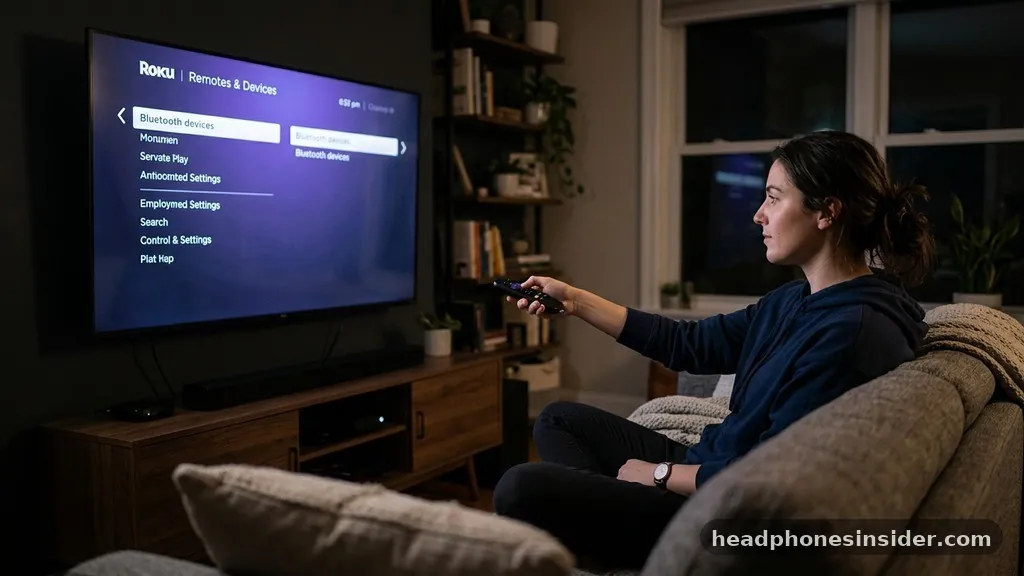
Many users find themselves wondering, can you connect bluetooth headphones to roku tv systems to enjoy late-night movies without disturbing others? The short answer is yes, but the method depends entirely on your specific hardware and software setup.
While some newer models integrate Bluetooth directly into the television interface, others rely on the ecosystem of the official mobile application to bridge the gap between your hardware and your audio output. Understanding how these systems interact is key to a seamless streaming experience.
Native Bluetooth Support in Roku Televisions
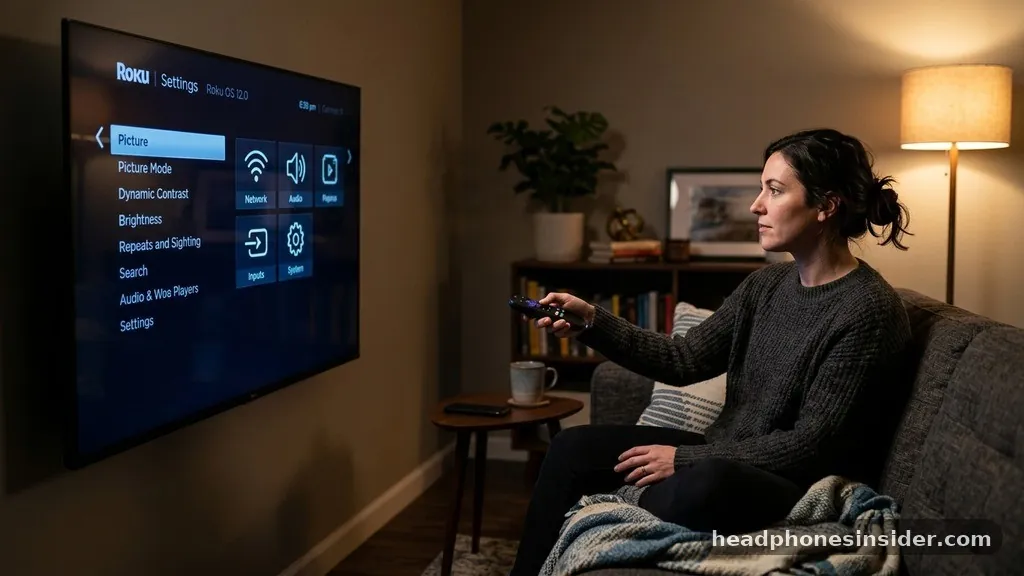
The most straightforward way to determine if you can connect bluetooth headphones to roku tv hardware directly is to check for native support within your specific model’s settings menu. In recent years, Roku has expanded its product line to include premium models that feature built-in Bluetooth connectivity, allowing users to pair devices without needing a secondary smartphone or tablet.
To check for this feature, you must first navigate to the home screen using your Roku remote. Use the navigation buttons to scroll select the Settings menu. From here, look for a Remotes & Devices option.
If your specific television supports direct pairing, you will see a Bluetooth devices menu. By selecting this, the television will begin searching for nearby devices.
Ensure your headphones are in pairing mode, then select them from the list on your screen. Once the connection is established, the television will route audio output through your wireless gear, providing a high-quality, low-latency listening experience that is perfect for immersive cinema or gaming sessions.
It is important to note that this functionality is hardware-dependent. Many entry-level televisions and older streaming sticks do not contain the necessary internal radio hardware to communicate directly with third-party audio gear. If the Bluetooth devices option is absent from your settings menu, your television likely lacks native support, and you will need to utilize the mobile app method instead.
Using the Roku Mobile App for Private Listening
If your television lacks direct hardware support, you can still leverage the power of the Roku mobile app to facilitate a wireless connection. This feature, known as Headphone Mode, effectively turns your smartphone or tablet into a pass-through device for your television audio. This method works by streaming the audio signal from your streaming device to your smartphone, which then outputs the sound to your connected Bluetooth headphones.
To begin, download the official application from your device’s app store and ensure your smartphone is connected to the same Wi-Fi network as your television. Open the app, and you will see a list of connected devices. Select your television, and look for the remote icon at the bottom of the screen.
Once the virtual remote interface appears, you will see a headphone icon. Tapping this icon activates private listening.
When you activate this mode, the television will automatically mute its internal speakers, and the audio will begin playing through your phone. Because your phone is connected to your headphones via Bluetooth, you effectively create a wireless bridge. This setup is highly versatile because it allows you to use virtually any pair of headphones, regardless of whether the television itself is technically compatible with Bluetooth audio.
Hardware Compatibility and Device Limitations
When evaluating whether you can connect bluetooth headphones to roku tv models, it is essential to consider the limitations of your specific equipment. Not all devices are created equal, and the performance of your audio stream can be influenced by several external factors. The following table provides a quick comparison of the two primary connection methods available to users.
| Feature | Native Bluetooth | Mobile App (Private Listening) |
|---|---|---|
| Hardware Requirement | Compatible Roku TV/Streambar | Any Roku Device |
| Audio Latency | Typically Low | Variable (Network Dependent) |
| Setup Complexity | Medium | Low |
| Battery Drain | None on phone | High on phone |
The primary limitation of the mobile app method is that it relies heavily on your local wireless network stability. If your Wi-Fi signal is weak or congested, you may experience audio desynchronization, where the sound lags behind the visual action on the screen.
To mitigate this, ensure that both your television and your mobile device have a strong, stable connection to your router. Using a 5GHz network band often provides better results for real-time audio streaming compared to the more congested 2.4GHz band.
Troubleshooting Common Connection Issues
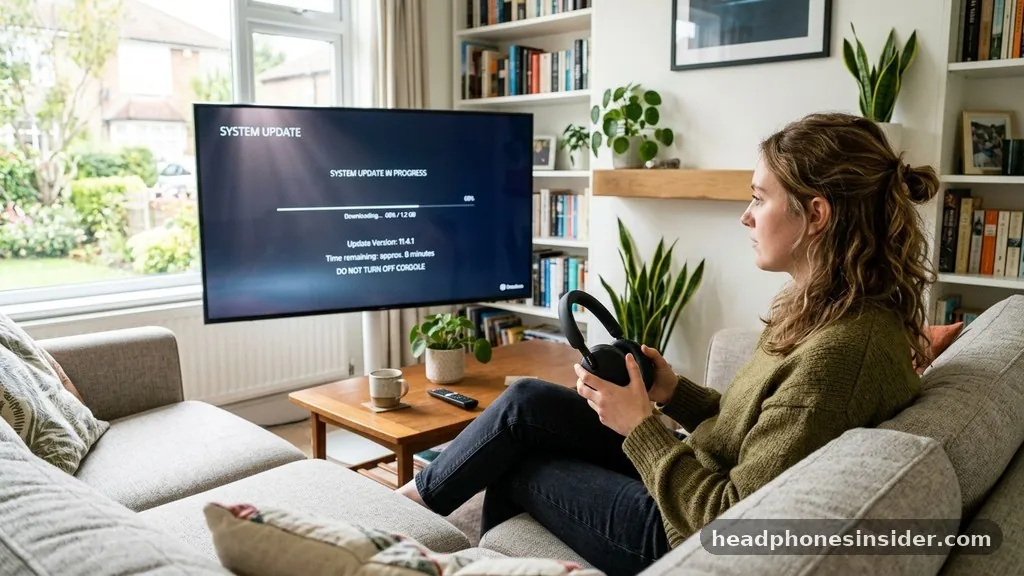
Even when you have confirmed that you can connect bluetooth headphones to roku tv systems, you may occasionally run into technical hurdles. Troubleshooting is a standard part of the process, especially when dealing with wireless protocols that can be sensitive to interference. If your devices refuse to pair or the audio is cutting out, follow these systematic steps to resolve the issue.
- Restart your television by unplugging it from the power source for 60 seconds.
- Ensure your headphones are not currently connected to another device, such as a laptop or phone.
- Update your television firmware to the latest version via the System Update menu.
- Forget the device in the Bluetooth settings and attempt to pair it again from scratch.
- Check for physical obstructions between the streaming device and your wireless hardware.
- Toggle the Private Listening mode off and back on within the mobile app.
If you are using the mobile app and experience audio lag, try closing other background applications on your smartphone. Memory-intensive tasks can sometimes interfere with the app’s ability to process the audio stream in real-time. Furthermore, if you are using a Roku Streambar, ensure that the soundbar itself is updated, as these devices often receive specific patches to improve Bluetooth stability and audio synchronization.
Expanding Your Setup with External Audio Hardware
For power users who find that built-in solutions do not meet their standards for audio fidelity or range, external hardware solutions are available. You can connect a dedicated Bluetooth transmitter to the optical or analog output of your television. This allows you to bypass the internal software entirely and use high-end audiophile headphones that might not interact well with standard mobile app protocols.
A high-quality Bluetooth transmitter acts as a bridge, converting the raw audio output from your television into a Bluetooth signal. This is a particularly effective solution for those using older hardware that lacks any form of modern connectivity. By using a transmitter, you gain the benefit of dedicated hardware designed specifically for low-latency audio, which is crucial for preventing the dreaded lip-sync issues that plague many wireless setups.
When selecting a transmitter, look for models that support modern codecs such as aptX Low Latency. This technology significantly reduces the delay between the video signal and the audio output. You can find more information about how these audio standards work by visiting the official Bluetooth technology website, which details the advancements in wireless audio transmission.
Addressing Topical Gaps and Advanced Configurations
A common question that often goes unanswered is whether you can connect multiple sets of headphones at once. While the mobile app typically supports only one active listener per session, some newer television models with native Bluetooth support may allow for multiple pairings depending on the specific firmware version. Always check the official support documentation for your specific model to see if multi-point audio is a supported feature.
Another frequent concern is the volume control integration. When using the mobile app, your phone’s volume buttons will control the output level of the headphones. However, when using native Bluetooth, the television’s remote controls the volume directly.
It is important to remember that if you have your television volume set very low, the signal sent to your headphones might be weak, resulting in poor audio quality. Always keep the television volume at a moderate level when using headphones to ensure a clean, strong signal is being transmitted.
Finally, remember that the environment plays a significant role in connectivity. Bluetooth operates in the same frequency spectrum as many home Wi-Fi networks and household appliances.
If you live in a dense apartment complex with many competing signals, you might experience occasional interference. Positioning your streaming device in an open area, away from large metal objects or other electronic equipment, can significantly improve the reliability of your wireless audio connection.
Summary and Final Thoughts
Determining if you can connect bluetooth headphones to roku tv systems is the first step toward a more personalized and immersive viewing experience. Whether you are fortunate enough to have a model with native Bluetooth support or you rely on the convenience of the mobile app’s Private Listening feature, the process is designed to be accessible for all users. By following the steps outlined in this guide, you can ensure that your audio remains crisp, synchronized, and private, allowing you to enjoy your favorite content exactly how you want to hear it.
As technology continues to evolve, we can expect even better integration between television interfaces and personal audio devices. For now, take the time to explore your specific television’s settings and experiment with the mobile application to find the configuration that works best for your home setup.
Should you encounter any persistent issues, the official support resources are always available to help you navigate specific hardware quirks. We hope this guide has clarified your options and helped you get your wireless audio up and running smoothly.
Frequently Asked Questions
Can I connect multiple pairs of Bluetooth headphones to my Roku TV at the same time?
Currently, most Roku devices and the mobile app support only one pair of headphones at a time. While some advanced Bluetooth transmitters allow for dual-pairing, the native television settings and the standard mobile app interface are generally limited to a single active audio output connection.
Why is there a delay between the video and the audio in my headphones?
Audio latency is often caused by network congestion or the processing time required to encode and decode the Bluetooth signal. If using the mobile app, ensure your phone and TV are on a 5GHz Wi-Fi band. If using native Bluetooth, try restarting the device to clear background processes.
Do I need an internet connection to use the Roku mobile app for headphones?
Yes, the mobile app requires your smartphone and your television to be on the same local network. While you do not need an active internet connection to stream local content, the devices must be able to communicate with each other over your home Wi-Fi to establish the audio bridge.
Will any brand of Bluetooth headphones work with my Roku device?
Most standard Bluetooth headphones are compatible with the Roku system. As long as your headphones can be put into pairing mode and utilize standard Bluetooth protocols, they should be discoverable by your television or mobile device without major issues, regardless of the brand or model.


