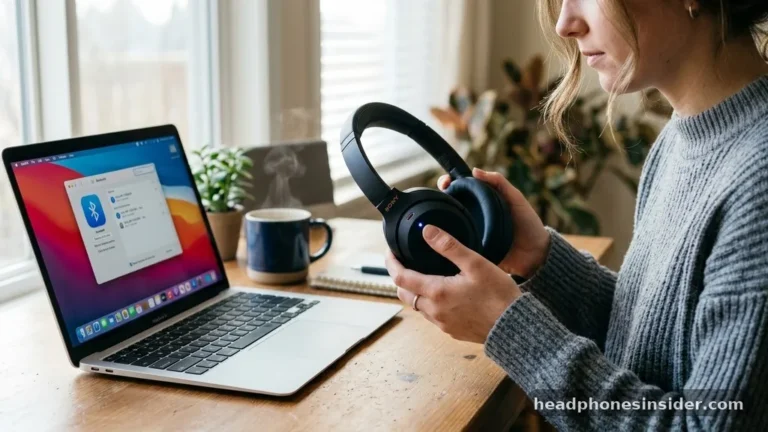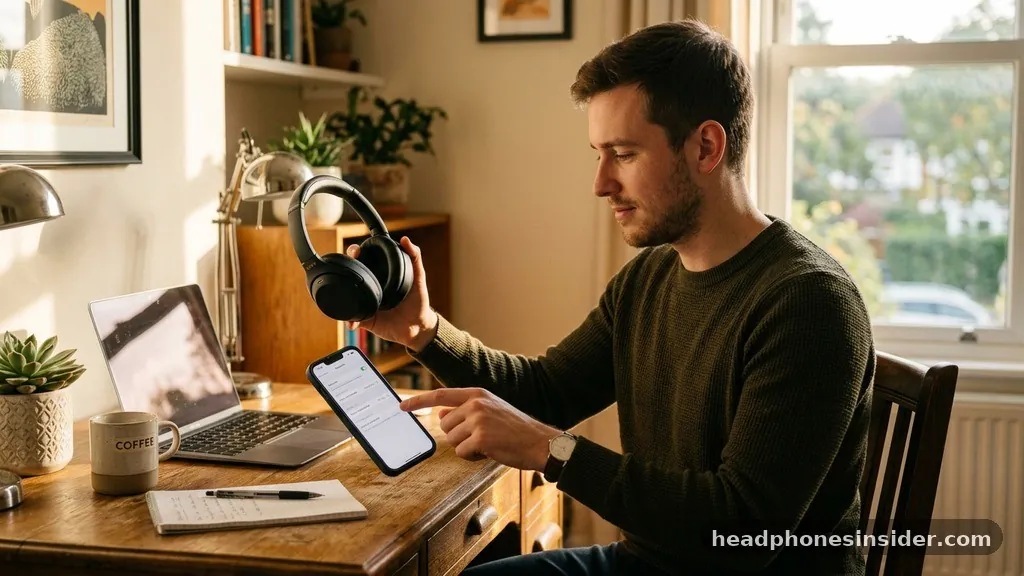
Learning how to connect Bluetooth headphones is a fundamental skill in the modern digital age, allowing you to cut the cord and enjoy wireless freedom with your favorite audio content. Whether you are using a smartphone, a tablet, or a desktop computer, the process relies on the standardized Bluetooth protocol, which facilitates communication between two wireless units.
While the interface may vary slightly depending on your operating system, the underlying mechanics remain consistent: your audio gear must enter a specific state to be found, and your host device must scan for and authorize that connection. By mastering these steps, you eliminate the frustration of tangled wires and ensure a seamless listening experience across all your personal tech.
Understanding the Bluetooth Pairing Process
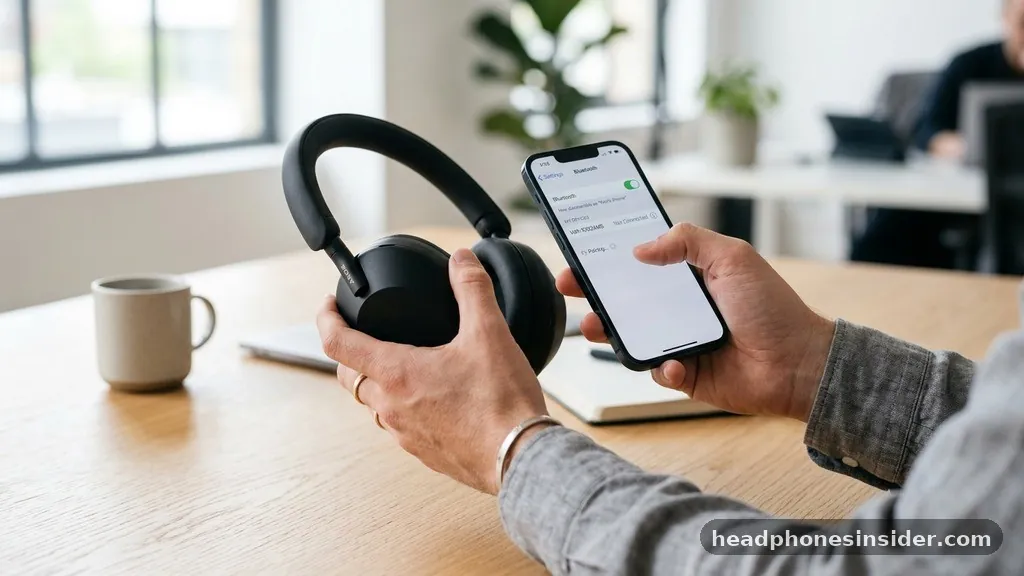
The pairing process is essentially a digital handshake between your headphones and your host device. When you initiate a connection, your Bluetooth device emits a signal that tells nearby hardware, “I am here, and I am ready to talk.” This is known as making the device discoverable.
Once the host—like your phone or computer—detects this signal, it requests a handshake. If the security protocols match, the two units form a secure, encrypted link that allows audio data to stream from the source to your ears.
Understanding that this is a two-way communication channel is crucial; if one side isn’t listening or the other isn’t broadcasting, the connection will fail. This is why the most common troubleshooting step involves ensuring both units are powered on and actively searching for each other simultaneously.
Connecting Headphones to Android and iOS Smartphones
Connecting your wireless gear to a mobile device is arguably the most common use case. On both Android and iOS, the procedure starts in the wireless connectivity menu. For Android users, you typically navigate to your settings tap, find the connectivity or wireless section, and turn bluetooth on.
Once the toggle is active, your phone will start scanning for available hardware. You must put your headphones into pairing mode—usually by holding down the power or dedicated pairing button until an LED light blinks in a specific pattern. Once the device name appears on your screen, you simply select it to finalize the link.
For iPhone or iPad users, the flow is nearly identical. You open the Settings app, tap bluetooth, and ensure the switch is toggled to the green “on” position. Apple devices are designed to be highly intuitive; they will automatically look for new accessories in the vicinity.
If your headphones are already in discovery mode, they should pop up under the “Other Devices” list almost instantly. If they do not, you may need to cycle your Bluetooth off and on again to refresh the discovery list. Once connected, your phone will remember these headphones, meaning you won’t have to repeat the entire manual process the next time you use them, provided the headphones are powered on and within range.
Pairing Wireless Audio with Windows PCs
When you want to pair your equipment with a windows laptop or desktop, the complexity increases slightly due to the variety of drivers and interfaces. To begin, click the Start menu and search for “Bluetooth and other devices settings.” In this window, you must ensure the toggle is set to “On.”
Click the button labeled “Add device” or “Add Bluetooth or other device.” A new window will appear asking what type of hardware you are adding; you should choose the “Bluetooth” option. This forces the computer to begin a deep scan for any bluetooth devices that are currently broadcasting.
If your computer fails to find the headphones, verify that no other device—such as your phone—is currently occupying the connection. Bluetooth hardware can often only maintain one active link at a time. If you have been using the headphones with your tablet earlier, you may need to unpair bluetooth from that tablet or turn off its wireless radio entirely to let the PC “see” the headphones.
Once the PC successfully detects the hardware, click on the name to initiate the pairing. You might be prompted to confirm a PIN code if the device requires extra security, though most consumer headphones pair automatically without this hurdle.
Troubleshooting Common Connection Issues
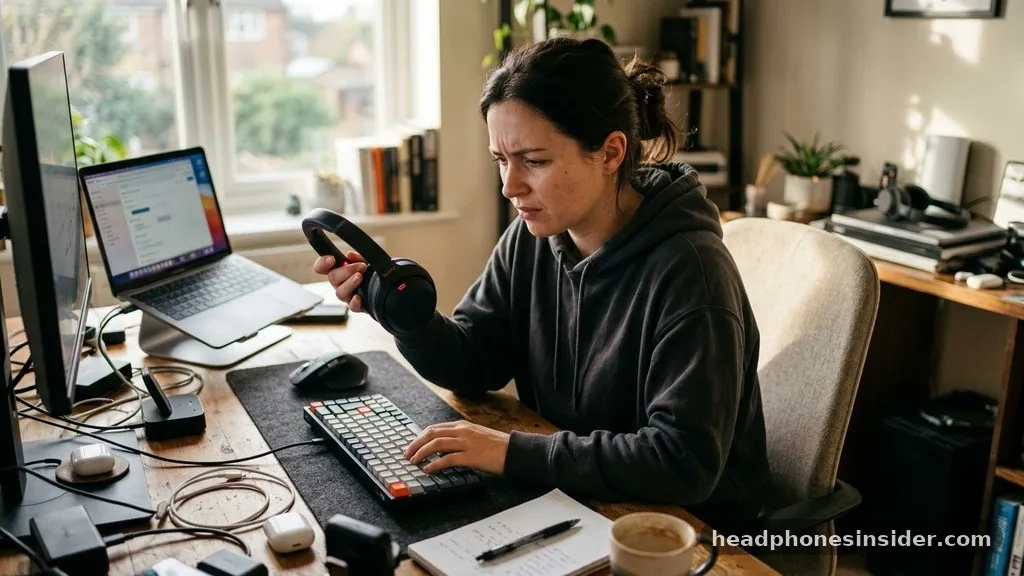
Even with modern hardware, connectivity glitches can happen. If you find your gear is refusing to link, the first step is to confirm that the headphones are not currently tethered to a different accessory or device nearby. Bluetooth is a “point-to-point” protocol, meaning it struggles when multiple hosts are fighting for control.
If you have multiple bluetooth devices active in the same room, such as a wireless printer, a mouse, and a keyboard, they can occasionally cause signal interference. Move away from other high-frequency electronics to see if the connection stabilizes.
Another common pitfall is a lack of battery power. If your headphones are low on charge, they may fail to maintain the energy-intensive process of broadcasting a pairing signal. Make sure your gear is fully charged before attempting to troubleshoot.
Furthermore, if you have previously paired the headphones to the device but they are now failing to connect, the best approach is to “forget” or “remove” the device from your settings menu and repeat steps to establish a fresh connection. This clears any corrupted cache files that might be preventing a clean handshake between the hardware and the operating system.
Comparing Connection Methods Across Devices
Different platforms handle the pairing workflow with varying levels of automation. While the core technology is the same, the user experience differs based on the ecosystem. The following table illustrates the general steps required to initiate pairing across the most popular hardware types.
| Device Type | Primary Action | Troubleshooting Focus |
|---|---|---|
| Android Phone | Settings > Bluetooth > On | Clear cache if device is not found |
| iPhone/iPad | Settings > Bluetooth > On | Toggle Bluetooth off/on to refresh |
| Windows PC | Add Device > Bluetooth | Check driver updates in Device Manager |
| Mac/macOS | System Settings > Bluetooth | Reset SMC if hardware is unresponsive |
As seen in the table, while the “Settings” menu is the universal home for these operations, the secondary troubleshooting steps are tailored to the specific OS architecture. For instance, Windows users might occasionally need to check their device drivers, whereas mobile users rarely deal with driver-level issues, focusing instead on software resets and signal interference.
Advanced Tips for Seamless Wireless Audio
For those who use their headphones across various environments, managing connections can become a chore. To optimize your experience, consider these advanced strategies. First, look for headphones that support “Multipoint” technology.
This feature allows your headphones to maintain a connection to two devices simultaneously, such as a laptop for work calls and a phone for personal music. This eliminates the need to constantly unpair and repair when switching tasks. If your current set does not support this, you can look into Bluetooth LE Audio advancements, which are setting new standards for power efficiency and connection stability.
Additionally, keep your device firmware updated. Manufacturers frequently release software patches that improve how their hardware interacts with modern operating systems. If you notice persistent dropouts or pairing failures, check the manufacturer’s official app on your phone.
These apps often provide a “Firmware Update” section that can resolve known compatibility bugs. Finally, keep your device discoverable only when necessary. Leaving your headphones in pairing mode constantly can be a security risk and may drain the battery faster than normal usage would, so always turn off the discovery mode once you have confirmed a stable link.
Topical Gaps: Why Connections Fail
A frequently overlooked aspect of Bluetooth connectivity is the “Version Mismatch.” Bluetooth has evolved through several generations (e.g., 4.2, 5.0, 5.3). While these versions are generally backwards compatible, older devices may struggle to communicate with the latest low-energy protocols found in high-end headphones.
If you are using a very old computer, it may lack the hardware support for modern codecs, leading to choppy audio or constant disconnections. In such cases, the solution is not software, but rather a hardware upgrade, such as a dedicated USB Bluetooth dongle that supports newer protocol versions.
Another gap in knowledge is the impact of physical obstructions. Bluetooth operates on the 2.4GHz spectrum, which is the same frequency used by many Wi-Fi routers and microwave ovens.
If you are trying to connect your headphones while standing near a heavy-duty router or a functioning microwave, you may experience significant signal degradation. Always try to pair your devices in an open space, away from large metal objects or high-traffic wireless routers, to ensure the cleanest possible communication channel during the initial handshake.
Conclusion
Mastering how to connect Bluetooth headphones is about understanding the simple, predictable nature of wireless communication. By ensuring your devices are properly charged, actively in discovery mode, and free from interference, you can create a reliable link that lasts for hours of high-quality playback. Remember that most connection errors are temporary and can be solved by simply refreshing your settings or clearing out old, inactive device profiles.
As you become more comfortable with these steps, managing your wireless audio environment will become second nature. Should you encounter a stubborn device, do not hesitate to restart your hardware or check for available firmware updates. With a bit of patience and the right approach to troubleshooting, you can enjoy the convenience of wireless audio without the headache of constant technical interruptions.
Frequently Asked Questions
Why are my Bluetooth headphones not appearing in the list?
If your headphones aren’t appearing, they are likely not in pairing mode. Ensure they are powered on and holding the pairing button until the light flashes. Additionally, check that your device is not already connected to another nearby piece of hardware, which can block new discovery attempts.
How do I force my headphones to connect to a new device?
To force a connection, you must typically enter “Pairing Mode” manually. If the headphones are already linked to a phone, turn off the Bluetooth on that phone first. Then, hold the pairing button on your headphones until the indicator light begins to pulse, signifying that it is ready for a new host.
Why does my audio cut out after connecting?
Audio dropouts are usually caused by physical interference or distance. Bluetooth range is typically limited to 30 feet. If you have walls, metal surfaces, or other active 2.4GHz signals like Wi-Fi routers between your device and your headphones, the signal will weaken, causing the audio to stutter or disconnect entirely.
Do I need to repeat the pairing process every time?
No, you do not. Once you have successfully paired a device, it is stored in the “Paired Devices” list. As long as Bluetooth is enabled on your host device and your headphones are powered on, they should automatically reconnect to each other within a few seconds of being in range.