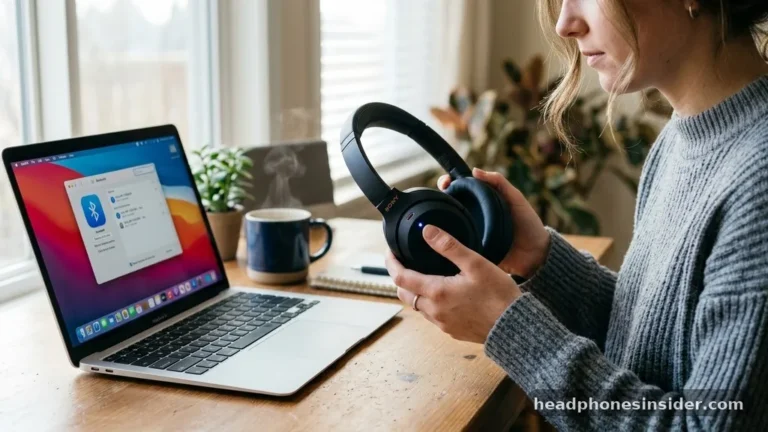
Connecting Sony Bluetooth headphones to your favorite audio source is usually a straightforward process, but it can occasionally feel like a hurdle if you are unfamiliar with the specific button sequences required to trigger wireless discovery. Whether you are setting up a premium pair of WH-1000XM series over-ear cans or a set of compact WF-1000XM earbuds, the underlying technology relies on a standardized handshake between your audio hardware and your smartphone, tablet, or computer. By mastering the art of the pairing sequence, you ensure that your high-fidelity audio experience is always just a few taps away.
Understanding the Mechanics of Bluetooth Pairing
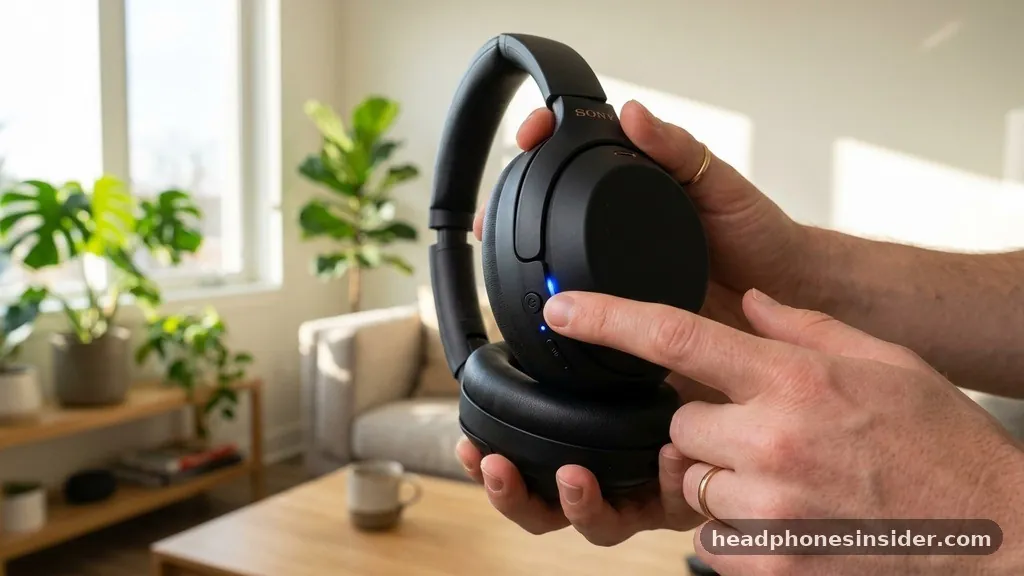
To successfully connect Sony Bluetooth headphones, you must first place the hardware into a state called pairing mode, which allows the device to broadcast its identity to nearby receivers. When you turn on your headphones for the first time, they often enter this mode automatically.
However, if you are connecting to a new device or switching between multiple sources, you will need to manually initiate this process. The mechanism typically involves a specific button combination that signals the internal firmware to stop searching for previously paired devices and instead look for new, incoming signals.
The indicator light on your headphones acts as your primary feedback loop. Typically, a flashing blue LED signifies that the headphones are actively seeking a connection. If the light is solid or blinking in a different pattern, the device may already be linked to another source or might be powered off.
Understanding this visual language is the first step in troubleshooting any connection issues. By ensuring your device is in the correct state, you eliminate the most common cause of failure in the initial setup phase.
Initiating Pairing Mode on Over-Ear Models
For most Sony WH-series over-ear models, the process of initiating pairing mode is consistent and relies on the power button. To start, ensure the headphones are completely powered off.
Once they are off, press and hold the power button for approximately five to seven seconds. You will notice that the indicator light begins to flash in a distinct pattern—usually a rapid blue pulse—indicating that the device is now discoverable.
It is critical to keep holding the button until you see this visual confirmation. Many users release the button too early, causing the device to simply power on and attempt to reconnect to the last known device rather than entering discovery mode. Once the blue light is flashing, you can release the button and navigate to the Bluetooth menu on your mobile device or computer.
Look for your specific model number under the list of available devices to finalize the link. If you are ever unsure about the specific button layout of your model, you can consult the official Sony support website for precise documentation regarding your hardware.
Configuring Connection for Wireless Earbuds
Wireless earbuds like the WF-1000XM4 or the LinkBuds series require a slightly different approach because they lack a dedicated power button on the units themselves. Instead, these devices rely on the charging case to facilitate the pairing process.
To initiate the connection, place both earbuds into the charging case and leave the lid open. Locate the pairing button on the back or inside of the case—depending on your specific model—and press and hold it for several seconds.
The indicator light on the charging case will begin to flash, signaling that the earbuds are ready to be linked to a new device. This design is highly efficient because it uses the case as a bridge for communication.
Once the case light blinks, your earbuds will appear on your phone’s screen. If you are using an Android device, you might even see a “Fast Pair” pop-up notification, which streamlines the entire process by automatically pulling in your Google account information and syncing the connection without you needing to dive deep into the sub-menus of your settings.
Managing Multiple Paired Devices
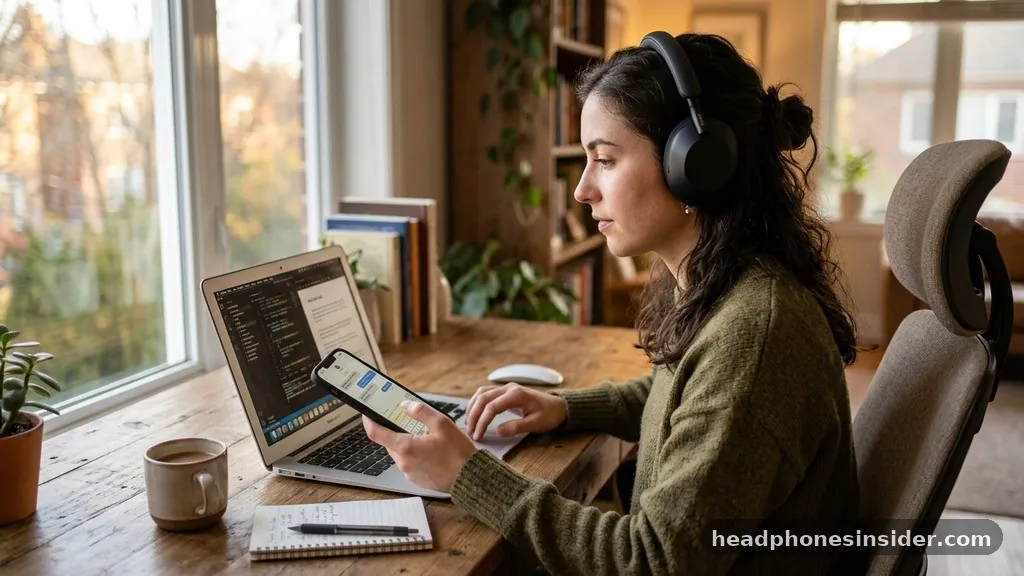
One of the most powerful features of modern Sony Bluetooth headphones is multipoint connection, which allows your headset to maintain a link with two devices simultaneously. This is incredibly useful if you frequently switch between a laptop for video calls and a smartphone for music. To enable this, you must first ensure that the “Connect to 2 devices simultaneously” option is toggled on within the Sony Headphones Connect app.
Once this feature is active, the management of these devices becomes seamless. After you have paired the first device, you can put the headphones back into pairing mode to link the second device. The headphones will then intelligently handle audio priority.
For instance, if you are listening to music on your computer and an incoming call arrives on your phone, the headphones will automatically pause the audio and switch the connection to the phone. This level of automation reduces the need to manually disconnect and reconnect every time you change tasks, significantly improving your daily workflow.
Troubleshooting Common Connection Failures
Even with the most reliable hardware, you may occasionally encounter a situation where your headphones refuse to link to your source. This is usually due to residual cache data in your device’s Bluetooth stack or interference from other nearby wireless signals.
If you find that your Sony headphones are not connecting, the first step is to delete the device from your phone’s memory. Go into your Bluetooth settings, find the Sony device, select “Forget this device,” and then perform a full power cycle on both the headphones and the phone.
Another common point of failure is an outdated firmware version. Sony frequently releases updates via their mobile app that improve connectivity stability and address compatibility bugs with newer operating systems.
If you are experiencing constant drops or an inability to complete the handshake, check the app to see if a firmware update is pending. The following table highlights common status indicators that can help you diagnose your connection state quickly.
| Indicator Light Pattern | Meaning | Recommended Action |
|---|---|---|
| Rapid Blue Flashing | Pairing Mode Active | Select device on your phone |
| Slow Blue Blinking | Searching for Connection | Ensure device is within range |
| Solid Blue Light | Device Connected | Start playing audio |
| Red/Blue Alternating | Reset/Initialization Mode | Re-pair from scratch |
Advanced Settings and Device Optimization
To get the most out of your audio experience, optimizing your settings after the initial link is essential. Within the Sony Headphones Connect app, you can adjust the Bluetooth connection quality.
Sony provides two main modes: “Priority on Sound Quality” and “Priority on Stable Connection.” If you are in an area with high wireless interference, such as a busy office or a crowded train station, switching to the stable connection mode can prevent audio stutters.
Additionally, ensure that you have granted the necessary permissions to the app on your smartphone. These permissions allow the app to manage the device’s connection preferences, firmware updates, and even location services, which are often required for features like Adaptive Sound Control.
By maintaining these settings, you ensure that your headphones behave predictably every time you put them on. It is also worth noting that if you are using high-resolution audio codecs like LDAC, you should verify that your source device supports them, as this will significantly impact the fidelity of your wireless stream.
Addressing Topical Gaps and Common Queries
Many users struggle with the concept of a passkey when connecting to older laptops or specialized audio equipment. While modern smartphones handle the pairing handshake automatically, some older Bluetooth stacks may prompt you for a code.
In almost every case, the default passkey is “0000.” If you are prompted for a code and this does not work, consult your specific model’s manual, as some security protocols require a unique pin found on the packaging.
Another frequent question involves the “device pairing” limit. Most Sony headphones can store information for up to eight different devices.
Once you exceed this limit, the oldest paired device is automatically deleted to make room for the new one. If you find that your headphones are no longer connecting to a device you use frequently, it is likely because you have reached this capacity, and you will need to re-pair that device to bring it back to the top of the internal list.
Frequently Asked Questions
How do I put my Sony headphones into pairing mode if they are already on?
If your headphones are already powered on, you generally cannot enter pairing mode immediately. You must power them down first. Once off, press and hold the power button for seven seconds until the indicator light flashes blue, signaling that the device is ready to be discovered.
Why won’t my Sony headphones appear in the Bluetooth menu on my phone?
If your headphones aren’t showing up, ensure they are in pairing mode (flashing blue). If they are, try toggling your phone’s Bluetooth off and back on. Also, verify that the headphones are not currently connected to another device, as they will not broadcast to new devices while linked.
Can I connect my Sony headphones to two devices at the same time?
Yes, many newer Sony models support multipoint connection. You can enable this in the Sony Headphones Connect app under the System tab. Once enabled, you can pair two devices, and the headphones will intelligently switch audio output based on which device is currently playing sound or receiving calls.
What should I do if the connection keeps dropping?
If your connection is unstable, try changing the connection mode in the app to “Priority on Stable Connection.” This reduces the bitrate to prevent drops in areas with high wireless interference. Also, check if your headphones need a firmware update, as these often contain critical connectivity improvements.
Connecting your Sony Bluetooth headphones is a skill that, once mastered, becomes second nature. By understanding the specific requirements for your model—whether it is a simple button press or a case-based initiation—you can ensure a seamless transition between your devices. Remember that consistency is key; always wait for the visual confirmation from your indicator lights before searching on your source device.
Should you run into persistent issues, clearing your Bluetooth cache or updating your firmware usually resolves the underlying conflict. As you integrate your headphones into your daily routine, take the time to explore the advanced settings within the companion app to tailor the sound profile and connection behavior to your specific preferences.
If you have followed these steps and still find yourself struggling with a specific model, feel free to dive into the official user manual for your device, as specific hardware quirks can occasionally differ from the general standard. Enjoy the freedom of your wireless audio experience and the high-fidelity sound that Sony is known for.