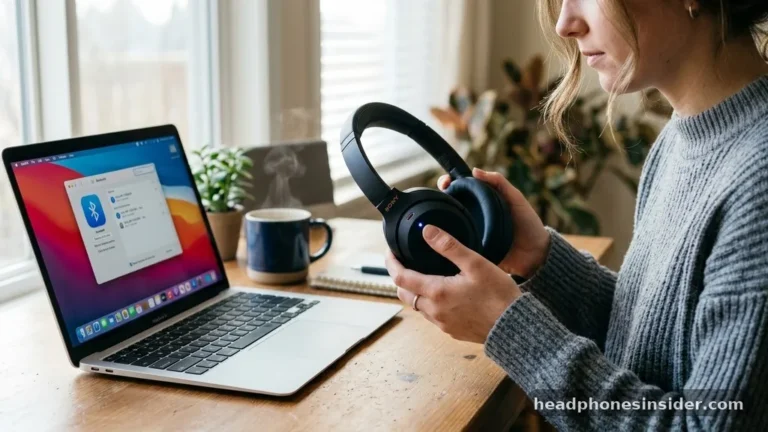
Establishing a wireless connection between your audio gear and your workstation is a fundamental skill for any modern user. Learning how to connect Sony headphones to laptop hardware allows you to enjoy high-fidelity audio during meetings, while gaming, or when listening to music without being tethered by cables. Whether you are using the premium WH-1000XM series or the more budget-friendly WH-CH models, the process relies on the universal standard of Bluetooth technology.
By following the correct sequence of enabling discovery mode on your peripheral and navigating the settings menu on your computer, you can ensure a stable link that provides low-latency performance. This guide will walk you through the nuances of syncing your audio equipment with various operating systems, ensuring that your headset is ready for use within minutes. We will cover everything from initial discovery to troubleshooting common connectivity hurdles that might arise during the process.
Understanding the Bluetooth Pairing Process for Sony Headphones
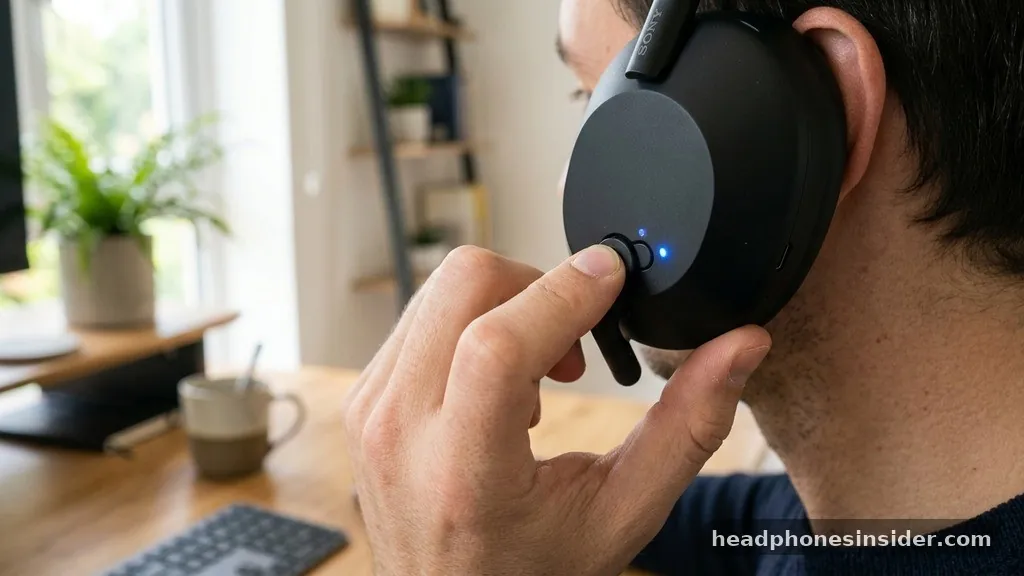
The core mechanism for linking your headphones to a computer is known as Bluetooth pairing. When you initiate this process, your Sony headset broadcasts a signal that allows your laptop to detect it, exchange security credentials, and establish a permanent link. For most Sony models, this is facilitated by a specific sequence of button presses that forces the internal transmitter into a discoverable state.
To begin, you must ensure that your headphones are powered off. If they are already on, hold the power button until the indicator light blinks, signaling that the device is ready to be recognized by a new device. Once the device is in this state, you navigate to the Bluetooth settings on your laptop.
On a Windows machine, this is typically found under “Devices” or “Bluetooth & other devices.” When you click “Add device,” the system scans for available hardware.
You will likely see the model number of your headset—such as “WH-1000XM5″—appear in the list. Selecting this item triggers the handshake protocol, where the two devices share the necessary pairing information to complete the connection.
It is important to note that if you have previously connected your headphones to a smartphone or tablet, the headset might automatically attempt to reconnect to that device instead of your laptop. To prevent this, you can temporarily disable Bluetooth on your other devices, or simply hold the power button longer to force a fresh search. This ensures that the pairing mode remains dedicated to the laptop you are currently configuring.
Step-by-Step Configuration for Windows Laptops
Connecting Sony headphones to a Windows laptop involves navigating the system’s interface to locate and bind the audio hardware. To successfully pair your device, open the Settings menu by pressing the Windows key + I, then select “Bluetooth & devices.”
Ensure the master Bluetooth toggle is set to “On.” At this point, you should put your Sony headphones into pairing mode by holding the power button for approximately seven seconds until the LED light flashes in a distinct rhythm.
Once your Sony model—often labeled as WH- displayed in the list—appears on the screen, click on it to initiate the connection. Windows will automatically install the necessary drivers.
You may hear a voice guidance prompt through the earcups confirming that the headset is connected. If the laptop asks for a PIN code, it is typically “0000,” though most modern Sony headphones handle this process automatically without requiring manual input.
If you encounter issues where the connection fails to establish, it is often due to outdated drivers or a conflict with existing paired devices. You can refresh the connection by selecting the device in the settings menu, choosing “Remove device,” and starting the process over.
This clears any corrupted pairing information and allows for a clean, stable synchronization. Always ensure your laptop is within a few feet of the headphones during this initial handshake to minimize signal interference.
Syncing Sony Audio Gear with macOS Systems
Apple’s ecosystem handles Bluetooth peripherals with a high degree of integration, making the process of linking your Sony headphones to a MacBook or iMac quite straightforward. Navigate to the Apple menu in the top-left corner, select “System Settings” (or System Preferences), and click on the Bluetooth icon. Just like with Windows, your headphones must be in pairing mode for the Mac to see them.
Once the headphones are broadcasting, look at the list of “Nearby Devices” on your Mac. You will see your specific model name appear; click “Connect” next to it. Once the headset device is linked, macOS will often prioritize it as the primary output and input device.
You can verify this by checking the Sound settings in your Control Center. If you need to switch between your headphones and your laptop speakers, this is where you will manage those transitions.
One advantage of using Sony headphones with macOS is the reliability of the AAC codec, which ensures high-quality audio streaming. If you ever find that the audio is choppy or the connection drops, you can reset the Bluetooth module on your Mac by turning Bluetooth off and on again. In some cases, resetting the headset by following the operating instructions provided by Sony can resolve persistent issues where the device fails to maintain a steady link.
Managing Multiple Connections and Multipoint Pairing
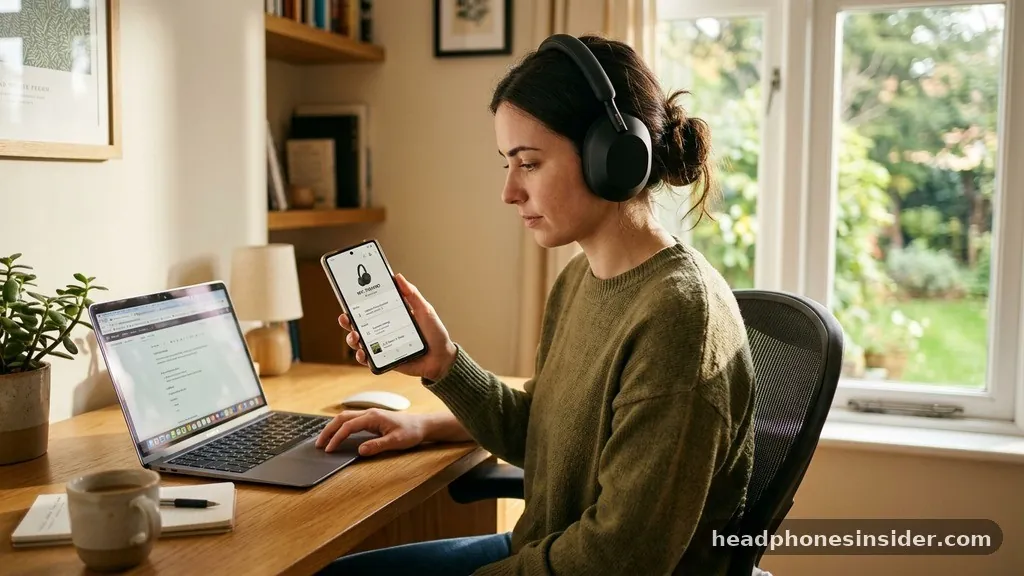
Many modern Sony headphones, such as the WH-1000XM series, support a feature called Multipoint Connection. This allows you to maintain a link with two devices simultaneously—for example, your laptop and your smartphone. This is incredibly useful for professionals who want to listen to music on their computer but need to switch instantly to a call on their phone.
To set this up, you typically need to use the Sony Headphones Connect app on your mobile device to enable the “Connect to 2 devices simultaneously” feature. Once enabled, you can pair headset hardware to both devices.
When you are connected to both, the headphones intelligently manage audio priority. If you are watching a video on your laptop and a call comes in on your phone, the headset will automatically pause the laptop audio and route the call through the earcup microphones.
It is worth noting that while Multipoint is a powerful tool, it can occasionally cause confusion if you are not accustomed to the behavior. If your audio seems to be “stolen” by your phone, check your Bluetooth settings to see which device is currently holding the active stream. If you ever want to clear all pairing information to start fresh, most Sony models allow you to reset them by holding specific buttons—usually the power and custom buttons—until the indicator light flashes four times, signifying that the information deleted successfully.
Troubleshooting Common Connectivity Issues
Even with the best hardware, you may occasionally run into a scenario where your Sony headphones refuse to talk to your laptop. This is usually a temporary glitch in the bluetooth pairing process. The most common cause is that the laptop still thinks the headphones are connected when they are not, or vice versa.
- Restart your laptop: This clears the Bluetooth cache and resets the radio.
- Check the battery: If your headphones are below 10% charge, they may refuse to enter pairing mode.
- Clear existing pairings: If the headphones have been paired to many devices, the memory might be full.
- Update firmware: Use the Sony mobile app to ensure your headphones have the latest software installed.
- Check for interference: Move away from microwaves, Wi-Fi routers, or other high-frequency devices.
If you find that your computer sees the headphones but they won’t play audio, check the Sound Control Panel in Windows or Sound settings in macOS. Ensure that the “Headphones (Sony)” is selected as the default output device.
Sometimes, the computer will connect to the device for “Voice” but not “Music,” which requires you to manually check the settings to ensure both profiles are enabled. For more detailed technical specifications regarding Bluetooth standards, you can review the official Bluetooth specifications to understand how these protocols function at a hardware level.
Comparing Connection Profiles
When connecting your equipment, understanding the difference between various profiles is essential for getting the best performance. Modern Sony headphones use different Bluetooth profiles for different tasks, which can affect the quality of the sound you hear.
| Profile | Function | Audio Quality |
|---|---|---|
| A2DP | High-quality stereo audio streaming | High (Best for music) |
| HFP/HSP | Voice calls and microphone input | Low (Compressed for speech) |
| AVRCP | Remote control (play, pause, skip) | N/A (Command only) |
As shown in the table above, A2DP is what you want for music playback, while HFP is used during conference calls. If your audio sounds “tinny” or low-quality during a meeting, it is because your computer has switched to the HFP profile to accommodate the microphone.
Once the call ends, it should automatically switch back to A2DP. If it doesn’t, you may need to disconnect and reconnect the device paired to force a refresh.
Final Thoughts on Seamless Audio Integration
Mastering the connection between your Sony headphones and your laptop is a matter of understanding the sequence of operations required by your specific hardware. By ensuring your device is in the correct pairing mode and managing your laptop’s Bluetooth settings effectively, you can enjoy a seamless listening experience. Remember that the first time you link a new device, the process might take a moment as the laptop identifies the headset headset and installs the necessary software drivers.
Once you have established a stable connection, maintaining it is usually as simple as turning your headphones on while your laptop’s Bluetooth is active. If you ever experience issues, do not hesitate to remove the device from your system settings and perform a fresh handshake.
With these techniques in your toolkit, you are well-equipped to manage your audio environment, whether you are in a professional setting or relaxing at home. We hope this guide helps you get the most out of your audio gear; feel free to reach out if you encounter any unique challenges with your specific model.