

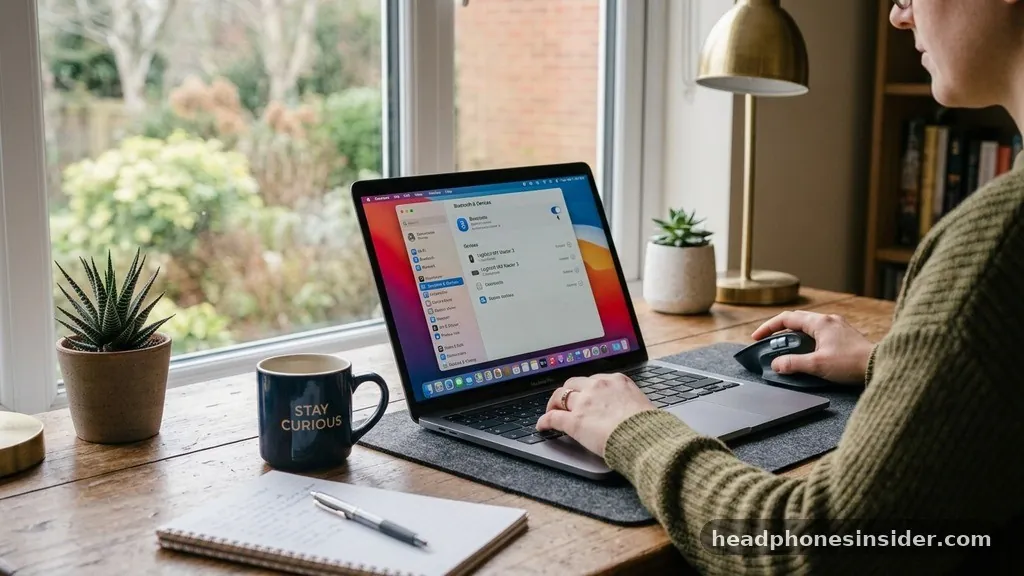
Connecting wireless audio gear to your computer provides a level of freedom that wired peripherals simply cannot match, yet many users find the process of learning how to connect Bluetooth headphones to PC somewhat inconsistent across different operating system versions. Whether you are using a modern laptop or a custom-built desktop, the core logic remains similar: your computer must act as a host, and your audio device must broadcast its presence via a handshake protocol.
By understanding the underlying communication between your Windows environment and your wireless hardware, you can eliminate common frustrations like audio lag, connection drops, or the dreaded “device not found” error. This guide breaks down the essential steps to ensure a seamless link between your hardware, allowing you to enjoy high-quality sound without being tethered to your desk.
Navigating the Windows Bluetooth Interface
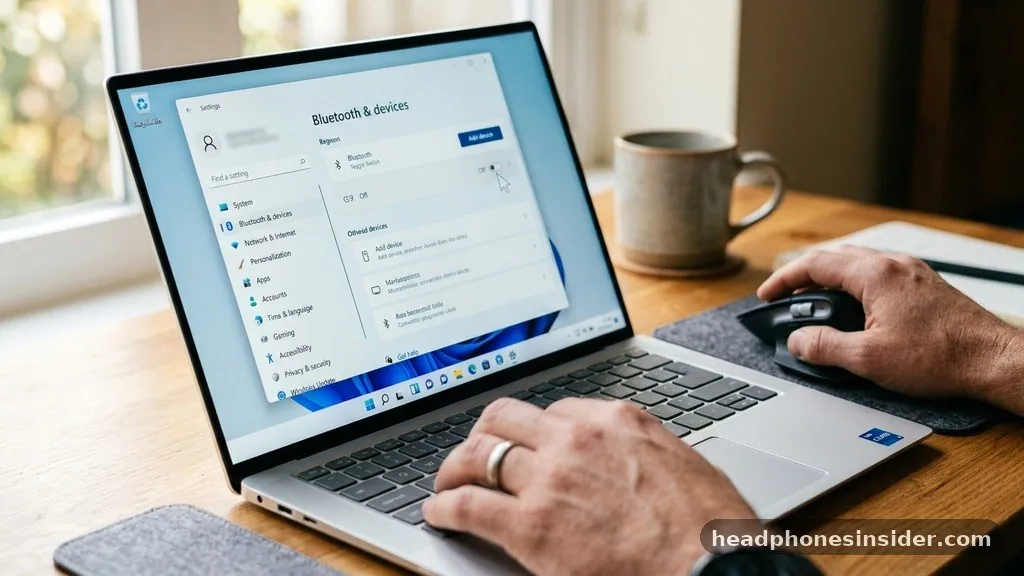
To initiate a successful connection, you must first verify that your computer is actually capable of broadcasting a signal. Most modern laptops come with integrated wireless cards, but many desktop computers require an external adapter. Before you attempt to pair, click the Start button and select Start Settings.
Within the settings menu, navigate to the Bluetooth & devices section. Here, you will see a toggle switch that controls the radio state of your machine.
Ensure that the Bluetooth toggle is set to “On.” If you do not see this option, your computer may lack the necessary hardware, or your drivers might be disabled.
Once you have confirmed that the radio is active, you need to prepare your computer to accept an incoming link. Within the same menu, look for the button labeled “Add device.” When you click this, a new window will pop up asking what kind of peripheral you want to add.
Always choose the “Bluetooth” option, which covers mice, keyboards, pens, and—most importantly—your audio headset. At this stage, your computer begins scanning the immediate environment for signals. It is important to note that your computer will only see devices that are actively broadcasting; if your hardware is currently connected to your phone or tablet, it will likely be invisible to your PC.
Mastering the Pairing Mode Sequence
The most common hurdle users face when trying to figure out how to connect Bluetooth headphones to PC is failing to put the headphones into the correct discoverable state. Simply turning your device on is rarely enough; most manufacturers require a specific button-press sequence to trigger “pairing mode.”
This mode forces the device to broadcast its unique ID to nearby computers. If you do not perform this step, your PC will scan indefinitely without finding your headset.
To enter this mode, consult your specific manual, but generally, you will need to hold down the power button or a dedicated Bluetooth button for several seconds until an LED indicator begins flashing—often in alternating red and blue colors. Once the light is blinking, your device is broadcasting. Return to your Windows screen, where you should now see your device name appear in the list.
Click on the name to initiate the handshake. If a PIN code is requested, it is almost always “0000” or “1234,” though many modern devices will pair automatically without any manual input. Once the status changes to “Connected,” you have successfully established the link.
Troubleshooting Common Connection Failures
When your computer refuses to see your headphones, the issue usually stems from a driver conflict or an interference problem. If you are struggling with a persistent failure to connect, start by checking your device manager. You can access this by right-clicking the Start button and selecting “Device Manager.”
Look for the Bluetooth node; if there is a yellow exclamation mark next to your wireless adapter, your drivers are likely corrupted or outdated. You can often resolve this by right-clicking the driver and selecting “Update driver.”
Another frequent culprit is the “ghost device” syndrome, where your PC remembers a previous connection that is no longer valid. If you see your headphones in your list of paired devices but they refuse to link, click on the device name and select “Remove device.” Then, restart your computer and put your headphones back into pairing mode from scratch.
This clears the registry cache and allows the two devices to perform a fresh handshake. If you are still having trouble, ensure that you are not standing too far from the computer.
Bluetooth signals are relatively weak and can be blocked by thick walls, metal desks, or even other 2.4GHz wireless devices like routers or microwave ovens. You can find more technical details on Bluetooth LE Audio standards to understand how modern protocols are designed to be more robust against this type of interference.
Optimizing Audio Output Settings
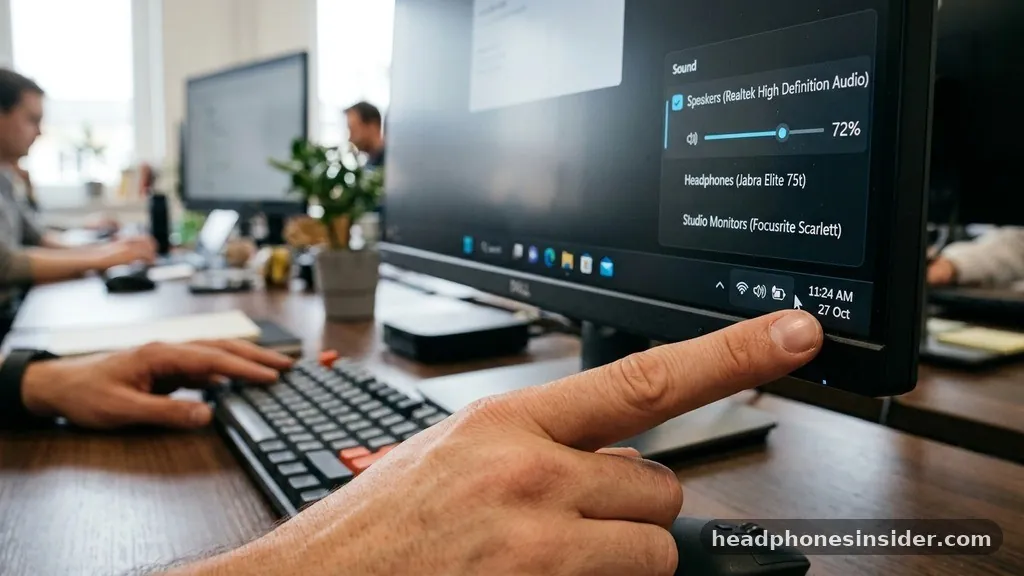
Even after you have successfully paired your hardware, you might find that your computer is still playing audio through your monitor speakers or a different output device. Windows often defaults to the last used audio source, so you may need to manually redirect the signal to your headphones. To do this, click on the speaker icon located in the bottom right corner of your taskbar, near the clock.
You should see a small arrow or a list of available playback devices. Click this to see a dropdown menu of all active audio outputs.
Locate your headphones in the list and click to select them. This action forces the system sound to route through your wireless connection. If you are using a headset with a built-in microphone, you might see two options for your device: one labeled “Stereo” and one labeled “Hands-Free AG Audio.”
For high-quality music listening, ensure you have selected the “Stereo” option. The “Hands-Free” profile is designed for phone calls and significantly reduces audio fidelity. If you find the sound quality is poor during a video call, check this setting to ensure Windows hasn’t toggled your device into a lower-bandwidth communication mode.
Comparing Connection Methods
Not all Bluetooth connections are created equal. Depending on your hardware, you might be using an internal module, a USB dongle, or even a specialized high-fidelity transmitter. The table below compares these common methods of establishing a wireless audio connection on a PC.
| Connection Method | Reliability | Setup Complexity | Best Use Case |
|---|---|---|---|
| Integrated Motherboard Bluetooth | High | Low | General daily use |
| USB Bluetooth Adapter | Medium | Medium | Desktop PCs lacking internal Bluetooth |
| Dedicated Audio Transmitter | Very High | Low | Professional gaming or studio work |
Each of these methods has distinct advantages. Integrated modules are the most convenient because they require no extra hardware, while USB adapters offer a great way to upgrade an older machine. If you are a professional, a dedicated transmitter that plugs into your headphone jack or optical port can bypass the Windows Bluetooth stack entirely, providing near-zero latency and superior sound quality.
Handling Advanced Configuration and Updates
To maintain a stable connection over time, you must keep your system software updated. Windows updates frequently include patches for the Bluetooth stack that resolve intermittent connection drops. To check for these, go to your Start settings and select “Windows Update.”
Clicking “Check for updates” will ensure that your machine has the latest communication drivers. Furthermore, many modern headphone manufacturers offer proprietary software suites that allow you to update the firmware on your headset itself.
If you are using high-end headphones, check the manufacturer’s official website for companion software. These apps often allow you to toggle features like multipoint connectivity—which lets you connect to your phone and PC simultaneously—or customize the EQ settings. Managing these settings directly through the manufacturer’s software can often solve issues that the standard Windows menu cannot fix.
For example, some devices have a “power saving” mode that disconnects the Bluetooth radio after a few minutes of inactivity. Finding these settings in the manufacturer’s app and disabling them can prevent your headphones from turning off unexpectedly during a long work session.
Essential Maintenance and Best Practices
- Keep your wireless drivers updated through the Device Manager to ensure compatibility with newer Bluetooth standards.
- Always turn off Bluetooth on your secondary devices, like smartphones, when you are trying to pair your headphones to your computer to prevent “hijacking.”
- Clean your Bluetooth device regularly; dust or debris near the internal antenna can occasionally cause minor signal degradation.
- If you experience audio stuttering, try moving your computer away from your wireless router, as the 2.4GHz frequencies can clash.
- When not in use, keep your headphones charged; low battery levels often cause the Bluetooth radio in the headset to lose signal strength, leading to connection drops.
By following these maintenance steps, you can significantly extend the lifespan of your connection and ensure that you are getting the best possible audio performance. The key to a frustration-free experience is treating your Bluetooth connection as a living link that requires occasional management, rather than a “set it and forget it” feature.
If you ever run into a situation where the audio is delayed, remember that this is almost always a result of the signal being compressed during transmission. Switching your PC’s audio output to a higher-quality codec or using a wired-priority mode when available can mitigate this issue for critical tasks like video editing or professional gaming.
Final Thoughts on Wireless Audio Stability
Mastering the connection between your wireless headphones and your PC is a matter of understanding the handshake between the Windows operating system and your hardware. By ensuring your drivers are updated, your device is in the correct pairing mode, and your output settings are optimized for high-fidelity stereo, you can enjoy a seamless audio experience. While wireless technology has become incredibly reliable, it remains subject to physical interference and software conflicts.
Taking the time to troubleshoot using the device manager or by clearing out old, unused connections will keep your system running smoothly. As you grow more comfortable with these settings, you will find that switching between devices becomes second nature. If you continue to experience issues, revisiting the manufacturer’s documentation for your specific headphone model is always the best next step to ensure you are utilizing the full capabilities of your hardware.


