

Navigating the audio landscape of the PlayStation 5 can be surprisingly complex, especially when you are trying to figure out how to connect headphones to PS5 consoles. While Sony’s latest machine offers a premium 3D audio experience, it does not natively support every pair of Bluetooth headphones you might have lying around the house.
Understanding the nuances of hardware compatibility, wireless protocols, and wired connections is essential for achieving the perfect immersive gaming setup. Whether you are looking to use your existing high-fidelity audiophile gear or simply want to use your favorite pair of wireless earbuds, this guide breaks down the specific methods, hardware requirements, and troubleshooting steps needed to get your audio up and running smoothly.
Understanding PS5 Audio Compatibility and Limitations
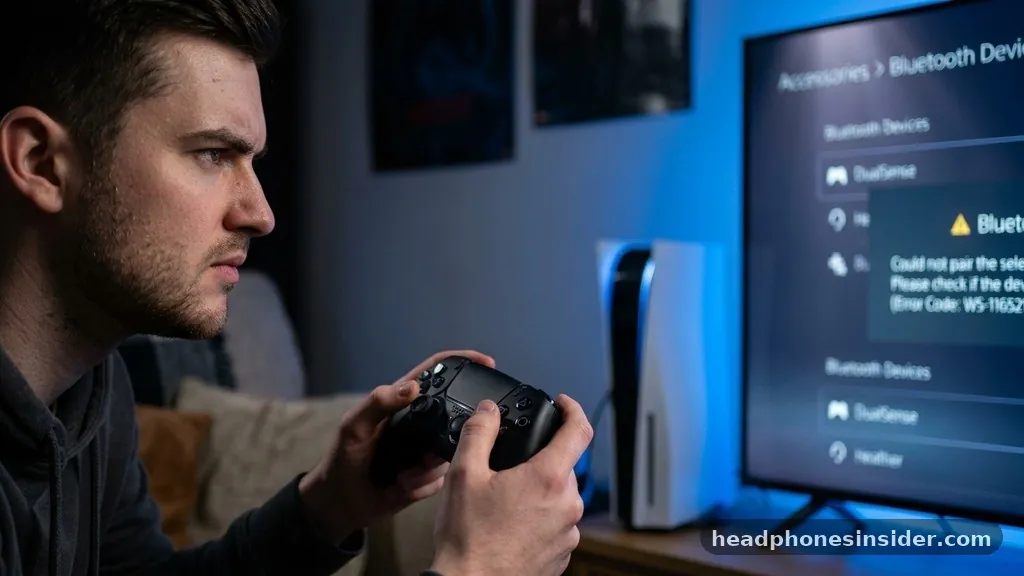
The primary reason users often struggle with audio setup is that the PlayStation 5 does not support direct Bluetooth audio streaming to third-party devices. In simple terms, the console is designed to prioritize proprietary wireless connections, such as those found in the official Pulse 3D or Pulse Elite headsets.
When you attempt to pair standard Bluetooth headphones directly through the system’s settings menu, the console will typically identify the device but refuse to complete the handshake, citing compatibility issues. This restriction is primarily in place to minimize audio latency, which is a critical factor in competitive gaming where every millisecond of sound feedback matters.
Because the console lacks a universal Bluetooth audio profile for third-party accessories, you must rely on alternative pathways to get sound from your system to your ears. This usually involves using a physical bridge, such as a USB-based transmitter or a wired connection through the DualSense controller.
If you are determined to use your existing wireless setup, you will need to look at specific hardware solutions that bypass the system’s native restrictions. It is important to distinguish between devices that are “PlayStation-certified” and those that are generic, as certified headsets will always provide a more seamless plug-and-play experience without the need for additional dongles or complex configuration steps.
Connecting Wired Headphones via the DualSense Controller
The most straightforward method to connect headphones to your PS5 is to use the 3.5mm headphone jack located at the bottom of your DualSense wireless controller. This method is universally compatible with almost any pair of wired headphones, regardless of brand or price point.
To initiate this, simply plug your headphones into the controller; the console should immediately recognize the audio device and automatically switch the output from your television or monitor speakers to your headset. This connection path is highly reliable and provides near-zero latency, making it an excellent choice for fast-paced shooters or rhythm games.
Once you have plugged in your device, you should check your system settings to ensure the audio is balanced correctly. You can access the Control Center by pressing the PlayStation button on your controller, navigating to the Sound icon, and selecting Output Device. From here, you can adjust the volume levels for your headset, manage game-chat balance, and toggle features like 3D audio.
If you find the volume is too low, you may need to adjust the settings within the official PlayStation support documentation to ensure your controller output is set to a higher gain level. This is the most cost-effective way to get high-quality audio without purchasing new gear.
Using USB Adapters for Wireless Audio
If you prefer the freedom of a wireless headset but your device does not have a native connection protocol supported by the console, a USB Bluetooth adapter—often called a transmitter or dongle—is the best solution. These devices plug directly into one of the USB-A or USB-C ports on the back or front of your console.
The adapter acts as a middleman: it receives the raw audio signal from the PS5 and broadcasts it over Bluetooth to your headphones. This bypasses the console’s internal Bluetooth restrictions entirely, tricking the system into thinking it is outputting audio through a standard USB sound card.
When selecting a transmitter, look for one that supports low-latency codecs like aptX Low Latency. High-quality transmitters will ensure that the audio you hear remains perfectly synced with the on-screen action, preventing the “lip-sync” issues that often plague cheaper hardware. To set this up, simply plug the USB adapter into an available port, wait for the device to enter pairing mode, and then put your headphones into their own pairing mode.
Once the devices establish a solid connection, the console will treat the adapter as an external audio device. You will then need to verify that the microphone input is also routed through the adapter if you intend to use your headset for voice chat.
Recommended Hardware Features for Wireless Adapters
- Low-latency support: Essential for preventing audio lag in fast-paced games.
- USB-C connectivity: Offers a more modern, secure fit for the front port of the PS5.
- Microphone pass-through: Necessary if you want to use the mic integrated into your headphones.
- Multiple device pairing: Useful if you want to switch between your PC and console frequently.
Setting Up Official PlayStation Wireless Headsets
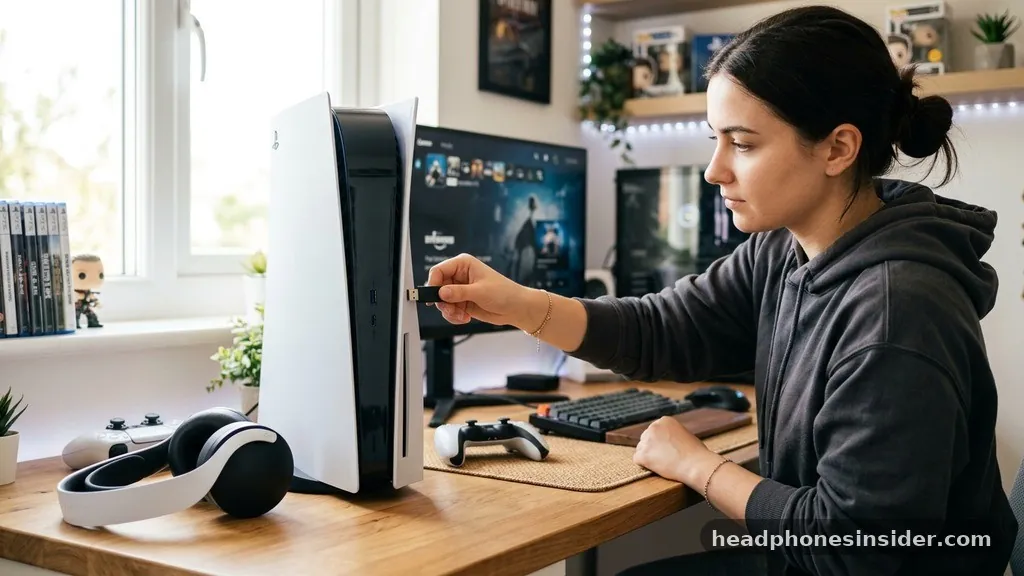
For the most seamless experience, using a Sony-branded headset like the Pulse 3D or Pulse Elite remains the gold standard. These headsets use a proprietary wireless connection via a dedicated USB dongle that comes included in the box. Because these were engineered specifically for the console, the integration is flawless.
Once you plug the USB adapter into the console, the headset will automatically pair with the dongle the moment you power it on. This eliminates the need for manual pairing or navigating deep system menus, allowing you to get straight into your gaming sessions.
One of the significant advantages of these official headsets is their deep system-level integration. When you use these devices, the PS5 provides advanced features such as on-screen volume overlays, battery status indicators, and dedicated EQ presets that you can customize directly from the console interface.
You can also easily toggle between game audio and party chat volume using the buttons on the headset itself. These devices are also designed to be comfortable for long-term use, often featuring ergonomic designs that accommodate glasses or different head shapes, which is a common pain point with generic third-party gear.
Troubleshooting Common Audio Connection Issues
Even with the right equipment, you may occasionally run into issues where the sound does not come through as expected. A common problem is the console failing to switch the audio output automatically. If you plug in your device and hear nothing, navigate to the Sound settings menu to manually ensure that the Output Device is set to “Headset (Controller)” or “USB Headset.”
Sometimes, a simple restart of the console or unplugging and replugging the USB dongle is enough to force the system to recognize the hardware. If you are using a wired connection, ensure that the 3.5mm jack is pushed all the way into the controller, as a loose connection can lead to static or mono-channel audio.
Another frequent issue involves the microphone not being detected. If your game audio works but your friends cannot hear you, check the input device settings in the Sound menu. Ensure that the Input Device is set to your headset rather than the built-in controller microphone.
Additionally, some third-party headsets require a specific firmware update provided by the manufacturer. If you are using a premium wireless headset, check the manufacturer’s website to see if there is a desktop app available for your PC, which may allow you to update the headset’s firmware to ensure better compatibility with the latest PS5 system software updates.
| Connection Method | Ease of Use | Audio Latency | Mic Support |
|---|---|---|---|
| Wired (3.5mm) | Very High | None | Yes |
| USB Dongle/Adapter | Moderate | Low (with quality dongle) | Often |
| Official Wireless | Very High | None | Yes |
| Bluetooth (Direct) | Not Supported | N/A | No |
Addressing Topical Gaps: Advanced Audio Configurations
Many users ask about using high-end studio gear or external DACs (Digital-to-Analog Converters) with their console. If you own a high-quality external DAC, you can often connect it to the PS5 via the USB port. This allows you to drive high-impedance headphones that wouldn’t normally work well with the DualSense controller.
However, you must ensure that your DAC is “UAC” (USB Audio Class) compliant. Most modern DACs will work, but you should verify compatibility with your specific model to ensure the PS5 can recognize it as an audio output device. This is a common path for audiophiles who want to maintain high sound fidelity while gaming.
Another often overlooked aspect is the use of the 3D Audio feature. Regardless of which headset you use, you can enable the PS5’s Tempest 3D AudioTech. Once you have connected your headphones, go to Settings > Sound > 3D Audio for Headphones.
Here, you can run a calibration test that adjusts the audio profile to match your personal hearing characteristics. This feature simulates a spatial soundscape, allowing you to pinpoint the direction of footsteps or environmental cues in a way that traditional stereo sound cannot match. Even if you are using budget headphones, enabling this feature can significantly improve your situational awareness in games.
Conclusion
Successfully integrating your preferred audio gear with your console involves understanding the specific limitations of the system and choosing the right bridge—whether that is a simple wired cable or a high-quality USB adapter. By prioritizing low-latency connections, you ensure that your gaming experience remains immersive and responsive.
The PS5 offers a surprising amount of flexibility once you move past the initial hurdle of its lack of native Bluetooth support for third-party devices. Taking the time to configure your audio output settings and exploring the 3D audio features will elevate your overall experience, making every session more engaging.
As you refine your setup, remember that consistency is key. Keep your firmware updated, ensure your connections are secure, and don’t hesitate to experiment with the sound balance settings in the Control Center to find your perfect mix. If you have found a specific adapter or wired configuration that works perfectly for your setup, feel free to share your findings with the community to help others navigate these same technical steps.
Frequently Asked Questions
Can I connect Bluetooth headphones directly to my PS5 without an adapter?
No, the PS5 does not natively support direct Bluetooth audio pairing for third-party headphones. You must use a USB Bluetooth transmitter, a wired connection via the DualSense controller, or a headset that comes with its own dedicated USB wireless dongle for audio.
Why is my microphone not working after connecting my headphones?
If your mic isn’t working, check your PS5 Sound settings. Go to Settings, then Sound, and ensure the Input Device is set to your specific headset rather than the controller’s built-in microphone. Also, ensure any physical mute buttons on your headset are toggled off.
Do all wired headphones work with the DualSense controller?
Yes, almost any standard wired headphone with a 3.5mm jack will work when plugged into the DualSense controller. The console will automatically treat this as a headset, routing both game audio and chat through the controller’s audio jack for a seamless plug-and-play experience.
Does the PS5 support spatial audio on all headphones?
Yes, the PS5’s Tempest 3D AudioTech is designed to work with any pair of stereo headphones. You can enable this feature in the Sound settings menu, where you can also calibrate the audio profile to better suit your hearing and personal preferences for a more immersive soundstage.


