

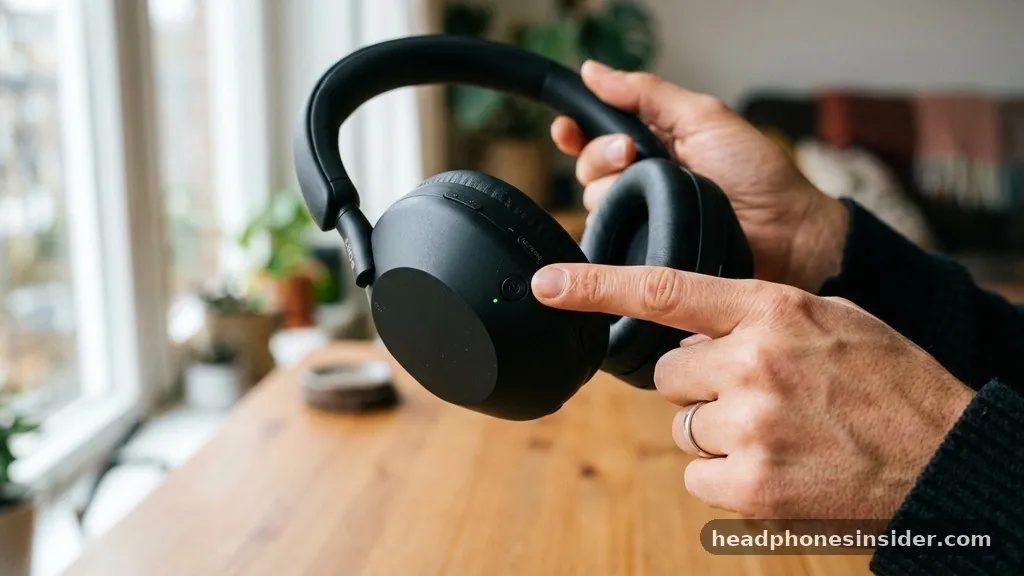
Mastering your audio experience begins with understanding the basics of device operation. Knowing how to turn on Beats headphones is the fundamental step required to enjoy your favorite music, podcasts, or calls with the high-quality sound that the brand is known for.
While it might seem intuitive, the specific controls can vary depending on the model you own, such as the popular Beats Studio line or the more recent Studio Pro versions. Whether you are connecting to an iPhone, iPad, Mac, or an Android device, a clear grasp of the power mechanism ensures you spend less time troubleshooting and more time listening.
Locating the Power Controls on Various Beats Models
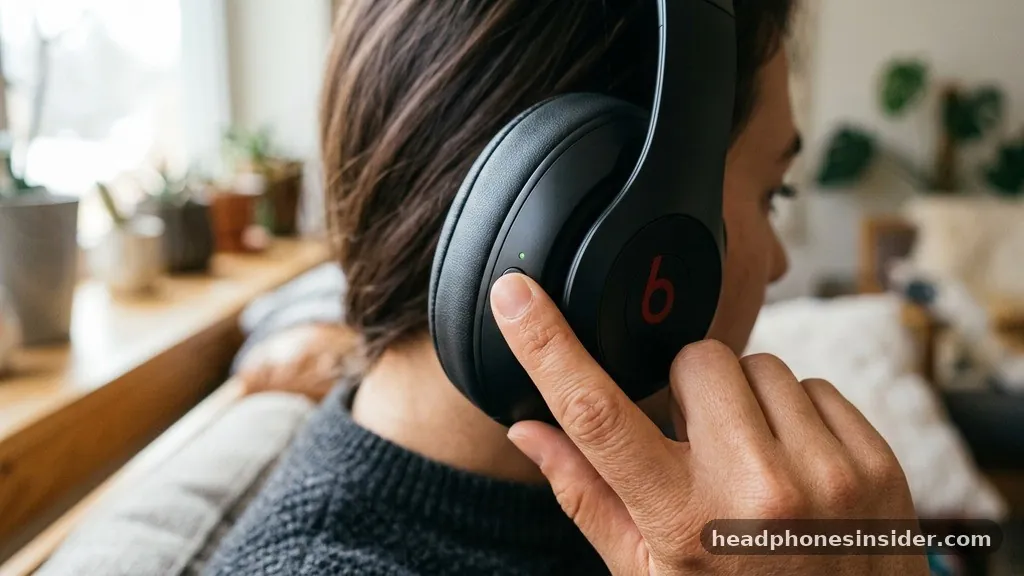
To turn on your Beats headphones, you generally need to locate the power button, which is typically found on the right ear cup of the device, though the exact positioning and function can differ slightly between generations. On many classic over-ear models, the power button is a physical switch or a tactile button that requires a deliberate press-and-hold action. For newer models, the power management is often integrated into a multi-function button.
When you are looking for the power button, look for a small, circular or pill-shaped button on the exterior of the right ear cup. In the case of the Beats Studio series, this button is usually positioned near the bottom edge. Once you have identified it, you must press and hold the button for approximately one to three seconds.
You will often see an LED indicator light blink, signaling that the device is initializing. If you do not see a light, it is possible your battery is depleted, and the device requires a charge before it will respond to the power command. Understanding the tactile feedback of your specific model is crucial, as some buttons provide a satisfying click, while others are flush with the casing for a sleeker aesthetic.
Initial Setup and Powering On for the First Time
When you first unbox your headphones, turning them on is often tied to the initial pairing process. For users within the Apple ecosystem, powering on your headphones for the first time will trigger a proximity-based pairing animation on your iPhone or iPad.
To initiate this, ensure your device has Bluetooth enabled, then press and hold the power button on your headphones until the status lights begin to pulse. This indicates the headphones are in pairing mode and are ready to be discovered by your phone or tablet.
If you are using an Android device, the process is slightly different because you will need to rely on the standard Bluetooth menu. After you press and hold the power button to turn them on, navigate to your phone’s settings and select the Bluetooth submenu. Your headphones should appear in the list of available devices once they have been turned on and are broadcasting a signal.
This initial interaction establishes the link that allows your device to remember the headphones for future sessions. Consistent power cycles are essential for maintaining this connection, so getting comfortable with the button placement early on is vital for a seamless user experience.
Troubleshooting Power Issues and Battery Management
If you find that your headphones are not responding when you press the power button, the most common culprit is a lack of battery life. Even if you believe the device was charged, it is possible the cable was not seated correctly or the power source was inactive. Before assuming the hardware is faulty, connect your headphones to a reliable power source using a certified USB cable.
After charging for at least 30 minutes, attempt to turn them on again. If they remain unresponsive, you may need to perform a factory reset, which involves holding down the power button and the volume-down button simultaneously for a set period, usually around ten seconds, until the fuel gauge LEDs blink.
Another factor to consider is the condition of your battery over time. Lithium-ion batteries have a finite lifespan, and if you have used your device heavily for several years, the capacity might be significantly diminished.
If you are worried about the long-term viability of your hardware, it is worth looking into AppleCare protection plans, which can provide peace of mind and coverage for hardware issues. When you invest in premium audio equipment, protecting that investment is a smart move that ensures you can continue to enjoy your music without the stress of sudden hardware failure.
Syncing with Devices via the Beats App
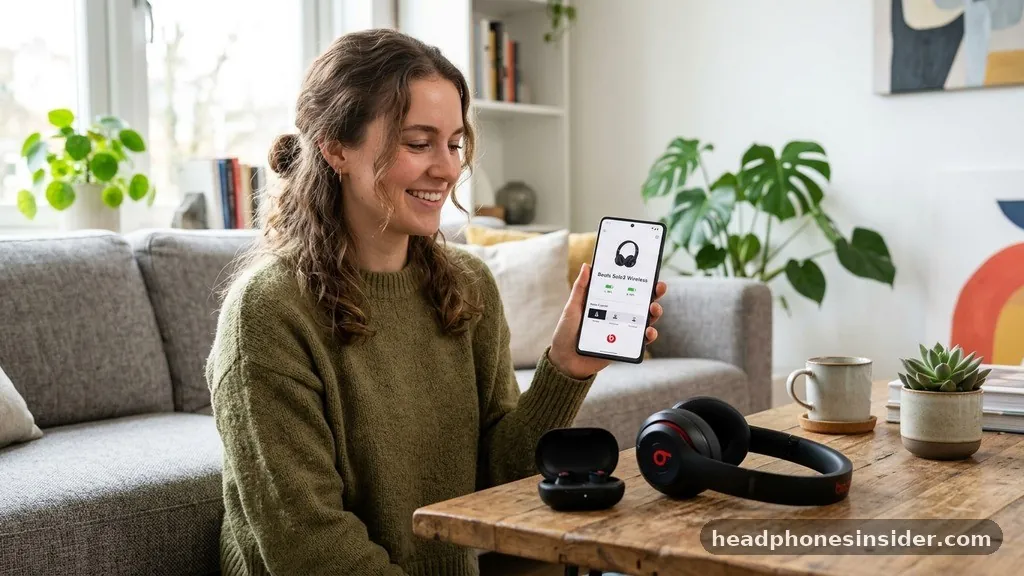
For those using an Android device, the experience is greatly enhanced by using the official software provided by the manufacturer. While you can connect your headphones using standard Bluetooth settings, downloading the app provides deeper integration, such as battery level monitoring and firmware updates.
Once you have successfully turned on your headphones, the application will automatically detect them, provided they are in range. This bridge between the hardware and the software ensures that your device recognizes the unique features of your specific model, such as noise cancellation toggles or custom sound profiles.
The app also acts as a hub for managing multiple devices. If you frequently switch between a tablet and a phone, the interface allows you to see which device is currently active. When the headphones are powered on, the app will display a visual confirmation, letting you know that the link is secure.
This is particularly helpful if you are in a crowded environment where multiple Bluetooth signals are present. By centralizing the management of your audio gear, you eliminate the guesswork and ensure that your headphones are always ready to provide the high-fidelity audio you expect.
Comparing Power and Connectivity Features
Different models of Beats headphones utilize varying technology to handle power and connectivity. While older models rely strictly on manual power buttons, newer iterations, especially those featuring the Apple H1 or W1 chips, offer more sophisticated power management.
These chips allow for faster switching between your devices, such as moving from an iPad to a Mac without needing to manually disconnect and reconnect. The following table illustrates the typical differences in how these devices handle power and connectivity:
| Feature | Standard Bluetooth Beats | Apple Chip Integrated Beats |
|---|---|---|
| Power Activation | Manual button press | Manual button or auto-connect |
| Pairing Speed | Standard manual discovery | Instant proximity pairing |
| Multi-Device Switching | Manual disconnect required | Automatic via iCloud sync |
| Battery Status | Basic indicator light | Detailed percentage on screen |
This comparison highlights why newer models are often favored for their convenience. If you value a seamless transition between your gadgets, choosing a model with integrated chip technology will save you significant time. Regardless of the model, the core action of turning the device on remains the primary gateway to your audio content.
Best Practices for Daily Use and Maintenance
To ensure your headphones remain in top working condition, develop a habit of turning them off when they are not in use. While modern electronics have sleep modes, manually powering down your device can help preserve battery health over the long term.
Avoid leaving your headphones in extreme temperatures, such as inside a hot car, as this can degrade the internal battery chemistry and affect the responsiveness of the power button. Keeping your device clean is also essential; debris around the button housing can prevent the switch from making full contact.
In addition to physical maintenance, keep your firmware updated. Manufacturers frequently release updates that improve connectivity stability and power efficiency.
Using the app on your phone or connecting your headphones to a computer allows you to check for these updates. By keeping your software current, you ensure that your headphones turn on reliably every single time.
- Always use a high-quality, certified charging cable to prevent damage to the charging port.
- Store your headphones in a protective case to prevent accidental button presses that might drain the battery.
- Periodically check for firmware updates to ensure optimal power management and connectivity.
- If you encounter persistent pairing issues, forget the device in your Bluetooth settings and re-pair from scratch.
- Keep your charging port free of lint and dust to ensure a consistent power flow.
These simple habits will significantly extend the life of your equipment. By treating your headphones with care and understanding the technical requirements for operation, you maintain the high quality of sound that defines the brand. Taking these small steps allows you to enjoy your audio equipment for years to come without unnecessary interruptions or technical headaches.
Conclusion
Learning how to turn on Beats headphones is a straightforward process that becomes second nature after a few uses. By familiarizing yourself with the power button location on your specific model, ensuring your battery is adequately charged, and utilizing the appropriate software for your smartphone, you can enjoy a seamless listening experience. Whether you are using a legacy pair or the latest Studio Pro model, the key is to maintain consistent habits, such as regular charging and keeping your device firmware updated.
If you ever find yourself struggling with connectivity or power, remember that a simple reset or checking your Bluetooth settings usually resolves the issue. By following these guidelines, you ensure that your gear is always ready when you need it.
If you have any specific questions about your model, feel free to consult the official documentation or reach out to support for further assistance. Enjoying your favorite media should be effortless, and with these steps, you are well-equipped to make the most of your audio journey.
Frequently Asked Questions
Why are my Beats not turning on even after charging?
If your headphones remain unresponsive, try a hard reset by holding the power and volume-down buttons for ten seconds. Ensure your charging cable and power adapter are functional by testing them with another device. If they still do not power on, contact official support for hardware inspection.
How can I tell if my Beats are currently turned on?
Most models provide visual or auditory feedback. You will typically see an LED indicator light turn on or pulse when you press the power button. Some models also emit a chime or sound through the ear cups to confirm that the device has successfully powered up.
Where is the power button located on Beats headphones?
On the majority of over-ear Beats models, the power button is located on the right ear cup. It is usually a small, tactile button near the bottom edge. If you are unsure, consult your user manual, as specific button placement can vary slightly between different product generations.
Why won’t my Beats show up in my Bluetooth settings?
Ensure your headphones are in pairing mode, which is usually indicated by a flashing light after holding the power button for several seconds. If they still do not appear, turn your phone’s Bluetooth off and back on, or clear the list of previously paired devices to start fresh.


