

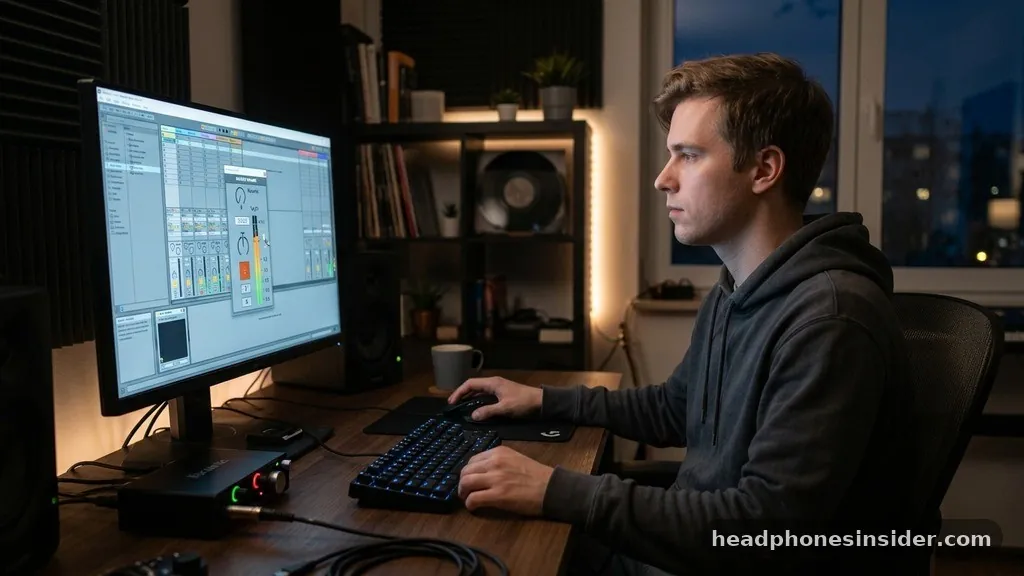
There is nothing quite as frustrating as settling in for a podcast, a movie, or a high-intensity gaming session only to realize that your audio levels are frustratingly low. When you find yourself asking why are my headphones so quiet, the answer is rarely a single catastrophic failure.
Instead, it is usually a mismatch between your playback device, the software configurations, or physical obstructions interfering with the output. Whether you are using high-end studio cans or simple earbuds, troubleshooting this issue requires a systematic approach to isolate where the signal is being throttled.
Software and System Volume Mismatches
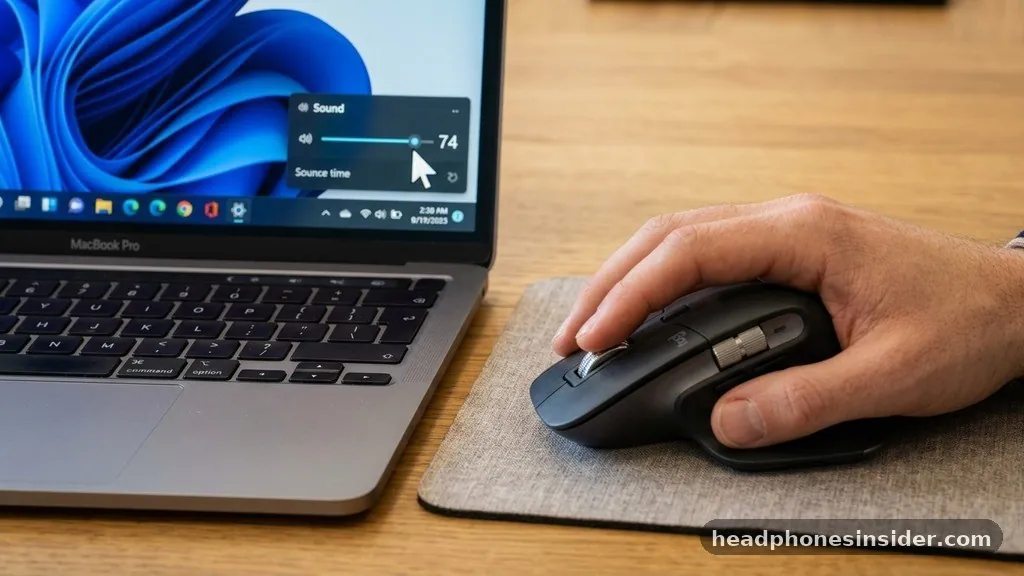
The most common reason for quiet audio is a conflict between your device and the application controlling the sound. Modern operating systems, including Windows, macOS, iOS, and Android, often use independent volume controllers for different layers of the system. If your master volume is at 100% but a specific application—such as a web browser or a media player—is muted or set to a low percentage in the volume mixer, your audio experience will suffer significantly.
To check this, you should navigate to your sound settings. On Windows, right-click the speaker icon in the taskbar and select “Open Volume Mixer.” Here, you can see if individual apps are set lower than the main output.
On mobile devices, ensure that your “media volume” is adjusted rather than just your “ringer volume.” Sometimes, a background app or a notification-heavy process can hijack the audio focus, causing the system to lower the output level of your primary media. If you are still struggling to get enough gain, it is worth looking into the official guidance on safe listening levels to ensure you aren’t accidentally hitting a software-imposed limiter meant to protect your ears.
Physical Obstructions and Maintenance
If your software settings appear to be correct, the problem is often mechanical. Over time, your headphones or earbuds can accumulate earwax, dust, and lint inside the mesh grille.
This debris acts as a physical barrier, muffling the sound before it ever reaches your ear canal. This is particularly common with in-ear monitors and wireless buds that sit directly inside the ear.
You can get better performance by performing a gentle cleaning. Use a soft, dry toothbrush or a piece of sticky tack to carefully remove any debris from the speaker mesh. Never use liquid cleaners or sharp objects, as these can easily puncture the delicate drivers or push the wax deeper into the housing, permanently damaging the sound quality.
If you notice one side is significantly quieter than the other, it is almost certainly a buildup of material on the quieter side. Once you clear the obstruction, you will likely find that the volume returns to normal levels immediately.
Bluetooth and Wireless Connectivity Issues
For those using wireless gear, the culprit is often a handshake error between the source and the output. When you pair Bluetooth headphones, the two devices negotiate a connection profile. Sometimes, this negotiation fails to set the proper gain stages, resulting in a signal that is transmitted at a whisper-quiet level despite your device reporting that it is at maximum volume.
To resolve this, try the “forget device” method. Go into your Bluetooth settings, remove the headphones from your list of paired devices, and restart both your phone or computer and the headphones. Re-pairing them forces a fresh handshake, which often clears up synchronization errors.
Additionally, check if your headphones have their own proprietary app. Many manufacturers include a secondary volume control or a “limiter” toggle inside their specific app that operates independently of your phone’s OS. Disabling these digital limiters can often provide the boost you need to get the volume back to a comfortable level.
Audio Normalization and Limiter Settings
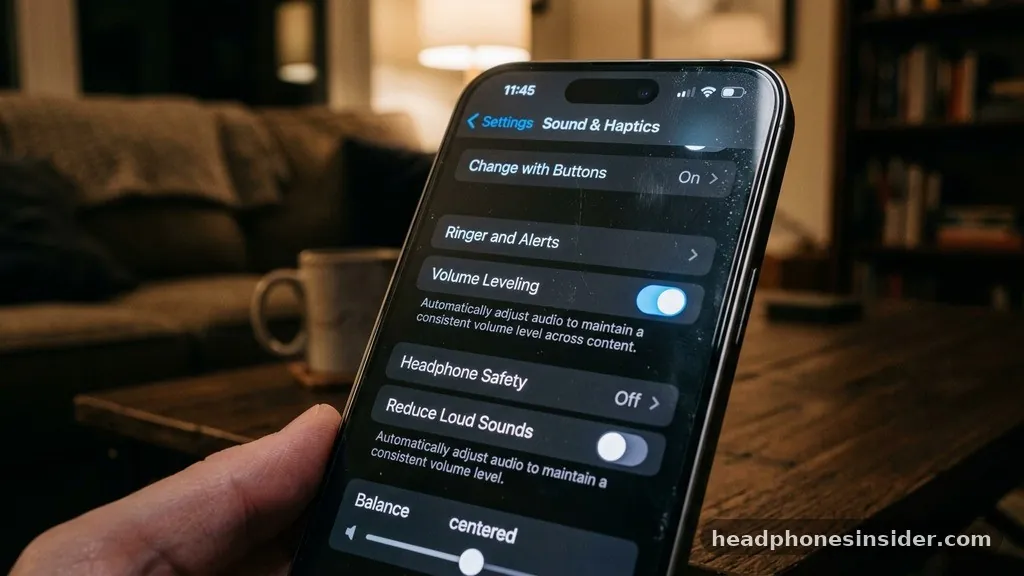
Modern streaming services and media players often include features like “Audio Normalization” or “Volume Leveling.” While these are intended to prevent sudden jumps in volume between different tracks or videos, they can sometimes be too aggressive. If your source material varies greatly in recording intensity, the software may lower the overall output to avoid distortion, leaving you with quiet headphones that feel sluggish.
If you find that your audio is consistently low across specific platforms, look for settings labeled “Normalize Audio,” “Volume Leveling,” or “Dynamic Range Compression” within those apps. Turning these features off can result in a more punchy and louder output.
Furthermore, some operating systems include an “Absolute Volume” feature that can cause conflicts between the phone and the headset. Disabling “Absolute Volume” in your developer or advanced sound settings can sometimes allow the two devices to communicate more effectively, ensuring the gain is properly applied across the entire signal chain.
Hardware Impedance and Power Requirements
Sometimes, the issue isn’t a glitch, but rather a lack of power. High-impedance headphones, often found in professional studio gear, require more voltage than a standard smartphone or laptop motherboard can provide. If you plug a high-impedance pair of cans into a low-power source, they will sound thin, tinny, and very quiet, no matter how high you crank the dial.
To fix this, you may consider investing in a dedicated headphone amplifier or a DAC (Digital-to-Analog Converter). An external amp takes the digital signal from your device and boosts it with its own power supply, providing the necessary drive for your drivers to reach their full potential.
If you are unsure whether your gear requires an amp, check the specifications on the manufacturer’s website for the “impedance” (measured in Ohms). Anything over 50-80 Ohms generally benefits from an external amplifier to maintain high-quality sound quality and volume.
Comparing Common Causes of Low Volume
To help you diagnose your specific situation, refer to the following table to identify the most likely culprit based on the type of connection and device you are using.
| Connection Type | Common Symptom | Likely Solution |
|---|---|---|
| Wired (3.5mm) | Low volume on one side | Clean the mesh or check the jack |
| Bluetooth | Volume doesn’t change on max | Reset pairing / Check app settings |
| Desktop PC | Quiet audio in specific games | Adjust application-specific mixer |
| Studio Gear | Distorted, very low volume | Use a dedicated amplifier |
Advanced Troubleshooting and System Checks
If you have exhausted the basic steps and your headphones are still performing poorly, it is time to look at deeper system-level problems. Drivers, which are the software instructions that allow your OS to talk to your hardware, can become corrupted or outdated.
On a PC, navigating to the Device Manager and updating the drivers for your sound card can resolve strange output behaviors. Similarly, a pending OS update might contain a patch for a known audio bug that has been affecting your specific device model.
Another often overlooked factor is the physical connection port itself. On laptops and tablets, the 3.5mm jack can become packed with pocket lint, preventing the plug from seating fully. Even a fraction of a millimeter of separation can cause an incomplete electrical connection, leading to weak signals or audio that only plays out of one channel.
Gently inspecting your port with a flashlight and using a non-conductive pick to clear it out can often solve the problem. If you are using a USB-C or Lightning dongle, the adapter itself might be failing. Testing your headphones with a different adapter or a different port can help you rule out a faulty cable or connector.
- Update your device firmware or operating system to the latest version to ensure compatibility.
- Test your headphones on a completely different device (like a friend’s phone or a second computer).
- Disable any “Hearing Protection” or “Volume Limit” toggles buried in accessibility menus.
- Check for cable damage, particularly near the jack or the earcups, as internal wire fraying can cause signal loss.
- Reset your headphones to factory defaults if they feature an internal battery and software.
Conclusion
Finding the root cause of why your headphones are so quiet often feels like a process of elimination, but it is almost always fixable. By systematically checking your software settings, clearing physical debris from your earbuds, and ensuring your wireless connection is stable, you can restore your audio to its intended level. Remember that external factors like impedance mismatches or aggressive volume normalization can also play a major role in how loud your music feels.
Take the time to test your gear across different sources to determine if the fault lies with the headphones themselves or the device they are plugged into. If you have followed these steps and the audio remains consistently low, it may indicate a hardware failure, but in the vast majority of cases, a quick software tweak or a simple cleaning is all that is needed to get back to your music.
Frequently Asked Questions
Why are my Bluetooth headphones quiet even when turned up to max?
This is often caused by a synchronization error between the device and the headphones. Try “forgetting” the device in your Bluetooth settings, restarting both units, and re-pairing them. Also, check for a dedicated app from the manufacturer, as it may have a separate volume limiter enabled.
How do I make my headphones louder on a PC?
Check the Windows Volume Mixer to ensure the specific application you are using isn’t set to a lower level than the master volume. Additionally, check your sound driver settings for “Loudness Equalization” or similar audio enhancements that can boost the perceived volume of your output.
Can earwax really make my headphones sound quiet?
Yes, absolutely. Accumulated earwax or dust in the mesh grille of your earbuds acts as a physical acoustic filter, blocking sound waves. Cleaning the mesh carefully with a dry, soft brush can immediately restore volume levels if the hardware itself is not damaged.
Is it normal for studio headphones to sound quiet on my phone?
Yes, if your headphones have high impedance (measured in Ohms), your phone likely lacks the power to drive them effectively. These headphones are designed for studio equipment and usually require a dedicated headphone amplifier to reach their full volume and sound quality potential.


