


Many gamers wonder whether they can use Bluetooth headphones on PS5 directly out of the box. The short answer is that the PlayStation 5 does not natively support standard Bluetooth audio devices for game sound. While the console utilizes Bluetooth technology for its DualSense controllers, Sony has restricted the system’s Bluetooth protocol to prevent latency issues and maintain high-fidelity audio standards.
If you try to pair your favorite wireless headphones through the system’s settings menu, you will quickly discover that the console simply does not recognize them as compatible audio output devices. Fortunately, there are several reliable workarounds that allow you to enjoy your gaming sessions with your preferred gear.
Understanding Why Sony Restricts Bluetooth Audio
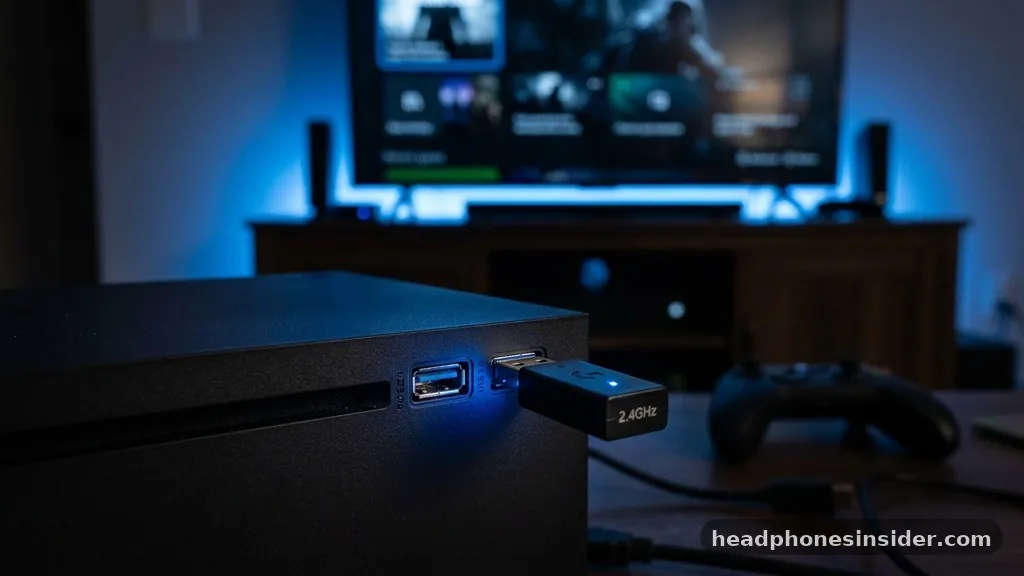
The primary reason you cannot natively connect Bluetooth headphones to the PS5 relates to audio latency and bandwidth management. Bluetooth is a wireless transmission standard that inherently introduces a slight delay between the source and the output. In a competitive gaming environment, even a millisecond of lag can be the difference between victory and defeat.
Sony opted to prioritize a seamless, high-speed connection for their official accessories, such as the Pulse 3D wireless headset, which uses a proprietary 2.4GHz wireless signal rather than standard Bluetooth. By restricting the console’s Bluetooth stack, the manufacturer ensures that users do not experience the lip-sync issues or audio desynchronization that often plague universal Bluetooth implementations on high-performance gaming hardware.
Furthermore, the PS5 is designed to handle complex 3D spatial audio, a feature that requires a stable and high-bandwidth connection to function correctly. Most standard Bluetooth headphones utilize protocols like SBC or AAC, which may not be optimized for the specific, low-latency requirements of the PlayStation’s Tempest Audio engine.
By steering users toward their own official hardware or licensed third-party alternatives, Sony maintains control over the quality of the sound experience. This also simplifies the support process, as Sony does not have to troubleshoot connectivity issues across thousands of different headphone models from various manufacturers, each with its own unique firmware and Bluetooth implementation.
Using a USB Bluetooth Adapter for Seamless Connectivity
If you are determined to use your existing wireless headphones, the most effective solution is to employ a dedicated USB Bluetooth adapter. This device functions as a bridge, tricking the PS5 into thinking it is outputting audio through a standard wired USB headset.
When you plug a high-quality dongle into the front or rear USB port of your console, the adapter handles the audio processing and the wireless handshake with your headphones, bypassing the internal restrictions of the PS5. This method is generally the most reliable way to achieve a stable connection without sacrificing too much sound quality.
To set this up, you need to ensure your adapter supports the specific Bluetooth codecs used by your headphones, such as aptX Low Latency. Many modern gaming-focused Bluetooth adapters are designed specifically for this purpose and include features that help minimize the inherent delay.
Once the device is plugged in, you will typically need to put your headphones into pairing mode and allow the adapter to perform the initial handshake. Once the connection is established, the PS5 will recognize the USB device as an audio output source, allowing you to control the volume and balance through the console’s quick menu settings.
Step-by-Step Guide to Connecting via USB Dongle
1. Purchase a compatible USB Bluetooth transmitter that is explicitly marketed for use with gaming consoles or the PlayStation 5.
2. Insert the adapter into an available USB port on your PS5.
3.
Put your Bluetooth headphones into pairing mode according to the manufacturer’s instructions.
4. If your adapter has a physical button, press it to initiate the pairing sequence.
5.
Navigate to the PS5 settings, select Sound, and then select Audio Output.
6. Change the Output Device to your newly connected USB headset.
Leveraging Alternative Audio Ports and Controllers
If you prefer not to use a USB dongle, there is a physical connection method that many players overlook. You can connect many wireless headphones directly to the DualSense controller using a 3.5mm audio cable, provided your headphones support a wired mode.
While this technically negates the “wireless” aspect of your headphones, it is a highly effective way to get audio from the console into your ears without needing to navigate complex menu settings or buy additional hardware. This approach is particularly useful if your headphones have a built-in microphone that you want to use for voice chat, as the controller’s jack supports both audio output and microphone input.
For those who prioritize mobility, some wireless headsets come with their own dedicated transmitters that plug into the controller or the console. It is important to distinguish between a universal Bluetooth adapter and a proprietary wireless dongle. A proprietary dongle, like the one included with the Sony Pulse 3D or similar headsets from brands like SteelSeries, offers a much more stable connection than a general-purpose Bluetooth transmitter.
These devices utilize a high-frequency wireless band that is specifically tuned for gaming, offering a significantly lower latency profile and better overall stability during intense gameplay sessions. You can find more information about peripheral hardware standards at the Bluetooth Special Interest Group website, which outlines the technical specifications of various wireless protocols.
Comparing Connection Methods for PS5 Audio
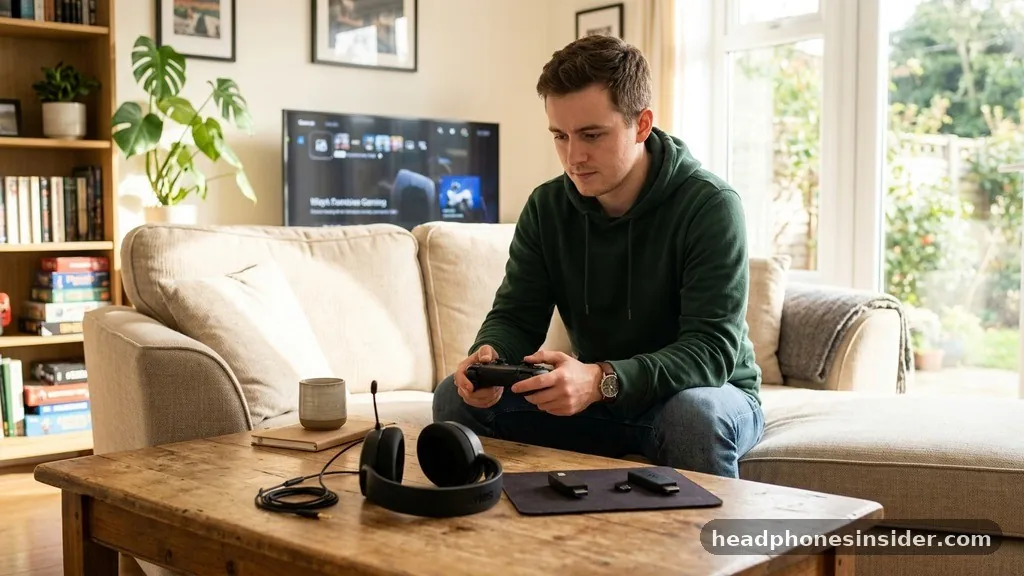
Choosing the right method for your setup depends on your priorities, such as budget, convenience, and the need for a microphone. The following table compares the most common ways to get audio from your console to your ears.
| Method | Latency | Microphone Support | Cost |
|---|---|---|---|
| USB Bluetooth Adapter | Low (depends on codec) | Variable | Moderate |
| Wired (3.5mm Jack) | None | High | Low (if cable is included) |
| Proprietary 2.4GHz Dongle | Lowest | Excellent | High (usually included) |
| TV/Monitor Audio Out | Variable | None | Low |
Each of these methods offers a different balance of performance and ease of use. A USB adapter is often the best “middle ground” for users who already own high-end Bluetooth headphones and do not want to purchase a brand-new gaming-specific headset. However, if competitive gaming is your primary focus, the stability of a proprietary 2.4GHz connection is almost always superior to any Bluetooth-based solution, regardless of the quality of the transmitter.
The Role of Microphone Quality and Voice Chat
One of the most frequent frustrations when trying to use standard Bluetooth headphones on a PS5 is the loss of microphone functionality. Even if you manage to get the audio output working via a Bluetooth transmitter, the microphone data often fails to transmit correctly due to the way Bluetooth handles two-way audio profiles.
Bluetooth profiles like A2DP are designed for high-quality audio playback but do not always support the simultaneous, high-fidelity microphone input needed for party chat. Consequently, you may hear your friends perfectly, but they might not be able to hear you, or the audio quality of your voice will drop significantly.
To solve this, many players opt to use a dedicated standalone microphone or rely on the built-in microphone located on the DualSense controller. If you are using a wired connection to the controller, the 3.5mm jack is designed to handle both channels, which usually resolves the microphone issue.
If you are determined to use a wireless microphone, you will specifically need an adapter that supports HFP (Hands-Free Profile) or an adapter bundled with a separate 3.5mm microphone jack that plugs into the controller. Always check the specifications of any Bluetooth adapter to see if it explicitly mentions “microphone support” or “two-way audio” before making a purchase.
Addressing Topical Gaps and Common Misconceptions
A common point of confusion is whether the PS5 will eventually receive a software update to allow native Bluetooth headphone support. While Sony has updated the console firmware numerous times since its release, there has been no indication that they intend to open up the Bluetooth stack for general audio devices. This is a deliberate design choice rather than a technical limitation that can be “patched” away.
Another misconception is that all Bluetooth devices will work equally well with a USB adapter. In reality, the quality of your experience will be heavily influenced by the specific Bluetooth version and the codec support of both your headphones and the adapter.
Users often ask if they can use their AirPods or other high-end wireless earbuds. While these devices are excellent for mobile listening, their performance on a PS5 via an adapter can be hit or miss. Some premium earbuds struggle with the specific handshake protocols of third-party USB transmitters, leading to frequent disconnections or “stuttering” audio.
If you are planning to use earbuds, it is highly recommended to look for a transmitter that has a “gaming mode” or a “low-latency mode” specifically designed to handle the rapid data packets required for gaming. Furthermore, if you are using a device that supports multiple connections, ensure that you disconnect the earbuds from your phone or laptop before pairing them with the PS5 to avoid signal interference.
Optimizing Your Gaming Audio Setup
Once you have established a reliable connection, the final step is to optimize your audio settings within the PS5 interface. The console offers a variety of sound profiles and 3D audio adjustments that can significantly enhance your immersion. Navigate to the Sound settings and explore the 3D Audio for Headphones feature.
This setting is particularly effective for open-world games and shooters, as it provides a sense of directionality that is difficult to achieve with standard stereo output. Even if you are using a third-party Bluetooth adapter, the console’s software processing will still apply these enhancements to the signal before it reaches the transmitter.
It is also worth mentioning that volume management can be tricky when using an adapter. Because the PS5 sees the transmitter as a generic USB device, you may find that the volume control on your headphones does not perfectly sync with the volume control on the console. You might need to set your console volume to a high level and then use the physical volume controls on your headphones to find the “sweet spot.”
Taking the time to calibrate these levels once will save you from having to constantly adjust settings during gameplay. By fine-tuning these parameters, you can create a personalized audio environment that rivals the performance of official, high-end gaming headsets.
Conclusion
While the PlayStation 5 does not support Bluetooth headphones out of the box, you have plenty of options to bridge the gap. Whether you choose to invest in a dedicated USB transmitter for a wireless experience, utilize a direct 3.5mm cable connection for maximum reliability, or stick with a proprietary headset for the best possible audio performance, your choice depends on your specific needs and budget. By understanding how the console handles audio signals, you can bypass the limitations and enjoy your games with the comfort and quality of the headphones you already own.
Experimenting with these different connection methods will help you determine which setup works best for your gaming environment. Start by assessing whether your current headphones have a wired mode, as this is often the simplest and most cost-effective path forward. If you prefer to stay wireless, research high-quality USB adapters that prioritize low latency to ensure your audio remains synchronized during fast-paced action.
We hope this guide helps you get the most out of your console audio. Feel free to share your experiences or ask further questions about your specific headphone model in the comments below.


