

Finding that your favorite pair of headphones suddenly lacks clarity is an incredibly frustrating experience. You might be listening to a podcast or immersed in a high-fidelity music track when the audio quality drops, leaving you wondering, why do my headphones sound muffled? This phenomenon, often described as hearing audio through a thick wall or underwater, usually stems from a specific hardware or software conflict.
Whether you are using wireless earbuds or a high-end wired studio headset, the root cause is frequently something as simple as a blocked mesh screen or an incorrect equalizer setting. By systematically checking your connection, physical cleanliness, and software configurations, you can often restore the crisp, balanced sound you expect from your audio gear.
Physical Obstructions and Debris Accumulation
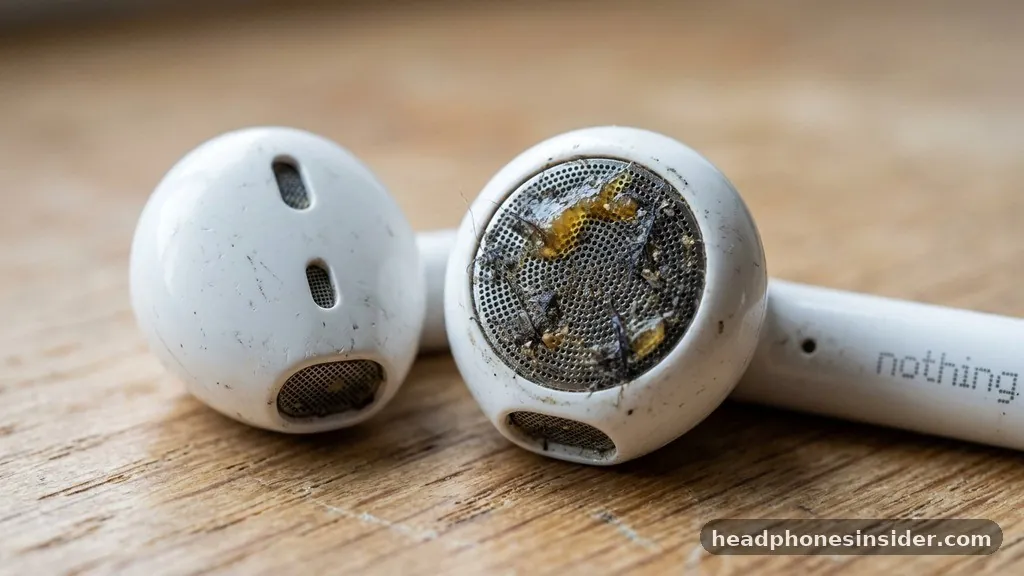
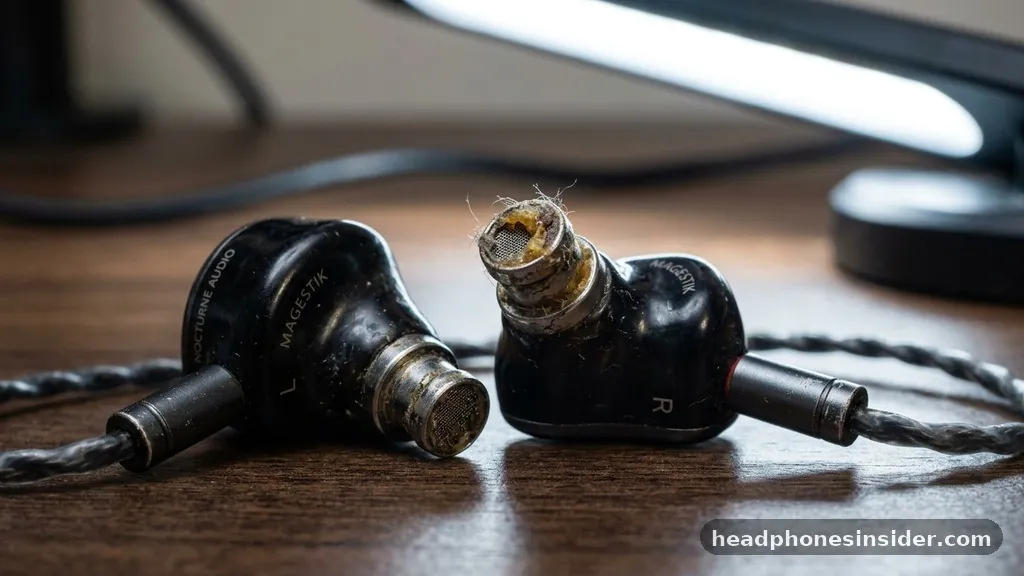
The most common reason for a sudden drop in audio fidelity is the physical buildup of earwax, dust, or lint on the speaker mesh. Over time, these microscopic particles accumulate on the protective screen that sits between the internal drivers and your ear canal. When this mesh becomes clogged, the high-frequency sounds—which are responsible for the crispness and detail in music—are effectively dampened, while the lower frequencies may still pass through, creating that characteristic muffled, bass-heavy, or “underwater” sound profile.
To address this, you should carefully inspect the nozzle or the driver housing of your device. Using a soft-bristled brush or a dry microfiber cloth, gently wipe away any visible debris. If you are using in-ear monitors or earbuds, you might need to remove the silicone or foam tips to get a better look at the mesh screen.
If you see a buildup of wax, avoid pushing it further into the housing; instead, use a specialized tool or a piece of sticky tack to lift the debris away from the mesh. Many users find that a simple cleaning session resolves the issue immediately, proving that the hardware itself was never faulty, just obstructed. Keeping your gear clean is a vital part of maintaining long-term audio performance.
Bluetooth Connectivity and Signal Interference
When you are using wireless headphones, the way the device communicates with your phone or computer can significantly impact sound quality. Bluetooth technology relies on various codecs to transmit data, and if the connection is unstable or if there is heavy interference from other wireless signals, the device may automatically downgrade the stream quality to maintain a stable link. This often manifests as a reduction in clarity or a “compressed” sound that many users interpret as being muffled.
If you notice this happening, the first step is to isolate the potential source of interference. Wi-Fi routers, microwaves, and even other Bluetooth-enabled devices in close proximity can create noise in the 2.4GHz spectrum. Try moving away from these sources to see if the audio quality improves.
Additionally, ensure that your device is not too far from the audio source. If you are using a Windows computer, check the Bluetooth settings to ensure the device is not being recognized as a “Hands-Free” headset rather than “Stereo” headphones. The Hands-Free protocol is designed for phone calls and has a much lower bandwidth, which drastically reduces audio quality for music playback.
Software Settings and Audio Enhancements
Modern operating systems are packed with audio enhancement features designed to simulate spatial sound or boost bass. While these settings can be beneficial in certain contexts, they often conflict with the native tuning of your headphones.
If you find that your headphones sound muffled on a PC, it is highly likely that an “enhancement” setting is causing digital processing artifacts that degrade the sound. You should navigate to your sound control panel and check for any active “Environment” effects, “Loudness Equalization,” or third-party audio software that might be applying a heavy-handed filter to the signal.
Beyond system-wide enhancements, check the equalizer (EQ) settings within the specific application you are using, such as Spotify, Apple Music, or a video game client. A user might have accidentally enabled a “Bass Boost” or a custom EQ profile that cuts the treble frequencies, leading to the muffled output.
Returning these settings to “Flat” or “Off” is the quickest way to verify if software processing is the culprit. In many cases, disabling all digital signal processing (DSP) allows the natural character of the drivers to shine through, immediately eliminating the perceived lack of detail.
The Role of Headphone Drivers and Hardware Damage
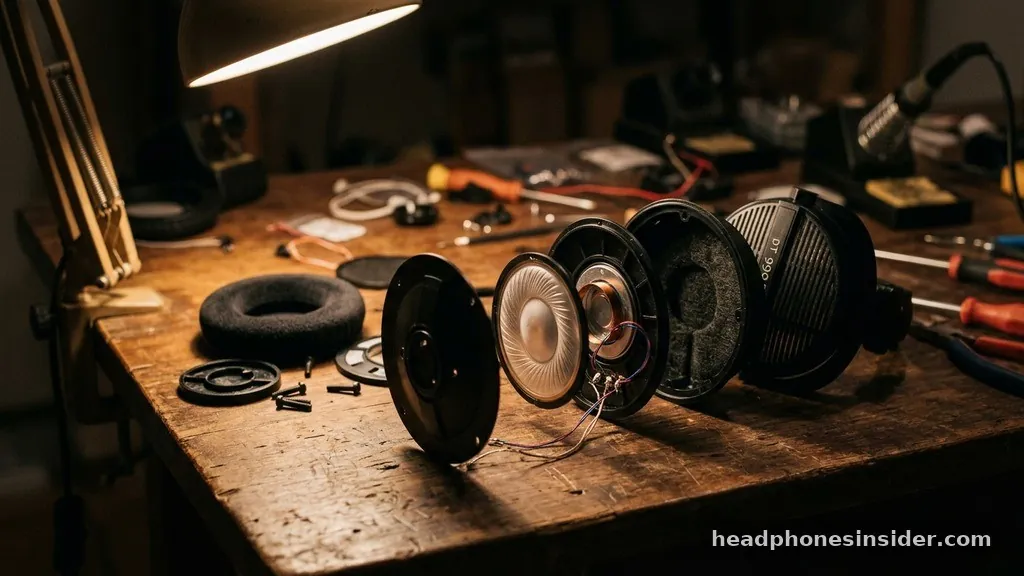
Sometimes, the issue is not external debris or software, but an internal failure of the headphone drivers themselves. The driver is the small component inside the ear cup that converts electrical signals into sound waves.
If a driver has been damaged—perhaps due to a sharp physical impact, exposure to moisture, or simply the natural wear and tear of a long lifespan—it may lose the ability to vibrate correctly. This mechanical failure often results in a loss of high-frequency response, causing the audio to sound distant or muffled.
To test for hardware failure, try plugging the headphones into a completely different device, such as a different laptop, a tablet, or a dedicated headphone amplifier. If the muffled sound persists across all devices, it is a strong indicator that the internal hardware is compromised.
While you can sometimes find repair tutorials on sites like iFixit, hardware damage to the internal drivers is often irreparable for the average user. If the device is still under warranty, this is the appropriate time to reach out to the manufacturer for a replacement or professional repair, as internal driver degradation is rarely something that can be fixed with a software update or a quick cleaning.
Operating System and Driver Conflicts
When the issue is isolated to a specific computer, the problem might lie with the audio drivers installed on your operating system. Windows and macOS rely on specific software drivers to communicate with your hardware. If these become corrupted or outdated, the audio output might be incorrectly processed, leading to distortion or muffled sound.
A common fix is to perform a clean reinstallation of your audio drivers. You can do this by opening the Device Manager, locating your audio output device, and choosing to uninstall the driver. After a restart, your computer will automatically reinstall the default drivers, which often resolves hidden configuration errors.
Another aspect to consider is the “sampling rate” settings within your sound control panel. If your system is set to a very low bit depth or sample rate, the audio signal will lack the necessary bandwidth for high-fidelity playback.
Ensuring your output device is set to at least 24-bit/48kHz or higher can often provide an immediate boost in clarity. Furthermore, if you are using an external USB DAC or an audio interface, ensure that the firmware is up to date, as manufacturers frequently release patches to fix known audio processing bugs that can cause muffled output or latency issues.
Comparison of Common Muffled Audio Causes
Understanding the root cause of your audio issues is easier when you compare the symptoms against the most likely culprits. The following table breaks down how different problems typically present themselves and what you should check first.
| Potential Cause | Common Symptom | Recommended Immediate Fix |
|---|---|---|
| Physical Debris | Gradual loss of clarity in one ear | Clean the mesh screen with a soft brush |
| Bluetooth Codec/Protocol | Low-quality “Hands-Free” sound | Switch to “Stereo” in sound settings |
| EQ/Software Effects | Muddy, bass-heavy, or distorted audio | Disable all system enhancements and EQ |
| Damaged Drivers | Consistent muffling across all devices | Test on another device; contact support |
| Corrupt Audio Drivers | Muffled sound only on one computer | Uninstall and reinstall audio drivers |
Troubleshooting Steps Summary
If you are still struggling to restore the sound quality, follow this systematic approach to rule out the most common factors. By tackling these steps in order, you can save significant time and avoid unnecessary stress.
- Check the source: Plug your headphones into a different device to see if the problem follows the headphones or stays with the original computer/phone.
- Clean your gear: Use a dry, soft cloth or a fine-tipped brush to clear any wax or lint from the speaker mesh.
- Reset settings: Turn off any “Spatial Audio,” “Bass Boost,” or “Equalizer” settings on both your operating system and your media playback app.
- Update software: Check for pending system updates and ensure your audio drivers are fully updated through your manufacturer’s website.
- Toggle connections: For wireless devices, forget the connection in your Bluetooth settings and re-pair the headphones from scratch.
- Inspect cables: If using wired headphones, ensure the jack is fully seated in the port and that there are no kinks or breaks in the cable shielding.
Addressing muffled audio is often a process of elimination. By starting with the most obvious physical obstructions and moving toward more complex software configurations, you can identify why the sound has changed.
In many instances, the solution is simply a matter of removing a small amount of debris or toggling a single software switch. If the problem persists despite your best efforts, it is possible that the internal hardware has reached the end of its functional life, in which case you might need to consider an upgrade.
Taking care of your audio equipment goes beyond just storing it safely; it requires consistent maintenance and an understanding of how your hardware interacts with your software. When you treat your headphones with care and keep your system settings optimized, you ensure that you get the best possible performance every time you press play. If you have followed these steps and still find yourself asking why do my headphones sound muffled, don’t hesitate to reach out to the manufacturer’s technical support, as they may have specific diagnostic tools for your model.
Frequently Asked Questions
Why do my headphones sound like they are underwater?
This usually indicates an issue with the audio profile or a hardware connection problem. If you are using a headset with a microphone, ensure your computer hasn’t defaulted to the “Hands-Free” communication protocol, which sacrifices audio quality for two-way voice transmission. Switching to “Stereo” mode in your sound settings usually fixes this.
Can earwax really make headphones sound muffled?
Yes, it is the most common cause of audio quality loss. Even a tiny amount of earwax on the speaker mesh can block the higher frequencies, leaving you with a dull, muddy sound. Regularly cleaning your ear tips and the mesh housing with a soft brush will prevent this buildup.
Why is my audio suddenly muffled after a Windows update?
Windows updates can occasionally reset your audio enhancement settings or cause driver conflicts. Check your sound control panel to see if “Audio Enhancements” have been re-enabled automatically. If they have, turning them off and reinstalling your audio drivers via the Device Manager often restores your original sound clarity.
Do wired headphones lose quality over time?
While the drivers themselves are durable, the cables can degrade, and the internal mesh can become clogged. If the cable has internal breaks, you might experience intermittent muffled sound or audio cutting out. If the issue is persistent and not related to debris, the internal wiring may be failing.


