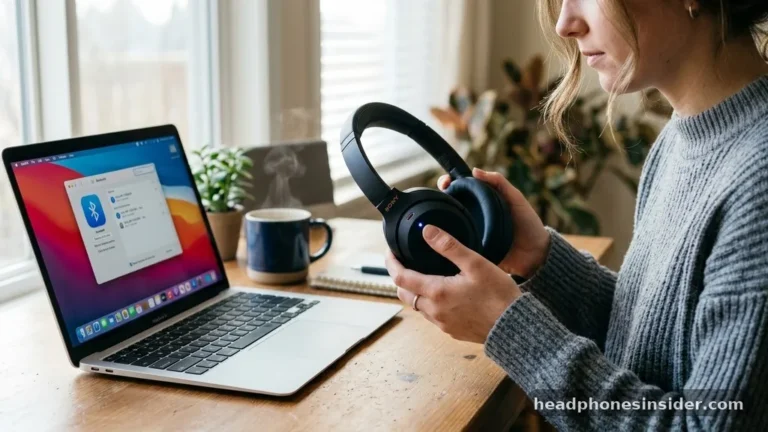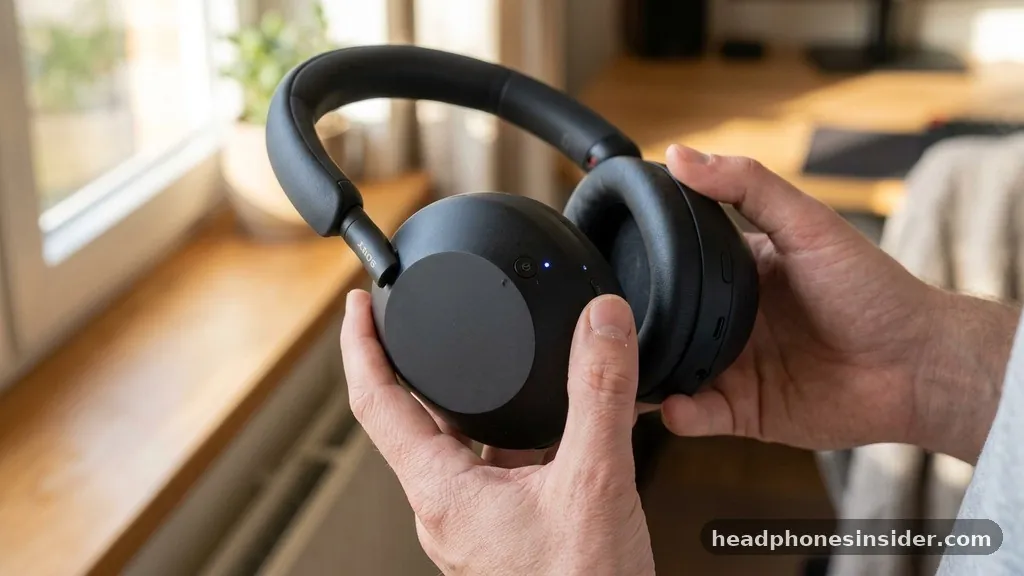
Connecting your Sony headphones to an iPhone is a straightforward process, yet it is often where users encounter the most frustration when setting up their audio equipment for the first time. Whether you have just unboxed a premium pair of WH-1000XM5 noise-canceling headphones or are setting up a budget-friendly CH-series model, the foundation of the experience relies on establishing a stable Bluetooth handshake between the two devices.
By understanding the underlying mechanics of pairing mode and how your iOS settings manage wireless peripherals, you can ensure a seamless audio experience. This guide walks you through the technical steps and troubleshooting strategies required to achieve a perfect, stutter-free connection every single time.
Initiating Pairing Mode on Sony Headphones
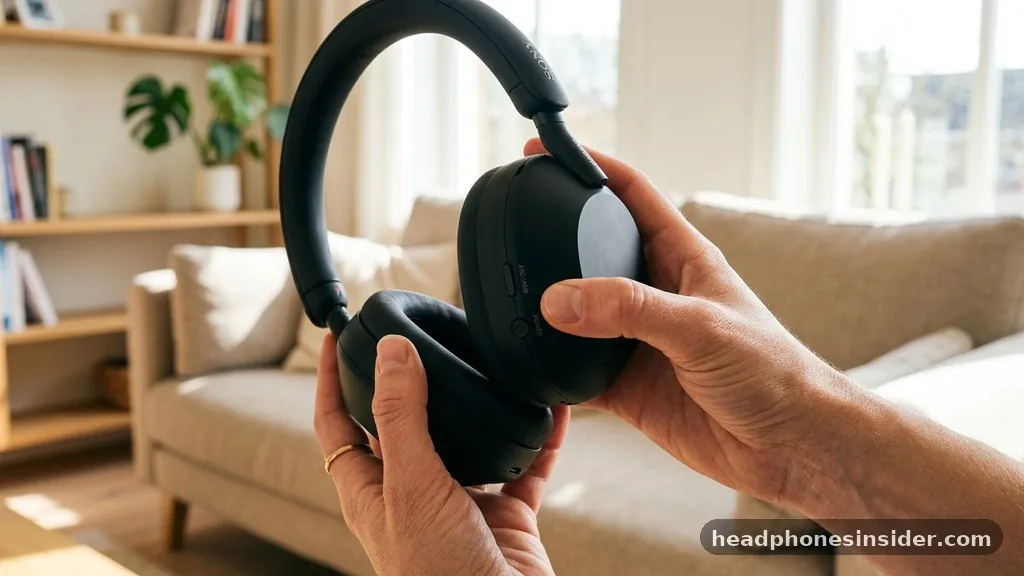
To successfully link your audio gear, you must first understand how to trigger the pairing mode on the hardware itself. For most modern Sony wireless headphones, this involves a specific sequence involving the power button.
When you turn on your headphones for the first time, they will usually enter this mode automatically. However, if you are attempting to link to a new device or if the headphones have been previously linked to another smartphone, you must manually force them into a discoverable state.
To do this, ensure the headphones are powered off. Once they are inactive, press hold the power button for several seconds—usually five to seven—until the LED indicator begins to flash in a distinct pattern, typically blue or alternating colors. This light signal is your visual confirmation that the hardware is broadcasting its presence to nearby Bluetooth devices.
If you release the button too early, the unit may simply power on without entering the pairing state, which is a common point of confusion for many users. Always wait for the flashing light before attempting to scan on your iPhone, as the device will not be visible to your phone until this broadcast is active.
Configuring Bluetooth Settings on Your iPhone
Once your headphones are broadcasting, the next step is to navigate the iOS interface to locate and authorize the link. Open the settings app on your iPhone and tap on the Bluetooth menu. Ensure the toggle switch is set to the “on” position.
Your iPhone will immediately begin searching for available hardware. Under the “Other Devices” section, you should see the model name of your Sony headphones appear after a few moments.
When the device name populates, tap it to initiate the handshake. If you are prompted for a PIN, the default for almost all Sony audio products is “0000,” though modern iOS iterations rarely require this manual entry. Once the status changes to “Connected,” the device paired handshake is complete.
It is helpful to remember that an iPhone acts as the master controller in this relationship, meaning it stores the pairing information to streamline future reconnections. If the connection fails, it is often because the iPhone is still holding onto a stale cache of an already paired device profile, which can be cleared by selecting “Forget This Device” and restarting the process.
Utilizing the Sony Headphones Connect App
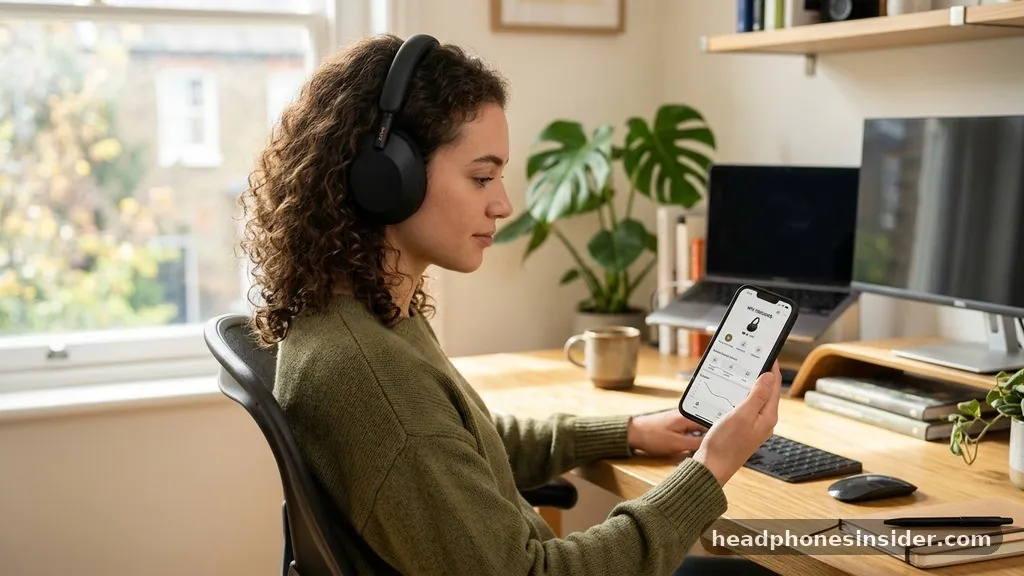
While you can technically use your headphones as standard Bluetooth gear without additional software, downloading the official Sony Headphones Connect application from the App Store is highly recommended. This app serves as a bridge that provides deeper control over your audio profile, firmware updates, and noise-cancellation settings. Beyond just basic connectivity, the app manages the technical information headset data, which helps the iPhone recognize specific features like LDAC support or spatial audio profiles.
When you open the app, it will automatically detect the headset paired status if your Bluetooth is already active. This integration ensures that your iPhone handles the audio stream with the correct codec settings, which significantly improves sound quality.
Furthermore, the app provides a diagnostic tool if you ever experience a drop in connection stability. If you are struggling with a specific feature, the app can often tell you if the paired device is running outdated firmware, which is a frequent cause of intermittent connectivity issues when using newer iOS versions.
Troubleshooting Common Connection Failures
Even with the best hardware, you may occasionally find that your iPhone refuses to recognize your Sony gear. If you are staring at a screen that won’t show your headset, the first thing to check is whether another device—like a laptop or an old tablet—is currently hijacking the signal.
Bluetooth is a point-to-point protocol; if your headphones are currently connected to your computer, they will not show up as available to your iPhone. You must disconnect the other device first.
If the issue persists, you might need to perform a factory reset, often referred to as an initialized state. This process wipes the internal memory of the headphones, effectively deleting all stored paired devices. To do this, check your specific manual, as the combination of buttons varies by model.
Usually, this involves holding the power and volume buttons simultaneously while the device is charging. Once the operation is complete, the information deleted state allows you to start the headset pairing process as if the unit were brand new.
| Issue | Likely Cause | Recommended Fix |
|---|---|---|
| Headphones not found | Device already paired to another source | Disconnect other devices or turn off their Bluetooth |
| Intermittent audio | Outdated firmware | Update via Sony Headphones Connect app |
| Pairing fails repeatedly | Corrupted cache | Perform a factory reset (initialize) |
| Device not discoverable | Not in pairing mode | Hold power button until light flashes |
Managing Multiple Paired Devices
One of the most useful features of modern Sony headphones is multipoint connectivity, which allows the headset headset to maintain a link with two sources simultaneously. If you want to use your headphones with both your iPhone and your Mac, you must configure this within the Sony app.
Once enabled, you can switch audio sources without needing to manually toggle settings every time. However, this convenience can sometimes lead to confusion regarding which device is “master” at a given moment.
If you find that your iPhone is not receiving audio even though the device headset is showing as connected, check the “AirPlay” menu in your iPhone Control Center. Occasionally, the iPhone will maintain the Bluetooth link but route the audio output to the phone’s internal speaker instead of the headphones.
Simply tapping your Sony headphones in the AirPlay list will force the routing to correct itself. This is a common quirk when moving between multiple Bluetooth devices throughout the day, and understanding this menu is key to maintaining a smooth user experience.
Advanced Tips for Seamless Integration
For power users, optimizing the connection involves more than just the initial setup. Ensuring that your iPhone’s iOS version is up to date is critical, as Apple frequently updates its Bluetooth stack to improve stability with third-party audio hardware. You can find more information about managing your device ecosystem through the official Apple support documentation, which details how to troubleshoot wireless connections.
Another pro tip involves the “Forget This Device” feature. If you have been using your headphones for a long time and notice that they are behaving erratically or refusing to auto-connect, the best course of action is to go into your Bluetooth settings, tap the “i” icon next to the Sony device, and select “Forget This Device.” After doing this, turn off Bluetooth on your iPhone, toggle it back on, and perform the pair headset process from scratch.
This clears out any potentially corrupted handshake data that may have accumulated over months of use. Keeping your software updated and periodically refreshing your paired list will ensure your hardware performs exactly as intended for years to come.
Frequently Asked Questions
Why is my iPhone not finding my Sony headphones?
If your iPhone cannot see your headphones, the device is likely not in pairing mode or is already connected to another device. Ensure the headphones are turned off, then hold the power button until the light flashes. Also, turn off Bluetooth on nearby tablets or laptops to prevent signal hijacking.
How do I put my Sony headphones in pairing mode?
Most Sony models require you to hold the power button for several seconds while the device is powered off. Wait until the status light begins blinking in a distinct pattern—usually blue—which indicates the headphones are actively broadcasting a signal for your iPhone to discover in the Bluetooth menu.
Do I need the Sony app to connect my headphones?
No, you do not need the app to establish a basic Bluetooth connection. Your iPhone will recognize the headphones as standard audio hardware through the system settings. However, the app is highly recommended for firmware updates, sound customization, and managing advanced features like noise cancellation and multipoint connections.
What should I do if the connection is unstable?
If you experience stuttering or frequent drops, try “forgetting” the device in your iPhone Bluetooth settings and pairing it again. Additionally, ensure your headphones are running the latest firmware via the Sony app. If issues persist, factory resetting your headphones to their initialized state often resolves persistent software conflicts.
The process of linking your audio equipment to your smartphone is a fundamental skill for any modern user. By following the steps outlined, from manually triggering the pairing sequence to managing your device list within the iOS settings, you can ensure that your listening sessions are consistently high-quality. Remember that the connection between your hardware and your phone is a digital conversation; if that conversation ever stalls, a simple reset or a refresh of the pairing cache is almost always the solution.
As you continue to use your Sony headphones, you will find that these procedures become second nature, allowing you to focus more on your music and less on the technical configuration. If you encounter further hurdles, don’t hesitate to consult the documentation provided with your specific model, as Sony offers unique features that may require minor adjustments to your workflow. Enjoy your enhanced audio experience.