

Connecting your audio gear to your computer shouldn’t be a source of frustration, yet knowing exactly how to connect Bose headphones to Mac systems can sometimes feel like a hurdle when the pairing process doesn’t go as expected. Whether you are using the latest QuietComfort Ultra series or a classic pair of over-ear cans, the fundamental process relies on the macOS Bluetooth stack.
By mastering these settings, you ensure that your high-fidelity audio remains stable, whether you are attending a high-stakes video conference or relaxing with your favorite playlist. This guide walks you through the technical nuances of pairing, troubleshooting, and optimizing your wireless setup for a seamless listening experience.
Initiating the Bluetooth Pairing Mode on Bose Hardware
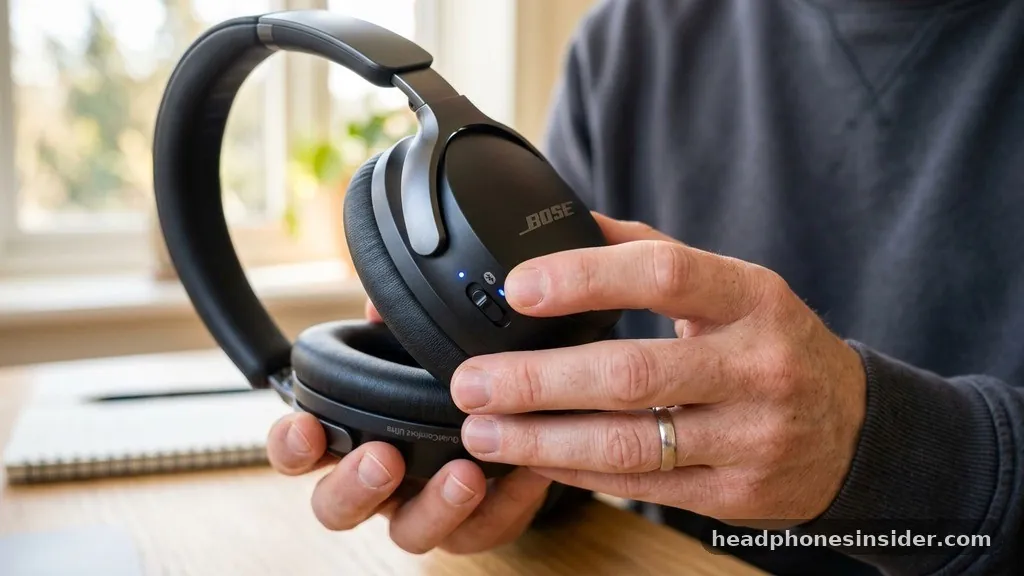
To successfully link your equipment, you must first place the headphones into discovery mode so the computer can detect them. The specific method to trigger this state varies slightly depending on your model, but the core logic remains consistent across the product line.
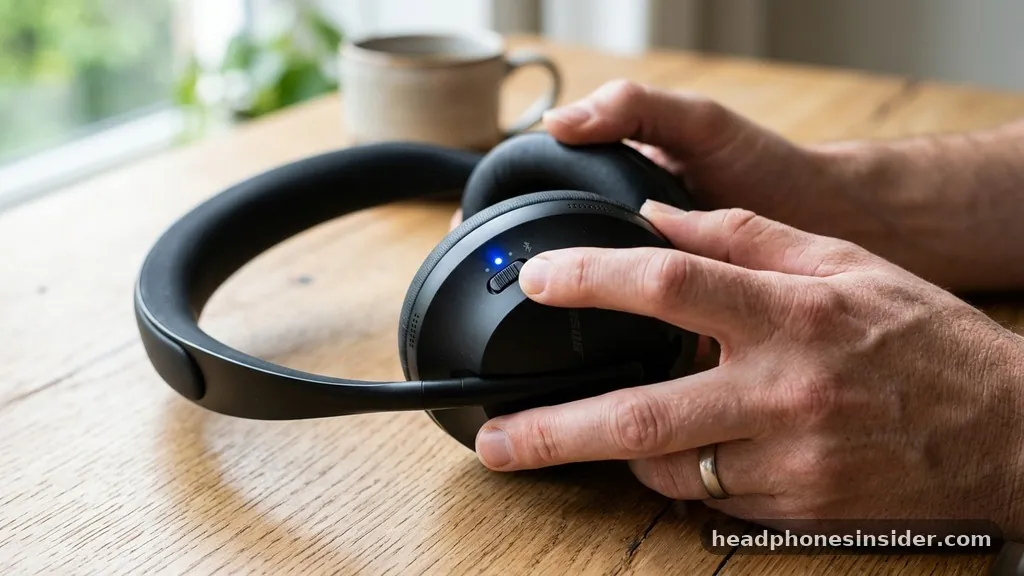
For most modern Bose devices, you need to ensure the power is on and then slide or hold the power button toward the Bluetooth icon until the indicator light blinks blue. This visual cue signifies that the device is actively broadcasting its presence to nearby hardware.
When learning how to connect Bose headphones to Mac, many users overlook the importance of the initial handshake. If the indicator light is solid white or blinking green, the device might already be trying to link to a previously paired smartphone or tablet. To force a new connection, you often need to hold the power switch in the Bluetooth position for several seconds until you hear a voice prompt stating that the device is “ready to pair.”
This action clears the active connection request and opens a fresh channel for your computer to find the hardware. Always verify that your headphones are not currently tethered to another active device, as this can cause the Mac to ignore the request or fail to maintain a stable link.
Navigating macOS Settings for Seamless Integration
Once your headphones are in discovery mode, the next step involves navigating the macOS interface to establish the digital bridge. You should navigate to the Apple menu in the top-left corner of your screen and select System Settings. From the sidebar, click on the Bluetooth menu to reveal the list of available devices.
If your headphones are correctly broadcasting, they will appear in the list under “Nearby Devices” or “Other Devices.” Clicking the “Connect” button next to the device name triggers the final handshake between the two systems.
It is helpful to understand the relationship between the hardware and the software. The macOS Bluetooth daemon acts as the mediator, managing the signal strength and audio protocol negotiation. If you are using a recent version of macOS, the system will automatically handle the selection of the best available codec, such as AAC or SBC, to balance sound quality with latency.
Once the status changes to “Connected,” you can confirm the link by clicking the Sound icon in your Control Center. Ensure that your Bose device is selected as both the Output and Input source if you intend to use the built-in microphone for calls.
Utilizing the Bose Connect App and Ecosystem
While macOS does not have a native “Bose Connect” app in the traditional sense, you can manage many advanced features through the Bose Music app on your mobile device, which syncs settings to the cloud. However, for direct management on your Mac, you should rely on the system-level sound preferences. Advanced users often ask if they can use the mobile-based connect app to manage their connection on a computer.
While the app is primarily designed for iOS and Android, it serves as a vital tool for updating the firmware on your headset. Always check for firmware updates via the official Bose product support portal to ensure your hardware remains compatible with the latest macOS updates.
Firmware updates are not merely about bug fixes; they often introduce performance improvements that make the pairing process more reliable. If you encounter frequent drops or stuttering audio, the issue is rarely a hardware defect but rather a mismatch in software versions.
By keeping your headphones updated, you ensure that the Bluetooth handshake protocols are optimized for the modern Apple ecosystem. This practice effectively bridges the gap between different generations of technology, allowing older headsets to maintain compatibility with newer Mac hardware configurations.
Troubleshooting Common Connection Failures
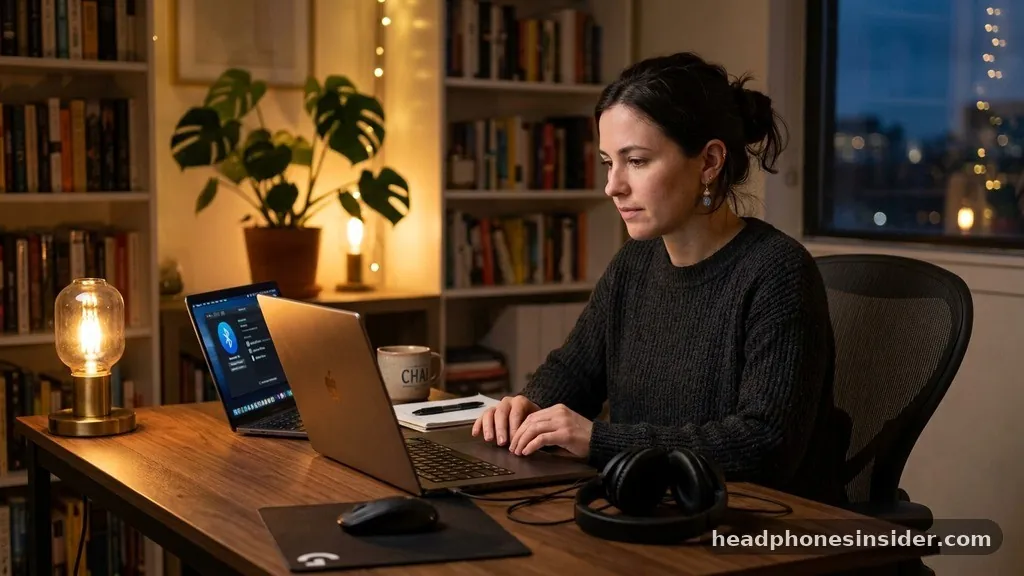
Even with the best hardware, you may eventually face a scenario where your Mac refuses to recognize the headset. When troubleshooting how to connect Bose headphones to Mac, start by toggling the Bluetooth setting off and back on within the System Settings. This simple action refreshes the Bluetooth stack and clears out stale connection attempts.
If the device still refuses to show up, try “forgetting” the device if it appears in the list of previously connected items, then restart the discovery process from scratch. This process clears the cache of the specific device profile, which can often resolve authentication errors.
Another frequent culprit is signal interference or power management issues. Bluetooth operates on the 2.4GHz frequency, which is shared by Wi-Fi networks and various household peripherals. If your Mac is surrounded by multiple active wireless devices, the signal-to-noise ratio can degrade, leading to connection dropouts.
Try moving your headset closer to the Mac during the initial pairing phase. Additionally, verify that your Mac is not in a “low power” state that might be throttling the Bluetooth radio’s output. If you still experience issues, a full reset of the headphones—which usually involves clearing the device list by holding the power button for ten seconds—is a reliable final resort to restore factory defaults.
Comparing Audio Quality and Latency Across Models
The connection experience can vary based on the specific generation of Bose hardware you own. Newer models, such as the QuietComfort Ultra series, utilize updated Bluetooth chipsets that support more robust connections and faster switching between devices. The following table provides a quick overview of how different connection methods influence the overall performance of your audio setup.
| Connection Feature | Standard Pairing | Multipoint Connectivity | Wired Alternative |
|---|---|---|---|
| Latency | Moderate | Variable | Near-Zero |
| Setup Ease | High | Medium | Instant |
| Audio Quality | High (AAC) | High (Codec Dependent) | Highest (Lossless) |
| Battery Usage | Standard | Increased | None |
Understanding these distinctions helps you manage expectations. While wireless connectivity is incredibly convenient, the protocol is subject to the limitations of the Bluetooth standard. If you are doing professional audio editing or gaming where every millisecond of latency matters, you might find that using a physical cable is a superior choice.
However, for everyday tasks like streaming music, watching videos, or participating in virtual meetings, the standard Bluetooth connection is more than sufficient. Multipoint connectivity is another feature worth exploring; it allows your headphones to maintain a link with both your Mac and your smartphone simultaneously, automatically switching audio output based on which device is playing media.
Optimizing the System for High-Fidelity Audio
Once the physical connection is established, you should focus on the quality of the signal. macOS allows you to adjust the audio output format to ensure the best possible fidelity. Open the Audio MIDI Setup utility—a hidden gem in the Utilities folder—to verify that your output device is set to a high sample rate.
While Bluetooth is inherently compressed, ensuring that the Mac is pushing the highest possible data rate to the headset can make a noticeable difference in clarity. This is particularly important for users who subscribe to high-resolution streaming services.
Furthermore, consider the environment in which you are using your headset. If you find that the system is defaulting to the wrong input source, you can manually override this in the Sound settings under the “Input” tab. Many Bose headsets include sophisticated noise-canceling microphones that are far superior to the built-in Mac microphones.
By explicitly selecting your headset as the primary input device, you ensure that your voice during meetings is crisp and clear, effectively filtering out ambient room noise. This level of granular control is what separates a casual user from someone who has truly optimized their workstation for peak performance.
Frequently Asked Questions
Why do my headphones keep disconnecting from my Mac?
This is often caused by signal interference or outdated firmware. Ensure no other devices are trying to “steal” the connection. You can also try removing the headphones from your Bluetooth list in System Settings and re-pairing them to refresh the connection profile.
Can I connect my Bose headphones to two devices at once?
Yes, if your specific Bose model supports multipoint connectivity. You can pair the headset with both your Mac and phone simultaneously. The headphones will manage the audio stream priority, typically switching to the device that initiates playback or an incoming call.
Is the sound quality worse when connected to a computer versus a phone?
Generally, no. The audio quality depends on the Bluetooth codec negotiated between the Mac and the headphones. macOS supports high-quality codecs like AAC, which provide excellent sound. If audio sounds poor, check your System Settings to ensure no audio enhancements are interfering.
Do I need the Bose app to use my headphones with a Mac?
No, you do not need the app to use the headphones for basic audio playback. The Mac uses native Bluetooth drivers to communicate with the headset. However, the app is highly recommended for updating firmware and customizing advanced noise-cancellation settings.
Achieving a stable and high-quality link between your audio gear and your computer is a straightforward process once you understand the underlying mechanics of Bluetooth discovery and macOS sound management. By ensuring your device is in the correct pairing mode, keeping your firmware updated, and utilizing the advanced audio settings within your system, you can eliminate the common frustrations associated with wireless connectivity.
Remember that consistent maintenance, such as periodically clearing your device list or checking for interference, will keep your audio setup running smoothly for years to come. Whether you are working in a busy office or enjoying media at home, these steps provide the foundation for a reliable listening experience.
Should you encounter any persistent issues, the official support resources mentioned earlier remain your best path forward for specific model troubleshooting. Enjoy the freedom and clarity that your high-quality audio equipment provides.


