

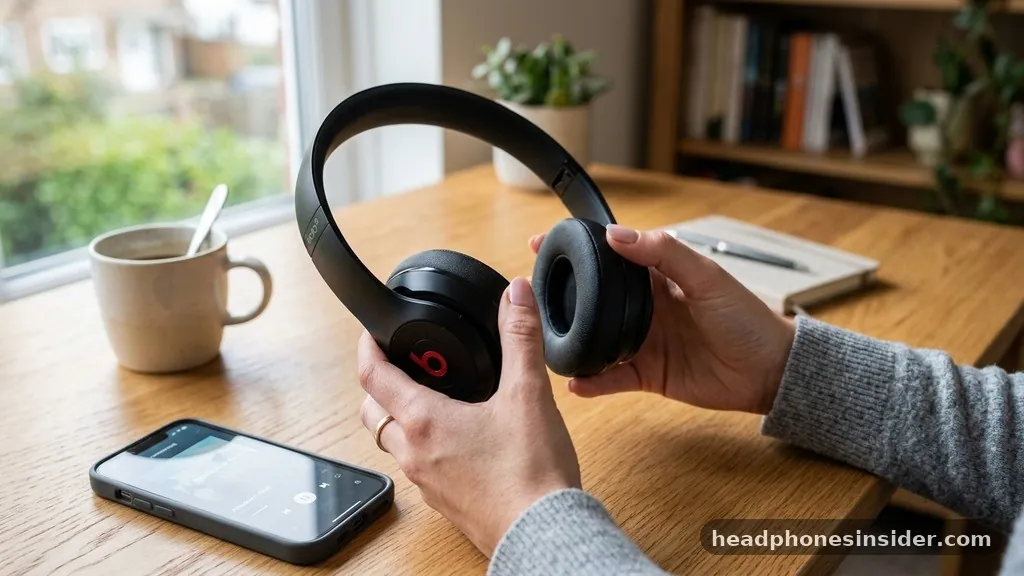
Encountering technical glitches with your audio gear can be incredibly frustrating, especially when you are in the middle of a workout or trying to focus on a podcast. If you are struggling with connectivity issues, unbalanced audio, or a device that simply refuses to turn on, learning how to reset Beats headphones is often the most effective way to restore functionality.
A factory reset acts as a “clean slate” for your hardware, clearing out corrupted cache files and forcing the internal software to re-establish a fresh connection with your smartphone, tablet, or laptop. By following the correct sequence of button presses, you can resolve most common firmware hiccups without needing to contact customer support.
Understanding the Necessity of a Factory Reset
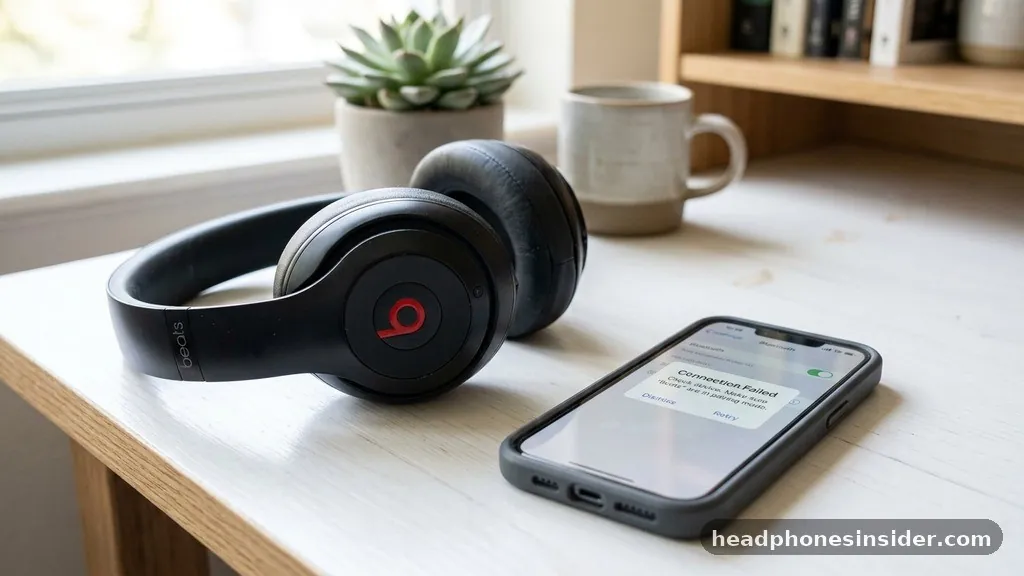
A factory reset is a diagnostic procedure that restores the device to its original out-of-the-box settings. When you reset Beats headphones, you are essentially wiping the internal memory that stores pairing information, customized settings, and temporary cache data.
This process is frequently the primary solution for persistent Bluetooth connectivity errors, where your headphones appear in the list but refuse to link, or when audio playback is intermittent. Furthermore, if you are planning to sell or gift your device, performing a reset ensures that your personal information and paired device history are completely erased, providing a clean experience for the next user.
It is important to differentiate between a simple power cycle and a full factory reset. A power cycle involves turning the device off and on again, which clears temporary RAM but keeps your pairing data intact. A factory reset, however, is more aggressive.
You will notice that after a successful procedure, your headphones will no longer automatically recognize your phone, and you will need to navigate to your device’s Bluetooth settings to pair them again as if they were brand new. While this might seem inconvenient, it is a necessary trade-off for resolving deep-seated software conflicts that simple reboots cannot fix.
Resetting Beats Studio and Solo Over-Ear Models
For most over-ear models, such as the popular Studio 3 or the Solo series, the procedure relies on a specific interaction with the power button and the volume controls. To perform this reset, you must ensure the device is not currently plugged into a charger. First, locate the power button on the right ear cup.
You will need to press hold this button along with the volume down button simultaneously. It is crucial to maintain this pressure for approximately ten seconds. Watch the indicator light closely during this time.
As you keep the buttons depressed, the LED will usually begin to flicker. In many models, you will see the light flashes change patterns, often alternating between white and red. Once you see these specific flashes release the buttons immediately.
This visual cue indicates that the device has processed the command and is now ready to be paired again. If the light does not flash as expected, you may have released the buttons too early or held them for too long.
Do not be discouraged if it takes two or three attempts to get the timing right; it is a tactile process that requires a steady hand. Once the lights stop flashing, the headphones are effectively cleared, and you can proceed to open the Beats app or your phone’s settings to establish a new connection.
Addressing Connectivity Issues with Beats Earbuds
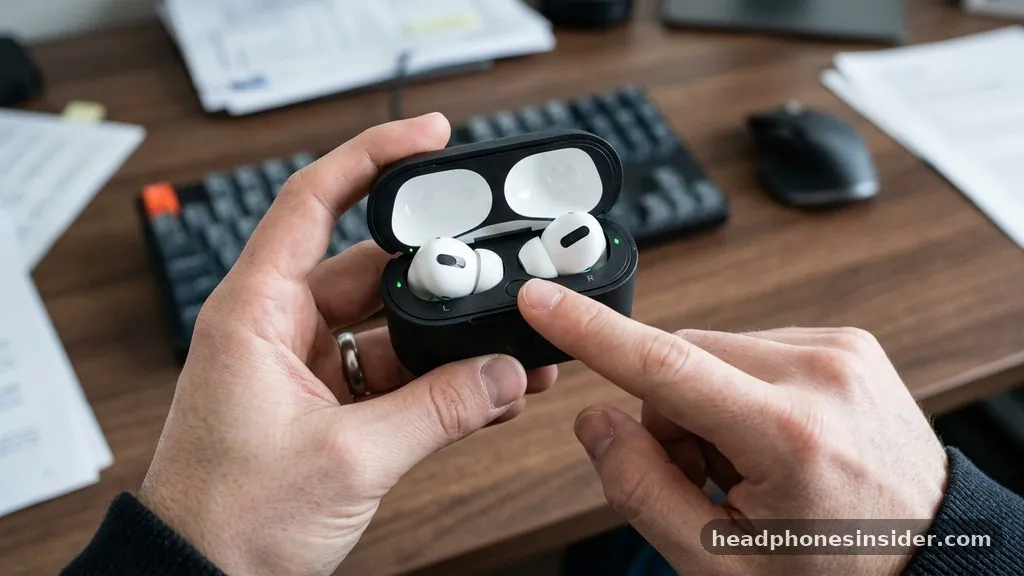
The process for true wireless earbuds, such as the Powerbeats Pro or the various Studio Buds, differs slightly due to the physical design of the hardware. Because these earbuds do not have a traditional power button on the housing, the case plays a central role in the reset process. To reset these units, place both buds into their charging case and leave the lid open.
This is vital because the case acts as the interface for the reset command. With the lid open, you will typically find a small system button, either inside the case between the buds or on the back of the housing.
You must press hold this system button for about 15 seconds. You are looking for the LED to blink, which signifies that the case is communicating a reset command to the internal firmware of the earbuds. When the light flashes red and then white, it indicates that the reset is complete and the device is in discovery mode.
This is the stage where the hardware is effectively “searching” for a new host. If you are using an Apple device, a setup card may automatically pop up on your screen. If you are using an Android device, you will need to manually navigate to your settings to find the headphones in your list of available devices.
Managing Firmware and Software Conflicts
Beyond basic hardware resets, software-level maintenance is essential for long-term reliability. Many users forget that their headphones run on firmware that can occasionally become outdated or corrupted. If you find yourself needing to reset your headphones frequently, it might be a sign that the underlying firmware needs an update.
Using the official Beats app on your mobile device is the best way to monitor this. The app provides a centralized hub to check for updates, view battery status, and customize button functions.
Sometimes, the issue isn’t the headphones themselves but the device they are trying to pair with. If your phone has a crowded list of saved Bluetooth devices, old profiles can cause signal interference. Before you decide to reset your headphones, consider “forgetting” the device in your phone’s settings menu first.
This removes the pairing handshake from the phone’s side. If that fails, proceed with the hardware reset. Below is a table detailing the typical symptoms that indicate a factory reset is necessary versus those that might be solved by a simple software update.
| Symptom | Recommended Action |
|---|---|
| Intermittent audio dropouts | Check for firmware update |
| Headphones fail to pair | Perform factory reset |
| One earbud is silent | Reset and re-sync |
| Device won’t turn on | Charge and then reset |
Troubleshooting the Beats Pill Speaker
While the focus is often on wearables, the Beats Pill speaker also requires periodic maintenance to ensure optimal audio performance. The reset procedure for the speaker is quite similar to the headphones but involves the main control interface. To reset the speaker, ensure it is disconnected from any power source.
You will need to press and hold both the power button and the volume down button for approximately ten seconds. Much like the headphones, the indicator light will provide visual feedback.
When the light flashes release the buttons. This clears the speaker’s memory of previously connected smartphones and laptops. This is particularly useful if you frequently switch the speaker between different users or if the device starts behaving erratically during playback.
If the speaker remains unresponsive, check for any debris inside the charging port, as a poor connection can often mimic a software failure. You can find more detailed documentation on hardware care at the official Apple support page regarding device connectivity.
Common Questions and Final Troubleshooting Tips
When dealing with audio hardware, users often encounter specific recurring issues that can be solved with a bit of patience. Below are some frequently asked questions that address common pain points when attempting to reset your equipment:
- How do I know if the reset was successful? You will know the process is complete when the LED indicator stops flashing or begins to pulse in a rhythmic, discovery-ready pattern. The device should appear as a “new” item in your Bluetooth menu.
- Does resetting delete my music? No, a factory reset only clears the pairing and device configuration memory. Your music files, playlists, and account settings remain safely stored on your music streaming service or device.
- Can I reset my headphones if they are dead? No, you must have at least a minimal charge for the internal processor to execute the reset command. If the battery is completely drained, charge the device for 15 minutes before attempting the reset.
- What if the reset doesn’t fix the issue? If you have performed a successful reset and the device still fails to function properly, there may be a hardware defect. In this case, reaching out to official support channels is the recommended next step.
Maintaining your audio equipment is a straightforward process once you understand the mechanics of the reset beats procedure. By familiarizing yourself with the button combinations and the visual cues provided by the LED indicators, you can bypass the need for professional repair for most minor software glitches. Always remember to keep your software updated and your devices charged to prevent recurring issues.
When you successfully reset your gear, it creates a clean environment for your hardware to communicate effectively with your phone or computer. The process of clearing the cache and resetting the pairing handshake is a powerful tool in your tech-troubleshooting arsenal.
If you continue to experience problems after multiple attempts, ensure that you are not in an area with high electromagnetic interference, which can sometimes disrupt the initial pairing process. Taking these small steps will ensure your audio experience remains seamless and high-quality for years to come.


