

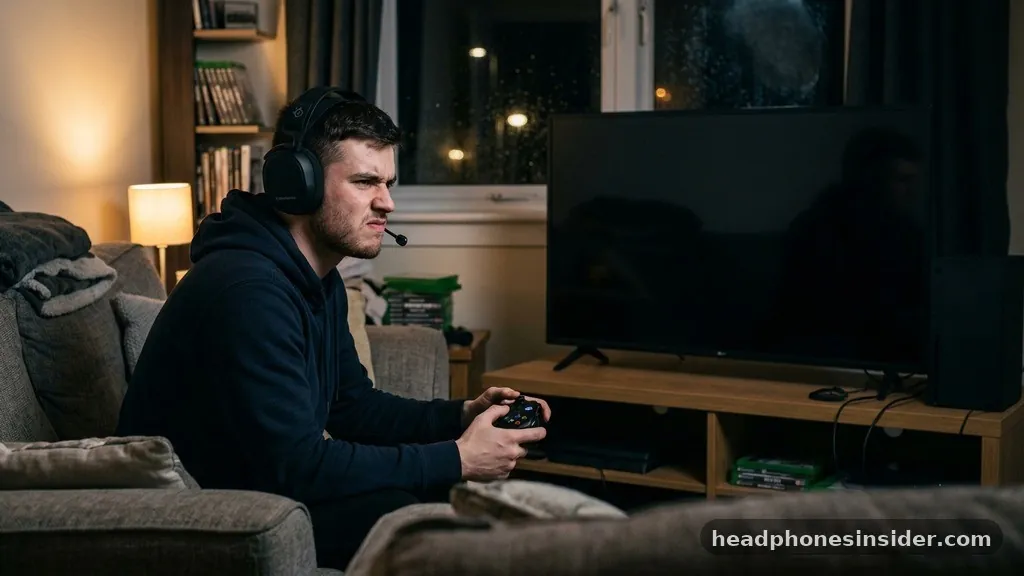
Many gamers find themselves frustrated when they realize that their favorite pair of wireless earbuds or high-fidelity cans do not automatically pair with their new console. If you are wondering how to connect bluetooth headphones to xbox series x, you are not alone. The Xbox Series X and Series S consoles utilize a proprietary wireless protocol known as Xbox Wireless for official headsets, which intentionally excludes standard Bluetooth connectivity for audio.
While this decision was made to ensure low-latency performance and high-quality audio bandwidth, it leaves many users searching for workarounds. Fortunately, there are several reliable methods to bridge this gap, allowing you to enjoy wireless audio on your console without needing to buy a brand-new, platform-specific headset.
Understanding the Xbox Wireless Protocol and Bluetooth Limitations
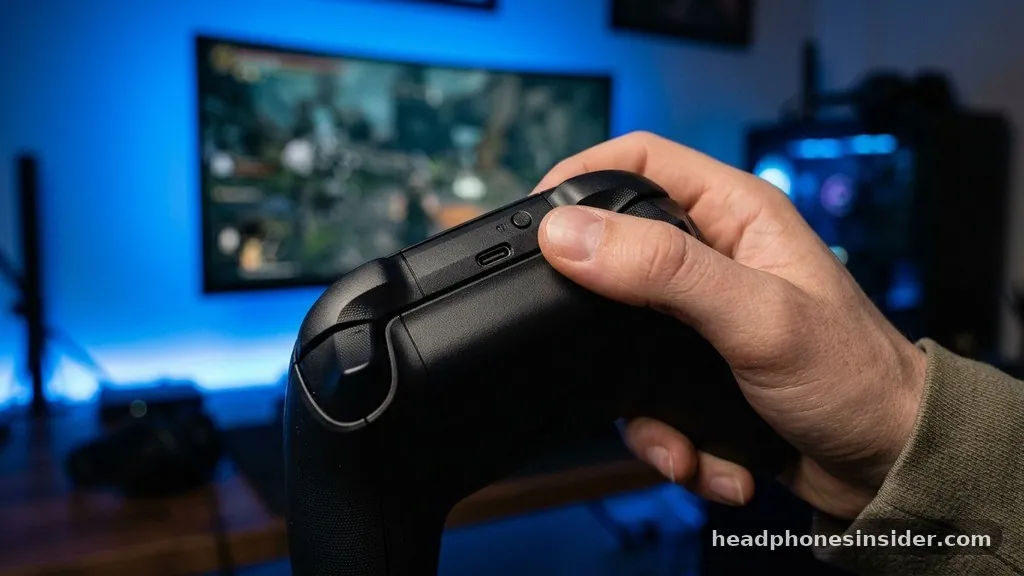
The primary reason you cannot natively connect bluetooth headphones to xbox series x is rooted in the console’s hardware architecture. Microsoft utilizes a specific, proprietary radio frequency to communicate with officially licensed controllers and headsets. This system is designed to minimize interference while maintaining a stable, high-bandwidth connection that supports simultaneous game audio and microphone input.
Standard Bluetooth technology, while convenient, often introduces significant audio lag or latency, which can be devastating in fast-paced competitive gaming. By restricting the console’s internal radio to its own protocol, Microsoft ensures that the audio experience remains consistent and synchronized with the on-screen action, avoiding the common pitfalls of consumer-grade wireless audio transmission.
Furthermore, the Xbox ecosystem relies on a specific handshake process that verifies the authenticity of connected hardware to ensure it meets the company’s stringent performance standards. Because Bluetooth is an open standard used by billions of devices, it lacks the specific security and quality-of-service protocols that Microsoft prioritizes for its gaming environment.
When you attempt to use bluetooth headphones on your console, the system effectively ignores the signal because it does not recognize the device as an authorized peripheral. This design choice is polarizing; while it forces users to invest in specialized gear, it also guarantees that any “Designed for Xbox” product you purchase will work flawlessly right out of the box without complex configuration or troubleshooting.
Using a Bluetooth Transmitter for Seamless Audio
If you want to use your existing gear, the most effective solution is to purchase a Bluetooth transmitter. These small devices plug directly into a headphone jack or a USB port to act as an intermediary, converting the console’s audio output into a Bluetooth signal that your headphones can receive.
This is the most popular way to connect bluetooth headphones to xbox series x because it bypasses the console’s internal restrictions entirely. Most modern transmitters are designed to be plug-and-play, meaning you simply plug the device into your controller’s 3.5mm jack, put your headphones into pairing mode, and the connection is established almost instantly.
When selecting a transmitter, pay close attention to the version of Bluetooth it supports. Ideally, you want a device that supports Bluetooth 5.0 or higher, as this provides a more stable connection and better range. Additionally, look for a transmitter that supports low-latency codecs like aptX Low Latency.
This technology is critical for gaming, as it significantly reduces the delay between the sound occurring in the game and you hearing it in your ears. Without low-latency support, you might notice a distinct “lip-sync” issue where audio trails slightly behind the visual, which can be incredibly distracting in rhythm games or first-person shooters.
Connecting via the Controller 3.5mm Port
The most straightforward hardware path involves using the 3.5mm port located at the base of your wireless controller. This method is highly effective because it treats your Bluetooth transmitter as a standard wired headset, which the console recognizes immediately. To execute this, you need a compact Bluetooth transmitter that is specifically designed for controllers.
These often feature a battery that powers the transmitter, so you do not have to worry about draining your controller’s battery life too quickly. Once the transmitter is plugged into the controller, the Xbox will output game audio through that jack, which the transmitter then broadcasts wirelessly to your headphones.
One major consideration when using this method is microphone functionality. Because the 3.5mm jack on the Xbox controller handles both incoming and outgoing audio, a simple transmitter will often only transmit game audio to your ears. If you need to chat with friends, you must ensure your transmitter is compatible with the “headset mode” or has a built-in microphone that can capture your voice.
Many dedicated gaming-focused transmitters include a small microphone on the device itself or a secondary cable that allows for chat functionality. If your goal is primarily immersive single-player gaming, a standard transmitter works perfectly; however, for multiplayer sessions, checking for microphone support is essential.
Utilizing USB Bluetooth Adapters for Modern Consoles
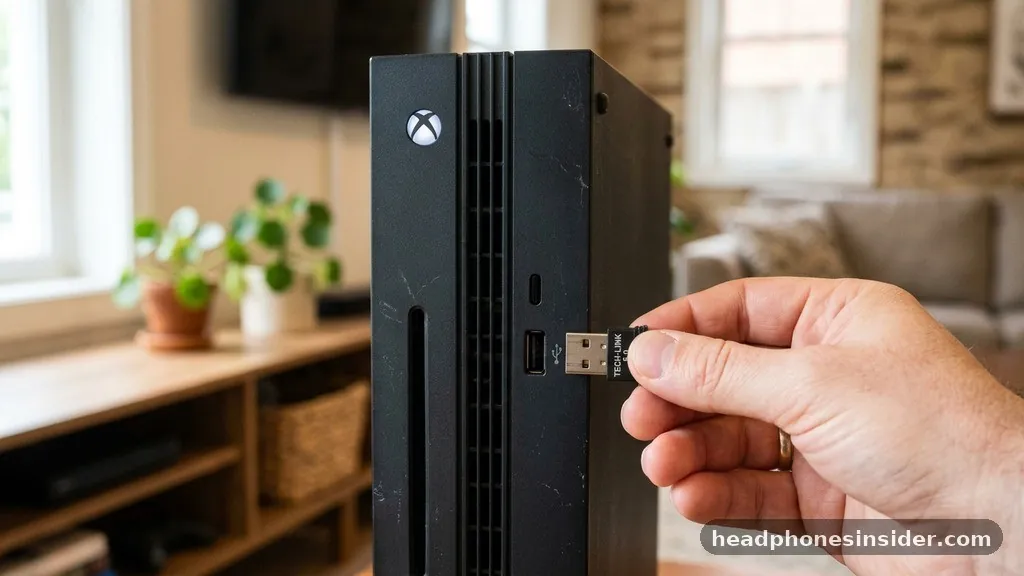
For users who prefer a cleaner setup that doesn’t involve cables hanging from their controller, a USB Bluetooth adapter is a viable alternative. The Xbox Series X features several USB ports that can provide power and data to external devices.
While the console does not natively support USB audio devices in the same way a PC does, specific USB adapters are designed to bypass this by appearing as a compatible audio device to the console. These adapters often come with a small dongle that you plug into the USB port, and they handle the wireless pairing with your headphones independently of the controller.
The advantage of this setup is that it keeps your controller lightweight and free of extra bulk. However, you must verify that the USB adapter is explicitly listed as compatible with the Xbox Series X. Because the console’s USB audio support is selective, a generic PC Bluetooth dongle will likely fail to work.
You are looking for a specialized “Xbox-compatible” wireless audio adapter. These devices are engineered to interface with the console’s software drivers, ensuring that you get high-quality sound and, in many cases, full support for chat features. This is often considered the “best” way to achieve a truly wireless experience, though it does require a slightly higher initial investment compared to a basic 3.5mm transmitter.
Table: Comparing Wireless Connection Methods
| Connection Method | Audio Quality | Latency Level | Mic Support | Ease of Use |
|---|---|---|---|---|
| 3.5mm Transmitter | High | Low (w/ AptX) | Limited | Very Easy |
| USB Audio Adapter | High | Very Low | Full Support | Moderate |
| Official Xbox Headset | Excellent | Zero | Full Support | Automatic |
| Remote Play (Phone) | Variable | Moderate | Full Support | Complex |
Alternative Workarounds: Xbox Remote Play
If you do not want to purchase additional hardware, there is a clever software-based workaround known as Xbox Remote Play. This feature allows you to stream your console’s audio and video to a secondary device, such as a smartphone, tablet, or PC.
By connecting your Bluetooth headphones to your phone or PC and then using the Xbox app to stream your game from the console, you can effectively use your wireless headphones to hear the game audio. This is a brilliant, free solution for those who want to use their existing audio gear without buying a transmitter or adapter.
To set this up, you need to ensure your home network is stable, as streaming audio and video relies on your local Wi-Fi connection. You can use the Xbox app to initiate the stream, and because your phone or PC natively supports Bluetooth, your headphones will connect seamlessly. This method is particularly useful for late-night gaming sessions where you want to keep the volume low or for enjoying high-fidelity audio that your Bluetooth headphones provide.
The only drawback is that the console must be powered on and connected to the same network as your secondary device. It is a creative way to solve the connectivity issue while leveraging the technology you already own. You can find more official details on how to manage your console settings via the official Xbox Support documentation.
Addressing Common Challenges and Troubleshooting
Even with the right equipment, you may encounter occasional issues when trying to get your audio setup just right. The most common problem is “audio stuttering” or signal interference.
Because your home is likely filled with other wireless signals—Wi-Fi routers, smart home devices, and other Bluetooth gadgets—it is possible for the signal between your transmitter and headphones to drop. If you experience this, try to keep your transmitter as close to your headphones as possible and move away from other sources of interference, such as your router or microwave.
Another common issue is volume control disparity. Sometimes, the audio level coming through a transmitter can feel lower than expected. In these cases, you should first max out the volume on your Xbox settings, then use the volume controls on your headphones to fine-tune the output.
If the volume is still too low, check the settings on your transmitter, as some devices have their own volume gain control. Finally, if you are struggling to get your microphone to work, ensure that the “Headset Chat” settings are correctly configured in the Xbox menu. Sometimes, the console might default to the internal microphone of the controller rather than the one connected through your adapter.
Conclusion
Connecting your preferred audio gear to your console does not have to be a source of stress. While the lack of native Bluetooth support is an intentional design choice by Microsoft to protect the integrity of the gaming experience, the workarounds available today are both affordable and effective. Whether you choose the simplicity of a 3.5mm transmitter, the clean design of a USB adapter, or the clever use of Remote Play, you have plenty of ways to enjoy your favorite games with the audio quality you expect.
By understanding the hardware limitations and selecting the right accessories, you can finally enjoy wireless gaming without compromise. Remember that for the best results, prioritizing devices that support low-latency codecs will significantly improve your immersion.
If you have any further questions about optimizing your setup or encounter specific connectivity quirks, feel free to reach out to the community or check your device’s manual for specific pairing instructions. Happy gaming, and enjoy your new wireless freedom on the console.
Frequently Asked Questions
Can I connect AirPods directly to my Xbox Series X?
No, you cannot connect AirPods or any standard Bluetooth headphones directly to the Xbox Series X because the console does not support Bluetooth audio. You must use a Bluetooth transmitter plugged into the controller or a specialized USB adapter to bridge the connection.
Why does Xbox not allow native Bluetooth audio?
Microsoft uses a proprietary wireless protocol called Xbox Wireless for its official headsets. This protocol is designed to provide ultra-low latency and high-bandwidth audio, which are essential for competitive gaming. Standard Bluetooth often introduces lag that could negatively affect the gaming experience.
Does using a Bluetooth transmitter affect audio quality?
It can, but modern transmitters that support low-latency codecs like aptX significantly minimize any degradation. While wired connections remain the gold standard for pure audio fidelity, a high-quality transmitter is usually indistinguishable from a wired connection for most casual and semi-competitive gaming needs.
Will my microphone work with a Bluetooth transmitter?
It depends on the transmitter. Most basic 3.5mm transmitters only support audio output (game sound). To use your microphone for chat, you need a transmitter specifically designed for gaming that supports bidirectional audio or includes a dedicated microphone input or adapter cable.


