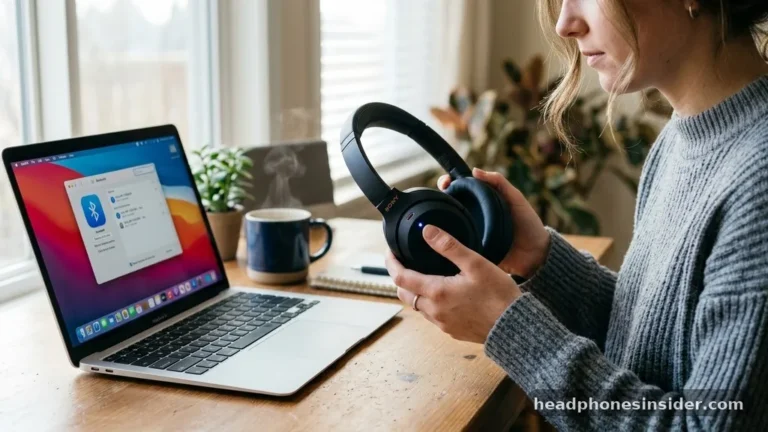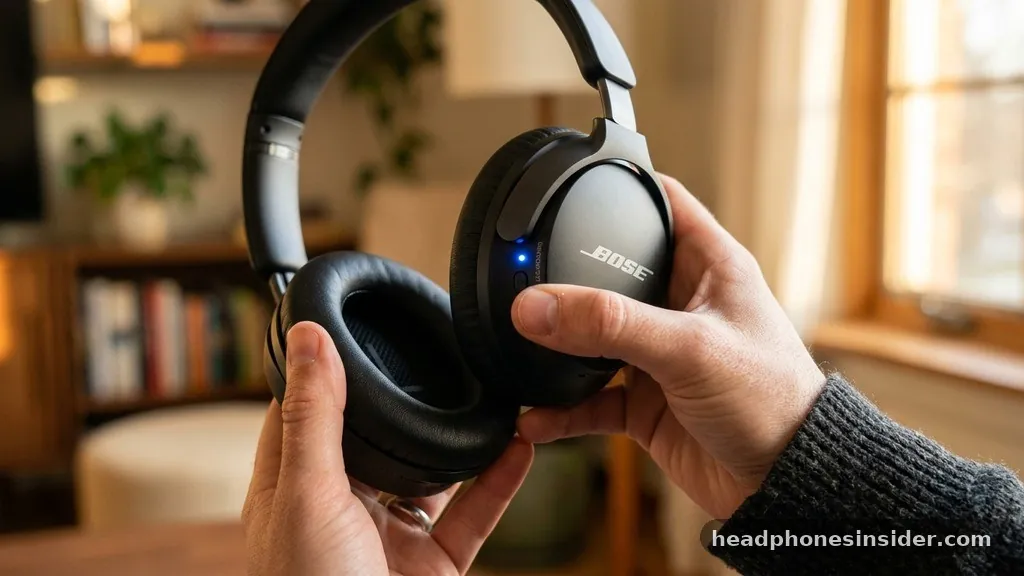
Mastering the process of how to pair Bose headphones allows you to unlock the full potential of your audio equipment, whether you are using the latest industry-leading noise-canceling gear or a classic SoundLink model. While the technology behind wireless audio has become remarkably intuitive, navigating the nuances of different device ecosystems and proprietary firmware can occasionally present a challenge for new users. Whether you are attempting to sync your headset with a smartphone, a high-performance laptop, or a gaming console, understanding the specific initiation sequence for your hardware is essential for a seamless connection.
Understanding the Bluetooth Pairing Process for Bose Hardware
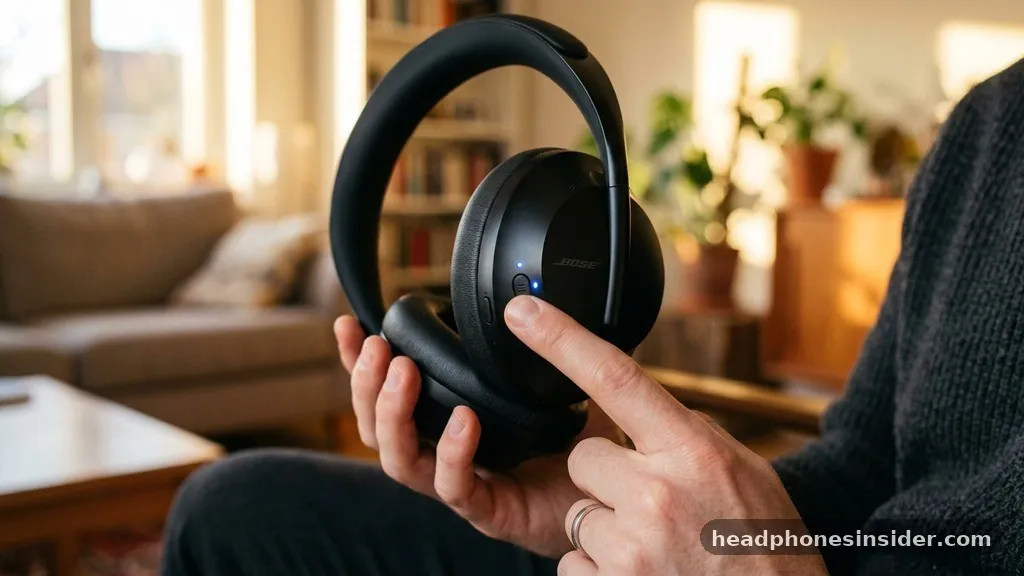
The process of pairing Bose headphones typically relies on a specific sequence of actions designed to make your device discoverable to nearby hardware. To initiate this, you must ensure your headphones are powered on and then manually trigger the pairing mode, which often involves holding the power switch or a dedicated button for several seconds until an LED indicator flashes blue. This visual cue confirms that the device is broadcasting a signal, allowing your smartphone or computer to find and identify it through the system’s Bluetooth menu.
When you attempt to connect, your Bose device acts as a peripheral that broadcasts its identity to any compatible host. If you are struggling to get your gear to appear in your list of available connections, the most common culprit is that the device is still trying to link with a previously used piece of hardware.
By forcing the headphones into discovery mode, you effectively clear the current link state, allowing a fresh handshake between the headset and your desired device. This behavior is a fundamental aspect of how most modern wireless audio products function, ensuring that your connection remains secure and private.
Navigating the Bose Music App for Seamless Setup
For owners of modern Bose products, the manufacturer provides a dedicated mobile application that significantly simplifies the initial configuration and ongoing management of your audio experience. Using the companion app is often the most reliable way to ensure your firmware is up to date and that all advanced features are properly enabled. Once you download the application from your device’s official store, you can follow the on-screen prompts, which guide you through the synchronization process without requiring you to dive into complex system menus.
The app serves as a central hub for your audio ecosystem, allowing you to manage multiple devices, adjust noise cancellation levels, and customize EQ settings to suit your personal preferences. For those who own the QuietComfort series, the app provides a streamlined interface that handles the digital handshake between your phone and the hardware automatically.
This software-driven approach is particularly useful for users who find manual Bluetooth settings on their operating systems to be unintuitive or prone to errors. By leveraging the software, you ensure that your settings are optimized for the best possible acoustic performance.
Troubleshooting Common Connection Obstacles
If you find that your headphones refuse to connect even after following the standard procedures, there are several diagnostic steps you can take to resolve the issue. Often, the problem is not with the hardware itself but rather with interference from other active wireless devices in your immediate vicinity. Before assuming your equipment is faulty, ensure that you have disabled Bluetooth on any nearby tablets, computers, or secondary phones that might be “stealing” the connection before your primary device has a chance to claim it.
Key Troubleshooting Steps
- Toggle Bluetooth: Turn off the Bluetooth radio on your host device, wait ten seconds, and turn it back on to refresh the connection stack.
- Clear Device History: Delete the entry for your headphones from your smartphone’s “Known Devices” list and start the pairing process from scratch.
- Perform a Hard Reset: Consult your product manual to learn how to perform a factory reset, which clears all stored pairing information from the headphones’ internal memory.
- Battery Levels: Ensure your headphones have sufficient charge; some devices disable high-power wireless features when the battery is critically low.
If these steps do not rectify the situation, check for software updates. Bose frequently releases firmware patches that improve stability and connectivity. You can check the official Bose Support website to view documentation specific to your model, which often includes detailed instructions on how to resolve persistent sync issues that might arise during the lifecycle of your product.
Comparing Pairing Methods Across Bose Models
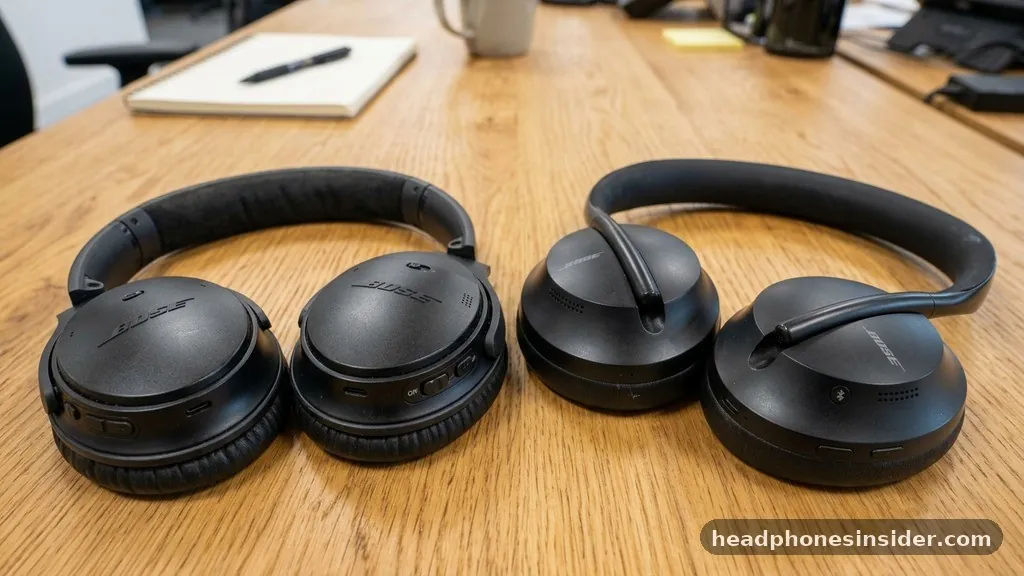
Different product lines often feature unique hardware interfaces for initiating the connection sequence. For example, the QuietComfort Ultra line might use a different button combination compared to older SoundLink models.
Understanding these variations is crucial for a smooth experience. The following table highlights the general differences in how you access the pairing state across various categories of the brand’s popular audio equipment.
| Product Line | Typical Activation Method | Primary Use Case |
|---|---|---|
| QuietComfort (Over-Ear) | Slide and hold power switch | Travel & Daily Commute |
| SoundLink (Portable) | Hold dedicated Bluetooth button | Home & Casual Listening |
| Bose Earbuds | Open charging case, hold back button | Fitness & Portability |
Recognizing these distinctions ensures that you are not wasting time looking for a button that doesn’t exist on your specific model. While the underlying Bluetooth protocol remains constant, the physical interaction required to “get” the device into discovery mode is a deliberate design choice intended to prevent accidental connections in crowded environments.
Optimizing Connections for Gaming and High-Performance Audio
When using your headphones for gaming or professional audio work, the stability of the connection is paramount. Wireless latency can be a significant drawback if the handshake between your device and the headset is not perfectly synchronized.
To achieve the lowest possible latency, ensure that your device settings are configured to use high-quality codecs. While standard Bluetooth is sufficient for music, gaming often requires a more stable, dedicated link.
If you are connecting your headphones to a PC, you might notice that the audio quality defaults to a “hands-free” profile, which is intended for voice calls and significantly reduces fidelity. To fix this, access your computer’s sound settings and ensure the output is set to the “Stereo” or “High-Quality” profile.
This simple adjustment ensures that you are hearing the full range of your audio, whether you are playing a game or watching a high-definition movie. By treating your headphones as a primary audio output rather than just a communication peripheral, you significantly improve the clarity and depth of the soundstage.
Addressing Topical Gaps in Bose Connectivity
A common point of confusion for users is whether they can pair their headphones to multiple devices simultaneously. Many modern Bose products support “Multipoint” connectivity, which allows you to be connected to a laptop for a video conference while remaining linked to your phone for incoming calls. To enable this, you must first pair both devices individually.
Once the connections are established, the headphones manage the audio switching automatically based on which device is currently outputting sound. If your specific model does not support this feature, you will need to manually disconnect from one device before connecting to another, which can be an annoying limitation for power users.
Another area that often goes unaddressed is the impact of environmental interference. If you are in a location with a high density of wireless signals, such as an office or a busy transit hub, your Bluetooth connection may experience stuttering or dropouts. This is often due to frequency congestion.
Moving closer to the source device or turning off unnecessary wireless peripherals can help clear the airwaves. Additionally, keeping your device firmware updated through the app is the most effective way to improve the robustness of your connection against these types of environmental factors.
Final Thoughts on Maintaining Your Wireless Connection
Consistently maintaining your wireless audio setup requires a blend of proper hardware handling and occasional software maintenance. By understanding the specific pairing requirements of your Bose gear, you can avoid the frustration of dropped connections and ensure that your listening experience remains uninterrupted. Remember that the physical interaction—such as holding a power switch or pressing a dedicated button—is only the first step; keeping your device firmware current via the companion app is equally vital for long-term stability.
As you integrate your headphones into your daily workflow, consider how your device settings can be optimized to balance audio quality and battery life. Whether you are using your gear for high-fidelity music, gaming, or professional calls, a clear understanding of the connection process ensures that your audio is always ready when you need it.
By periodically clearing your device list and checking for updates, you keep your headphones performing at their absolute best. Should you encounter persistent issues, do not hesitate to consult the official documentation or reach out to manufacturer support for assistance specific to your model.