

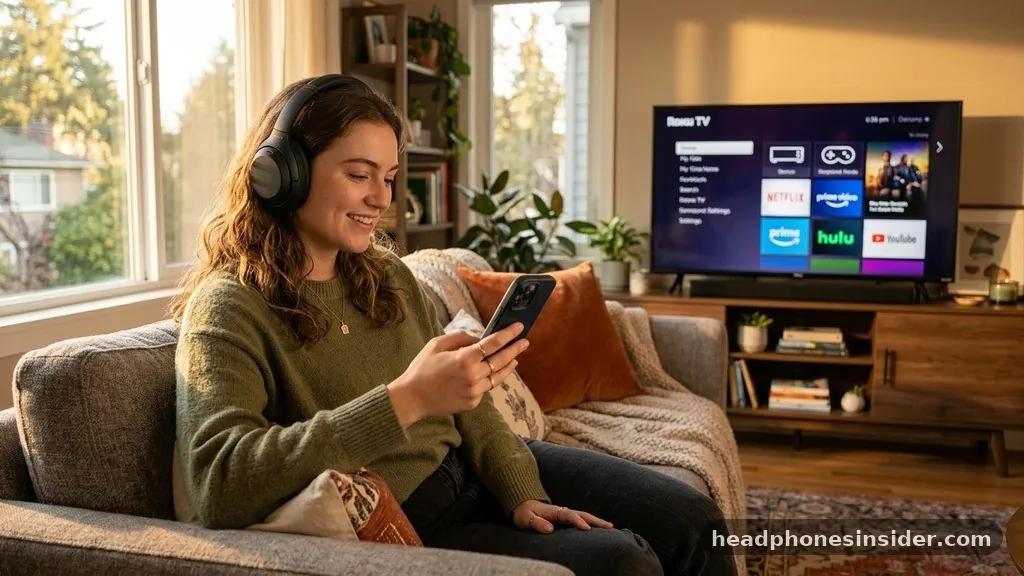
Many users find themselves wondering if they can connect headphones to Roku TV to enjoy their favorite shows without disturbing others in the house. The answer is a resounding yes, though the method you choose depends heavily on the specific hardware you are using and your personal preferences for audio quality and convenience. Whether you are looking for a silent late-night viewing experience or simply want to immerse yourself in a cinematic soundscape, Roku provides several pathways to achieve a private listening setup through its versatile ecosystem.
Utilizing the Official Roku Mobile App for Private Listening
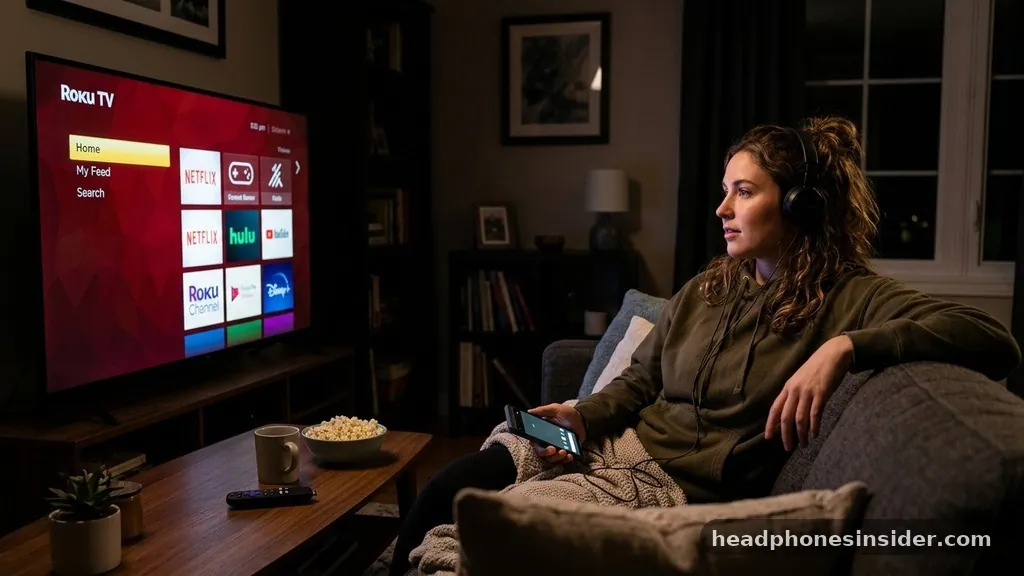
You can connect headphones to your television by using the official Roku mobile app, which features a dedicated function called headphone mode. This is the most accessible method for the majority of users, as it effectively turns your smartphone or tablet into a bridge between your streaming device and your audio output. Once you have the app installed and linked to your Roku device, you can route audio directly from the TV to your mobile device, allowing you to plug in wired headphones or pair wireless ones to your phone.
To get started, ensure your mobile device is on the same Wi-Fi network as your television. Open the application, select your TV from the list of available devices, and look for the remote icon. Within the remote interface, you will find a headphone icon that triggers the private listening feature.
Once activated, the audio from the home Roku interface and any content you are currently watching will be routed through your mobile device. This is a highly effective way to use virtually any pair of headphones, as the connection is actually being made to your phone rather than the TV hardware itself. This workaround is particularly useful for older models that may lack built-in Bluetooth audio capabilities.
Connecting via Bluetooth Headphones on Compatible Roku Models
If you own a newer compatible Roku model, you may be able to connect Bluetooth headphones directly to the system without needing an intermediary app. Not all Roku TVs feature built-in Bluetooth transmitters, so it is essential to check your specific model’s specifications.
If your device supports this, the process involves navigating to the settings menu, selecting “Remotes & devices,” and choosing to add a new Bluetooth device. The system will then begin scanning for nearby hardware in pairing mode.
Once your headphones are in discovery mode, they should appear on the screen. Use your Roku remote to scroll select the correct device from the list. After you confirm the selection, the TV will finalize the pairing process, and your audio will shift from the TV speakers to your wireless gear.
This direct method is often preferred because it removes the need for a secondary device and generally offers a more stable, lower-latency experience. If you are unsure if your specific unit supports this, consult the official Roku support documentation for a list of features enabled on your current firmware version.
Understanding the Role of the Roku Streambar
The Roku Streambar and other upgraded Roku streaming peripherals often provide a more robust hardware solution for audio connectivity. When you have a streambar Roku setup, you are essentially adding a high-quality soundbar that also acts as a sophisticated hub for your audio-visual needs. These devices often include enhanced Bluetooth functionality, making it much easier to connect various peripherals, including wireless audio gear, directly to the sound system.
Using a streambar Roku allows for a more seamless integration because the hardware is specifically designed to handle high-fidelity audio streams. If you find that standard TV speakers are insufficient or that your TV lacks the necessary ports, upgrading to a device that supports external audio routing can be a game-changer. These units often allow you to manage your volume levels and sound profiles through the main home Roku interface, providing a unified experience where your audio settings are always just a few clicks away.
Troubleshooting Common Connection Issues
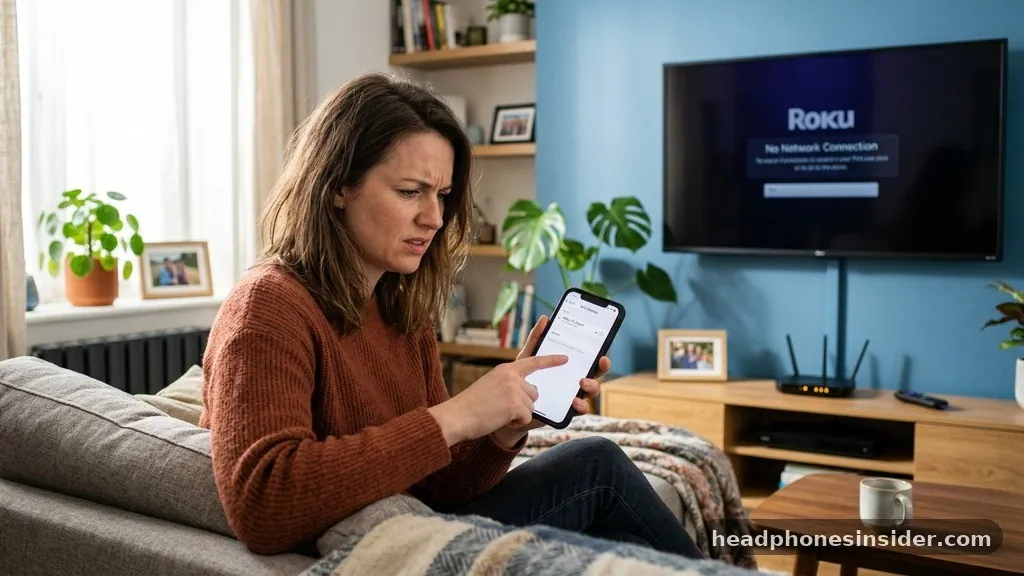
If you are struggling to get your headphones to work, there are several common hurdles to investigate. One of the most frequent issues is that the Roku mobile app might not be properly synced with your TV, or the smartphone and TV are on different network segments.
Ensure that both devices are on the exact same Wi-Fi frequency; sometimes, having a device on a 5GHz band while the other is on a 2.4GHz band can cause discovery failures. Additionally, check that your headphone mode is not being blocked by a background process on your phone.
Another common point of failure occurs during the pairing phase. If your Bluetooth headphones are already connected to your computer or another nearby device, the TV may not be able to “see” them. Always disconnect or turn off Bluetooth on competing devices before attempting to link them to your television.
If you continue to experience audio lag or dropouts, ensure that your TV firmware is up to date. Roku frequently releases updates that improve Bluetooth audio stability and compatibility with a wider range of third-party peripherals.
Comparing Audio Connectivity Methods
When deciding which route to take, it helps to look at the pros and cons of each approach. The following table illustrates the differences between the primary methods of achieving private listening on your television.
| Method | Equipment Needed | Pros | Cons |
|---|---|---|---|
| Mobile App | Smartphone / Tablet | Works on almost all models | Relies on network stability |
| Direct Bluetooth | Compatible Roku TV | No extra devices required | Limited to specific newer models |
| Roku Streambar | Streambar Hardware | High-quality audio integration | Requires additional hardware purchase |
Each of these options offers a distinct way to manage your volume and listening experience. The mobile app method is the most universal, while direct Bluetooth connectivity is the most convenient for those who have invested in newer hardware. Understanding which devices are supported by your specific model will save you significant time during the setup process.
Addressing Topical Gaps: Why Some TVs Lack Bluetooth
Many users ask why their TV doesn’t have a simple “connect headphones” button in the main menu. The reality is that many budget-friendly or older models of Roku TVs were designed primarily for local speaker output. Adding high-quality Bluetooth transmitters increases the manufacturing cost of the hardware.
Consequently, many manufacturers prioritize picture quality and smart features over secondary audio connectivity. This is why the Roku mobile app was developed as a software-based solution—it allows the company to provide premium features to all users, regardless of the physical hardware limitations of their specific television model.
Furthermore, some users experience issues where the option for private listening simply does not appear. This is usually due to the specific app or content being used. Some streaming services have digital rights management (DRM) restrictions that may interfere with audio output redirection.
If you find that headphone mode works on the home screen but fails when you open a specific streaming app, the limitation is likely imposed by that service provider rather than the Roku system itself. Always test with a variety of content sources to determine if the issue is global or isolated to one application.
Maximizing the Private Listening Experience
To get the most out of your setup, consider the following tips for a smoother experience. First, always keep your Roku remote handy, as you will need it to navigate the remote scroll menus if you need to adjust audio settings quickly. Second, if you are using the mobile app, ensure that your phone’s battery optimization settings are not putting the app to sleep, as this can cause the audio stream to drop during long movies.
Third, if you have multiple Bluetooth devices, take note of which ones are known to work well with the Roku ecosystem. Some high-end audiophile headphones may have proprietary codecs that do not play nicely with standard television Bluetooth protocols. If you find yourself in this situation, a simple Bluetooth transmitter that plugs into the headphone jack of your remote or TV can often solve the problem, provided your remote has a physical port, which is a feature found on some of the more advanced Roku remote controls.
Conclusion
Connecting your headphones to a Roku TV is a straightforward process once you identify which method aligns with your specific hardware capabilities. Whether you choose the flexibility of the mobile app or the streamlined convenience of direct Bluetooth pairing, the platform offers robust options to ensure you can enjoy your content privately. By keeping your firmware updated, ensuring your network settings are optimized, and understanding the limitations of your specific television model, you can easily overcome any connectivity hurdles.
These solutions empower you to create a personalized, immersive audio environment that respects the peace and quiet of your home. If you encounter persistent issues, checking the official support pages or ensuring your devices are properly unpaired from other sources will typically resolve the problem and get you back to your favorite shows in no time.


