

Many gamers find themselves frustrated when they realize their favorite wireless gear doesn’t instantly link with their console. Learning how to connect bluetooth headphones to ps4 is a common hurdle because Sony designed the system with a closed ecosystem in mind.
Unlike modern smartphones or PCs that feature open Bluetooth stacks, the PlayStation 4 intentionally limits direct Bluetooth connectivity for audio devices to ensure a stable, proprietary connection for their own official headsets. This doesn’t mean you are out of luck; it simply means you need to navigate around the console’s native limitations using specific hardware workarounds.
If you have ever wondered why your high-end wireless cans won’t show up in the device menu, it is because the console reserves its internal Bluetooth radio primarily for the DualShock 4 controller. To bridge this gap, you will need to utilize external peripherals that trick the system into recognizing your audio gear as a standard USB sound card. This process is straightforward once you understand the underlying technical requirements and the specific hardware needed to facilitate the handshake between your device and the playstation console.
Understanding the PlayStation 4 Audio Restrictions
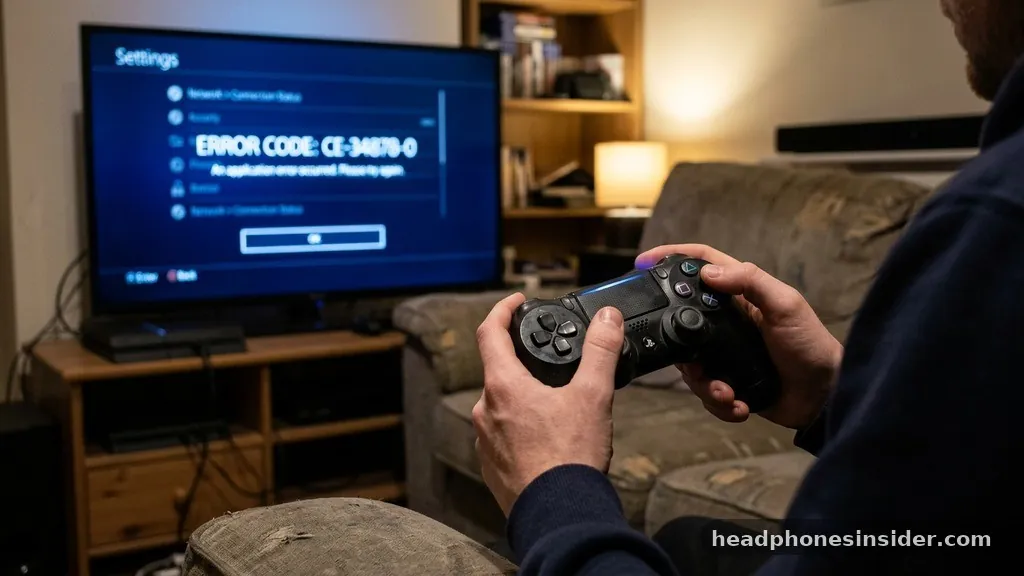
The primary reason you cannot simply pair your favorite wireless device directly to the console is that Sony prioritizes the stability of the controller connection above all else. The console uses a specific Bluetooth profile that is optimized for low-latency input signals, which are vital for competitive gaming. By restricting the Bluetooth stack, the system avoids potential interference that could occur if multiple high-bandwidth audio streams were competing for the same wireless frequency.
When you attempt to search for devices in the settings menu, you might see your headphones appear in the list, but the system will almost always reject the pairing attempt with a message stating that it does not support third-party audio devices. This is a deliberate software design choice.
While many users find this inconvenient, it serves the purpose of preventing audio delay and ensuring that the headset audio remains perfectly synced with the on-screen action. If you try to force a connection through unofficial software hacks or jailbreaking, you risk damaging your system or violating the terms of service, which is why utilizing a bluetooth adapter remains the only officially recommended and safe path forward.
Choosing the Right Hardware for Your Setup
To successfully bypass these restrictions, you need to acquire a specialized USB adapter that acts as a bridge. Not all adapters are created equal; you need to look for a device that explicitly supports the PlayStation 4 and, ideally, features aptx low latency technology. This specific codec is crucial because it compresses audio data in a way that minimizes the time it takes for the signal to travel from the console to your ears, effectively eliminating the annoying lag that often ruins the immersion in fast-paced shooters or rhythm games.
When shopping for an adapter, consider whether you need a simple dongle or a more sophisticated unit that includes a microphone input. Some adapters come with a small 3.5mm microphone that plugs directly into the bottom of your controller, allowing you to maintain voice chat functionality while the audio is routed wirelessly through the USB dongle. This hybrid approach is often the best way to get a full-featured experience that mirrors the functionality of an official Sony-branded headset without having to spend hundreds of dollars on new hardware.
| Feature | Standard Bluetooth Adapter | Gaming-Specific USB Dongle |
|---|---|---|
| Latency | High (Noticeable Delay) | Low (Optimized for Gaming) |
| Microphone Support | Often Absent | Included/Integrated |
| Ease of Use | Plug and Play | Plug and Play |
| Audio Quality | Variable | High-Fidelity |
Step-by-Step Guide to Connecting via USB Dongle
Once you have your hardware in hand, the process of linking your devices is relatively simple. Start by ensuring your console is powered on and your bluetooth headphones are fully charged. Most high-quality adapters operate on a plug-and-play basis, meaning the console will treat them as a standard USB audio output device as soon as they are inserted.
1. Insert your bluetooth adapter into one of the available USB ports on the front of your PlayStation 4.
2. Put your headphones into pairing mode according to the manufacturer’s instructions.
3. Wait for the adapter’s light to indicate that it is searching for a signal.
4.
Once the devices handshake, the adapter should display a solid light, indicating a successful link.
5. Navigate to Settings > Devices > Audio Devices on your dashboard.
6.
Select the Output Device and ensure it is set to the name of your USB adapter.
7. Adjust the volume levels to your preference, and make sure the output is set to “All Audio” if you want game sounds and chat audio to come through the headset.
If you are struggling with the connection, try unplugging the adapter and restarting the console. Sometimes the system needs to re-initialize the USB port to recognize the new audio device properly. If you are using a cable for your microphone, ensure it is securely seated in the controller port, as a loose connection here is the most common cause of voice chat issues.
Addressing Topical Gaps: Why Audio Latency Matters
A common point of confusion for many users is the concept of audio delay. When you use a generic Bluetooth adapter that lacks advanced coding support, the delay between a gunshot appearing on screen and the sound reaching your ears can be as much as 200 milliseconds. In competitive gaming, this is an eternity.
This delay occurs because the standard Bluetooth protocol is designed for music playback, where the device buffers audio to ensure a smooth stream. In a gaming environment, this buffering is detrimental.
To avoid this, you should prioritize devices that support low-latency protocols. Even if you aren’t a professional player, the lack of sync can be jarring and lead to a poor user experience. Another common gap in knowledge is the microphone issue.
Because the PS4 doesn’t support Bluetooth microphones via the standard USB output method, many users assume they cannot talk to their friends while using their wireless gear. However, by using a headset-compatible adapter or connecting a wired mic to the controller, you can solve this issue entirely. Always check the product specifications to see if the adapter supports HFP (Hands-Free Profile), which is essential for two-way voice communication.
Troubleshooting Common Connection Issues
Even with the right gear, you might encounter occasional hiccups. If your connection drops frequently, it is often due to interference from other wireless devices in your home, such as Wi-Fi routers or smart home hubs. To fix this, try to keep the console and the adapter away from other high-frequency transmitters.
If the audio is crackling, it might be a sign that your wireless headsets are too far from the console or that the battery is running low. Always charge your devices fully before a long session to ensure maximum signal strength.
Another frequent problem is the “no sound” scenario. If you have followed all the steps but still hear nothing, check the system output settings one more time. Sometimes, a system update can reset the audio output to the default HDMI setting, which will bypass your headset entirely.
You can verify this by checking if the volume bar in the quick menu responds to your button presses. If the menu shows the USB device is selected but you still have no audio, try a different USB port.
The front ports on the original PS4 models are sometimes prone to wear and tear, and moving the dongle to a different port can often resolve power-related connectivity issues. For more technical insights, you can visit the official PlayStation support portal to stay updated on system firmware changes that might affect third-party peripheral compatibility.
Best Practices for Wireless Gaming Performance
To maintain a high-quality audio experience, consider these best practices. First, avoid using multiple Bluetooth devices in the same room if possible, as they can compete for bandwidth. Second, if you are playing a game that requires precise spatial awareness, such as a tactical shooter, ensure your headset is set to “Stereo” rather than a simulated “Surround” mode if the adapter struggles with the higher data load.
Finally, keep your firmware updated. While the console doesn’t natively support these adapters, some manufacturers release firmware updates for their dongles that improve compatibility with the PlayStation ecosystem.
Checking the manufacturer’s website periodically can provide you with software patches that improve stability or reduce the audio delay even further. Treating your wireless headsets with care and keeping the hardware clean will ensure that you get the best possible performance out of your setup for years to come, turning a restrictive console environment into a personalized, high-fidelity audio experience.
Frequently Asked Questions
Can I use my AirPods with my PlayStation 4?
Yes, you can use AirPods, but not directly. You must use a compatible USB Bluetooth adapter that supports the specific pairing requirements of Apple devices. Keep in mind that the microphone on the AirPods may not function correctly with all adapters, so you might need a separate mic solution.
Why does my PS4 not support Bluetooth audio devices directly?
Sony designed the console’s internal Bluetooth radio to be dedicated exclusively to the DualShock 4 controller to ensure zero-latency input. Allowing other Bluetooth devices to connect could lead to signal interference, which would negatively impact the responsiveness of your gameplay and overall system stability during intense sessions.
Will using a Bluetooth adapter cause input lag?
If you use a high-quality adapter with aptX Low Latency support, the input lag will be virtually imperceptible to most players. However, using a cheap, non-gaming-specific adapter can result in significant audio-to-video delay, making it difficult to play games that require precise timing or sound cues.
Can I use my current wireless headset for voice chat?
Most wireless headsets can be used for voice chat if your adapter supports the HFP (Hands-Free Profile). If your adapter does not support this, you can still use your headset for game audio and connect a wired microphone to your controller’s 3.5mm jack to handle your voice communication.
The journey to finding the perfect audio setup for your console doesn’t have to be a headache. By acknowledging the limitations of the hardware and investing in a reliable usb adapter, you can enjoy the freedom of wireless audio without compromising on the quality of your experience. Whether you are diving into an immersive single-player campaign or coordinating with your squad in a competitive match, having the right connection makes all the difference.
Remember that the goal is to
As you explore these options, remember that the goal is to enhance your comfort and immersion. Don’t be afraid to experiment with different hardware configurations until you find the balance that works best for your specific gear. If you have found a setup that works perfectly for your needs, feel free to share your experience with others in the gaming community, as many players are looking for exactly these types of tested solutions to elevate their playtime.


