

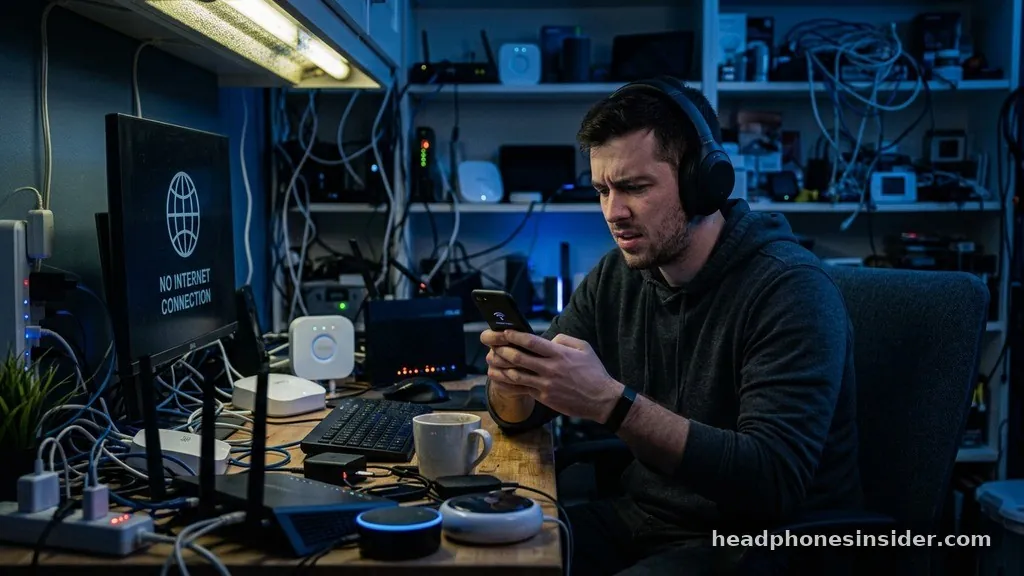
Experiencing a situation where your audio cuts out in the middle of a song, a critical meeting, or an intense gaming session is an incredibly frustrating ordeal. If you find yourself asking why do my headphones keep disconnecting, you are certainly not alone. This issue is a common pain point for users of both wired and wireless audio gear.
Whether you are using high-end noise-canceling cans or budget-friendly earbuds, the underlying causes usually boil down to signal integrity, hardware compatibility, or software glitches. Understanding the mechanics of your audio setup is the first step toward reclaiming a reliable, high-fidelity listening experience that remains stable throughout your day.
Interference and Environmental Factors Affecting Signal Stability
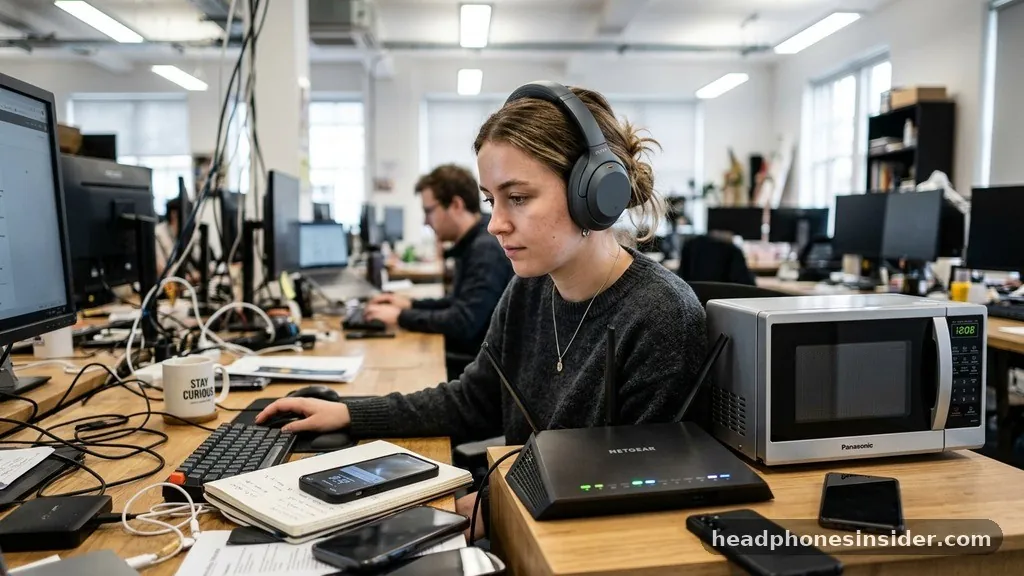
The most frequent reason wireless audio devices struggle to maintain a link is electromagnetic interference. Bluetooth operates on the 2.4 GHz frequency band, which is the same crowded spectrum used by Wi-Fi routers, microwaves, smart home appliances, and even baby monitors.
When your headphones try to maintain a connection, they are effectively competing for airtime in a saturated environment. If you are in an office building or a dense apartment complex, the sheer number of active wireless signals can cause the “handshake” between your phone and your headset to fail, leading to that annoying choppy audio or complete disconnection.
To minimize interference, try moving away from potential sources of signal noise. If you are near a router, stepping a few feet away can often clear up the audio stream instantly. Furthermore, physical obstacles such as thick walls or metal furniture can dampen the signal strength significantly.
Even your own body can act as a shield; if your phone is in a pocket on the opposite side of your body from the Bluetooth receiver in your headphones, the signal may struggle to penetrate the density of your torso. Ensuring a clear line of sight between your source device and your earbuds is often the simplest way to improve connection reliability.
Software Glitches and Outdated Firmware
Digital audio transmission is a complex process that relies on a handshake between the source device and the receiver. If the software driving this interaction is buggy or outdated, the connection will inevitably become unstable.
Manufacturers frequently release firmware updates to address known connectivity bugs, optimize battery management, and improve the efficiency of the Bluetooth codec. If you have been ignoring those update notifications in your headphone companion app, you might be missing out on critical stability patches that resolve the exact reason why your headphones keep disconnecting.
Beyond headphone firmware, the operating system of your phone or computer plays a massive role. A corrupt Bluetooth driver on a laptop running Windows 11, for example, can cause the connection to drop randomly even if the hardware is perfectly healthy. It is vital to ensure that your device drivers are current.
You can check for updates in your system settings, or visit the manufacturer’s website to download the latest driver packages. Sometimes, simply toggling the Bluetooth setting off and back on again—or performing a full restart of your device—can clear out temporary cache files that interfere with a stable link.
Hardware Limitations and Battery Health
The physical state of your gear is just as important as the code running it. When you notice that your headphones keep disconnecting, it is easy to blame the software, but the reality is that the internal battery or the antenna itself might be failing. Bluetooth headphones require a consistent voltage to maintain a signal.
If the battery is aged or nearing the end of its cycle, it may struggle to provide the necessary power to the Bluetooth radio, causing it to drop the connection whenever the power level dips or the signal demand increases. This is particularly common in older earbuds that have been through hundreds of charge cycles.
Wired headphones, on the other hand, face different physical challenges. If you are using a 3.5mm jack or a USB-C adapter, the issue is almost always mechanical. Dust, lint, or debris inside the headphone port can prevent a proper electrical contact, leading to the device “thinking” the headphones have been unplugged.
You can carefully clean out the port using a non-conductive tool like a wooden toothpick or a blast of compressed air. Additionally, look for fraying at the base of the plug or near the earcups; if the internal wiring is damaged, the connection will break whenever the cable is moved or flexed.
Managing Multi-Device Connectivity Issues
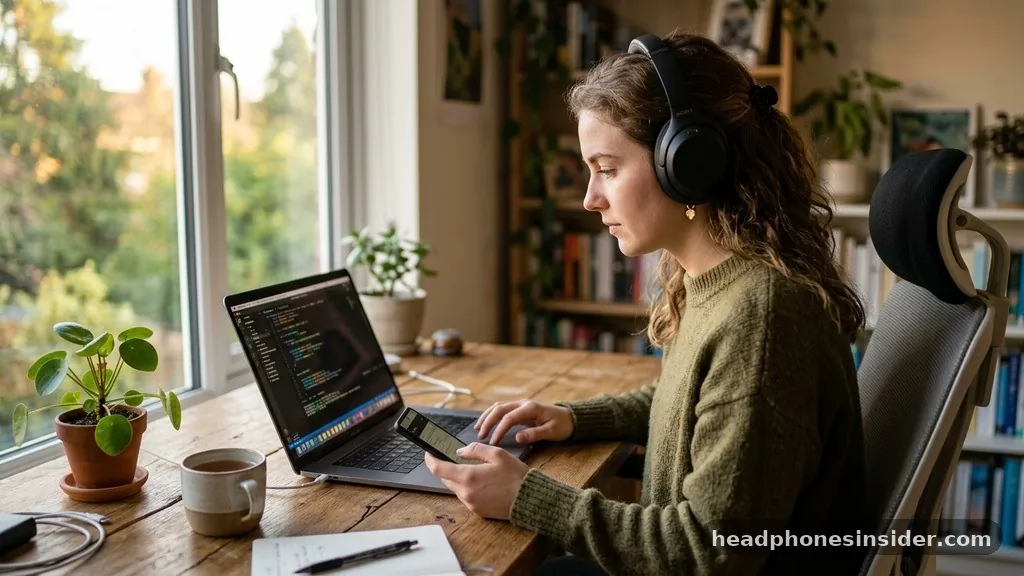
Modern Bluetooth technology often includes “multipoint” capabilities, allowing you to stay connected to two devices simultaneously, such as a laptop and a phone. While this is a convenient feature, it is also a frequent source of connectivity conflict.
If your headphones are trying to maintain a handshake with two different sources, the device may get confused about which audio stream to prioritize. This can lead to the headphones disconnecting from one device to jump to the other, or simply dropping the connection altogether as the Bluetooth radio struggles to manage the traffic.
To troubleshoot this, try disconnecting your headphones from all secondary devices. If you are working on a computer, ensure that your phone isn’t trying to “steal” the connection for a notification sound. Turning off Bluetooth on all nearby devices except the one you are currently using is an excellent diagnostic step.
If the connection remains stable after doing this, you have identified the source of the conflict. You may need to manually manage your Bluetooth pairings or disable the automatic switching feature within your headphone settings to ensure a more stable, dedicated link.
Optimizing Connection Protocols and Codecs
The way data is packaged and sent between your device and your headphones is governed by Bluetooth codecs. Some high-bitrate codecs, such as LDAC or aptX HD, require a significant amount of bandwidth to deliver high-quality audio. If your environment has a lot of interference, your device might try to maintain a high-quality stream that the connection cannot support, leading to constant drops.
In your phone’s developer settings or the headphone app, you can often force a lower-bitrate codec like SBC or AAC. While this may result in a negligible drop in audio fidelity, it significantly increases the stability of the connection.
The official Bluetooth technology website provides extensive documentation on how these standards are evolving to support more stable connections. By understanding that your device is constantly negotiating these protocols, you can better appreciate why changing your settings can have such a profound impact on performance.
If you are experiencing dropouts, prioritize stability over audio quality by lowering the codec requirements. This simple change allows the Bluetooth radio to use more robust error-correction methods, which helps keep the audio stream flowing even when the signal environment is less than ideal.
Comparing Wired vs. Wireless Connectivity Problems
When troubleshooting audio issues, it is important to distinguish between the nature of wireless signals and physical connections. The table below outlines the common failure points for both technologies to help you narrow down the source of your frustration.
| Connection Type | Common Failure Point | Troubleshooting Action |
|---|---|---|
| Wireless (Bluetooth) | Radio Frequency Interference | Move away from routers and heavy electronics. |
| Wireless (Bluetooth) | Device Pairing Conflict | Forget device and re-pair from scratch. |
| Wired (Analog/USB) | Port Contamination | Clean charging or audio port with compressed air. |
| Wired (Analog/USB) | Internal Cable Breakage | Test with a different cable or adapter. |
Wireless devices are inherently more susceptible to environmental factors, whereas wired devices are almost always victims of mechanical wear and tear. If you are using a wired setup, the solution is usually physical—replacing a cable or cleaning a port.
If you are using a wireless setup, the solution is usually digital—updating firmware, resetting pairings, or managing signal interference. By identifying which category your setup falls into, you can stop guessing and start fixing the exact issue at hand.
Essential Steps for Troubleshooting
If you find yourself still struggling with your connection, follow this systematic approach to resolve the problem:
- Perform a hard reset on your headphones by following the manufacturer’s specific button-combination sequence.
- Clear the Bluetooth cache on your smartphone or computer system settings.
- Remove the headphones from the list of paired devices on all your gadgets and perform a fresh, clean pairing.
- Check if the problem persists across different apps; sometimes a specific application (like a video conferencing tool) is the culprit, not the hardware.
- Test the headphones with a completely different device to rule out a hardware failure in your primary phone or laptop.
Taking these steps in order allows you to rule out software bugs before assuming the hardware is broken. Many users find that a simple “forget device” and re-pairing action resolves the majority of disconnect issues. This forces the two devices to renegotiate their encryption keys and handshake protocols, effectively clearing out any corrupted data that might have accumulated during previous sessions.
Conclusion
Navigating the complexities of wireless and wired audio can be taxing, especially when your gear refuses to cooperate. By addressing the potential for signal interference, keeping your device firmware current, and ensuring your ports are free of debris, you can eliminate most of the reasons why your headphones keep disconnecting. Remember that technology, while incredibly advanced, is still subject to the laws of physics and the limitations of software interaction.
A little bit of patience and systematic testing will almost always lead you to a stable, high-quality audio experience. If you remain diligent with your updates and mindful of your environment, you will find that a reliable connection is the rule rather than the exception. Reach out to your manufacturer’s support if these steps fail, as you might be eligible for a warranty replacement if the internal antenna or battery has truly reached the end of its life.
Frequently Asked Questions
Why do my Bluetooth headphones keep cutting out even when they are fully charged?
The issue is likely due to signal interference or a corrupted pairing. Bluetooth operates on the 2.4 GHz band, which is often congested. Try moving away from Wi-Fi routers or smart devices, and re-pair your headphones to your device to clear any handshake errors.
Can a software update really fix my headphone connectivity?
Yes, manufacturers frequently release firmware updates to address bugs in the Bluetooth protocol and improve signal stability. If your headphones have a companion app, check it regularly for updates. Updating your phone or computer’s OS can also resolve issues with outdated Bluetooth drivers.
How do I know if my wired headphones are broken or if it is the port?
Test your headphones on a different device, such as a tablet or another phone. If they work fine elsewhere, the issue is likely your original device’s port. If they still disconnect, the issue is likely a frayed cable or a damaged plug on the headphones themselves.


