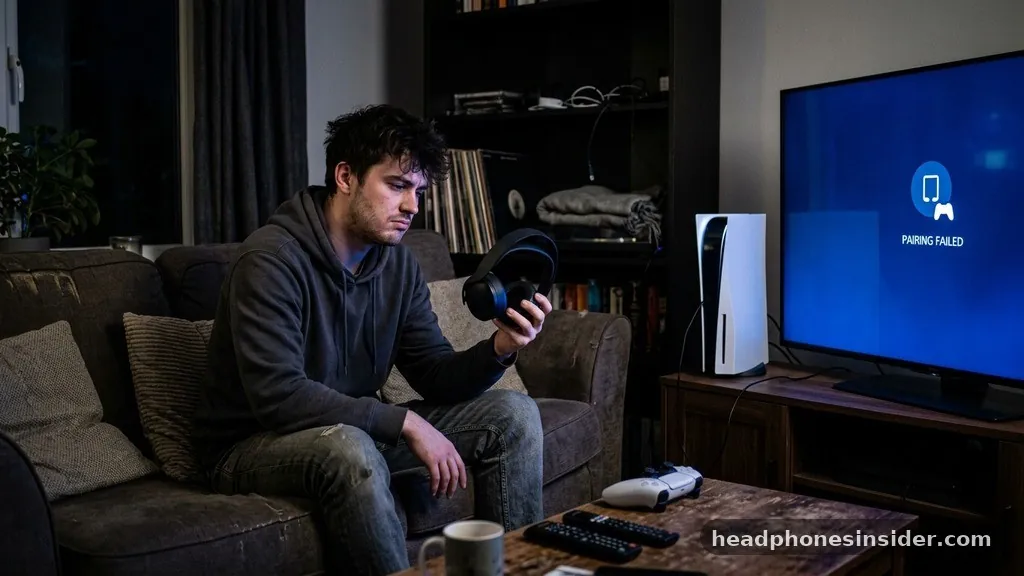
The PlayStation 5 is a powerhouse of modern gaming, yet it famously lacks native support for standard Bluetooth audio devices. Many users are surprised to discover that they cannot simply open their console‘s settings menu and pair their favorite pair of wireless earbuds or over-ear cans directly to the system.
This limitation exists primarily because Sony prioritizes a proprietary 3D audio protocol through its own line of headsets to ensure minimal latency and high-fidelity sound. However, understanding how to connect Bluetooth headphones to PS5 is a common challenge that can be solved with the right hardware and a clear understanding of your console’s audio architecture.
Why the PlayStation 5 Lacks Native Bluetooth Audio Support
The primary reason you cannot directly connect Bluetooth headphones to PS5 is that Sony designed the console’s Bluetooth stack specifically for the DualSense wireless controller and other input peripherals. While the hardware itself is technically capable of Bluetooth communication, the software environment does not support the A2DP profile, which is the standard protocol for high-quality stereo audio streaming. By restricting Bluetooth audio, Sony prevents the common pitfalls associated with standard wireless protocols, such as lip-sync lag, audio dropouts, and interference from other household devices.
When you attempt to pair a standard set of Bluetooth headphones, the console simply will not recognize them as an audio output device. This is a deliberate design choice meant to push users toward official peripherals like the Pulse 3D or Pulse Elite headsets, which utilize a dedicated 2.4GHz wireless connection.
This 2.4GHz connection provides a much lower latency experience than standard Bluetooth, which is critical for competitive gaming where split-second audio cues can mean the difference between victory and defeat. If you are determined to use your existing gear, you must find a workaround that bypasses this internal restriction, typically through external hardware that bridges the gap between the console and your headphones.
Using a USB Bluetooth Transmitter for Audio
The most reliable way to connect Bluetooth headphones to PS5 is by utilizing an external USB Bluetooth transmitter, often referred to as a Bluetooth adapter or dongle. These devices plug directly into one of the USB-A or USB-C ports on the back or front of your console. Once plugged in, the adapter essentially tricks the PS5 into thinking it is a standard wired USB audio device, while it simultaneously handles the wireless pairing process with your headphones.
To set this up, you need to ensure your adapter is compatible with the PlayStation platform. Many generic adapters on the market support “Plug and Play” functionality, meaning the console will automatically detect the device as an audio output source. Once you plug the USB adapter into the console, you will typically need to put your headphones into pairing mode.
Follow the specific instructions provided by your headphone manufacturer to initiate this state. After the devices have established a handshake, you should navigate to the console’s sound settings to confirm that the audio output has switched from your TV or monitor to the new USB device. This method is the industry standard for those who want to avoid buying a brand-new headset.
Navigating Console Audio Settings
Once you have established a physical connection via an adapter, you must ensure your system settings are optimized for the best possible experience. When you connect Bluetooth headphones to PS5, the console does not always automatically route all game audio to the new device. You should head to the Settings menu, select Sound, and then look for the Audio Output section.
Here, you will see an option for Output Device. Make sure that your USB adapter or headset is selected as the primary output device.
Within this same menu, you may also find options for adjusting the audio mix and enabling 3D audio. It is important to note that while third-party Bluetooth adapters can handle stereo sound perfectly, they may not always support the full suite of Sony’s proprietary Tempest 3D AudioTech. If you find that the audio sounds flat or lacks depth, check if your adapter supports specific codecs like aptX or AAC, which can help maintain high sound quality.
Additionally, keep an eye on the volume levels; sometimes, the software volume on the console and the hardware volume on your headphones can conflict. Always set your console volume to a high, stable level and then use the physical volume controls on your headset to make fine adjustments.
The Role of Microphone Quality and Compatibility
One significant hurdle when using an external transmitter to connect Bluetooth headphones to PS5 is the functionality of the microphone. Many standard Bluetooth headphones use a specific profile for voice calls that, when activated, forces the audio quality to drop significantly. Because the PS5 treats most USB dongles as basic audio devices, you may find that the microphone quality is subpar or, in some cases, completely non-functional.
If you are a competitive gamer who relies on team chat, this is a critical consideration. Some high-end Bluetooth adapters come with a secondary 3.5mm microphone jack that you can plug into your controller, allowing you to use a dedicated boom mic while your audio comes through the wireless headphones. This “hybrid” setup is often the only way to get true, high-fidelity game audio combined with clear voice chat.
Before purchasing an adapter, verify if it supports “Headset Mode” or if it is strictly designed for audio output only. You can learn more about how audio standards function at the official Bluetooth Special Interest Group website, which outlines the different profiles that govern how audio and microphone data are transmitted across wireless connections.
Comparing Audio Solutions for PlayStation 5
To better understand your options, it is helpful to weigh the pros and cons of using various connectivity methods. The following table highlights the differences between native support, third-party adapters, and wired connections.
| Connection Method | Audio Quality | Latency | Mic Functionality |
|---|---|---|---|
| Official Wireless Headset | Excellent | Negligible | High-Quality |
| USB Bluetooth Adapter | Good | Variable | Limited |
| Wired (3.5mm) | Excellent | None | Good |
As shown in the table, while a USB Bluetooth adapter offers convenience, it often comes with trade-offs in latency and microphone capability. If you are playing single-player narrative games, a slight delay in audio might be unnoticeable.
However, if you are playing fast-paced shooters, you may find that the latency becomes distracting. Always ensure that the adapter you choose is specifically rated for low-latency gaming to mitigate these issues.
Troubleshooting Common Connection Issues
If you find that your devices are not working as expected, there are several steps you can take to troubleshoot the connection. First, ensure that your Bluetooth headphones are not currently paired to another device, such as your smartphone or laptop. Many modern headsets will automatically attempt to reconnect to the last device they were paired with, which can prevent them from successfully linking to your PS5 adapter.
If the devices are not finding each other, perform a “hard reset” on both your headphones and the USB adapter. Unplug the adapter, wait for a few seconds, and then plug it back in. Simultaneously, clear the pairing history on your headphones if possible.
Another common issue is signal interference. Because the PS5 and your router often reside in the same entertainment center, the 2.4GHz signals can clash. Moving your USB adapter to a different port—perhaps one on the back of the console—can sometimes provide a clearer line of sight or distance from the interference source.
Finally, check for firmware updates for your adapter. Many manufacturers release software patches to improve compatibility with newer console system updates, ensuring that your connection remains solid and stable over time.
Optimizing Your Gaming Experience
Achieving a high-quality audio setup requires more than just connecting the hardware; it requires managing the environment. When you finally successfully connect Bluetooth headphones to PS5, take the time to test different audio profiles. Whether you are using a dongle or a wired connection, the PS5 allows you to customize the sound profile significantly.
Experiment with the different EQ settings within the console’s menu to see which one complements your specific headphones. Some headphones are bass-heavy, while others are more balanced; the system’s software settings can help compensate for these characteristics.
Furthermore, remember to charge your headset regularly. Unlike wired headphones, which draw power from the controller, wireless Bluetooth headphones rely on their own internal batteries. A low-battery warning mid-match is a quick way to ruin an intense gaming session.
Make it a habit to charge your headset after every session, and if your adapter allows, keep your console in a mode that provides power to USB ports even when the system is in rest mode. This ensures that your accessories are ready to go the moment you pick up the controller again. By taking these extra steps, you can bridge the gap between Sony’s restrictive ecosystem and your preferred audio equipment, resulting in a personalized gaming experience that sounds exactly the way you want it to.
Conclusion
Connecting Bluetooth headphones to a PS5 requires a bit of extra effort due to the console’s design, but it is entirely achievable with the right approach. By utilizing a dedicated USB Bluetooth transmitter, you can bypass the native restrictions and enjoy your favorite wireless audio gear while you play. While these solutions may not always offer the seamless integration of an official Sony headset, they provide a flexible and cost-effective alternative for many players.
As you navigate these settings and hardware configurations, remember that the goal is to enhance your immersion. Whether you prioritize low latency for competitive play or simply want the comfort of your favorite pair of headphones, the steps outlined above will help you get the best possible sound.
We hope this guide clarifies the process and helps you get back to your games with the audio quality you deserve. Feel free to experiment with different adapters and settings to find the perfect balance for your personal setup.