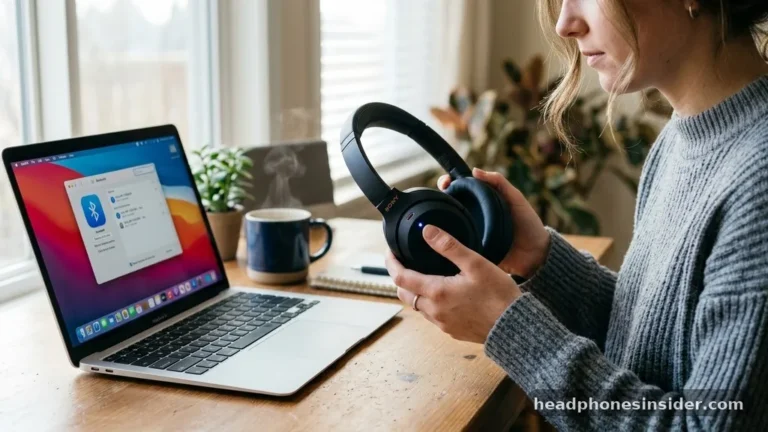
Dealing with audio connectivity issues can be incredibly frustrating, especially when you are in the middle of a workout or trying to focus on a task. If you have ever wondered how to reset Bluetooth headphones to fix persistent pairing problems, you are certainly not alone.
Most wireless audio issues stem from minor software glitches or synchronization errors between your playback device and the headset. A factory reset is often the most effective way to clear out corrupted cache files and restore the factory-default communication protocols that allow your hardware to function seamlessly.
By performing a reset, you effectively force the internal firmware to clear its current memory of previously paired hosts. This process essentially gives your gear a clean slate, removing any residual “ghost” connections that might be interfering with your current attempts to link to a phone or computer.
Whether you are using high-end noise-canceling cans or compact earbuds, the core logic remains the same: you are interrupting the power cycle and forcing the device to enter a discovery state. In this guide, we will walk you through the various methods to perform this procedure across different hardware configurations and brands.
Understanding the Mechanics of a Bluetooth Reset
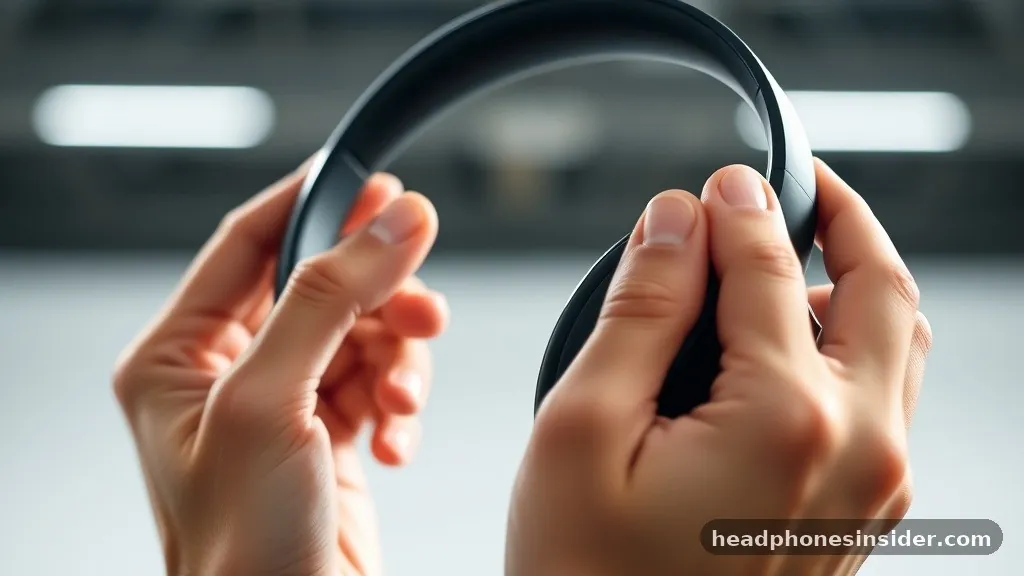
A reset of your wireless headset acts as a hard reboot for the internal radio and processor, clearing out the stored pairing data that keeps the device locked to specific sources. When you initiate this process, you are essentially telling the onboard chip to forget every connection it has ever made. This is particularly useful if your headphones appear to be turned on but refuse to enter pairing mode, or if they keep attempting to connect to a device that is no longer in range or has been decommissioned.
Most modern hardware relies on a specific sequence of button presses to trigger the factory restoration. Because there is no universal standard for how manufacturers design their hardware, the location of the reset mechanism varies.
Some models use a dedicated physical button hidden deep within the ear cup, while others require you to hold down the volume or power controls while the device is inside its charging case. When you hold these controls for a specific number of seconds, the device will often signal the completion of the task via an LED indicator, which might blink red or white to confirm the memory has been wiped.
Preparing Your Source Devices for a New Connection
Before you physically interact with your audio gear, you must address the source devices. If your smartphone, tablet, or computer still lists your headphones as a “known” device, the connection attempt will likely fail because the host device will try to use the old, corrupted handshake protocols. You must remove the device from your settings menu to ensure a clean slate.
To prepare your system, navigate to the Bluetooth settings on your phone or computer. Locate your headphones in the list of previously paired items and select the option to “forget” or “remove” the device. This action is critical because it forces the operating system to treat your headphones as a completely new piece of hardware.
Once you have cleared the record on your phone, you should also toggle the Bluetooth radio off and back on again to clear the local cache. This simple step often resolves the vast majority of connectivity issues before you even touch the headphones themselves. You can find more detailed information on how these communication standards function through the official Bluetooth technology portal.
Common Reset Methods for Popular Headphone Designs
There are several standard ways to approach a reset depending on the form factor of your equipment. While specific instructions vary by brand, the following table outlines the most common categories of reset protocols you will encounter in the field.
| Headphone Type | Standard Reset Trigger | Typical Confirmation |
|---|---|---|
| Over-Ear (Physical Buttons) | Hold Power + Volume Up for 10-15 seconds | LED flashes or audible tone |
| True Wireless Earbuds | Place in case, hold touch sensors for 20 seconds | Lights blink in sequence |
| Neckband/Sport Style | Hold Play/Pause button while powering on | Voice prompt or status light change |
| USB-C/Wired-Hybrid | Connect to power, hold multi-function button | Reset confirmation chime |
When dealing with earbuds, the charging case often plays a vital role in the reset process. Because the case contains the battery and the logic board that communicates with the buds when they are docked, the case itself acts as the bridge for the reset signal. If you find that one earbud is not syncing with the other, placing both into the case and holding the pairing button on the case exterior is usually the intended method for re-establishing the master-slave relationship between the two pieces.
Troubleshooting Persistent Connection Failures
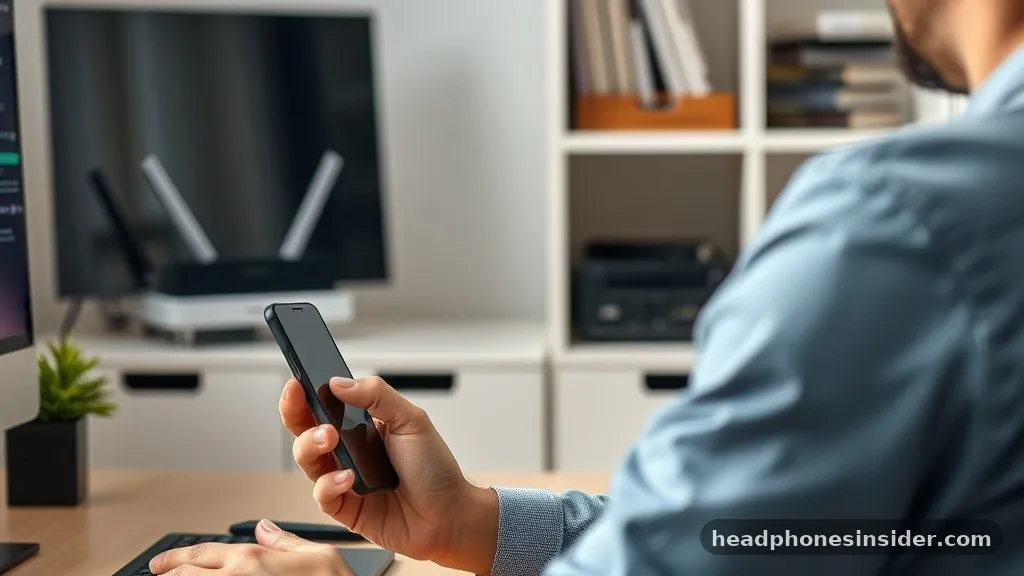
If you have performed a factory reset and the device still refuses to link, you may be dealing with environmental interference or a deeper firmware issue. Bluetooth operates on the 2.4GHz frequency band, which is the same spectrum used by Wi-Fi routers, microwaves, and various smart home appliances. If you are attempting to pair your headphones in a room crowded with active wireless signals, the handshake process can be interrupted.
Try moving to a different location or turning off nearby Wi-Fi routers temporarily to see if the connection stabilizes. Furthermore, verify that your source device has the latest operating system updates. Occasionally, a bug in the Bluetooth stack of a smartphone can prevent it from accepting new connections, even if the headphones are working perfectly.
If you are using a computer, ensure that your Bluetooth drivers are updated via the device manager or the manufacturer’s support website. Sometimes, the computer’s internal radio module requires a power cycle, which can be achieved by fully shutting down the laptop and removing the power source for a few minutes before rebooting.
Addressing Topical Gaps: Resets Without Buttons
A common point of confusion arises when users own minimalist headphones that lack physical buttons or dedicated reset switches. If your hardware relies entirely on touch-sensitive surfaces, the reset process is often hidden behind a specific timing sequence. For many touch-controlled earbuds, the reset involves tapping the sensor a specific number of times in rapid succession, followed by a long hold.
If your device has no clear buttons, consult the digital manual or the manufacturer’s mobile app. Many modern audio brands have moved away from physical controls toward software-based management. By connecting the device to the official companion app, you can often trigger a “factory reset” command from the settings menu within the app itself.
This is a much safer and more reliable way to reset the device because it ensures the firmware is returned to the exact state intended by the engineers. Always look for a “Reset to Factory Settings” option within the advanced settings tab of the proprietary app associated with your brand.
Step-by-Step Procedure for a Successful Re-Pairing
Once you have successfully executed the reset, the goal is to establish a fresh, stable connection. It is tempting to rush this process, but following a strict order of operations will prevent the previous errors from recurring.
After the reset, ensure the headphones are fully charged. A low battery can cause the Bluetooth radio to behave erratically, leading to drops during the initial pairing handshake.
- Turn off Bluetooth on all nearby devices to prevent accidental auto-connections.
- Place your headphones into pairing mode by following the manufacturer’s specific button sequence.
- Open the Bluetooth settings on your primary device and wait for the scan to finish.
- Select the device name from the list and wait for the “Connected” status.
- Test audio playback with a high-quality stream to ensure no stuttering occurs.
- If the connection is stable, proceed to add the device to your secondary hardware.
By following these steps, you minimize the risk of “pairing conflicts,” where two devices fight for control over the headset. Always prioritize the connection to your most-used device first, and ensure that the headphones are not currently linked to any other hardware before attempting to add a second source.
Conclusion and Next Steps
Performing a reset on your Bluetooth headphones is a powerful way to eliminate connection instability and restore the intended performance of your hardware. By clearing the internal memory and removing outdated handshake data from your source devices, you create the optimal environment for a stable, high-fidelity wireless experience. Remember that the specific sequence—whether it involves holding a button for twenty seconds or using a mobile application—is the key to success.
If you find that your audio gear continues to drop connections even after a thorough reset, there may be a hardware defect or a battery degradation issue that cannot be resolved through software. In such cases, checking your warranty status or contacting the manufacturer’s support team is the logical next step.
For most users, however, the simple act of resetting the device and clearing the Bluetooth cache on their smartphone or computer is all that is required to get back to enjoying clear, uninterrupted sound. Feel free to explore your device’s companion app for further diagnostic tools if you continue to face issues.