Achieving the perfect audio experience often comes down to hitting that sweet spot where the music is immersive without distorting, but many users find themselves frustrated when their gear simply lacks the necessary punch. Learning how to make headphones louder is a common quest for audiophiles and casual listeners alike, especially when you feel like you are pushing your device to its absolute limit without success.
Whether you are struggling with a quiet smartphone, a muted laptop, or Bluetooth connectivity issues, the solution often lies in adjusting software settings, managing output configurations, or understanding the physical limitations of your hardware. By optimizing your digital signal path and ensuring your playback environment is correctly configured, you can significantly enhance your listening experience.
Understanding the Relationship Between Software and Hardware
To make headphones louder, you must first understand that volume is a product of both digital gain and physical amplification. The digital signal sent from your device to your headphones is governed by software limitations, operating system volume caps, and sometimes even file-specific encoding.
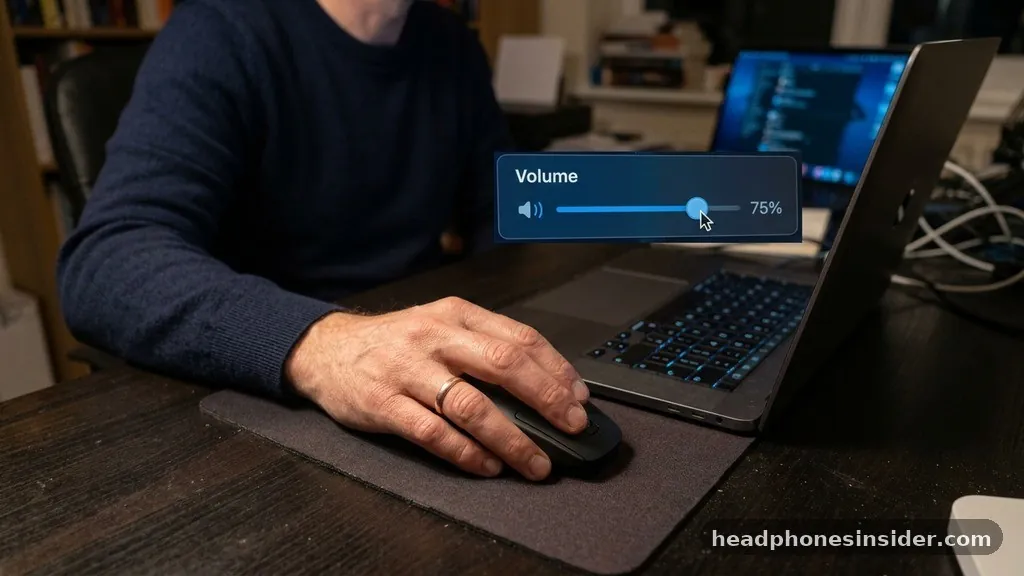
When you adjust the volume slider on your computer or phone, you are essentially telling the operating system to apply a certain amount of gain to the digital audio file before it reaches the digital-to-analog converter (DAC). If your audio still seems quiet, it is rarely because the headphones are “broken”; rather, it is often a matter of the signal chain being throttled by software settings designed to protect your hearing or conserve power.
When you attempt to increase the output, you are essentially asking your device to push more power through the internal circuitry. Most modern mobile devices are optimized for efficiency, which means they limit the maximum power output to prevent battery drain and avoid distortion. If you are using high-impedance headphones—which require more voltage to drive effectively—a standard smartphone or laptop will struggle to reach satisfying levels.
In these cases, no amount of software tweaking will overcome the physical mismatch between the device’s output stage and the headphones’ requirements. Recognizing whether your issue is a software-based cap or a hardware-based impedance mismatch is the first step in troubleshooting your audio levels.
Optimizing Audio Settings on Mobile Devices
If you are using an iPhone or an Android device, the most common reason for quiet audio is an active volume limiter or a hidden setting designed to protect your ears. On iOS, you can navigate to Settings, select Sounds & Haptics, and then check the Headphone Safety section. Here, you will find a toggle for “Reduce Loud Sounds.”
When this is enabled, your device will automatically lower the volume of any audio that exceeds a certain decibel threshold, which can make your music feel significantly quieter than it actually is. Disabling this or increasing the decibel limit is often the most direct way to reclaim lost volume.
On Android, the situation is slightly different because of the variety of manufacturers. Many Samsung and other Android-based phones include a “Media Volume Limit” feature hidden within the sound settings. To find this, look under the three-dot menu in your volume control panel or dive into the Sound & Vibration settings.
By increasing this limit, you allow the system to output a hotter signal to your wired or Bluetooth headphones. Additionally, ensure that “Absolute Volume” is enabled in your Developer Options if you are experiencing a mismatch between your phone’s volume control and your Bluetooth device’s internal volume. This ensures the two devices are communicating effectively and that you are not accidentally capping the output at a lower level than the hardware supports.
Managing Audio Levels on Windows and macOS
Computers offer much more granular control over audio output than mobile devices, but they also have more potential points of failure. If you are wondering how to make headphones louder on a PC, start by checking the individual application volume mixer.
It is common for a specific app, such as a web browser or a media player, to have its volume slider turned down independently of the master system volume. Right-clicking the speaker icon in your taskbar and selecting “Open Volume Mixer” allows you to verify that every active application is set to 100%.
For Windows users, the “Loudness Equalization” feature is a hidden gem. You can find this by navigating to your Sound Control Panel, selecting your playback device, clicking Properties, and looking under the Enhancements tab. Enabling Loudness Equalization acts as a form of dynamic range compression, which effectively boosts the quieter parts of a track and keeps the overall perceived volume high and consistent.
This is particularly useful for movies or games where the audio mix might be too wide. On macOS, the process is more focused on the Core Audio system. If you find the volume lacking, you can use the built-in Audio MIDI Setup utility to ensure the output format is set correctly, though macOS generally handles gain staging more transparently than Windows.
Table: Comparison of Volume Optimization Methods
| Method | Platform | Effectiveness |
|---|---|---|
| Volume Limiter Removal | iOS/Android | High |
| Loudness Equalization | Windows | Medium-High |
| Equalizer Pre-amp Gain | Universal | Very High |
| External DAC/Amp | Hardware | Maximum |
Utilizing Third-Party Equalizer Apps
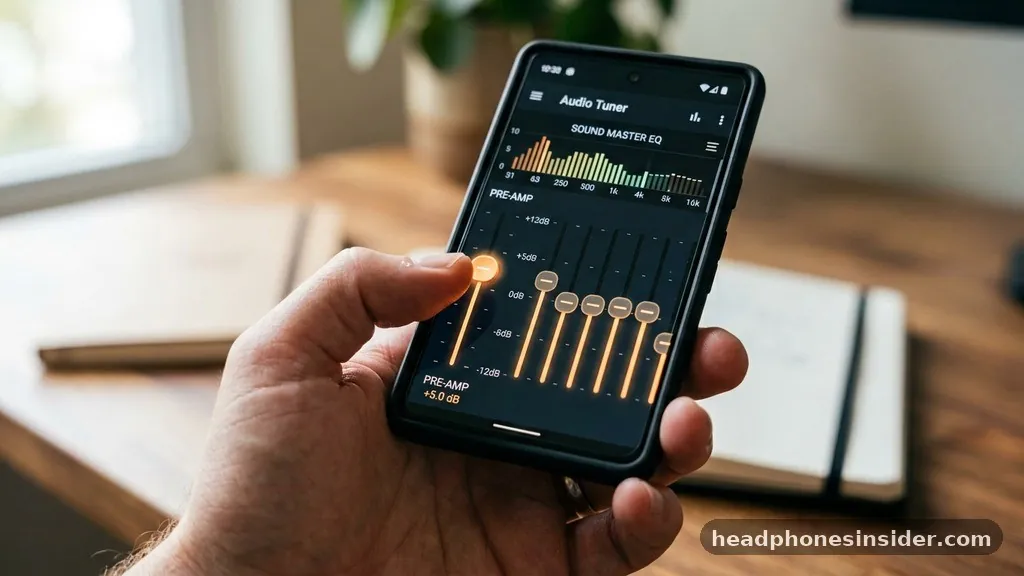
If system-level adjustments are not enough, an equalizer app can provide a significant boost to your audio performance. An equalizer allows you to adjust specific frequency bands, but more importantly, many of these apps include a “Pre-amp” or “Gain” slider.
By increasing the pre-amp gain before the audio reaches your headphones, you can push the output louder than the default OS settings would normally allow. This is a common strategy for users who want to extract more volume from their existing gear without buying new hardware.
When using an equalizer, it is crucial to be careful. Pushing the gain too high can lead to “clipping,” where the peaks of the audio waveform are cut off, resulting in harsh, distorted sound that can actually damage your hearing or the drivers in your headphones. A good rule of thumb is to increase the pre-amp gain gradually while playing a track with a wide dynamic range.
If you hear any crackling or distortion, dial it back slightly. Tools like Equalizer APO for Windows or specialized music player apps with built-in EQ on mobile are excellent for this purpose. They offer a level of control that standard system sliders simply cannot match, allowing you to tailor the sound signature to your specific preferences while gaining the extra decibels you need.
Addressing Bluetooth and Wireless Audio Challenges
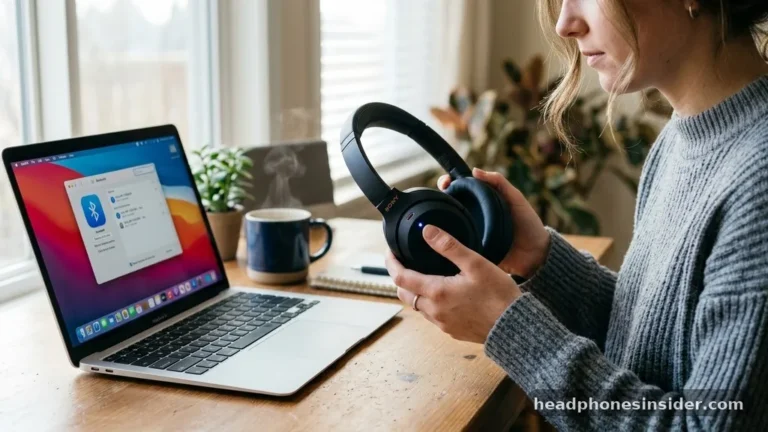
Bluetooth headphones present a unique set of challenges because they have their own internal amplifier and volume control. When you pair Bluetooth headphones with a device, you are essentially managing two separate volume levels: the volume on your phone or computer, and the volume on the headphones themselves.
If you have turned your phone to maximum volume but the audio still seems low, the issue is almost certainly that the headphones’ internal volume is set to a lower level. Most modern Bluetooth headphones have physical buttons or touch controls on the earcups to adjust this internal gain.
Another factor to consider is the codec being used for transmission. High-quality codecs like LDAC or aptX HD provide better audio fidelity, but they can sometimes interact differently with power-saving modes. If you are experiencing volume issues, try toggling the Bluetooth settings in your device’s developer options to see if changing the codec or the sample rate improves the output.
Furthermore, ensure that your firmware is up to date. Manufacturers frequently release updates to address connectivity and gain issues. You can check the official Bluetooth technology website for detailed information on how these wireless standards function and how to optimize them for your specific hardware.
Troubleshooting Topical Gaps and Common Pitfalls
Many users search for ways to make their headphones louder but overlook the simplest physical causes. Before diving into complex software configurations, inspect your hardware for debris. A clogged earwax filter on earbuds or a layer of dust on your headphone drivers can significantly muffle the sound, making it seem much quieter than it actually is.
Cleaning your gear with a soft brush or compressed air can often restore a surprising amount of volume and clarity. Additionally, consider the cable integrity; a frayed or poorly seated 3.5mm jack can cause resistance, which leads to signal loss and reduced volume levels.
Another frequent gap in troubleshooting is the issue of file quality. If you are listening to low-bitrate compressed audio, the dynamic range is often squashed, leading to a perceived lack of volume and punch. Streaming services often have data-saving features that lower the quality of your music to save bandwidth.
Check your app settings to ensure you are streaming at the “High” or “Very High” quality setting. This won’t necessarily make the volume “louder” in terms of raw decibels, but it will improve the perceived loudness by providing a cleaner, more robust signal that your headphones can reproduce more effectively.
- Check for physical obstructions like wax or dust in the driver housing.
- Ensure your streaming app is set to the highest quality audio settings.
- Verify that your cable is fully inserted into the jack to avoid signal loss.
- Disable any “Eco” or “Power Saving” modes that might be throttling audio output.
- Test your headphones on a different device to rule out hardware failure.
Conclusion
Learning how to make headphones louder is less about finding a secret “magic button” and more about understanding the layers of control between your media and your ears. By systematically checking your software volume limits, exploring the power of equalizer pre-amps, and ensuring your physical hardware is clean and properly connected, you can achieve a significantly more satisfying listening experience.
Remember that the goal is to enhance your enjoyment while maintaining the health of your hearing. Always prioritize clarity over raw volume to avoid the distortion that comes from pushing hardware beyond its design limits.
If you have tried all the software and hardware tweaks mentioned above and still find your audio lacking, the next logical step is to consider an external DAC or headphone amplifier. These dedicated devices are designed specifically to provide the clean, high-voltage power that high-impedance headphones require.
Start by experimenting with the settings on your current devices, and you will likely find that you have much more headroom than you originally thought. Enjoy your music at the level that feels right for you, and don’t hesitate to revisit these settings whenever you switch to new hardware or update your system.
Frequently Asked Questions
Why are my headphones not loud enough even at maximum volume?
This usually happens because of a software-level volume limiter, a mismatch between your device’s impedance and the headphones, or a low-quality audio source. Check your device’s “Headphone Safety” settings or “Volume Limit” toggles first, as these are the most common culprits for capped audio output.
Can I safely go louder than the system’s maximum volume?
Technically, you can use third-party equalizer apps or pre-amp software to boost the signal, but proceed with caution. Pushing the gain too high can cause digital clipping and distortion, which may damage your headphones or lead to hearing fatigue. Always increase the volume incrementally to avoid harsh sounds.
How do I make Bluetooth headphones louder on my phone?
First, ensure that the volume on both your phone and the headphones themselves is turned up, as they often have independent volume controls. If that doesn’t work, disable “Absolute Volume” in your phone’s Developer Options or check the manufacturer’s dedicated app for firmware updates that might resolve volume-related bugs.
Does file quality affect how loud my music sounds?
Yes, it can. Low-bitrate files often have a compressed dynamic range, which can make the audio feel “thin” or quiet. Switching to high-quality streaming settings or high-resolution audio files provides a fuller, more robust signal that allows your headphones to perform at their best, resulting in a more satisfying volume.