

It is incredibly frustrating when you settle in for a podcast or a gaming session, only to realize the audio is completely absent. When you find yourself asking why are my headphones not working, the culprit is often a simple disconnect between your hardware and your software settings.
Whether you are dealing with a silent pair of wired headphones or a wireless set that refuses to pair, the problem usually stems from a specific point of failure in the signal chain. By methodically isolating the hardware, the source device, and the configuration files, you can usually restore your sound within a few minutes of troubleshooting.
Assessing Physical Connectivity and Hardware Integrity
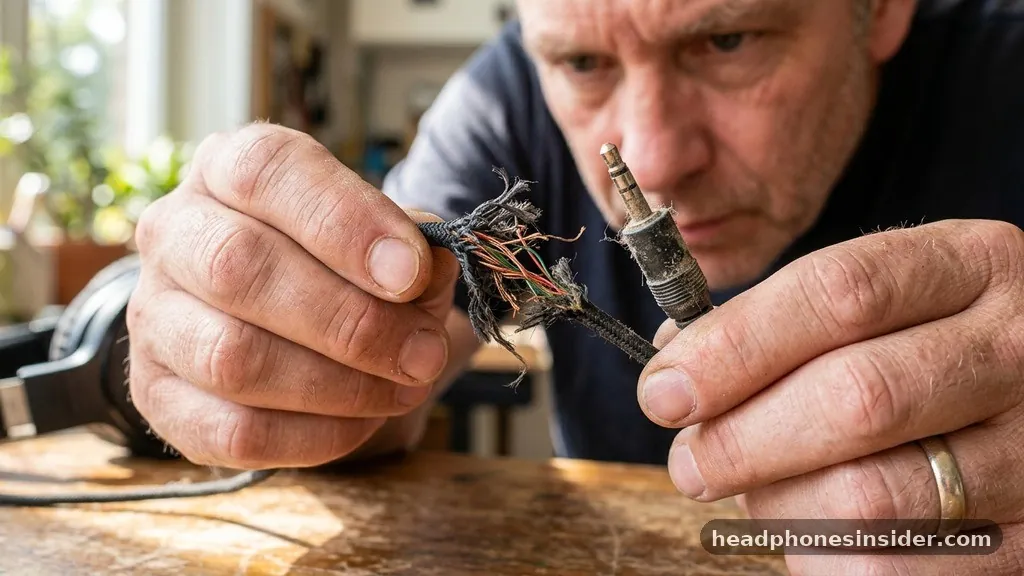
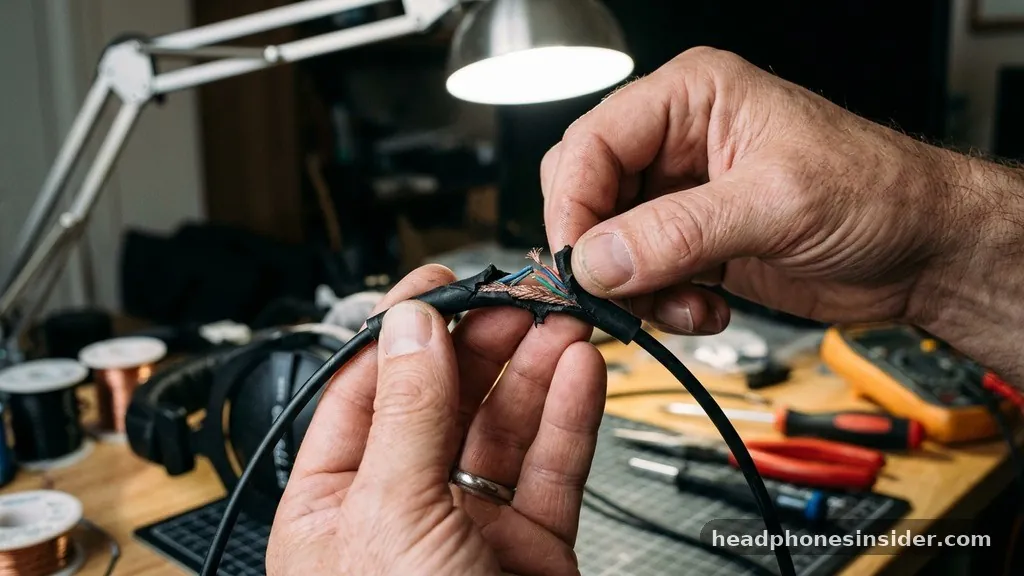
The most common reason for audio failure is a physical disruption in the signal path. If your headphones are not working, the first step is to perform a thorough physical inspection of the equipment. For wired models, the cable is the most vulnerable component.
Over time, internal copper strands can fray due to bending, pulling, or general wear and tear. You should inspect the jack for debris, such as pocket lint or dust, which can prevent the plug from seating fully into the port. A loose connection often results in intermittent sound or audio playing through only one side.
If you are using a dongle or an adapter—common with modern smartphones that lack a 3.5mm jack—ensure that the adapter itself is not the source of the issue. Adapters are notorious for failing internally while appearing perfectly intact on the outside. To rule this out, test your headphones on a different device.
If the headphones work fine on a secondary laptop or tablet, you know the fault lies with the original device’s port or its internal audio controller. Conversely, if they remain silent across every device you try, the headphones themselves likely have a broken internal wire or a failed driver.
Troubleshooting Bluetooth and Wireless Connectivity
When you are wondering why are my Bluetooth headphones not working, the complexity shifts from physical cables to radio frequency handshakes and pairing protocols. Wireless audio relies on a stable connection between the transmitter in your phone or computer and the receiver in the headset.
If the devices are not communicating, the first thing to check is the pairing status. Sometimes, a device remains “paired” but not “connected,” meaning the software recognizes the hardware but hasn’t established an active audio stream.
To resolve this, navigate to the Bluetooth settings on your source device and select “Forget this device.” Once removed, put your headphones into pairing mode—usually indicated by a blinking LED light—and initiate a fresh search from your phone or computer. Interference is another major factor.
If you are in an area with many competing signals, such as a crowded office or a home with multiple Wi-Fi routers, the Bluetooth signal may struggle to maintain a consistent stream. Move closer to your device and ensure that you are not blocked by large metal objects or dense walls, which can significantly dampen high-frequency radio signals.
Navigating Software and Audio Output Settings
Even when the hardware is perfectly fine, the computer or phone might be routing the sound to the wrong destination. This is a classic software configuration problem that affects both Windows and macOS users. In many cases, an operating system update or a new peripheral installation can cause the system to default to the wrong output device, such as a monitor’s built-in speakers instead of your headset.
In Windows, you can open the control panel or the modern Settings menu to view your sound output devices. Right-click the volume icon in your taskbar and select “Open Sound settings.” From here, confirm that your headphones are selected as the primary output device.
If they do not appear in the list, the system may not be detecting them at all. This often points to a driver-related issue. For those who want to learn more about standard audio protocols and hardware communication, the International Organization for Standardization provides extensive documentation on technical hardware specifications that help developers maintain compatibility across different manufacturers.
| Connection Type | Common Failure Point | Primary Troubleshooting Step |
|---|---|---|
| Wired (3.5mm) | Lint in the jack | Clean port with compressed air |
| USB-C/Lightning | Adapter failure | Test without the adapter |
| Bluetooth | Pairing conflict | Reset and re-pair devices |
| Wireless Dongle | Driver corruption | Reinstall audio drivers |
Managing Audio Drivers and System Updates
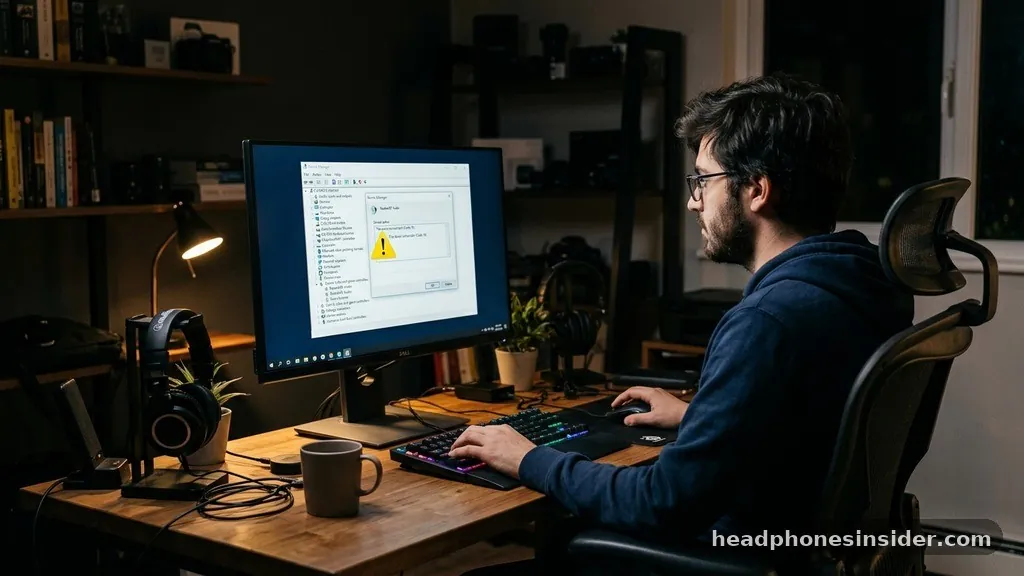
If your computer still refuses to acknowledge your headphones, the drivers may be outdated or corrupted. Drivers act as the translator between your hardware and the operating system; if the translator is missing or broken, the OS cannot send data to your headphones.
To fix this, access your Device Manager on a Windows computer. Locate the “Sound, video and game controllers” section and look for your specific device model.
If you see a yellow exclamation mark next to the entry, it indicates a driver error. You should attempt an update by right-clicking the device and selecting “Update driver.” If that fails, uninstall the driver entirely and restart your computer.
Upon rebooting, the system will automatically attempt to reinstall the default drivers, which often resolves conflicts that prevented the hardware from working correctly. For Mac users, an SMC or PRAM reset can sometimes clear out lingering configuration errors that affect audio hardware. Always ensure your OS is fully updated, as newer patches often include fixes for peripheral compatibility.
Resolving Topical Gaps and Hidden Settings
A common, yet often overlooked, cause of audio issues is the presence of secondary software that hijacks the audio stream. If you have applications like Discord, Zoom, or specialized audio-mixing software installed, they might be setting your headphones to “exclusive mode.” This prevents other applications from using the audio device.
To check this, go to your Sound Control Panel, select your headphones, go to Properties, and look at the Advanced tab. Uncheck the box that says “Allow applications to take exclusive control of this device” and see if your sound returns.
Another gap in troubleshooting is the “Mute” switch on the headphones themselves. Many gaming headsets feature an inline volume control or a physical mute button on the ear cup. It is remarkably common to accidentally bump this switch, leaving you wondering why you cannot hear anything despite the computer reporting that audio is playing.
Furthermore, check the volume levels inside the specific application you are using. Sometimes the system volume is up, but the volume slider within a web browser or a video player is set to zero.
- Check the physical mute switch on the cable or ear cup.
- Ensure the volume slider inside your media player is not muted.
- Disable “Exclusive Mode” in the sound properties menu.
- Test the headphones on a completely different source device.
- Check for firmware updates specific to your headset model.
- Verify that your audio output is not currently set to a Bluetooth speaker in another room.
Maintenance and Long-Term Hardware Care
To prevent these issues from recurring, consistent maintenance is key. The right way to store your headphones involves avoiding tight coils that put stress on the internal wiring.
If you use wireless gear, keep the battery charged, as low power can sometimes lead to connectivity drops or erratic behavior before the device shuts down entirely. Regularly cleaning your headphone pads and the surrounding area prevents debris from entering the driver housing, which can degrade sound quality over time.
For those using high-end audio gear, consider using a dedicated headphone stand rather than leaving them on your desk where they are prone to being stepped on or tangled. If you notice that your headphones work only when the cable is held at a specific angle, you are likely dealing with a broken wire near the connector.
While you can sometimes repair these with a soldering iron and a new jack, it is often a sign that the cable’s lifespan is coming to an end. By treating your equipment with care and keeping your software environment clean, you minimize the frequency of these frustrating audio interruptions.
Understanding the systematic nature of audio failure allows you to approach the problem with a cool head. Most of the time, the solution is not a hardware replacement, but rather a simple adjustment of settings or a quick clean of a port. By following the steps outlined above, you can systematically eliminate variables until you find the root cause.
If you have exhausted all these troubleshooting steps and your headphones still remain silent, it may finally be time to consider professional repair services or a replacement, as the internal components may have reached the end of their functional life. Remember that technology, while complex, usually follows a logical path; stay patient, test one variable at a time, and you will likely have your audio back up and running in no time.


