

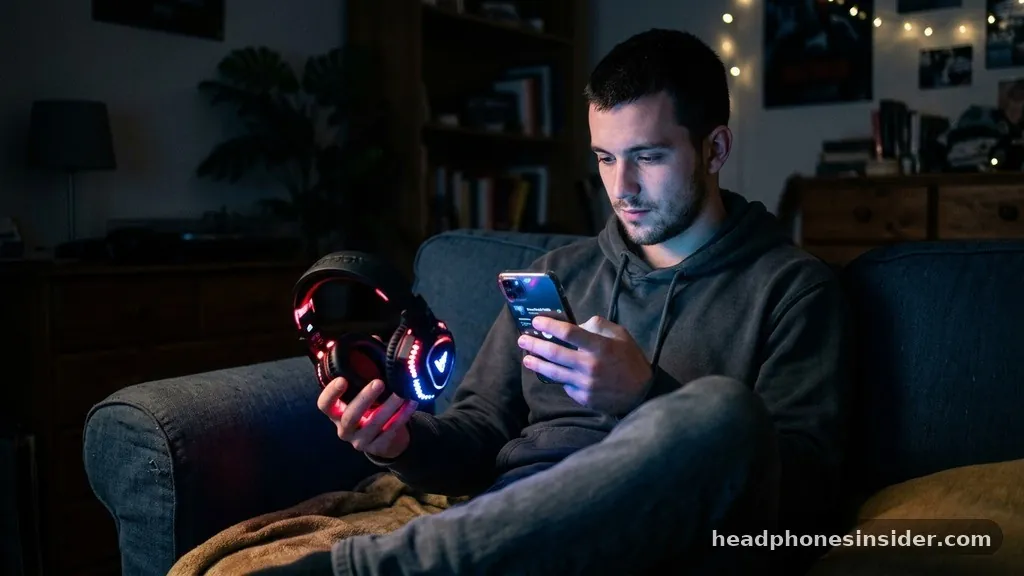
Dealing with the frustration of your favorite audio gear refusing to cooperate is a common experience for almost every modern user. When you ask yourself, “why are my headphones not connecting,” you are likely facing a breakdown in the digital handshake between your audio hardware and your playback source. Whether you are using high-end wireless earbuds or a traditional wired headset, the path to a seamless listening experience relies on a specific sequence of protocols.
Understanding these technical hurdles—ranging from simple battery failures to complex driver conflicts—is the first step toward restoring your sound. By systematically evaluating your hardware, software, and physical environment, you can often identify and resolve the culprit behind your connection failure without needing professional support.
Identifying Common Bluetooth Pairing Failures
The most frequent reason users ask why are my headphones not connecting is a failure in the Bluetooth handshake process. Bluetooth is a short-range wireless technology that requires both the source device and the headphones to be in a state of mutual discovery. If your headphones are not in pairing mode, or if they are still attempting to latch onto a previously connected tablet or laptop, they will remain invisible to your smartphone.
To resolve this, you must first ensure that the headphones are not currently tethered to another device in the room. Many modern wireless headsets prioritize their last known connection, effectively ignoring new requests until the old link is severed.
The Importance of Pairing Mode
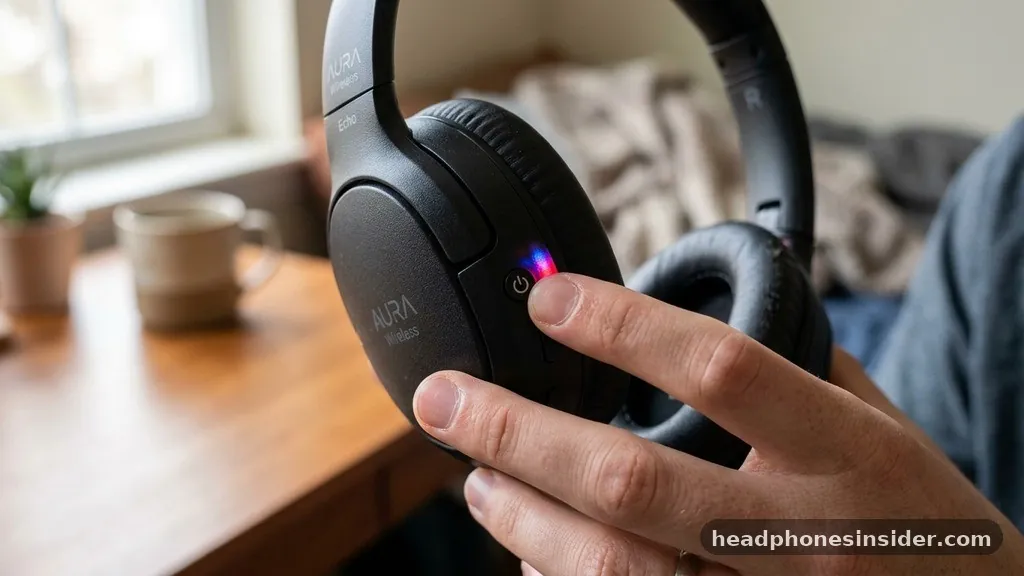
When your headphones refuse to show up in your settings menu, it is usually because they have exited discovery mode. Most devices have a specific LED light pattern—often flashing blue and red—that indicates they are actively broadcasting their identity. If you do not initiate this mode correctly, your phone or computer will scan for devices indefinitely without finding anything. Always consult your manual to verify the specific button combination required to trigger this state. Furthermore, keep your devices within three feet of each other during the initial setup to ensure a strong signal, minimizing the risk of a handshake timeout.
Resolving Physical and Wired Connection Issues
While wireless tech dominates the market, many users still rely on physical cables, and the question of why are my headphones not connecting often applies to wired hardware as well. If you are using a 3.5mm jack or a USB-C adapter, the physical integrity of the port is your first point of failure.
Over time, lint, dust, and debris can accumulate inside the headphone jack of a phone or laptop, preventing the plug from seating firmly against the internal contacts. This prevents the device from detecting the presence of the headphones, leaving the audio output routed through the internal speakers instead.
Hardware Integrity and Port Maintenance
To address this, use a non-conductive tool, such as a wooden toothpick, to gently clean out the port. Avoid using metal objects, as these can scratch the delicate contact points or cause a short circuit. Additionally, inspect the headphone cable itself for signs of fraying or internal wire breakage. If the cable has been bent at sharp angles repeatedly, the copper strands inside may have severed. You can test this by plugging the headphones into a different audio source, such as a dedicated music player or a secondary computer. If the sound remains absent across all devices, the internal circuitry of the headphones is likely damaged beyond simple software repair.
Navigating Software and Driver Conflicts
Software-based issues frequently disrupt the link between your computer and your audio peripherals. If you are wondering why are my headphones not connecting to a PC, the culprit is often an outdated or corrupted audio driver. Windows and macOS rely on specific software instructions to manage how audio data is sent to external devices.
When these drivers become outdated, the operating system may fail to recognize the hardware even when it is plugged in or paired correctly. You should regularly check the manufacturer’s website for the latest firmware or driver software to ensure your system remains compatible with your hardware.
Managing Audio Settings in the OS
Even when drivers are functional, the operating system might have the wrong output device selected in its sound control panel. Navigate to your system settings and verify that your headphones are set as the “Default Playback Device.” Sometimes, a simple operating system update can reset these preferences, causing the sound to default back to the internal speakers or a monitor’s built-in audio. By manually selecting the correct output in the sound menu, you can often force the connection to refresh. If the device appears as “paired” but not “connected,” toggling the Bluetooth switch off and on again is a standard procedure that forces the OS to re-initialize the connection handshake.
Eliminating Signal Interference and Environment Factors
Bluetooth operates on the 2.4GHz frequency band, which is the same spectrum used by Wi-Fi routers, microwaves, and other smart home appliances. When you face problems with headphones connecting, the issue might not be the hardware at all, but rather heavy electromagnetic interference in your immediate environment.
If you are in a crowded office or a home with multiple high-traffic wireless devices, the signal quality can drop significantly, leading to intermittent disconnections or a complete failure to pair. To test if this is the case, move your devices to a different room or turn off nearby high-power wireless equipment to see if the connection stabilizes.
Optimizing Your Wireless Environment

| Factor | Potential Impact | Recommended Action |
|---|---|---|
| Wi-Fi Routers | High frequency interference | Increase distance from the router |
| Physical Barriers | Signal attenuation | Maintain line-of-sight if possible |
| Battery Levels | Weak signal transmission | Ensure charge is above 20% |
| Nearby Bluetooth Devices | Connection hijacking | Disable Bluetooth on other devices |
Beyond interference, the physical distance between your devices matters. While Bluetooth is designed to work over several meters, walls and furniture can block the signal.
If you are moving between rooms while wearing your headphones, the connection may drop. Always prioritize keeping your source device—your phone or laptop—in a central, unobstructed location if you are experiencing frequent dropouts.
Advanced Troubleshooting: Resetting and Firmware Updates
When basic steps fail, you may need to perform a factory reset on your headphones. This process clears the internal memory of the device, effectively “forgetting” all previous pairings and restoring the unit to its original out-of-the-box state.
Many wireless headsets have a specific sequence, such as holding the volume buttons simultaneously for ten seconds, to initiate this hard reset. Once the reset is complete, you will need to remove the device from your phone’s Bluetooth list and perform a fresh pairing as if you were setting it up for the very first time.
The Role of Manufacturer Firmware
Firmware updates are another critical component of modern audio maintenance. Manufacturers frequently release updates to address bugs that cause connection instability or to improve overall audio quality and compatibility with newer operating system versions. You can often manage these updates through a proprietary app provided by the headphone manufacturer. If you have not checked for updates in a while, doing so can resolve persistent issues that seem to defy standard troubleshooting. For those interested in the technical standards behind these connections, the official Bluetooth website provides extensive information on how these protocols evolve to support more stable connections.
Addressing Topical Gaps and Unique Scenarios
A frequently overlooked reason for connection failure is OS-level compatibility. For example, some older Bluetooth headphones use legacy protocols that may struggle to communicate with the latest Bluetooth 5.0+ standards found in modern smartphones. While Bluetooth is designed to be backward compatible, the implementation can vary significantly between manufacturers.
If you are using a decade-old headset with a brand-new flagship phone, you may encounter “handshake” issues where the devices simply cannot negotiate a stable link. In these instances, the problem is not a malfunction but a lack of technical compatibility.
When to Consider Hardware Replacement
If you have tried all the steps mentioned above—including resetting the device, updating the firmware, and clearing interference—and your headphones still refuse to connect, it is possible that the internal Bluetooth antenna has failed. Like any electronic component, antennas can degrade over time due to heat, physical impact, or moisture exposure. If you have ruled out software and user-error issues, the final conclusion is often a hardware failure. At this stage, it is more cost-effective to invest in a new pair of headphones than to attempt a complex hardware repair, as the cost of labor often exceeds the value of the device itself.
Conclusion
Resolving the mystery of why your headphones are not connecting requires a methodical approach that moves from the simplest software checks to more advanced hardware diagnostics. By ensuring your devices are properly discoverable, clearing potential signal interference, and keeping both your operating system and headphone firmware up to date, you can solve the vast majority of connectivity hurdles. Remember to clear your Bluetooth cache and perform hard resets when simple toggling fails to produce results.
These steps should restore your audio connection and bring your listening experience back to normal. If you continue to face trouble after exhausting these options, it may be time to consult the manufacturer’s support documentation or consider a hardware upgrade to ensure compatibility with your current devices. Staying proactive with your tech maintenance is the best way to ensure your audio remains uninterrupted.
Frequently Asked Questions
Why do my headphones connect but have no sound?
This usually happens because the device is connected for “calls” but not “media” in your Bluetooth settings. Check your phone’s Bluetooth menu, tap the settings icon next to your headphones, and ensure that both “Phone Audio” and “Media Audio” toggles are enabled for the device.
How do I know if my headphones are in pairing mode?
Most headphones will have an LED indicator that flashes a specific color or pattern, such as alternating red and blue lights. If you are unsure, consult your device’s manual, as the specific button combination to enter this mode varies significantly between different brands and models.
Can a low battery affect Bluetooth connectivity?
Yes, a low battery can often prevent headphones from maintaining a stable Bluetooth signal. When power is insufficient, the device may struggle to broadcast its signal or remain “visible” to your phone. Always ensure your headphones are fully charged before attempting to troubleshoot a connection issue.
What should I do if my laptop cannot find my headphones?
First, restart both the laptop and the headphones. If they still do not appear, go to your laptop’s Device Manager or Bluetooth settings, remove the device if it is listed, and then put your headphones back into pairing mode to perform a fresh discovery scan.


