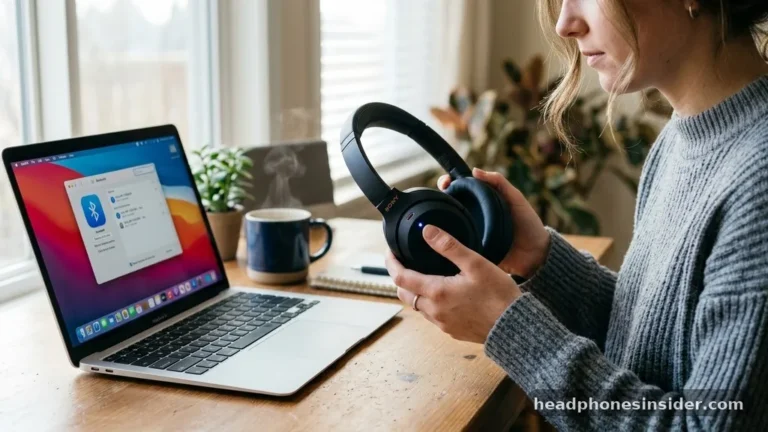
Mastering the process of how to pair Sony headphones is the essential first step to unlocking the high-fidelity audio experience these devices are known for. Whether you have just unboxed a premium pair of noise-canceling cans like the WH-1000XM5 or a set of compact earbuds like the WF-C500, the underlying mechanics of establishing a stable wireless connection remain largely consistent across the Sony ecosystem. By understanding how to activate pairing mode and navigate your source device’s Bluetooth settings, you can ensure a seamless transition from unboxing to immersive listening.
Understanding the Basics of Bluetooth Pairing
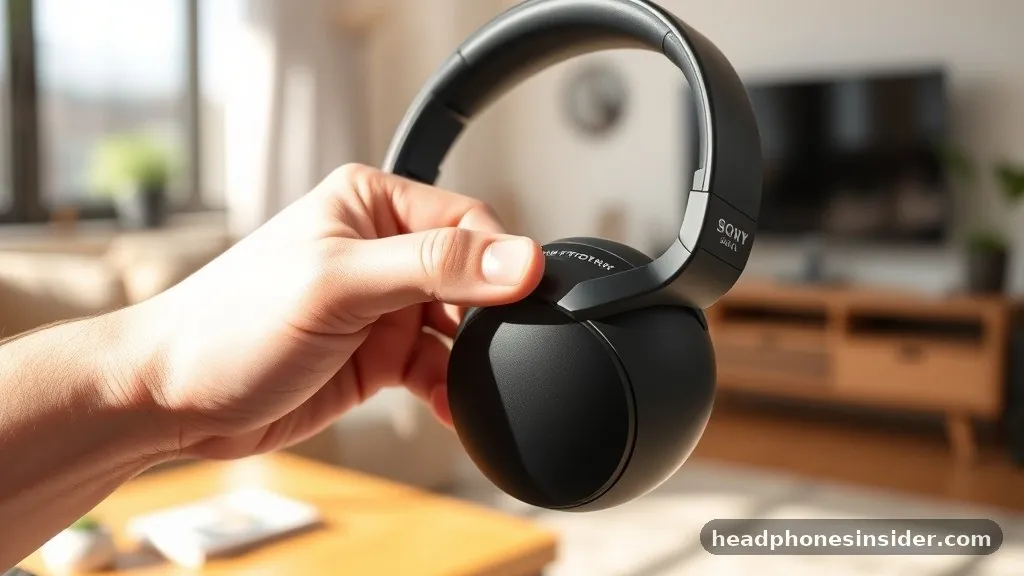
To successfully connect your audio gear, you must first understand that pairing is the process of creating a secure, trusted link between your Sony headphones and an audio source like a smartphone or computer. When you initiate a pairing request, your headphones broadcast a signal that allows your device to recognize them as an available peripheral. This communication relies on the Bluetooth protocol, which handles everything from the initial handshake to the ongoing transmission of high-quality audio streams.
For most modern Sony models, the secret to a successful connection lies in the physical controls. When the headphones are powered off, holding down the power button for several seconds typically forces the device into a discovery state.
You will know you have achieved this when you see a specific LED indicator—usually a flashing blue light—that signals the unit is ready to be detected. If you are using true wireless earbuds, this often involves placing them in their charging case and holding a touch sensor or button until the indicator light blinks, signaling that the device is actively searching for a host.
Connecting to Smartphones and Tablets
Connecting your Sony headphones to an iOS or Android device is the most common use case for these products. To begin, navigate to the Bluetooth menu within your smartphone settings. Ensure that Bluetooth is toggled to the “On” position, which prompts the device to scan for nearby hardware.
While your phone is in discovery mode, put your headphones into pairing mode as described previously. Once the model name appears in the device list on your screen, tap it to initiate the handshake.
If your device supports it, you can simplify this process by using the Sony Headphones Connect app. This application not only streamlines the initial connection but also provides a deeper level of integration, allowing you to manage noise cancellation levels, equalizer settings, and firmware updates.
On Android devices, you might also encounter Google Fast Pair, which creates a pop-up card on your screen the moment your headphones enter pairing mode, effectively automating the entire procedure. For those who prefer manual control, simply selecting the device name from your Bluetooth menu remains a reliable and straightforward alternative.
Utilizing NFC for Instant Connectivity
Near Field Communication, or NFC, is a powerful feature found on many older and some specific Sony models that allows for near-instant pairing. If both your headphones and your smartphone support NFC, you can bypass the standard menu-diving entirely.
This technology uses short-range radio waves to establish a connection when two devices are brought into physical proximity. To use this, ensure that NFC is enabled on your phone’s settings menu—this is standard on most Android devices, though it is often restricted on iOS for security reasons.
Once NFC is active, locate the “N” logo on your Sony headphones or their charging case. Gently touch the back of your smartphone to this logo. Your phone should vibrate or provide a visual prompt asking if you wish to pair with the headphones.
Confirm the request, and the devices will handle the security handshake automatically. This is particularly useful in environments where you frequently switch between different devices or need to set up a new connection quickly without having to hold down buttons or monitor LED patterns.
Pairing with Laptops and Desktop Computers
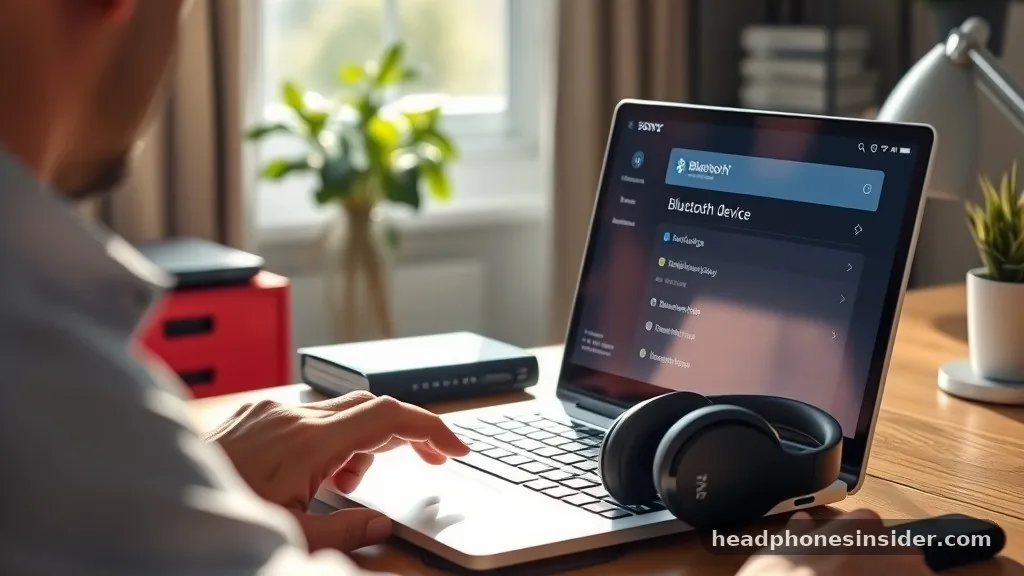
Connecting Sony headphones to a laptop or desktop running Windows or macOS requires a slightly different approach than the mobile-centric process. On a Windows PC, navigate to the Settings menu, select “Devices” or “Bluetooth & devices,” and ensure Bluetooth is active. Click “Add device” and select “Bluetooth” from the list of options.
Meanwhile, put your headphones into pairing mode. Once the headphones appear in the search results, select them to complete the pairing.
For Mac users, the process is equally intuitive. Open System Settings, head to the Bluetooth section, and wait for the headphones to appear in the list of nearby devices. Click “Connect” next to the model name.
One critical detail to keep in mind when connecting to computers is that Sony headphones often support the Hands-Free Profile (HFP) and the Advanced Audio Distribution Profile (A2DP). If you notice your audio quality sounds muffled or “thin,” it is likely that your computer has defaulted to the HFP profile, which is intended for phone calls. You can usually resolve this by selecting the “Stereo” or “A2DP” option in your computer’s sound output settings to ensure you are getting the full, high-fidelity experience.
Troubleshooting Common Connection Issues
Even with the best hardware, you may occasionally encounter situations where your headphones refuse to connect or disappear from your device list. The most common culprit is a “stale” connection, where the headphones are still attempting to pair with a previous device that is currently in range.
To fix this, turn off Bluetooth on all surrounding devices except for the one you are currently trying to pair with. If the problem persists, performing a factory reset—often referred to as initialization—is the gold standard for clearing out persistent bugs.
To initialize your headphones, look for the specific reset sequence for your model, which usually involves holding the power and custom buttons simultaneously while the device is connected to a power source. This resets the internal memory, effectively “forgetting” all previous pairings. Additionally, ensure your device’s firmware is up to date.
Sony frequently releases updates for the WH-1000XM5, WH-1000XM4, and other premium models to improve connection stability and resolve compatibility issues with newer operating system versions. You can find official guidance on these processes through the Sony support portal to ensure you are following the manufacturer’s recommended procedures.
Advanced Features: Multipoint and Device Management
One of the most impressive capabilities of modern Sony headphones is the multipoint connection feature. This allows your headphones to maintain a connection to two different devices simultaneously.
For example, you can be watching a video on your laptop while remaining connected to your smartphone to receive incoming calls. When a call comes in, the headphones intelligently pause the laptop audio and switch the microphone input to your phone, allowing you to answer seamlessly without ever touching your Bluetooth settings.
To manage these connections, the Sony Headphones Connect app is essential. Within the app, you can view a list of all currently paired devices and toggle the multipoint feature on or off. You can also prioritize which device takes precedence for audio routing.
This level of granular control is what separates high-end consumer audio from budget alternatives. By managing your device list effectively, you prevent the headphones from constantly jumping between sources, which can be a common source of frustration for power users who juggle tablets, workstations, and mobile devices throughout their workday.
| Feature | Functionality | Best For |
|---|---|---|
| Multipoint | Dual-device connectivity | Work-from-home setups |
| NFC | Tap-to-pair convenience | Android users |
| Fast Pair | Automated pop-up pairing | Android/Google ecosystem |
| App Control | Firmware/EQ management | All users |
Addressing Common Pairing Gaps
Many users struggle when their headphones appear in the Bluetooth menu but fail to complete the connection handshake. This often occurs due to a conflict between the HFP and A2DP protocols, especially on older laptops. To bridge this gap, ensure that you are not running any other audio-intensive applications that might be “grabbing” the Bluetooth signal before the pairing is finalized.
Another frequent gap involves the “Quick Attention Mode” on some models, which can occasionally interfere with pairing if the gesture-control sensor is being triggered by accident during the setup process. Keep your hands clear of the earcups while the device is in pairing mode to avoid unintentional inputs.
Furthermore, if you are using older hardware, such as a WH-1000XM3, you might find that the device cannot maintain a stable connection with modern Bluetooth 5.0+ devices. While these headphones are backwards compatible, they lack some of the advanced power-saving and signal-hopping features of the XM5 series.
If you encounter dropouts, check if your source device has an “Advanced Bluetooth” or “High-Quality Audio” setting enabled and try toggling it to a standard mode to see if stability improves. These small adjustments can make the difference between a frustrating experience and a flawless wireless setup.
Final Thoughts on Maintaining Your Setup
Successfully pairing your Sony headphones is about more than just getting the audio to play; it is about creating a reliable environment for your daily media consumption. By familiarizing yourself with the nuances of pairing mode, utilizing the dedicated app for firmware management, and understanding how to troubleshoot common connectivity hurdles, you ensure that your investment performs at its peak. Remember that keeping your device software updated is the most effective way to prevent future issues, as these updates often contain critical patches for modern operating systems.
If you ever find yourself struggling to reconnect, do not hesitate to remove the device from your smartphone’s Bluetooth list entirely and start the pairing process from scratch. This “clean slate” approach is often faster than trying to fix a corrupted link.
As you grow more comfortable with these steps, you will find that the process becomes second nature, allowing you to switch between devices and enjoy your music or calls with total confidence. Should you have any lingering questions, checking your specific model’s manual or the Sony support site remains the best path forward for model-specific advice.
Frequently Asked Questions
Why won’t my Sony headphones show up in my Bluetooth list?
Ensure the headphones are actually in pairing mode by verifying the LED indicator is flashing blue. If the headphones are already paired with another device nearby, turn off Bluetooth on that device. If they still do not appear, perform a factory reset to clear the internal cache.
How do I put my Sony WH-1000XM4 or XM5 into pairing mode?
With the headphones powered off, press and hold the power button for about 5 to 7 seconds. Continue holding until the LED indicator begins to flash in a repeating blue pattern. This confirms the device is now broadcasting its signal and is ready to be paired with a new source.
Can I pair my Sony headphones with two devices at the same time?
Yes, most modern Sony headphones support multipoint connection. You must first pair them with both devices individually. Once paired, open the Sony Headphones Connect app on your primary device, navigate to the settings, and enable the “Connect to 2 devices simultaneously” option to manage your active connections.
What should I do if the audio sounds poor after pairing?
Poor audio quality is often caused by the device defaulting to the Hands-Free Profile (HFP) instead of the high-quality A2DP profile. Go to your computer’s sound settings and ensure the output device is set to the stereo version of your headphones, rather than the “Hands-Free” or “Headset” version.