

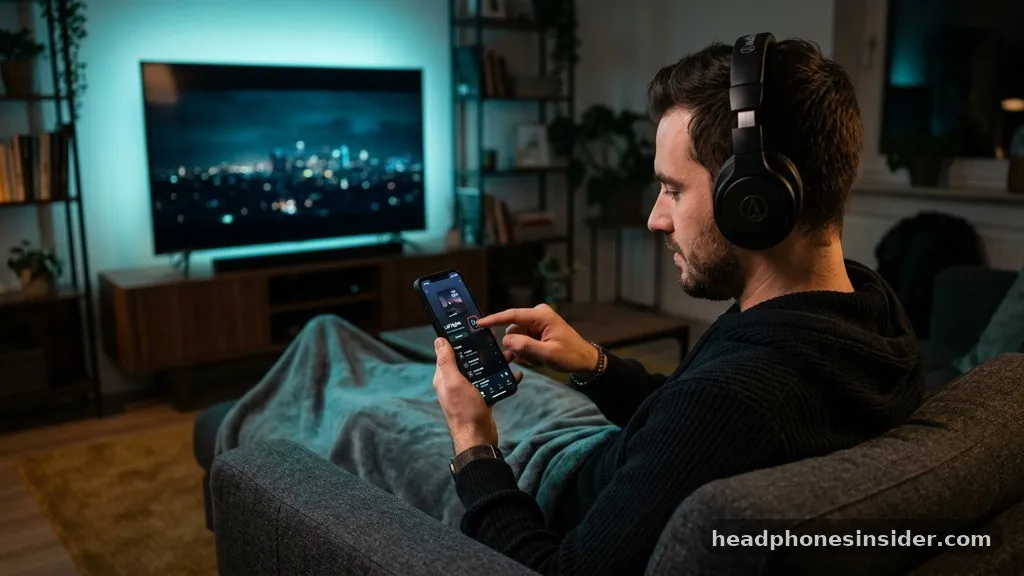
Connecting headphones to your television is a game-changer for those who want to enjoy immersive audio without disturbing others in the household. Learning how to connect headphones to Roku TV provides a flexible way to enjoy your favorite movies, series, and music, whether you prefer the convenience of wireless connectivity or the reliability of a wired connection. Because Roku TVs integrate seamlessly with mobile technology, you have several distinct pathways to achieve the perfect audio setup.
The Role of the Roku Mobile App in Audio Streaming
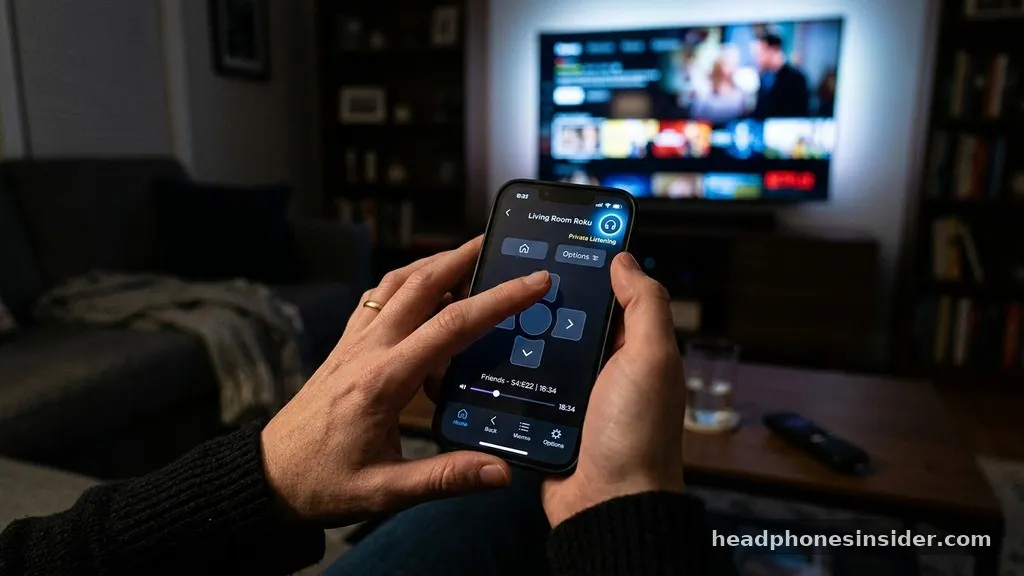
The primary method for most users involves the official Roku mobile app, which effectively turns your smartphone or tablet into a bridge for your audio. By leveraging the processing power of your handheld device, the app allows you to route audio from the TV to any pair of headphones paired with your mobile device. This feature, known as Private Listening, is arguably the most popular way to enjoy a private audio experience.
Once you have the app installed on your smartphone, you can sync it with your TV, ensuring they are on the same Wi-Fi network, and activate the headphone icon to begin streaming audio directly to your ears. This method supports both wired and wireless headphones, making it an incredibly versatile solution for almost any user.
Using Bluetooth Headphones Directly with Roku Devices
Many modern Roku TV models and specific streaming devices, such as the Roku Streambar, come with built-in Bluetooth capabilities that allow for a direct connection. If your specific model supports this, you can bypass the need for a mobile device entirely. To check if your TV is a compatible Roku device, navigate to the settings menu and look for a Bluetooth or audio device section.
If the option is present, you can place your headphones into pairing mode and select them from the on-screen list. This direct link often provides a more stable connection and lower latency compared to app-based streaming, which is particularly beneficial for gamers or those watching content with fast-paced dialogue.
Understanding the Private Listening Feature
Private Listening is the cornerstone of the Roku audio ecosystem, designed specifically to solve the problem of late-night viewing or loud environments. When you activate this mode, the TV mutes its internal speakers and redirects the entire audio stream to your chosen output device.
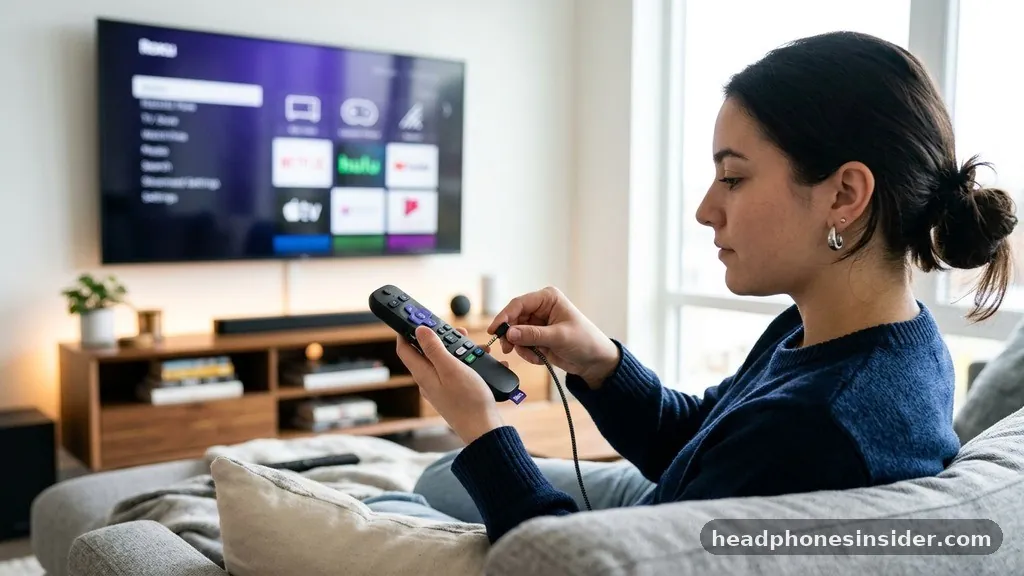
This feature is not just limited to smartphones; it can also be accessed through the official Roku remote if it happens to have a 3.5mm headphone jack. This hardware-based approach is often favored by those who prefer not to manage apps while relaxing on the couch.
Setting Up Private Listening via Smartphone
To start using this feature on your mobile device, ensure your smartphone is connected to the same local network as your TV. Open the app and tap the “Devices” tab to locate your television. Once connected, you will see a remote interface.
Look for the headphone icon, which is usually located in the bottom menu. Tapping this icon will engage Private Listening, and you will immediately notice the TV speakers go silent while your headphones become the primary audio source. This transition is usually seamless, but if you experience any lag, ensure your Wi-Fi signal is strong, as packet loss can occasionally disrupt the synchronization between the TV and the mobile device.
Hardware-Based Headphone Jacks on Remotes
Certain premium Roku remotes feature a built-in headphone jack. This is a highly convenient physical solution for those who do not want to rely on battery-intensive mobile apps. When you plug a standard pair of wired headphones into the remote, the TV detects the hardware connection and automatically switches the audio output.
This method consumes battery life from the remote, so it is advisable to keep spare batteries on hand if you are a frequent user. The audio quality provided by these jacks is generally excellent, offering a clean, interference-free signal that preserves the integrity of the original sound mix.
Connecting Bluetooth Headphones Without the App
While the mobile app is a universal solution, many users prefer to connect their Bluetooth headphones directly to the TV hardware to avoid the dependency on a smartphone. This is especially true for those who use a Roku Streambar or a high-end Roku TV model that supports Bluetooth audio streaming. By using the TV’s internal interface to manage your Bluetooth device, you gain the ability to control volume levels directly through the standard remote, providing a more cohesive user experience.
Step-by-Step Pairing Process
To begin the pairing process, navigate to the main home screen and select “Settings.” From there, look for the “Remotes & Devices” or “Bluetooth” submenu. If your device supports it, you will see an option to “Add devices.”
Ensure your Bluetooth headphones are in pairing mode—most devices indicate this with a flashing LED light. Once the TV identifies your headphones, select them using the remote scroll and select function.
The system will then initiate the pairing sequence. Once connected, the TV will remember these devices, allowing for a quick reconnection in the future whenever you power up the headphones.
Troubleshooting Common Pairing Issues
If your TV fails to find your headphones, double-check that no other nearby devices, such as a laptop or phone, have already “claimed” the connection. Bluetooth devices are notoriously possessive and will often automatically pair with the last device they were connected to. Turning off Bluetooth on your other electronics is a simple but effective troubleshooting step.
Additionally, verify that your Roku software is up to date, as manufacturers frequently release firmware patches that improve wireless compatibility and signal stability. You can check for updates by going to Settings > System > System Update.
Wired vs. Wireless: Choosing the Right Setup
The debate between wired and wireless audio is ongoing, and both have distinct advantages when used with a television. Wired headphones offer the advantage of zero latency, which is critical for competitive gaming or watching content where lip-sync accuracy is paramount.
Wireless options, conversely, provide the freedom of movement that many users crave. Understanding the trade-offs allows you to make an informed decision based on your specific viewing habits.
Comparing Audio Output Methods
The following table provides a quick reference for the various ways you can connect your audio equipment to your TV, highlighting the pros and cons of each approach.
| Connection Method | Latency | Convenience | Primary Hardware |
|---|---|---|---|
| Roku Mobile App | Moderate | High | Smartphone/Tablet |
| Remote Headphone Jack | Low | High | Roku Remote |
| Direct Bluetooth | Low/Moderate | Very High | TV Internal Hardware |
| Wired TV Output | Zero | Low | TV Audio Port/Adapter |
When to Use Wired Solutions
If you are a dedicated audiophile or a gamer, you might find that the slight compression inherent in some Bluetooth signals is noticeable. In such cases, using a wired connection is the best path forward.
While many modern flat-screen TVs have moved away from dedicated headphone jacks, you can often use an optical-to-analog converter if your TV has an optical out port. This ensures the highest possible signal fidelity, allowing you to use high-impedance headphones that require more power than a standard mobile device or Bluetooth radio can provide.
Optimizing Audio Quality and Volume
Once you have established a connection, you may find that the volume levels or audio balance require some fine-tuning. Roku devices offer several built-in tools to help you manage your listening experience.
It is important to remember that when using Private Listening, you are managing two separate volume controls: one on the app or remote, and one on the headphones themselves. Always start with the device volume at a moderate level before adjusting the volume on your headphones to avoid sudden, loud audio spikes.
Managing Audio Settings within the Interface
Within the settings menu, you can often find “Audio” or “Sound” options that allow you to adjust settings like “Night Mode” or “Volume Leveling.” These features are designed to compress the dynamic range of the audio, which makes quiet dialogue easier to hear while preventing loud explosions from being jarring.
If you are using headphones, these settings can be particularly helpful, as they prevent the need for constant volume adjustments during action-heavy scenes. Experimenting with these settings will help you find a balance that suits your personal preferences and the acoustics of your room.
Addressing Topical Gaps
Many users wonder if they can connect multiple pairs of headphones at once. Currently, the standard Roku mobile app supports one active Private Listening session at a time per device. However, if you are using a dedicated Bluetooth transmitter connected to the TV’s audio output, you can sometimes use a multi-point Bluetooth transmitter to send audio to two pairs of headphones simultaneously.
This is a common workaround for couples or families who want to watch the same content without disturbing others. Another gap involves the “Headphone Mode” not showing up; this usually occurs if your TV is not updated or if your mobile device is on a different network, such as a guest Wi-Fi or a 5G connection that is isolated from the home network.
Technical Considerations for Roku Streambar Users
The Roku Streambar is a unique product that combines a high-quality soundbar with a streaming player. Because it is designed to be the primary audio output for your TV, it handles Bluetooth connectivity differently than a standard Roku TV.
If you own a Streambar, you have access to a more robust set of audio tools, including the ability to pair Bluetooth devices directly to the soundbar itself. This creates a high-fidelity pathway that is optimized for media consumption, providing a much richer experience than a standard mobile-to-TV connection.
Integrating the Streambar with External Audio
For those who want to use the Streambar alongside high-end headphones, you can often utilize the soundbar’s existing connectivity to act as a hub. By pairing your wireless headphones to the Streambar, you ensure that the audio processing is handled by the high-performance hardware of the soundbar, leading to fewer dropouts and clearer sound. It is important to consult the official Roku support documentation for specific instructions on how to manage multi-device Bluetooth priority, as this can vary depending on the specific firmware version installed on your unit.
Handling Latency and Syncing Issues
If you notice that the audio is slightly out of sync with the video, most Roku devices include an “Audio Delay” setting in the advanced audio menu. This allows you to manually adjust the timing of the audio stream to match the visual output.
By increasing the delay in small increments, you can perfectly align the sound with the action on screen. This is a vital step for any wireless setup, as the signal processing required for Bluetooth can sometimes introduce a delay of several milliseconds, which is easily corrected with this built-in feature.
Conclusion and Next Steps
Learning how to connect headphones to your TV setup is a straightforward process that significantly enhances your entertainment experience. Whether you choose the convenience of the official mobile app for a quick session or the stability of a direct Bluetooth link, the flexibility provided by the Roku ecosystem ensures you can enjoy your content exactly how you want. By utilizing the features discussed—such as Private Listening, proper pairing protocols, and audio synchronization tools—you have the power to create a personalized, immersive sound environment in any room.
If you are just starting out, we recommend downloading the mobile app first to test the experience; it is the fastest way to get up and running. If you find yourself using headphones frequently, consider investing in a pair of high-quality wireless headphones that support multi-point connectivity to make switching between devices even easier.
Should you encounter any issues, remember that a simple system update or a quick check of your network connection usually resolves the vast majority of connectivity hurdles. Enjoy your newfound ability to watch your favorite shows in perfect, private clarity.
Frequently Asked Questions
Why is the headphone option missing in my mobile app?
The headphone icon typically disappears if your phone and your Roku device are not on the same Wi-Fi network. Ensure your phone is not using cellular data and that both devices are connected to the same local router. Sometimes, restarting both the app and the TV will restore the feature.
Can I use any pair of Bluetooth headphones?
Most modern Bluetooth headphones are compatible with Roku devices. However, some proprietary gaming headsets that require a dedicated USB dongle may not work directly with the TV. Standard consumer-grade Bluetooth headphones designed for mobile devices or computers should pair without any significant compatibility issues.
Does using headphones affect the TV’s internal speakers?
When you activate Private Listening or connect via Bluetooth, the TV will automatically mute its internal speakers. If you want to use both the TV speakers and your headphones at the same time, this is generally not supported, as the system is designed to route the audio stream exclusively to the selected output.
How do I improve audio quality when using the mobile app?
To maximize audio quality, ensure your smartphone has a strong, stable Wi-Fi signal. If the audio sounds choppy or compressed, try moving your mobile device closer to the router or the TV. Additionally, ensure your headphones are fully charged, as low battery levels can sometimes cause the Bluetooth connection to struggle with high-bitrate data.


