

Mastering the process of how to charge JBL headphones is essential for maintaining the longevity of your audio gear and ensuring you are never left without your favorite music during a commute or workout. While JBL offers a diverse range of headphones, from the entry-level Tune series to the premium Live and noise-canceling NC models, the fundamental principles of power management remain largely consistent across their ecosystem. Understanding the nuances of your specific hardware, the type of cable required, and how to interpret the LED indicators will save you from unnecessary frustration and prevent potential damage to your device’s internal components.
Identifying Your Charging Port and Cable Requirements
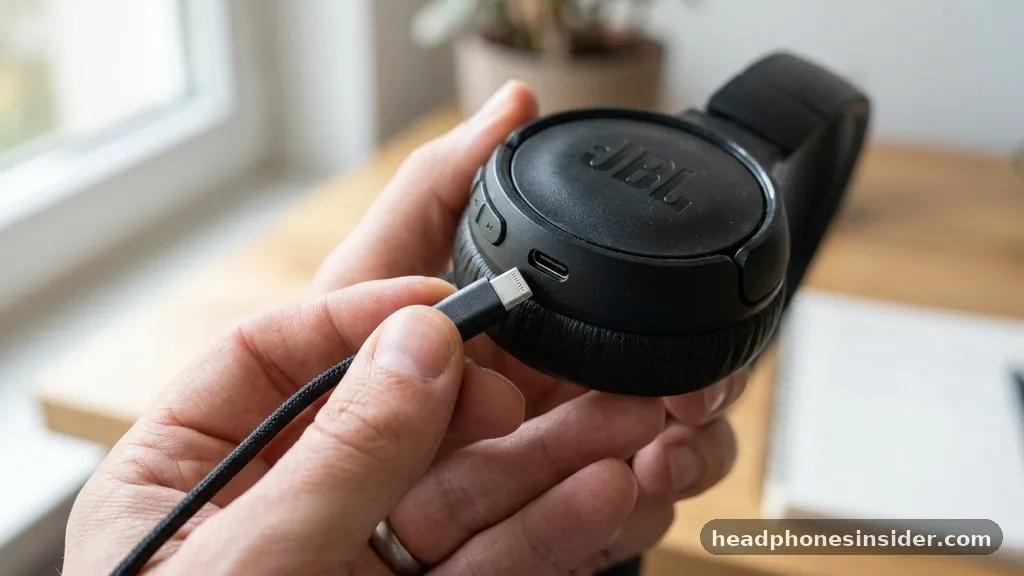
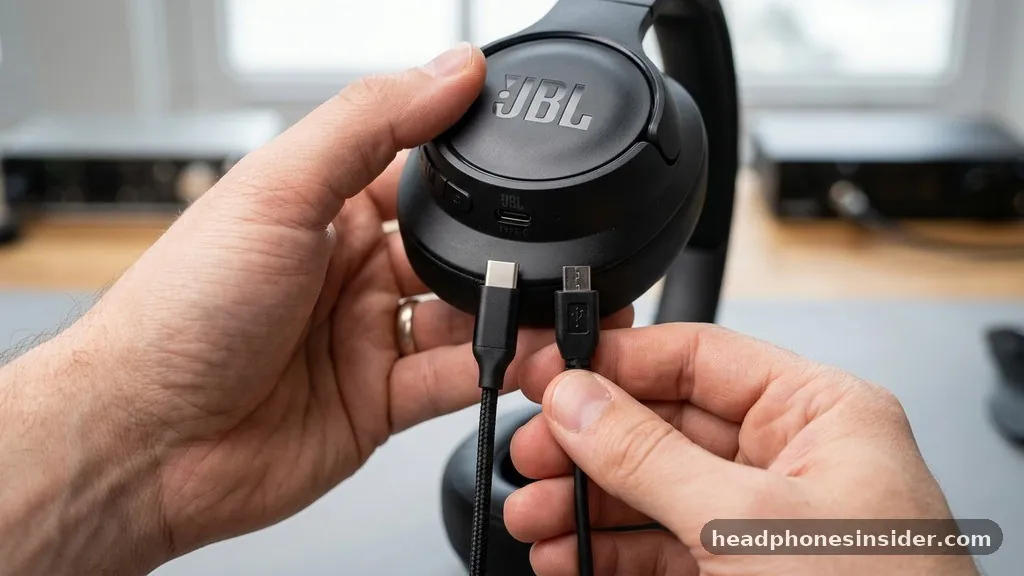
To determine the correct method for charging your JBL headphones, you must first identify the specific port type integrated into your hardware, as modern models have shifted toward universal standards while legacy devices still rely on older interfaces. Most contemporary JBL devices, particularly those in the newer Tune and Live series, utilize a USB-C port, which offers faster data transfer and power delivery compared to the older micro-USB cable standard still found on some budget-friendly or older units. Identifying this port is the first step in ensuring USB cable compatibility and avoiding accidental damage to the charging pins.
If you are unsure which cable your device requires, inspect the charging port itself. A USB-C port is oval-shaped and symmetrical, meaning the connector can be inserted in either orientation. Conversely, a micro-USB port is trapezoidal, featuring two small hooks on the bottom side that must align correctly with the cable.
Forcing a cable into a port that does not match can lead to permanent hardware failure. Always check the user manual or the official JBL support portal to confirm the technical specifications for your specific model number, such as the 510BT, 720BT, or 670NC.
Interpreting the LED Indicator and Charging Status
The charging status light serves as your primary diagnostic tool for understanding the current power state of your headphones. On most JBL models, the LED indicator will glow a solid color—typically red or amber—while the lithium-ion battery is actively drawing power from the power source. Once the battery reaches full capacity, this light will either turn off, change color to white or green, or begin to pulse slowly depending on the specific firmware version of your headphones.
It is important to note that the behavior of these lights can vary significantly between product generations. For instance, in some noise-canceling models, the light might remain off during charging if the device is powered on, or it may indicate a specific charge level through a series of flashes.
If your charging light won’t stay on or flashes intermittently, this is often a sign of a loose connection or insufficient power delivery from the wall charger. If you notice the light blinking rapidly, it may indicate a charging error or that the device is in a pairing mode rather than a charging state.
Optimizing Power Sources and Charging Safety
Choosing the right power adapter is critical for maintaining long-term battery health and protecting your headphones from electrical surges. While it is tempting to use high-output chargers designed for modern laptops or tablets, these devices may provide a voltage output or amperage that exceeds what your headphones can safely manage. Although most modern charging circuitry includes thermal protection and current regulation, sticking to a standard 5V/1A or 5V/2A wall charger is generally the safest practice.
When using a power bank or a computer USB port, ensure that the connection is stable. Computers often provide limited power, which can lead to significantly longer charging times compared to using a dedicated wall adapter. Furthermore, avoid leaving your headphones plugged into a power source for extended periods after they have reached a full charge.
While modern lithium-ion batteries are resilient, constant trickle-charging can contribute to premature degradation of the battery cells. Always prioritize using the original charging cable provided in the box, as third-party cables may have inconsistent shielding or wire gauge, which can negatively impact the charging speed and safety.
Recommended Charging Practices
- Use the original cable provided by JBL to ensure proper voltage and current flow.
- Avoid charging in extreme temperatures; high heat can degrade the lithium-ion battery quickly.
- Unplug the device once the charging status light indicates a full charge to prevent unnecessary stress.
- Clean the charging port regularly to prevent the accumulation of lint or dust.
- If the device becomes abnormally hot while charging, disconnect it immediately and allow it to cool.
Troubleshooting Common Charging Failures
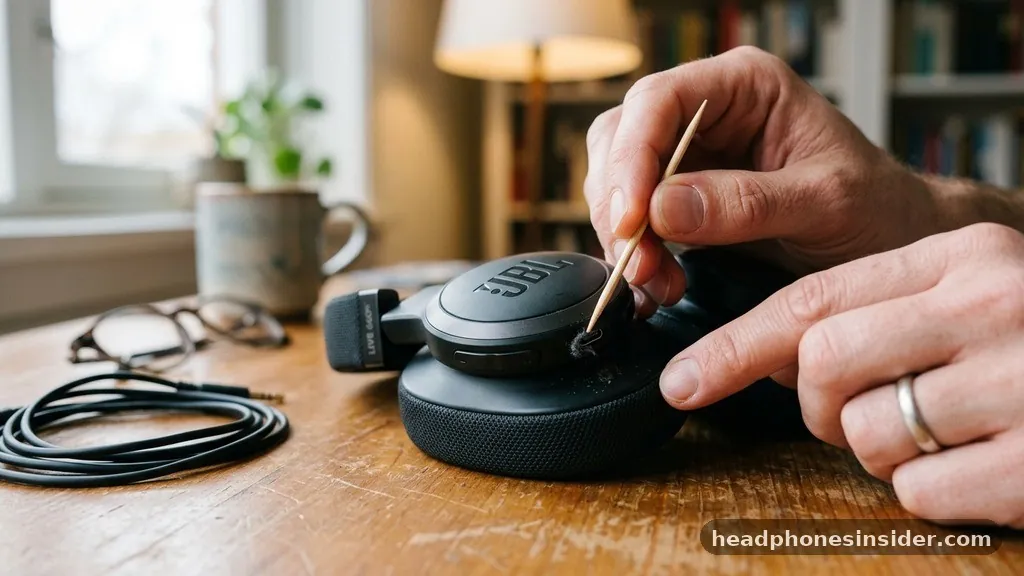
If your headphones refuse to take a charge, the issue is frequently related to charging port debris or a faulty cable rather than a hardware failure. Over time, pocket lint, dust, or moisture can build up inside the port, creating an insulating layer that prevents the pins from making a solid connection.
To remedy this, use a non-conductive tool, such as a wooden toothpick or a soft-bristled brush, to gently clear the port. Avoid using metal needles or paperclips, as these can easily short-circuit the internal pins and permanently damage the charging circuitry.
Another common issue involves connection stability. If the cable feels loose or wiggles significantly when plugged in, the port may have suffered physical wear. In such cases, try a different cable first to rule out a broken wire.
If the problem persists across multiple cables and power sources, you may need to perform a factory reset or check for a firmware update via the JBL Headphones app. Sometimes, software glitches can cause the internal charging controller to stop responding, and a reset can restore the device to its default, functional state.
Comparison of Charging Methods
| Method | Efficiency | Portability | Best Use Case |
|---|---|---|---|
| Wall Adapter (5V/1A) | High | Low | Overnight or home charging |
| USB Port on PC | Low | High | Emergency charging while working |
| Portable Power Bank | Medium | Very High | Travel and outdoor use |
Managing Battery Health and Longevity
Understanding the battery cycle is key to getting the most out of your audio equipment. A single battery cycle is defined as the process of using 100% of the battery’s capacity, though this does not have to happen all at once.
By avoiding deep battery depletion—where the device shuts down completely—you can extend the total lifespan of your headphones. It is generally recommended to keep the battery level between 20% and 80% for the best long-term performance, rather than letting it hit 0% every time.
Furthermore, if you plan to store your headphones for an extended period, ensure they are charged to approximately 50%. Storing a lithium-ion battery at 0% for weeks or months can lead to a state of “deep discharge,” where the battery becomes chemically unable to accept a charge again.
Conversely, storing them at 100% can cause the battery to lose capacity over time due to chemical stress. Taking these small steps will ensure your JBL Tune or Live series headphones remain functional for years rather than months.
Addressing Topical Gaps and Advanced Queries
There is often confusion regarding whether JBL headphones support fast charging or rapid charge features. While many premium models in the Live series do support a “quick charge” function—often providing several hours of playback from just a ten-minute charge—this is not universal across the entire product line.
Always check your specific model’s specifications. If your model does not explicitly mention fast charging, assume that a full charge cycle will take between two and three hours.
Another frequently asked question involves the use of high-wattage chargers. While the device will only draw the current it requires, using a charger with an extremely high wattage rating is generally unnecessary and provides no benefit for headphones. The internal power management system regulates the intake to prevent overheating.
If you ever experience the charging light won’t stay on despite using a clean port and a known-good cable, consider if there is a conflict with the device’s current firmware. Connecting the headphones to the official JBL app can often reveal if the battery is being recognized or if there is a pending update that might resolve power-related bugs.
Conclusion and Next Steps
Taking care of your JBL headphones through proper charging habits is one of the simplest ways to ensure your audio experience remains consistent. By using the correct cables, keeping your charging ports clean, and being mindful of the power sources you utilize, you can protect the internal lithium-ion battery from unnecessary wear. Whether you are using a legacy micro-USB model or a modern USB-C device, the indicators provided by your hardware are designed to give you clear feedback on the device’s status.
If you find that your headphones are still not charging after following these troubleshooting steps, check your warranty status or reach out to authorized support channels for further assistance. Proper maintenance today prevents the need for costly replacements tomorrow. We encourage you to inspect your charging cables for signs of fraying and ensure your charging environment is free from debris, allowing your audio gear to serve you reliably for years to come.


