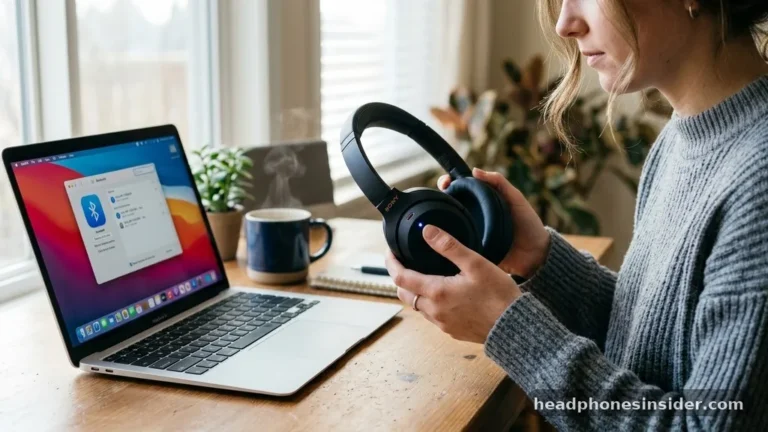
Establishing a seamless link between your premium audio gear and your smartphone is the first step toward high-fidelity sound. Learning how to connect Bose headphones to iPhone involves navigating the intersection of Apple’s intuitive operating system and Bose’s robust wireless protocols. Whether you are using the latest flagship models or a reliable pair of older wireless earbuds, the process is designed to be straightforward once you understand the specific handshake required between the two devices.
Mastering the Bluetooth Pairing Process
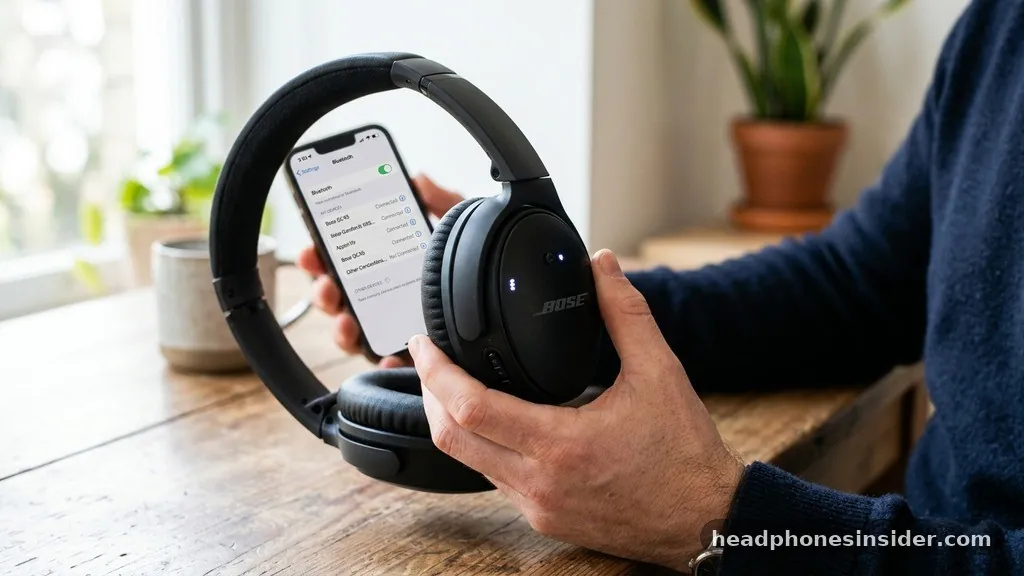
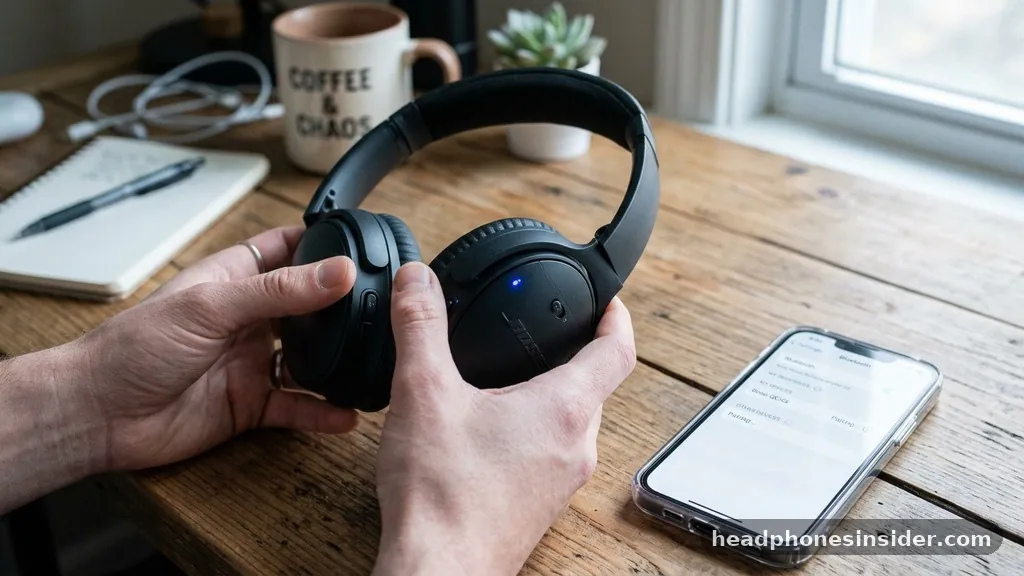
The most reliable way to connect Bose headphones to an iPhone is by manually triggering the device’s internal discovery state. To initiate this, ensure your headphones are powered on and then press and hold the power or Bluetooth button until the LED indicator begins to blink. This action forces the hardware into pairing mode, which broadcasts a signal that your smartphone can detect.
Once in this state, navigate to the iOS settings on your handset, select the Bluetooth menu, and wait for the model name of your headphones to appear under the “Other Devices” list. Tapping the name completes the initial handshake, allowing your iPhone to recognize the headphones as a trusted audio source.
If you are struggling to see your device, ensure that the headphones are not currently tethered to another piece of hardware like a laptop or tablet. Most modern Bose products support multi-point connection, but initial discovery is often cleaner when the device is not actively occupied by a secondary stream.
By keeping your iPhone within three feet of the headphones during this initial handshake, you ensure a strong signal, which helps the wireless pairing process succeed on the first attempt. Once the connection is established, the status will shift from “Not Connected” to “Connected,” and you will see the battery level of your headphones appear in the status bar of your iPhone.
Leveraging Official Bose Applications for Enhanced Control
While manual pairing is sufficient for basic audio streaming, using the official software ecosystem significantly improves the user experience. Depending on your specific model, you will need to download either the Bose Music app or the Bose Connect app from the Apple App Store.
These applications act as a bridge between your hardware and your phone, facilitating not just initial setup but also long-term maintenance. For high-end models like the Bose Ultra or the Bose Noise Cancelling Headphones 700, the app provides access to advanced features such as adjustable noise cancellation levels, custom EQ settings, and voice assistant integration.
Using the application also simplifies the process of managing multiple connections. If you find yourself switching between your iPhone and an iPad, the app provides a visual interface to manage your device list without having to dive into complex system menus. Furthermore, the app is the primary vehicle for delivering a firmware update to your headphones.
These updates are critical because they often contain patches that resolve known bugs related to connectivity troubleshooting or audio latency. By keeping your software current, you ensure that your hardware remains compatible with the latest iOS iterations, preventing potential sync issues before they even arise.
Navigating Common Connectivity Challenges
Even the most sophisticated hardware occasionally experiences friction. If you find your audio output is unstable or the device refuses to show up in your settings, the first step is to toggle Bluetooth off and back on within your iPhone. This refreshes the radio state and clears any stuck cache in the system’s wireless stack.
If that fails, the next logical step is to perform a factory reset on the headphones. This process typically involves holding the power button for an extended period—often 30 seconds or more—until the indicator light blinks in a specific pattern, signaling that the internal memory has been wiped.
| Troubleshooting Step | Purpose | Expected Outcome |
|---|---|---|
| Toggle Bluetooth | Refresh radio state | Clear minor handshake errors |
| Forget Device | Remove corrupted pairing data | Clean slate for new pairing |
| Factory Reset | Revert to original state | Resolve persistent hardware glitches |
| Clear Device List | Reduce interference | Prevent accidental auto-switching |
Another frequent issue involves signal interference. Because Bluetooth operates on the 2.4GHz frequency band, other devices like Wi-Fi routers, microwaves, and even thick physical obstructions can cause intermittent connection dropouts.
If you are experiencing jittery audio, try moving away from high-traffic electronics or ensure that your iPhone is not inside a shielded bag or metal case. For those interested in the underlying technology, you can find more information on how these signals interact with consumer electronics at the Federal Communications Commission reference page, which outlines the standards for short-range wireless communication.
Optimizing Audio Settings for the Best Experience
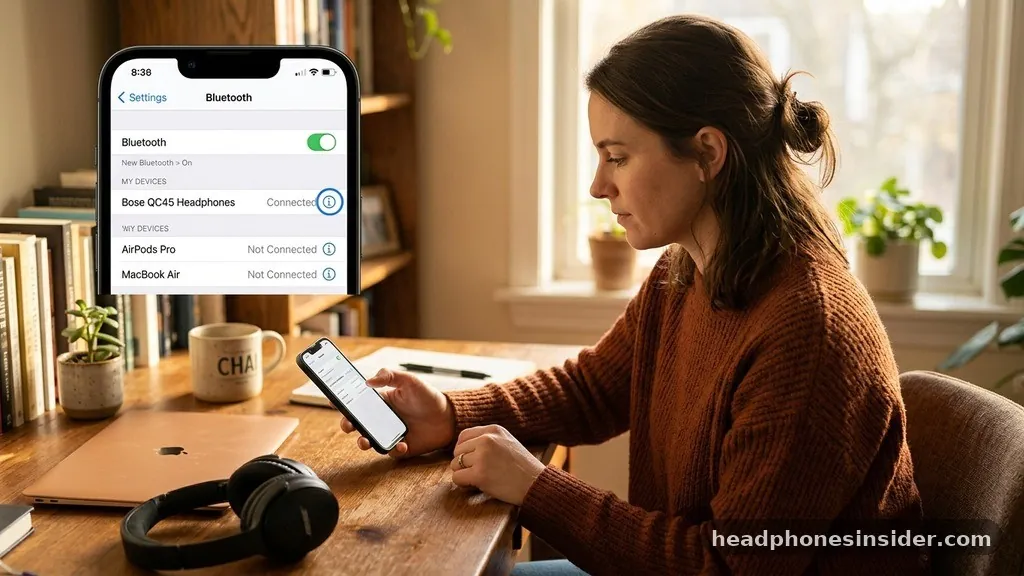
Once you have successfully linked your devices, the final step is to configure your audio settings to match your preferences. iPhone users can access the Apple Control Center to quickly switch between audio outputs. If you have an Apple Watch or an Apple TV in the vicinity, your phone might occasionally attempt to hand off the audio stream; you can manage these hand-off behaviors within the Bluetooth menu by tapping the “i” icon next to your Bose device. Here, you can toggle specific settings like “Allow Notifications” or rename the device to something more recognizable if you own multiple pairs of headphones.
It is also worth noting how wireless connectivity impacts power consumption. While Bose headphones are highly efficient, maintaining a constant high-bitrate stream while simultaneously using the noise-canceling microphones can drain the battery faster than expected.
If you are in a quiet environment, lowering the noise cancellation intensity via the app can extend your listening time significantly. Furthermore, if you are experiencing a delay between video and audio—a common phenomenon known as latency—check if your app has a “Low Latency” mode or a video sync setting, which can align the audio track with the visual feed on your screen.
Solving Specific Issues with Older Bose Models
Owners of legacy products, such as the Bose SoundSport series, often face unique challenges compared to users of newer, app-compatible hardware. Older models rely exclusively on the standard Bluetooth menu rather than the advanced discovery features found in the newer QuietComfort line. If you are struggling with a legacy device, ensure that you have cleared the pairing list on the headphones themselves.
Most older units allow you to clear the memory by holding the Bluetooth button for ten seconds until a voice prompt confirms that the device list has been cleared. This is often the “silver bullet” for users who have upgraded their iPhones and find that the old pairing entry is causing a conflict.
Another nuance with older headphones is the lack of automatic software updates. Since these devices do not benefit from the modern Bose Music app architecture, you must manually check the manufacturer’s website for any available updates that require a physical USB connection to a computer.
If your older headphones are constantly dropping the connection, it is almost certainly a sign that the wireless protocol version on the headphones is struggling to maintain a handshake with a modern, high-speed Bluetooth 5.0+ module in the latest iPhone models. In these cases, keeping the devices within close physical proximity is the most effective workaround for stable playback.
Advanced Techniques for Seamless Integration
For power users, managing the device discovery mode effectively is the key to a frictionless life. If you frequently switch between a work laptop and your iPhone, consider the order in which you activate your devices. Most Bose headphones will prioritize the device that last initiated a connection.
By manually connecting to your iPhone through the Bluetooth menu on the phone itself—rather than waiting for the headphones to auto-connect—you can force the priority shift. This proactive approach saves time and prevents the frustration of audio playing on the wrong device when you are in a hurry.
Additionally, pay close attention to the LED indicator status. A solid white light usually denotes a stable connection, while a flashing blue light confirms the device is actively searching for a new host. If you see a flashing red light, this is an indicator of a low battery, which can sometimes cause the Bluetooth radio to throttle its power, leading to weak signal strength and poor audio quality.
By monitoring these visual cues, you can diagnose connectivity issues in seconds without needing to open the app or restart your phone. Remember that the Bose support portal is also an invaluable resource if you encounter a unique error code or a persistent hardware failure that basic troubleshooting cannot resolve. Maintaining a clear connection is about understanding the simple language of your headphones—the blinking lights and the chime sequences—that communicate the health of your wireless link.
Final Thoughts on Wireless Connectivity
Achieving a stable link between your iPhone and your Bose headphones is a process that balances hardware readiness with software management. By mastering the pairing button, utilizing the official Bose applications for firmware and feature control, and knowing how to troubleshoot common interference issues, you ensure that your audio experience remains uninterrupted. Whether you are using the latest flagship models or reliable legacy gear, the principles of maintaining a clean device list and keeping your firmware current remain the most effective strategies for long-term satisfaction.
As you integrate these devices into your daily routine, remember that your iPhone acts as the primary host for your audio ecosystem. Taking a moment to manage your Bluetooth settings, clear out old pairings, and keep your software updated will prevent the vast majority of connection dropouts.
Should you ever encounter persistent issues, don’t hesitate to utilize the manufacturer’s resources for deeper diagnostics. With these best practices in place, you can focus on what truly matters: enjoying your high-fidelity audio without the frustration of technical barriers.
Frequently Asked Questions
Why won’t my Bose headphones connect to my iPhone?
The most common reason is that the headphones are still connected to another device or are not in pairing mode. Ensure the headphones are disconnected from other sources, then hold the Bluetooth button until the LED light flashes, signaling they are ready to pair with your iPhone.
How do I put my Bose headphones into pairing mode?
Power on your headphones and press and hold the Bluetooth button (or the power button, depending on the model) until you hear a voice prompt or see the Bluetooth LED indicator blink. This confirms the device is broadcasting a signal for your iPhone to detect.
Should I use the Bose app to connect my headphones?
While you can connect via the iOS Bluetooth menu alone, using the Bose Music or Bose Connect app is highly recommended. The app facilitates firmware updates, allows for advanced audio customization, and provides a much easier interface for managing multiple devices and connectivity settings.
What should I do if the connection keeps dropping?
First, try toggling your iPhone’s Bluetooth off and on. If the issue persists, “forget” the device in your Bluetooth settings and pair it again. If it continues to drop, check for signal interference or perform a factory reset on your headphones to clear any corrupted data.