

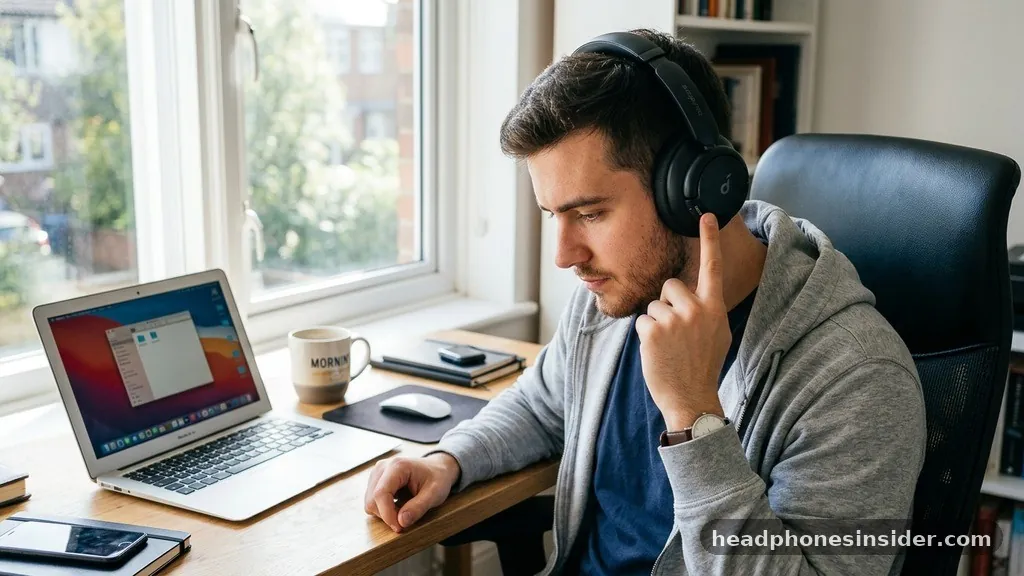
Mastering the wireless audio experience begins with a stable link between your playback source and your audio hardware. Understanding how to pair Soundcore headphones to your preferred device is the primary step in unlocking features like active noise cancellation, customizable EQ settings via the app, and crystal-clear microphone performance. Whether you are using the latest Liberty Pro series or a reliable pair of over-ear cans, the fundamental mechanics of establishing a wireless connection remain consistent, though subtle nuances exist between different models.
Understanding the Mechanics of Bluetooth Pairing
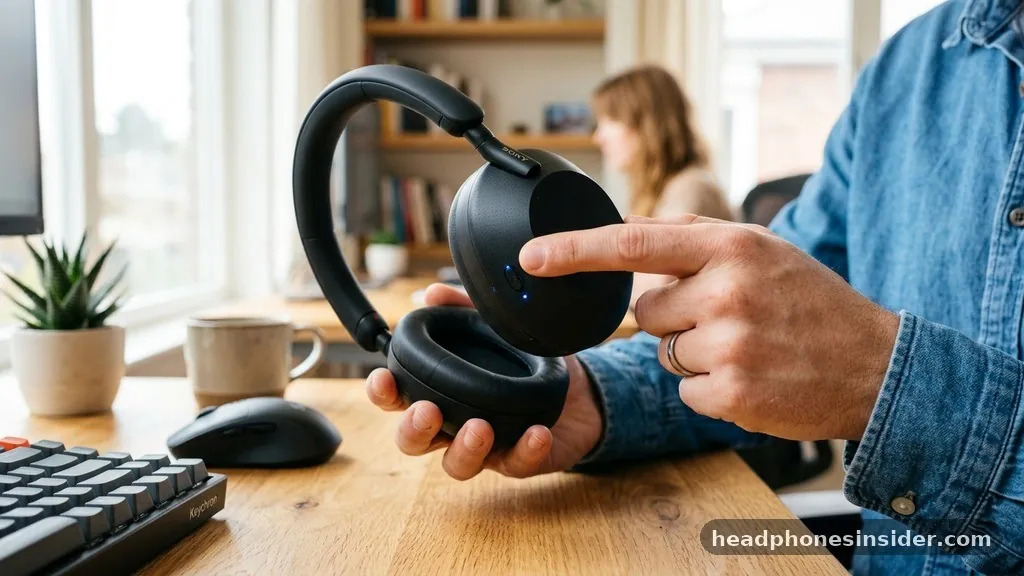
To pair Soundcore headphones successfully, you must initiate a handshake between your device and the audio hardware. Bluetooth technology operates on a specific frequency, and for your phone or laptop to recognize your headphones, the latter must actively broadcast its presence.
This broadcast happens when you enter pairing mode. When you put your headphones into this state, they stop looking for previously connected devices and instead open a window for new, unauthorized hardware to find them.
The process usually involves a specific button sequence. For most Bluetooth headphones, this requires you to hold the power button or a dedicated multifunction button while the device is turned off. If you simply press the button, you might only turn the device on or off; however, when you press and hold for several seconds, the internal circuitry signals the Bluetooth module to begin discovery mode.
You will often see a visual indicator, such as a flashing light, confirming that the device is ready to connect. Once this happens, you navigate to your smartphone or laptop settings, locate the Bluetooth menu, and select your specific model from the list of available devices.
Standard Pairing Procedures for Over-Ear Models
Most over-ear soundcore headphones follow a highly intuitive design language. If you are trying to pair models like the Life Q-series, the process is streamlined to ensure you spend less time in menus and more time listening to your media.
Start by ensuring the headphones are powered off. If they are already on, hold the power button until the unit shuts down completely.
Once off, press and hold the power button for approximately three to five seconds. Do not release the button the moment the device turns on; keep holding until you see a flashing LED indicator, which typically alternates between blue and white. This flashing light is your definitive signal that the headphones are in pairing mode.
At this stage, open the Bluetooth settings on your phone or computer. You should see the model name appear under the list of available devices. Tap it to initiate the connection.
If the device asks for a PIN, which is rare for modern audio gear, the default is usually 0000. Once the light stops flashing and turns solid or pulses slowly, your connection is established.
Connecting Soundcore Earbuds and Charging Cases
Pairing earbuds requires a slightly different approach because the charging case acts as the primary interface for connectivity. Because earbuds are smaller and lack the surface area for multiple physical buttons, the charging case is engineered to facilitate the pairing process. To pair Soundcore earbuds, place both buds inside the charging case and leave the lid open.
Many models feature a physical button inside the case or on the back of the hinge. Press and hold this button until the lights on the buds or the case begin to flash. This indicates that the buds are now discoverable.
If your specific model does not have a button on the case, simply taking the earbuds out and putting them back in while the case is open can sometimes trigger the process. Always refer to the specific LED behavior described in your user manual, as manufacturers often use different color codes to indicate that the device has entered pairing mode. Once they are discoverable, navigate to your phone’s settings to finalize the connection.
Troubleshooting Common Connection Issues
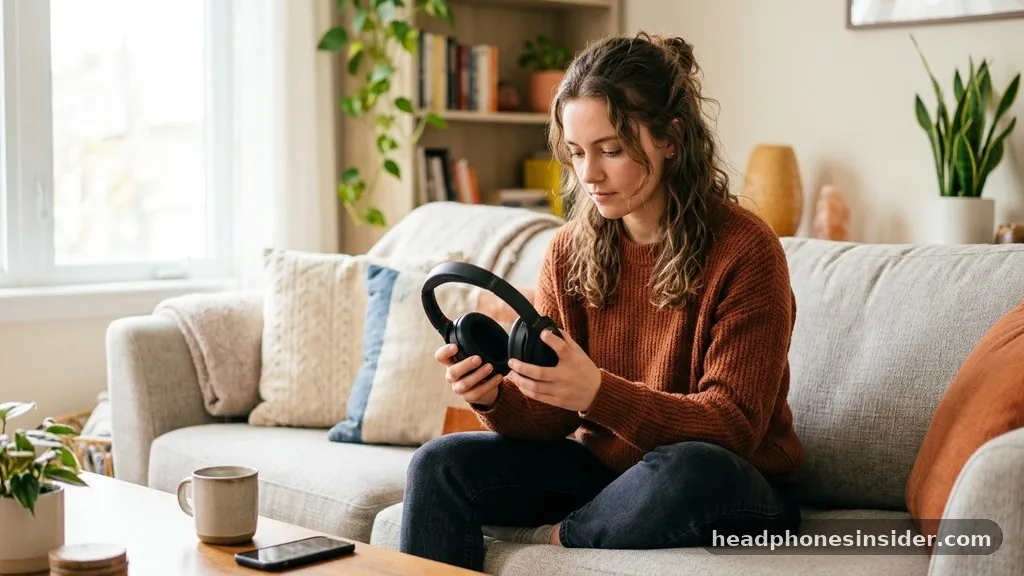
Even with the best hardware, you may occasionally encounter a situation where your device refuses to see the headphones. If you cannot connect Bluetooth, the first step is to perform a hard reset. This clears the memory of the headphones, effectively wiping all previous connection history.
To do this, put the headphones into pairing mode and then press and hold the volume up and down buttons simultaneously for several seconds. Most devices will confirm a reset with a flashing light or an audible tone.
Another common issue is interference. If you are in an area with many active wireless signals, your phone might struggle to isolate the signal from your headphones. Move away from other active Bluetooth devices or Wi-Fi routers to see if the connection stabilizes.
Furthermore, ensure that your headphones are not already connected to another device, such as a tablet or a computer in another room. Bluetooth devices often prioritize the last device they were linked to; if that device is nearby, your headphones might automatically connect to it before your phone has a chance to claim the signal.
| Issue Type | Common Cause | Suggested Fix |
|---|---|---|
| Device not found | Headphones not in pairing mode | Press and hold power button until light flashes |
| Intermittent audio | Range or interference | Move closer to the source device |
| Audio delay | Bluetooth codec mismatch | Update firmware via the Soundcore app |
| Won’t connect | Stale cache/memory | Perform a factory reset |
Optimizing the Connection for Different Platforms
When you connect to a laptop, the process is similar to a smartphone, but the operating system handles the drivers differently. If you are using Windows, navigate to the Settings menu, select Devices, and choose Bluetooth & other devices. Make sure Bluetooth is toggled to the “On” position.
Click “Add Bluetooth or other device” and select the headphones once they appear in the list. For macOS users, the process is found within the System Settings under the Bluetooth tab.
If you find that the audio quality is poor or the microphone is not functioning correctly on a computer, it is often due to the system defaulting to a “Hands-Free” profile instead of a “Stereo” profile. You can fix this by clicking on the sound icon in your taskbar or menu bar and ensuring that your headphones are selected as the primary output device.
For those who want to ensure the best performance, it is vital to keep your firmware updated. You can learn more about the technical standards of wireless communication by visiting the official Bluetooth Technology Website to understand how modern protocols improve stability.
Addressing Topical Gaps and Advanced Features
A common area of confusion is the multipoint connection feature. Many modern Soundcore headphones allow you to connect to two devices simultaneously. This is a game-changer for people who work on a laptop but receive calls on their phone.
To enable this, you must first pair the headphones with the first device, then disconnect, put them back into pairing mode, and connect to the second device. Once both are paired, the headphones will intelligently switch between the two based on which device is playing audio.
Another frequently overlooked aspect is the role of the companion app. Many users attempt to pair their headphones manually through their phone settings and then stop. However, the app provides a more robust connection interface.
By using the app, you can customize touch controls, adjust the noise-canceling intensity, and even locate your earbuds if they are lost. The app can also manage the “Auto-Power Off” settings, which helps conserve battery life if you accidentally leave your device on. If you are having trouble with the connection, the app often provides a direct diagnostic tool that can identify if the headphones are properly synced to your account.
Establishing Consistent Wireless Habits
To ensure a seamless experience, develop a routine for how you handle your gear. Always turn off your headphones when they are not in use to prevent them from attempting to connect to devices that are out of reach.
If you keep your headphones in a case, ensure the contacts are clean so they charge properly. A low battery is a frequent, yet often ignored, cause of poor Bluetooth range and connection drops.
When you are ready to pair, be patient. The process of searching for signals can take a few seconds. If you don’t see your device immediately, wait for the full duration of the pairing cycle before assuming it has failed.
Most devices will exit pairing mode after two minutes of inactivity to save power, so if you take too long to navigate your menus, you may need to restart the pairing sequence. By following these steps, you can ensure that your audio experience remains uninterrupted and high-quality, regardless of the environment you are in.
Conclusion
Successfully managing your wireless audio setup is a skill that pays dividends in convenience and sound quality. By mastering the sequence required to enter pairing mode and understanding how to troubleshoot potential conflicts, you ensure that your Soundcore headphones function exactly as intended. Whether you are switching between a phone and a laptop or simply setting up a new device for the first time, the core principles of discovery and connection remain the same.
Moving forward, remember that the companion app is your best tool for long-term maintenance and firmware optimization. If you encounter persistent issues, do not hesitate to perform a factory reset to clear out any corrupted connection data.
With these practices in place, you can enjoy the full potential of your wireless gear. If you have any specific questions about your model, checking the official manual or the app’s support section is always a great next step to keep your audio experience reliable.
Frequently Asked Questions
Why won’t my headphones appear in the Bluetooth menu?
If your headphones aren’t showing up, they are likely not in pairing mode. Ensure they are completely powered off, then press and hold the power button until the LED light flashes. Also, verify that no other nearby device has already automatically connected to them, as this will block new connections.
Can I pair my headphones with two devices at the same time?
Yes, many modern Soundcore models support multipoint connection. Pair the first device, disconnect it, then put the headphones back into pairing mode to connect the second device. Once both are paired, the headphones should manage the audio stream between the two devices automatically based on incoming activity.
How do I reset my Soundcore headphones?
To reset, turn off the headphones and enter pairing mode. Press and hold the volume up and down buttons simultaneously for several seconds until the LED light flashes or you hear a tone. This clears the device’s memory, allowing you to start the pairing process as if the unit were brand new.
Do I need the Soundcore app to use the headphones?
You do not strictly need the app for basic audio playback, as standard Bluetooth pairing works without it. However, the app is highly recommended for accessing advanced features like custom EQ, firmware updates, noise cancellation control, and specific button mapping, which significantly enhances the overall user experience and performance.


