

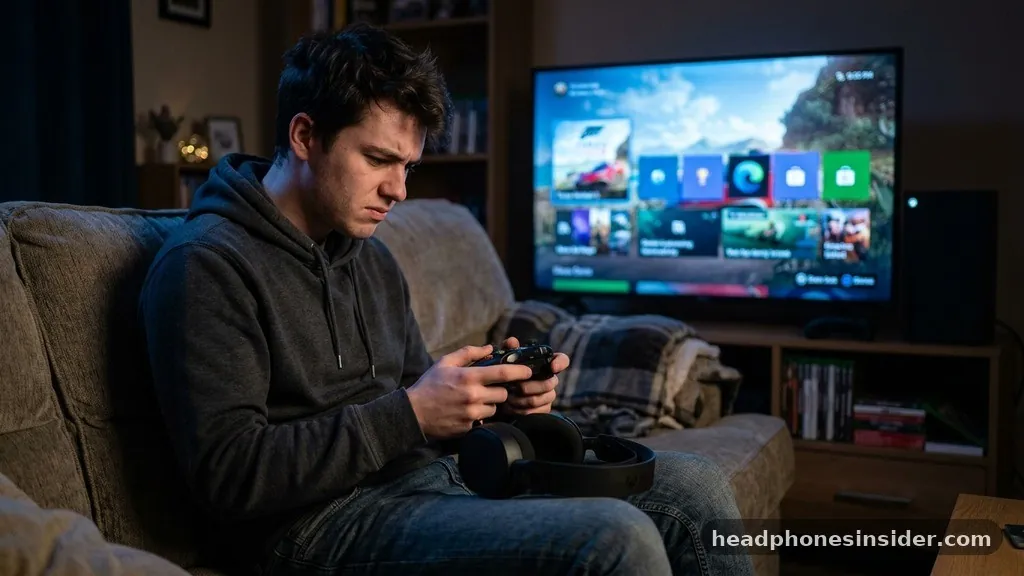
Many gamers find themselves wondering if they can connect Bluetooth headphones to Xbox One directly, only to discover that the console lacks native support for this popular wireless technology. While the Xbox ecosystem prioritizes its proprietary wireless protocol, this does not mean you are forced to use wired headsets or purchase expensive, platform-specific gear. By understanding the underlying hardware limitations and the various hardware workarounds available, you can enjoy high-quality wireless audio on your console with minimal fuss.
The primary reason for this limitation lies in Microsoft’s decision to implement a proprietary wireless connection for its controllers and headsets, rather than standard Bluetooth. While this ensures a stable, low-latency connection for official accessories, it leaves standard consumer Bluetooth devices—like your favorite pair of noise-canceling earbuds or gaming headphones—without a direct handshake. Fortunately, the gaming community has developed several reliable methods to bridge this gap, allowing you to bypass the console’s restrictions and achieve the wireless audio experience you desire.
Understanding Why Xbox One Lacks Native Bluetooth Support
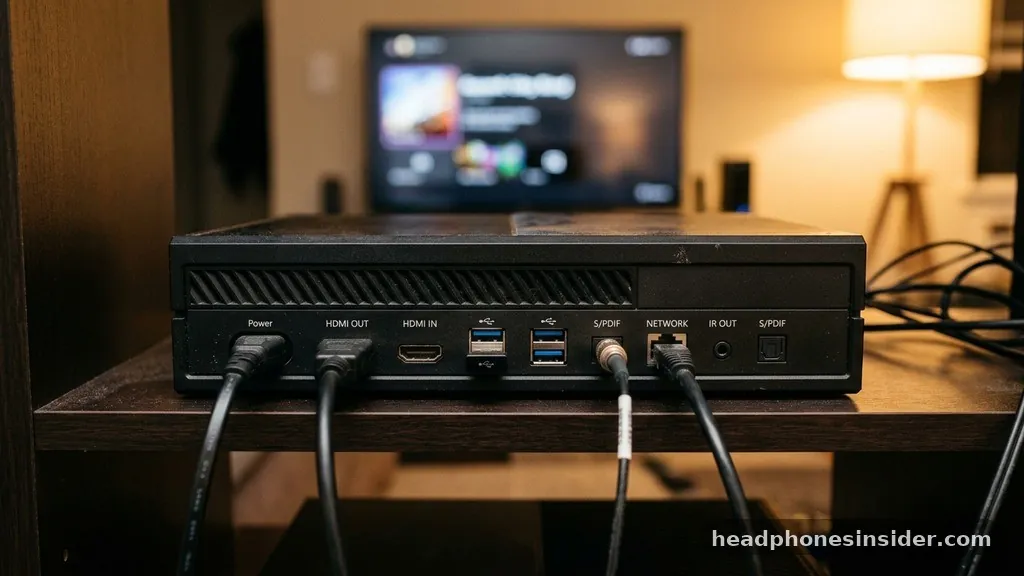
The fundamental reason you cannot simply pair your wireless headphones to an Xbox One is that the console does not include a Bluetooth radio capable of transmitting audio to third-party peripherals. While the console does use a form of short-range radio communication to talk to your controllers, this is a proprietary frequency designed specifically to minimize input latency. For Microsoft, this design choice is about consistency; by controlling the entire hardware pipeline, they can ensure that button presses are registered instantly and that audio sync remains tight during competitive gameplay.
When you look at the technical architecture of the device, the omission of standard Bluetooth becomes clear. Bluetooth, as a protocol, is designed for versatility rather than the extreme low-latency requirements of competitive console gaming.
Introducing support for generic Bluetooth audio would require the console to handle the overhead of various codecs—like SBC, AAC, or aptX—which could potentially introduce audio lag, or “latency,” that would frustrate users during fast-paced titles. By excluding this, Microsoft forces users toward either wired connections through the controller or licensed Xbox Wireless accessories.
However, this does not mean you are stuck with cables. The ecosystem of third-party hardware has exploded to solve this specific inconvenience.
Because the console’s internal software doesn’t support the Bluetooth stack, the solution must happen externally. By offloading the wireless transmission to an external hardware device, you effectively trick the console into thinking it is using a wired headset, while your actual headphones receive the signal wirelessly.
Using a Bluetooth Transmitter for Wireless Audio
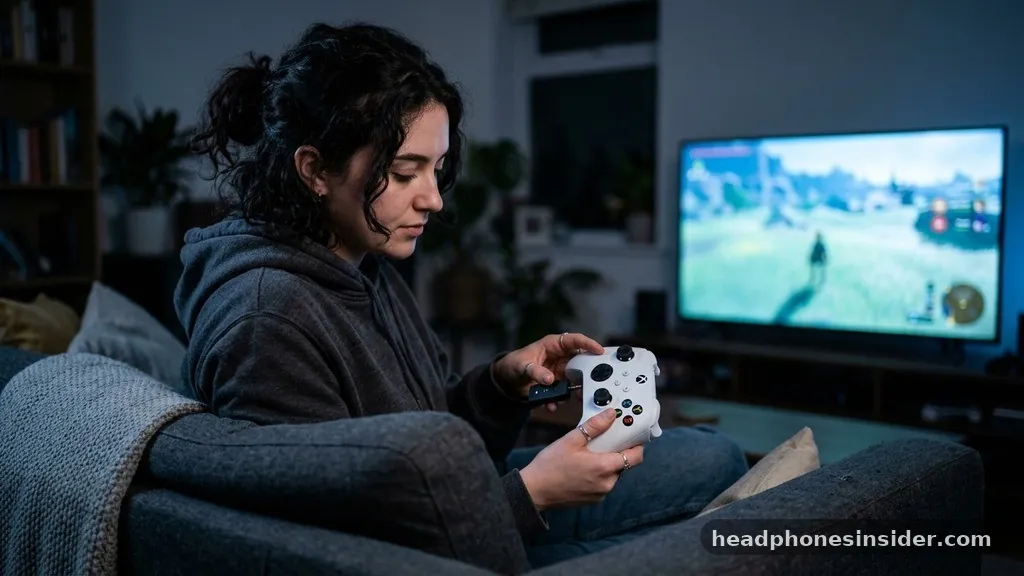
A Bluetooth transmitter is the most direct and effective way to connect Bluetooth headphones to your Xbox One. These small, portable devices plug directly into the 3.5mm headphone jack located at the bottom of your Xbox controller. By doing this, you are physically connecting the transmitter to the controller’s audio output, which then encodes that audio signal into a Bluetooth stream that your headphones can receive.
To get this working, you simply insert the transmitter into the controller’s port. Once powered on, you put your headphones into pairing mode—following the specific instructions provided by the manufacturer—and the transmitter will automatically find them.
This method is highly effective because it treats the transmitter as a standard wired headset, meaning you don’t have to worry about complex software configurations or console-side settings. The audio is routed from the console to the controller, then through the transmitter, and finally to your ears.
One important consideration when selecting a transmitter is the support for low-latency codecs. If you choose a budget transmitter that does not support aptX Low Latency or similar technologies, you may notice a slight delay between an on-screen action, like a gunshot, and the sound you hear.
While this is rarely a dealbreaker for casual gaming, it can be distracting in rhythm games or fast-paced shooters. Investing in a high-quality transmitter often makes the difference between a seamless experience and one that feels “off.”
Leveraging the Xbox Mobile App for Audio Streaming
If you are looking for a software-based solution that doesn’t require purchasing additional hardware, the Xbox app on your smartphone or tablet can serve as a clever bridge. This method involves streaming the console’s audio to your phone, which is then connected via Bluetooth to your headphones. This is particularly useful if you are already using your phone for party chat or social features while playing.
To use this, you must ensure your console and mobile device are connected to the same local network. Once you start a Remote Play session or simply join an Xbox party via the app, the audio from that session is routed through your phone’s operating system.
Because your phone natively supports Bluetooth, you can pair your headphones to your mobile device as you normally would. This creates a chain: Console to Mobile (via Wi-Fi) and Mobile to Headphones (via Bluetooth).
While this method is free and requires no extra gear, it does have a significant drawback: it is not a direct mirror of the game’s audio. It is primarily designed for game streaming and party chat. If you try to use this method to listen to game audio while playing on your TV, you might experience significant audio lag due to the way the stream is processed over the network.
It is best used for scenarios where you are playing on a mobile device or specifically need to manage party chat audio independently of the game sound. You can read more about how to manage your device settings through the official Xbox support portal to ensure your network environment is optimized for this kind of streaming.
Comparing Methods for Wireless Headphone Connectivity
Choosing the right approach depends on your specific needs, budget, and tolerance for extra hardware. The following table highlights the differences between the most common methods used to bridge the gap between your console and your wireless audio gear.
| Method | Hardware Required | Latency | Complexity |
|---|---|---|---|
| Bluetooth Transmitter | External Dongle | Very Low | Low |
| Xbox Mobile App | Smartphone | High | Medium |
| Official Xbox Headset | Proprietary Headset | Zero | Very Low |
As shown in the table, the transmitter method provides the best balance of low latency and ease of use. While official headsets are the gold standard for performance, they represent a significant financial investment if you already own high-quality Bluetooth headphones. Using a transmitter allows you to leverage the audio equipment you already own, which is often superior to the gaming-branded headsets found on the market.
Managing Microphone Support and Chat Functionality
A common frustration when connecting Bluetooth headphones to an Xbox One via a standard transmitter is the loss of microphone functionality. Many simple Bluetooth transmitters are designed for receive-only audio, meaning they send sound from the console to your headphones but cannot send your voice back to the console. If you rely on voice chat for multiplayer games, you must be careful about which hardware you choose.
To maintain two-way communication, you need a transmitter that supports the HFP (Hands-Free Profile) or one that includes an auxiliary microphone cable. Some advanced transmitters come with a small boom mic that plugs into the transmitter itself, which then feeds your voice back into the controller. This keeps your communication clear and allows you to participate in lobbies without needing a separate wired headset.
If your transmitter does not support a microphone, you can still use the Xbox mobile app for chat. By joining your voice party on your phone while playing the game audio through your wireless headphones, you can separate your voice and game sound.
While this feels like a workaround, it is a highly effective way to keep your high-fidelity audio while maintaining clear communication with your teammates. Always check the product specifications for “mic support” or “two-way audio” before purchasing any wireless adapter for your console.
Optimizing Your Audio Quality and Settings
Once you have established a connection, you should spend time fine-tuning your settings to ensure the best possible audio fidelity. Even with a wireless adapter, the Xbox One allows you to adjust the “Headset Format” in the system settings.
Navigating to the Audio settings menu on your console will reveal options for Windows Sonic or Dolby Atmos. Enabling these features can significantly improve the spatial awareness and soundstage of your audio, even when transmitted via an external device.
It is also worth noting that battery life becomes a factor when using external transmitters. Because these devices are small, they often have their own internal batteries that must be charged independently of the controller.
To avoid interruptions during long gaming sessions, make it a habit to charge your transmitter whenever you charge your controller. Some users prefer transmitters that pass through power, allowing them to keep the device plugged into a USB port on the console, though this can sometimes add cable clutter.
Furthermore, if you find that your audio is cutting out or crackling, check for interference. Bluetooth operates on the 2.4GHz spectrum, which is the same frequency used by many Wi-Fi routers and other household electronics.
If your console is placed near a router, you may experience signal drops. Moving the transmitter or the console slightly can often resolve these issues, ensuring a stable and immersive audio experience that rivals a direct wired connection.
Frequently Asked Questions
Can I connect AirPods to my Xbox One?
You cannot connect AirPods directly to an Xbox One. However, you can use a Bluetooth transmitter that plugs into the 3.5mm jack on your controller. By putting your AirPods in pairing mode, the transmitter will bridge the connection, allowing you to hear game audio wirelessly through your earbuds.
Will I get audio lag using a Bluetooth transmitter?
If you use a basic transmitter, there may be a slight, noticeable delay in audio. To minimize this, use a transmitter that specifically supports aptX Low Latency. When paired with headphones that also support this codec, the lag becomes virtually imperceptible, making it suitable for most gaming scenarios.
Do I need a special app to connect my headphones?
No, you do not need a special app to connect headphones via a transmitter; the connection is handled by the hardware itself. However, if you choose to use the Xbox mobile app to stream audio, you will need the app installed to facilitate the connection between your console and phone.
Does this work on other Xbox consoles?
Yes, the transmitter method works on the Xbox Series X and S as well as the Xbox One family of consoles. Because these consoles all feature the same 3.5mm audio jack on the controller, the external hardware solution remains consistent across the entire range of Microsoft’s gaming hardware.
In summary, while the Xbox One does not natively support Bluetooth headphones, the absence of this feature is easily mitigated through the use of external transmitters or the clever use of the Xbox mobile app. By opting for a low-latency transmitter, you can enjoy the freedom of wireless audio without sacrificing the quality you expect from your favorite gear. This approach allows you to bypass the limitations of the console ecosystem while keeping your setup clean and functional.
Whether you are playing competitive shooters or immersive single-player adventures, wireless freedom is well within reach if you choose the right method for your specific setup. Take a moment to assess your need for a microphone versus pure audio, and select the solution that best fits your gaming style. We hope this guide helps you get the most out of your console and audio equipment.


